Set up Hololight Stream for Unity
- Set up Hololight Stream for Unity
- Before upgrading from a previous version of Hololight Stream
- Add Hololight Stream into your Unity project
- Configure the project
- Run Hololight Stream for the first time
- Using Hololight Stream with other Unity packages
- Disabling Hololight Stream
- Troubleshooting
- The client won’t connect to my application
- License
Set up Hololight Stream for Unity
To use Hololight Stream you need to add it to your Unity project.
Hololight Stream official supports the following Unity versions:
Unity 6 (LTS) |
Unity 2022.3 (LTS) |
Unity 2021.3 (LTS) |
| Hololight Stream may support newer versions of Unity, but they are not fully tested. |
Before upgrading from a previous version of Hololight Stream
If your project already has Hololight Stream installed, you need to remove any files left over from previous versions before installing the newest version.
-
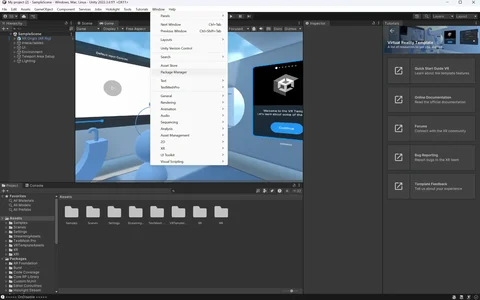
In the Unity Editor menu bar select Window > Package Manager.
-
Find any Hololight Stream packages and select Remove.
When you’ve removed any files from older versions of Hololight Stream, you can continue on to installing the latest version.
Add Hololight Stream into your Unity project
-
Open your 3D Unity project.
-
Select Window > Package Manager.
-
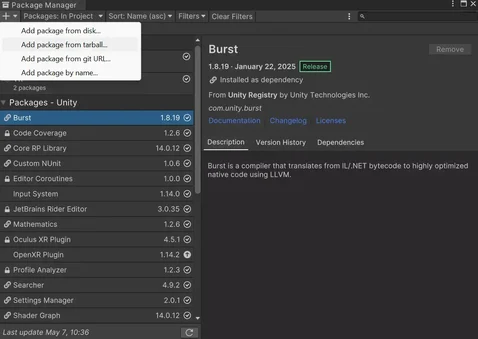
In the Package Manger, select + > Add package from tarball.
-
Find the Hololight Stream repository and open the "Packages" folder. Select the file "com.hololight.stream-<version>.tgz" where <version> is the current version of Hololight Stream.
A warning may appear asking if you want to enable the native platform backends for the new input system. Select Yes and Unity will restart. -
Find the Hololight Stream Folder you downloaded and unzipped earlier.
-
Open the Packages folder. Select the file com.hololight.stream-<version>.tgz where <version> is the current version of Hololight Stream.
Configure the project
-
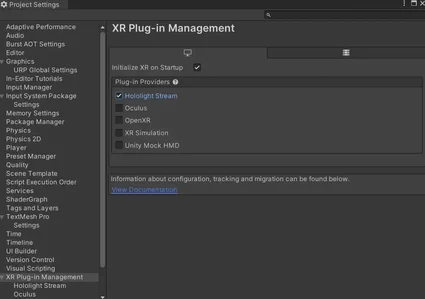
Select Edit > Project Settings > XR Plug-in Management.
-
Check the box next to Initialize XR on Startup.
-
Under Plug-in Providers, check the box next to Hololight Stream.
-
Select File > Build Settings
-
On the Build Settings panel, make sure to set the following options:
Platform
Windows, Mac, Linux
Target platform
Windows
Architecture
Intel 64-bit
Run Hololight Stream for the first time
After you finish setting up Hololight Stream, select Play. If you did everything correctly, you will now be able to connect to the application with Hololight Stream Client. Use the PC’s IP address with Hololight Stream Client to connect to the application. When connected with Hololight Stream Client, you will see the contents of the first scene under Scenes to Build. If your scene is empty, you won’t see anything. In Unity though, you will see the Main Camera move with the client device’s movements.
You can also build and run a standalone application to test.
Using Hololight Stream with other Unity packages
With Hololight Stream in your Unity project, you can now add additional packages to extend Hololight Stream’s features. You do not need these additional packages to use Hololight Stream. However, certain XR-specific features require one or more more of the following:
-
Mixed Reality Toolkit 2 or Mixed Reality Toolkit 3
-
XR Interaction Toolkit
-
AR Foundation
This guide includes details throughout explaining what features require which packages.
Disabling Hololight Stream
You can disable Hololight Stream without removing it with the Package Manager.
-
In the Unity Editor menu bar select Edit > Project Settings > XR Plug-in Management.
-
Uncheck the box next to Hololight Stream to disable Hololight Stream.
-
Check Unity Mock HMD.
Hololight Stream is now disabled. For your application to work correctly, make sure it doesn’t call any Isar or Isar-inherited classes. This includes Isar constructors.
The client won’t connect to my application
-
Check that you correctly entered the server’s IP address.
-
Check your firewall settings. You need to allow ports used by Hololight Stream to bypass the firewall. These are the ports you entered under Hololight > Hololight Stream > Settings > Signaling Port and Connection Port Range.
Port type |
Port number or range |
Signaling Port |
9999 |
Connection Port Range |
50100 - 50100 |
The Unity Editor crashes when trying to run your application
If the Unity Editor keeps crashing and Hololight Stream is included in the project but not required, follow the steps in Disabling Hololight Stream to try and debug the issue.
The Main Camera won’t move when it is supposed to
If your project uses the High Definition Render Pipeline and the Main Camera is not moving, remove the "SimpleCameraController" script from the Main Camera and try again. If you are still having issues, check for any other scripts that might be moving the Main Camera.