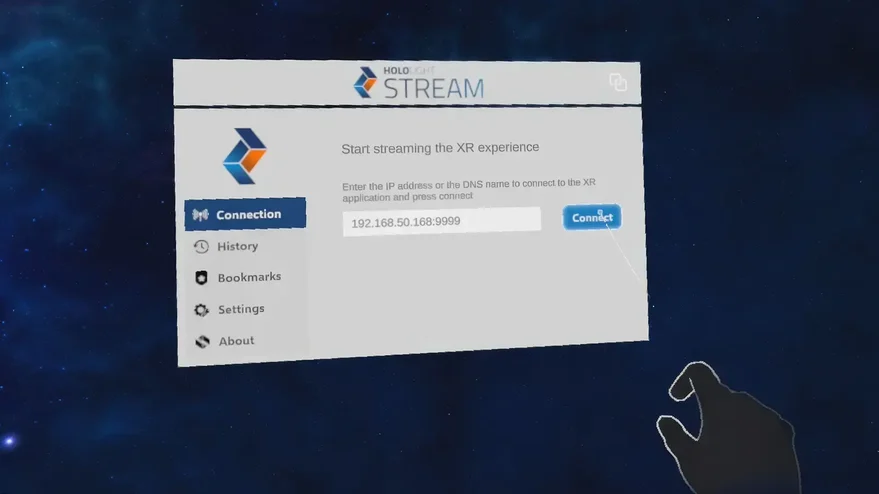
Set up Hololight Stream Runtime for Twinmotion
Set up Hololight Stream Runtime for Twinmotion
Install Twinmotion
-
Open Epic Games Launcher.
-
In the left sidebar, select Unreal Engine.
-
In the top bar, select Twinmotion.
-
Install the latest version of Twinmotion.
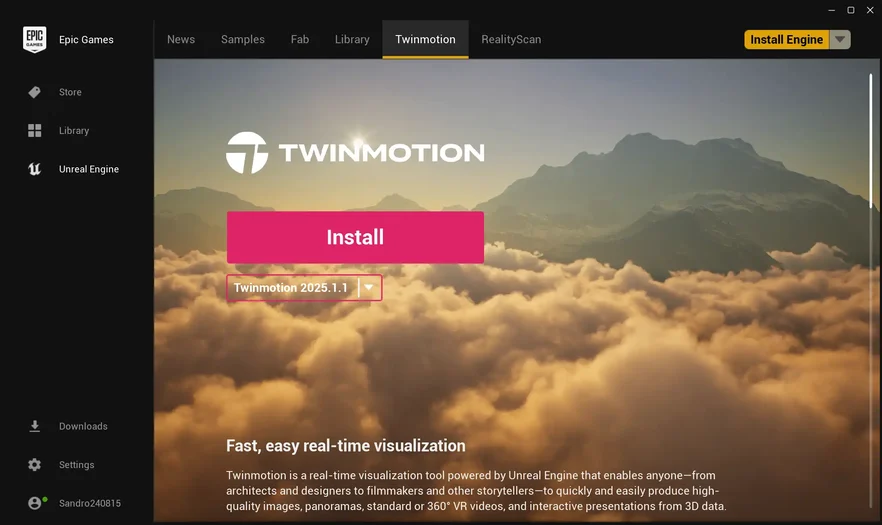
-
Follow the installation steps until complete.
Enable streaming
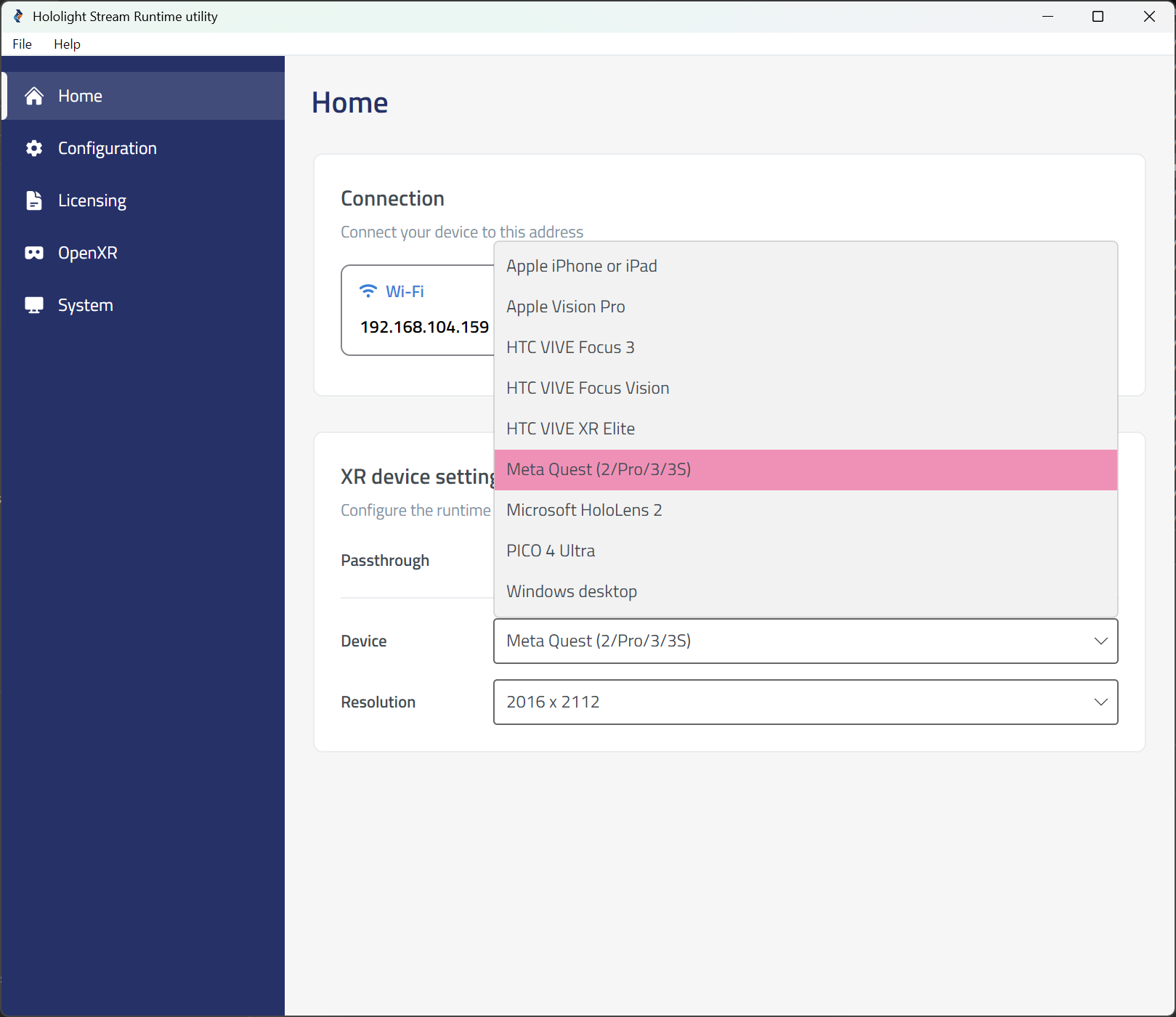
To enable streaming, install Hololight Stream Runtime on your workstation and select your XR device. For more details, see our Hololight Stream Runtime getting started guide.
-
Open the Hololight Stream Runtime utility.
-
Select your XR device in the dropdown menu.
Run Twinmotion and start a session
For this example, we’ll download a template scene and connect using a Meta Quest 3 to show the steps for running Twinmotion with Hololight Stream Runtime.
-
In Epic Games Launcher, select Launch Twinmotion.
-
Open your scene.
-
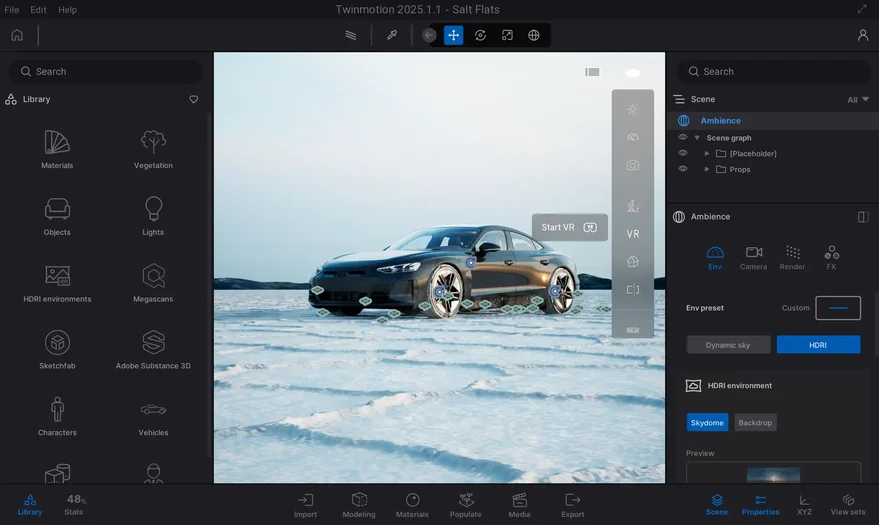
In the editor, select the eye symbol in the top-right corner.
-
In the dropdown, select VR.
-
Select Start VR.