Hololight Stream for Unity extension - Object stabilization
Object stabilization
Hololight Stream has multiple methods to improve the stability of 3D content in the scene.
Focus plane
A focus plane is used to stabilize content at a specific distance.
Setup
To set a focus plane, also known as the stabilization plane, to use as the focus point for the frame. The focus plane stabilizes holograms close to the focus point. You should set the focus point on every frame. You can do this using Unity’s method, "XRDisplaySubsystem.SetFocusPlane".
To learn more about focus planes in Unity, check out Unity’s article about XRDisplaySubsystem.SetFocusPlane.
To learn more about focus point in MRTK, check out Microsoft’s article about the focus point in Unity.
Before setting the focus plane, first you need to set "XRDisplaySubsystem.reprojectionMode" to "PositionAndOrientation". You can return this to "OrientationOnly" to disable focus plane stabilization when you no longer need it.
Example
An example on how to use focus planes is in the Hololight Stream examples package.
-
Add the Hololight Stream Examples package into your Unity project using the Package Manager if you haven’t already.
-
Using Package Manager, select Hololight Stream Examples > Samples.
-
Import the example, Object Stabilization Sample.
-
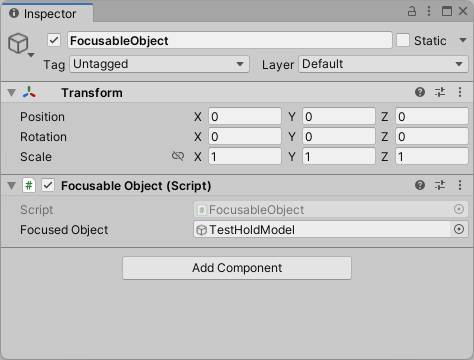
After importing, search the Project and add the Prefab, FocusableObject, to your scene.
-
Select FocusableObject in the Hierarchy. In the Inspector under the Focusable Object component, you set Focused Object to the object you want focused.
Limitations
-
Specifying a focus plane improves the stability of the object at the focus point, but decreases the stability of non-focused objects. It is up to you to decide which objects should be in focus and when.
-
If a user passes through the plane they will experience undefined behavior. That means, you need to make sure that the user is never able to pass through the plane. You can prevent this either by moving the focus plane or disabling it entirely when the user gets too close.
Depth-based reprojection (preview)
Depth-based reprojection can improve the stability of all objects in the scene. While you are free to use this feature, remember that it is just a preview of the feature and may impact application performance when enabled.
Use the setting on Hololight Stream Client to enable depth-based reprojection.
Limitations
-
Depth-based reprojection can negatively impact application performance and increase latency. This comes in the form of 3D objects having wobbly edges. This is much more apparent when one 3D object is in front of another relative to the user but the two 3D objects are still far apart from each other.
-
Problems on the network will cause 3D objects to shake.
Head pose prediction
Head pose prediction (also called pose prediction) is the prediction of the future position and orientation of a user’s head in order to create a smoother and more responsive XR streaming experience. This technique is crucial in combating the effects of latency.
Supported client devices
-
Lenovo ThinkReality VRX
-
Meta Quest devices
-
Magic Leap 2
-
Microsoft HoloLens 2
Example
An example on how to use head pose prediction is in the Hololight Stream examples package.
-
Add the Hololight Stream Examples package into your Unity project using the Package Manager if you haven’t already.
-
Using Package Manager, select Hololight Stream Examples > Samples.
-
Import the example, Pose Prediction Configuration.
-
After importing, search the Project and add the Prefab, PosePrediction, to your scene.
In the Pose Prediction Config component, the PosePrediction Prefab has an Enabled property with a checkbox that indicates whether pose prediction is enabled or not.
Under Configuration, you can select from multiple preset pose prediction configurations, including:
-
Under Predict
-
Moderate Predict
-
Over Predict
-
Custom
These presets change the two properties affecting the pose prediction algorithm according to how strongly you want pose prediction in effect. If you select custom you can adjust the pose prediction properties yourself. These properties include:
-
Prediction Tuner
Adjusts the prediction level. Lowering this value can help reduce jitter. -
Prediction Cap
Sets the maximum lookahead time in milliseconds for pose prediction. Lower values prevent the prediction when latency is high, which helps prevent jitter.