Set up an offline license server for Hololight Stream Runtime
- Objectives
- Prerequisites
- Set up an offline license server
- Step 1: Download and extract the License Server Tool
- Step 2: Launch the License Server Tool
- Step 3: Retrieve the server UUID
- Step 4: Install your license server file
- Step 5: Start server and register the RLM license service
- Step 6: Start and secure the RLM Server
- Step 7: Generate the client license file
- Step 8: Activate the license in Hololight Stream Runtime
Prerequisites
-
A Windows-based server machine (physical or virtual)
-
Administrator privileges on the system
-
Internet access (Download package and license file)
Set up an offline license server
Step 1: Download and extract the License Server Tool
-
Download the License Server Package from our downloads page.
-
Extract the downloaded .zip file.
-
Transfer the extracted folder to a permanent folder on the license server.
We recommend placing it on drive C:\.
Step 2: Launch the License Server Tool
-
Go to the folder containing the extracted files.
-
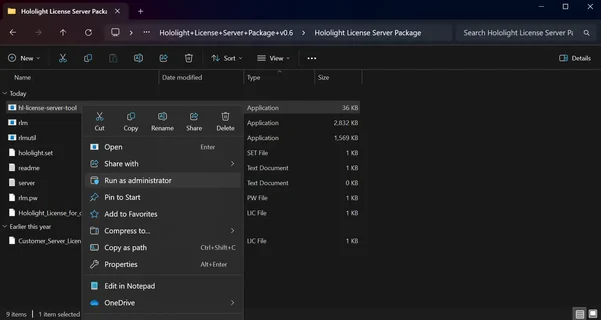
Right-click the hl-license-server-tool.exe file and select Run as administrator.
Step 3: Retrieve the server UUID
-
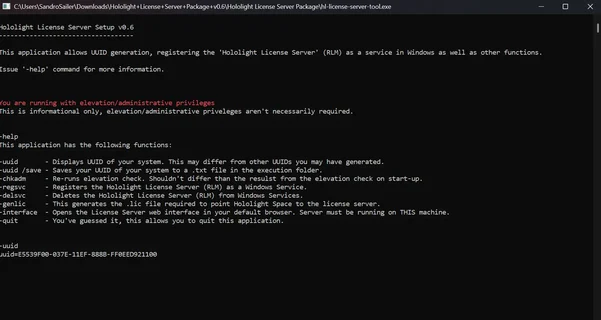
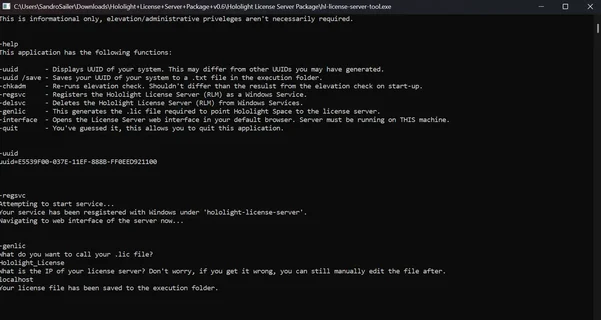
In the command-line window that appears, to see all available commands, enter:
-help
-
Next, you need the UUID for the system. To see the UUID, enter:
-uuid
-
Copy the generated UUID and send it to your Hololight contact person.
Step 4: Install your license server file
-
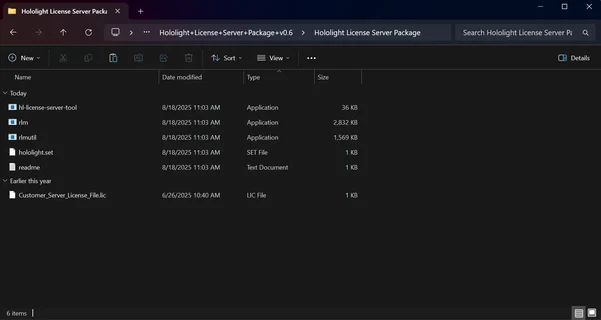
After submitting your UUID, you’ll receive a license server file from Hololight.
-
Place this file in the same folder as the License Server Tool.
Step 5: Start server and register the RLM license service
-
If it still isn’t open, open the License Server Tool again as an administrator.
-
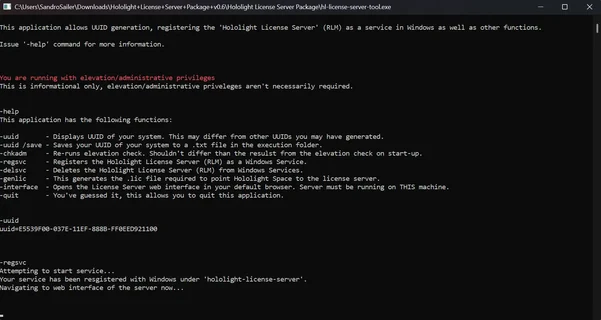
Run the following command to register the server as a background service and open it:
-regsvc
-
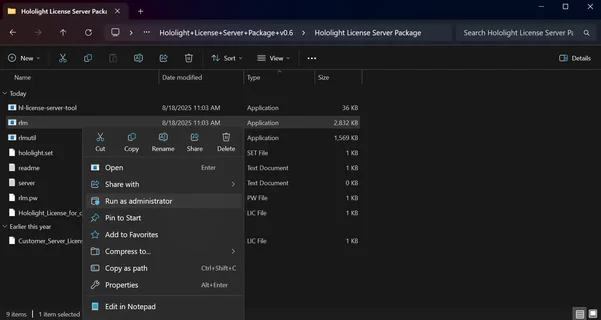
If the RLM server doesn’t open, right-click the rlm.exe file in the folder and select Run as administrator.
Step 6: Start and secure the RLM Server
-
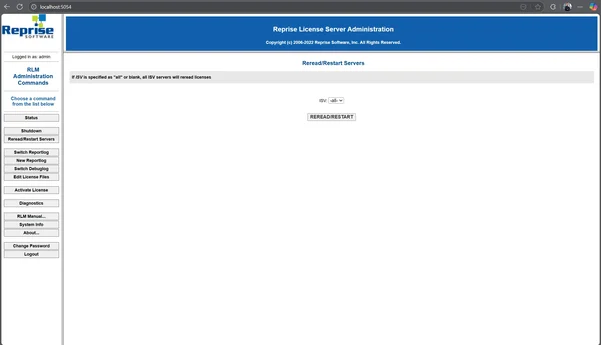
After the last command, if a browser doesn’t open, open one and enter https://localhost:5054 in the address bar.
-
Sign in with the default credentials:
Default RLM credentials Username
admin
Password
admin
-
Immediately change the password to prevent the service from terminating after 10 minutes.
-
In the left sidebar, go to Reread/Restart Servers and select Reread/restart to load the new license settings.
Step 7: Generate the client license file
-
If it still isn’t open, reopen the License Server Tool as an administrator.
-
Enter the following command:
-genlic
-
When prompted, assign a name to the license file (for example, "client_license").
-
Enter the IP address of the client machine that will retrieve the license.
-
If the license and client are on the same machine, enter "localhost".
-
The license file will be saved in the License Server Tool folder.
Step 8: Activate the license in Hololight Stream Runtime
-
Open Hololight Stream Runtime.
-
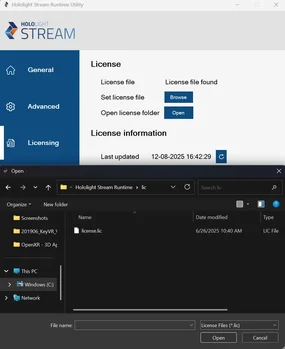
Select Licensing.
-
Select Browse.
-
Choose the license file you generated in step 7.
After you start a session in a supported 3D application and select the refresh button, the Hololight Stream Runtime license status switches to "Checked Out".