Hololight Stream for Unity extension - Video passthrough
Video passthrough
Hololight Stream supports passthrough XR. Passthrough XR is using an XR device and being able to see both the real-world environment and the digital objects created by the application at the same time.
Transparency when using passthrough
When using Hololight Stream passthrough there are some unexpected behaviors that most client devices have when rendering transparent objects.
For all devices, except the Apple Vision Pro, digital objects are either rendered fully opaque or not rendered at all, regardless of the alpha value set to the object. In fact, objects are always fully opaque unless they are completely black in color and their alpha value is set to "0".
On Apple Vision Pro, objects are instead rendered as you would expect, regardless of their color, with their level of transparency reflecting their alpha value.
Supported client devices
-
Apple Vision Pro
-
Apple iOS and iPadOS
-
HTC VIVE devices
-
Lenovo ThinkReality VRX[1]
-
PICO 4 Ultra
-
Meta Quest devices
Set up passthrough to use with a Unity render pipeline
In older versions of Unity, the default render pipeline was Unity’s Built-In Render Pipeline. In newer versions of Unity, this render pipeline has been deprecated. In those newer versions, the default pipeline is now the Universal Render Pipeline.
For more information on Unity’s Built-In Render Pipeline, check out Using the Built-In Render Pipeline.
Set up passthrough for use with the Universal Render Pipeline
| This guide uses the 3D Sample Scene (URP) available through the Unity Hub. |
Even if the version of Unity you are using has the Universal Render Pipeline set by default, your should still follow the steps matching your Unity version to make sure that all necessary settings to get passthrough working are configured.
Set up passthrough for use with the Universal Render Pipeline in Unity 2022.3
-
Create a 3D URP Unity project.
-
Follow the instructions in Hololight Stream for Unity - Example project.
-
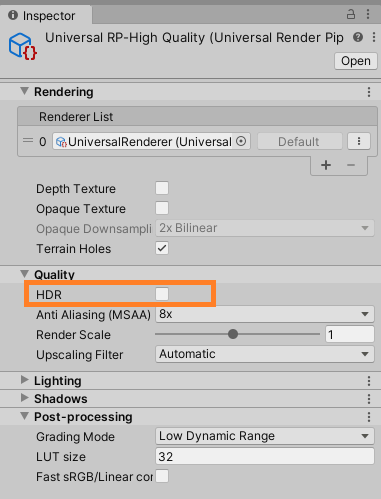
Go to Assets > Settings > UniversalRP-High Quality > Quality. Uncheck the box next to HDR.
-
Open Package Manager. Import the URPAlphaPassthrough sample from the Hololight Stream Examples package.
-
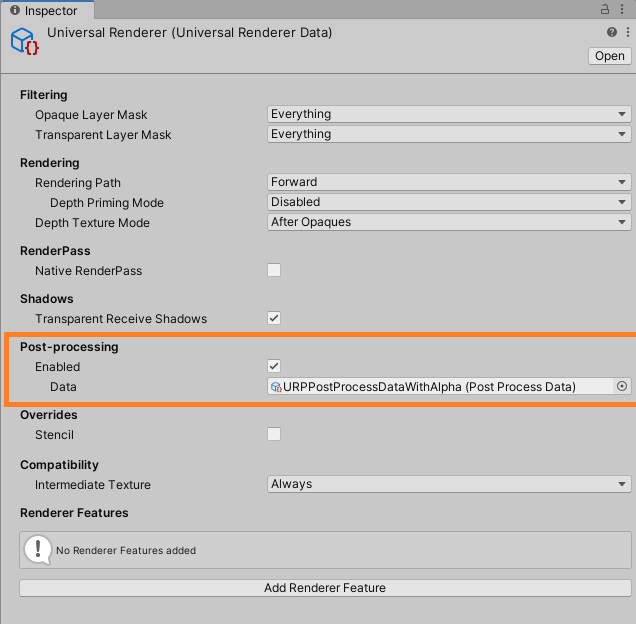
Go to Assets > Settings > Universal Renderer (Univeral Renderer Data) > Post-processing > Enabled. Set Data to URPPostProcessDataWithAlpha (Post Process Data).
-
Right-click the Scene section and select XR > Convert Main Camera to XR Rig to use the scene with an XR device.
-
Go to XR Rig > Camera Offset > Main Camera and, in the Background section, set:
Background Type
Solid Color
Background Color - R
0
Background Color - G
0
Background Color - B
0
Background Color - A
0
-
Enter Play mode and connect with Hololight Stream Client.
Set up passthrough for use with the Universal Render Pipeline in Unity 6 and up
-
Create a 3D URP Unity project.
-
Follow the instructions in Hololight Stream for Unity - Example project.
-
Go to Assets > Settings > UniversalRP-High Quality > Quality. Uncheck the box next to HDR.
-
Go to Assets > Settings > Universal Renderer (Univeral Renderer Data) > Post-Processing > Enabled.
-
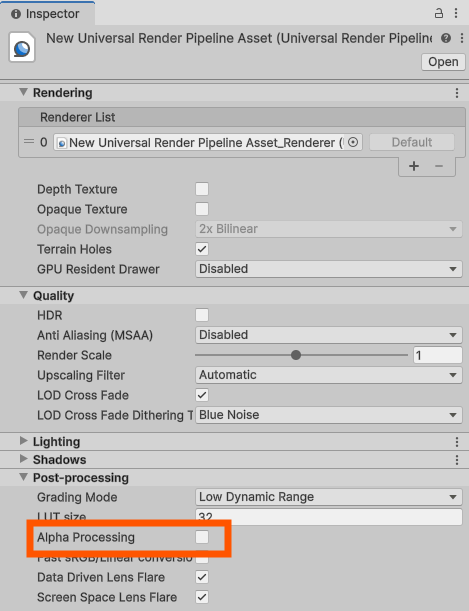
Go to Assets > Settings > UniversalRP-High Quality > Post-processing. Check the box next to Alpha Processing.
-
Right-click the Scene section and select XR > Convert Main Camera to XR Rig to use the scene with an XR device.
-
Go to XR Rig > Camera Offset > Main Camera and, in the Background section, set:
Background Type
Solid Color
Background Color - R
0
Background Color - G
0
Background Color - B
0
Background Color - A
0
-
Enter Play mode and connect with Hololight Stream Client.
Set up passthrough to use the High Definition Render Pipeline
To enable alpha rendering in the cases where it is supported:
-
Open the HDRP Asset in the Inspector.
-
Go to Rendering > Color Buffer Format.
-
Select R16G16B16A16.
For more information, check out Unity’s documentation, Alpha channel configuration.
Troubleshooting
If you are having trouble getting passthrough to work, check the following:
-
Check that you enabled the Passthrough setting on the client device.
-
Check that both the client and server are using the same color space.
-
Check that the Main Camera’s background is solid black with an alpha value of 0.