Hololight Stream Runtime plugin for Autodesk VRED
Use the Hololight Stream Runtime utility with Autodesk VRED
| The Hololight Stream Runtime setup wizard automatically installs the Autodesk VRED plugin for all versions of Autodesk VRED installed on your computer. |
For more information on Autodesk VRED as well as installing and using the software, check out Autodesk VRED: Stunning visuals for digital prototyping.
Use the Hololight Stream Runtime plugin for Autodesk VRED
-
Open your Autodesk VRED project.
-
Go to Scripts > Hololight Utility.
-
Select the Pin icon to dock the utility to the bottom toolbar.
-
Select Hololight Utility.
The Hololight Stream Runtime utility for Autodesk VRED has the same functionality as the Hololight Stream Runtime desktop utility.
Start the session and connect
-
Open the Hololight Stream Runtime utility. Make sure to configure the runtime for use with the XR device you want to use.
-
Open Autodesk VRED. Select Hololight in the top-right of the utility to start the session.
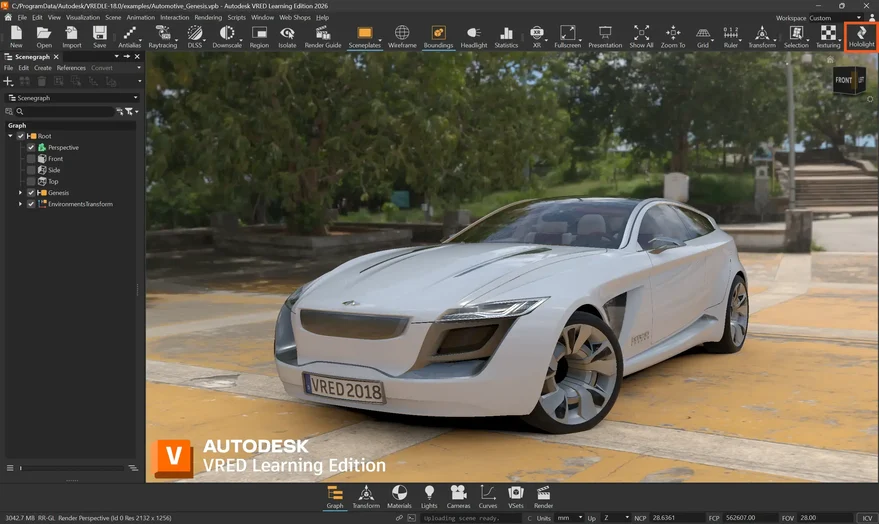
-
Open Hololight Stream Client on your supported XR device.
-
Enter the IP address shown in the Hololight Stream Runtime utility.
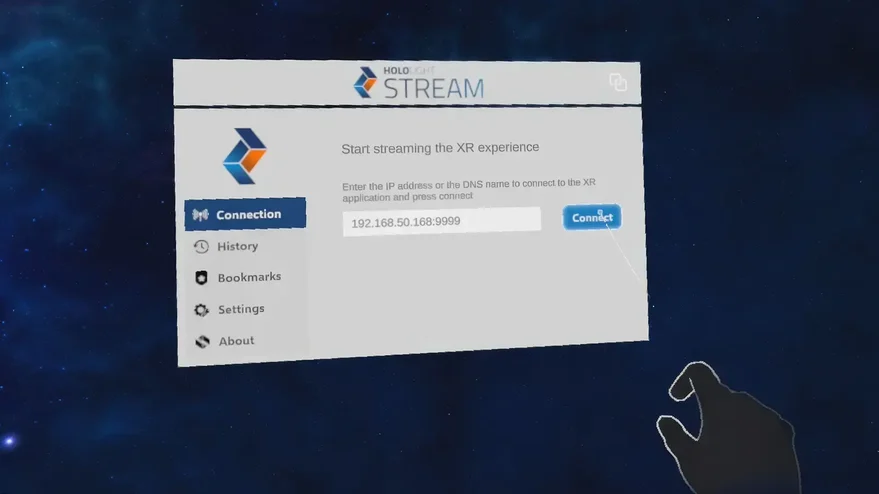
-
Select Connect.
Hand tracking, passthrough and teleport in Autodesk VRED
-
In Autodesk VRED, go to Edit > Preferences in the top-left corner.
-
In the left sidebar, scroll down to Extended Reality > Interaction.
Interaction modes in Autodesk VRED
Interactions in Autodesk VRED depend on your XR device and whether you’re using controllers or hand tracking. Controller input provides the same functionality as hand tracking.
For more information on interactions in Autodesk VRED, check out Interaction Preferences.