Set up Hololight Stream Runtime for FreeCAD
-
Understand how to use Hololight Stream Runtime to connect to a project in FreeCAD.
Set up Hololight Stream Runtime for FreeCAD
FreeCAD is an open-source 3D modeling software used for design, simulation, and engineering tasks. You can download FreeCAD from the official website and follow the installation instructions in the installer.
To use Hololight Stream Runtime with FreeCAD, you need to install an additional plugin that enables XR functionality within FreeCAD.
Install Python dependencies
-
Open Command Prompt.
-
Enter:
cd C:\Program Files\FreeCAD 1.0\bin
-
Enter:
python.exe -m pip install pyopenxr PyOpenGL
-
Wait until the installation finishes.
Install the FreeCAD XR Workbench plugin
-
Open any web browser.
-
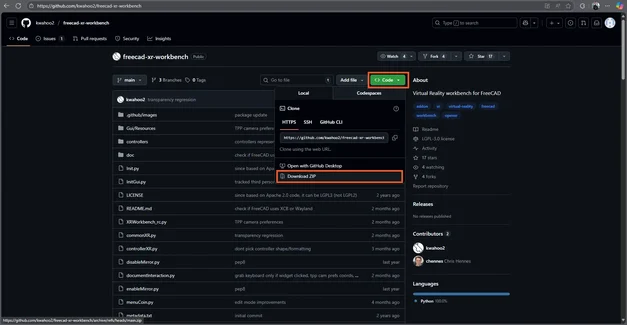
Navigate to GitHub > FreeCAD XR Workbench.
-
Select Code, then choose Download ZIP.
-
Right-click the downloaded ZIP file and select Extract all.
-
Copy the extracted folder.
-
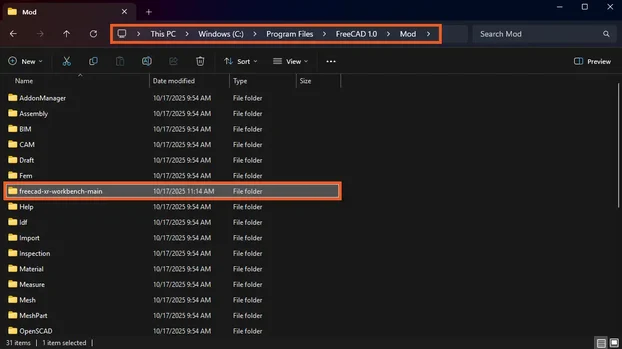
Go to:
C:\Program Files\FreeCAD 1.0\Mod
-
Paste the copied folder here.
|
Ensure that the plugin’s files are in the root of the folder. The correct structure should look like: |
C:\Program Files\FreeCAD 1.0\Mod\freecad-xr-workbench-main
Start a streaming session
-
Open Hololight Stream Runtime on your workstation.
-
Select your XR device in the utility.
-
Start FreeCAD and open a project.
-
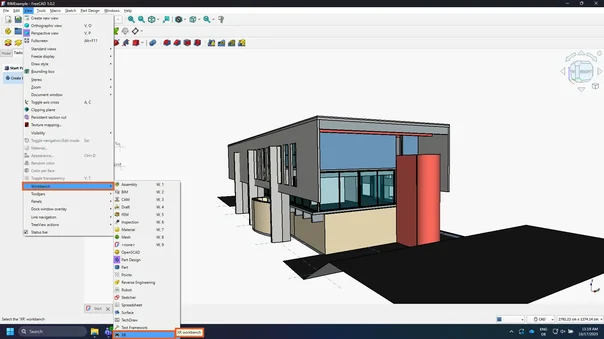
Go to View > Workbench > XR.
-
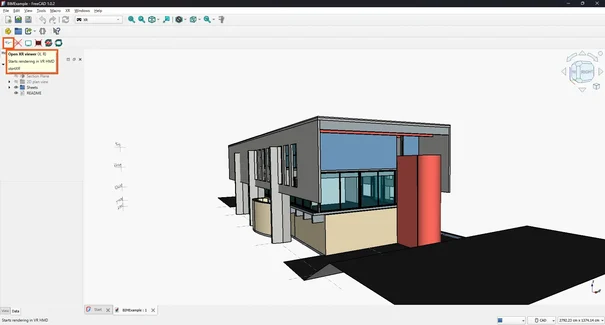
In the top-left corner, select Enable OpenXR viewer.
-
Open Hololight Stream Client on your supported XR device.
-
Enter the IP address shown in the Hololight Stream Runtime utility.
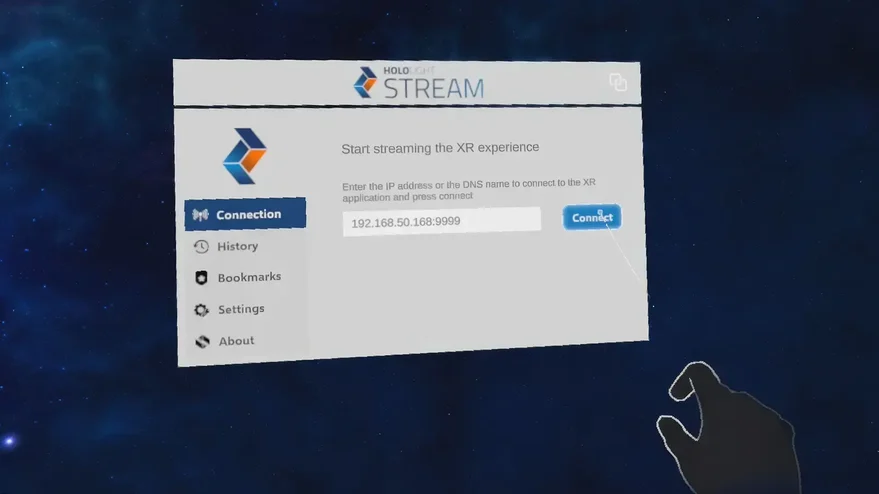
-
Select Connect.
| You can select Enable mirror to view the XR device’s perspective on your workstation. |