Alignment in Hololight Stream Client

Objectives

  • Be able to use alignment features to create a more immersive experience with Hololight Stream.

Prerequisites

  • Hololight Stream-supported device with Hololight Stream Client installed.

Alignment

Alignment in Hololight Stream Client allows users to adjust settings to better align the Hololight Stream experience with the real-world environment.

Alignment on non-Apple devices

Origin

The origin is the point around which the entire space is positioned.
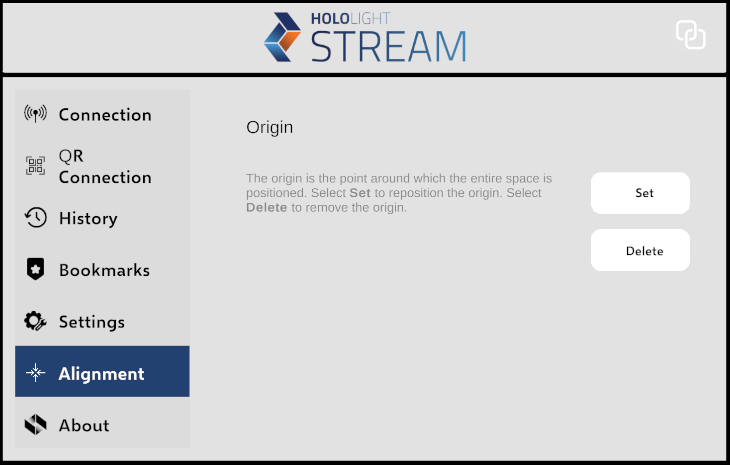
Set origin
  1. Open Hololight Stream Client on your device.

  2. Select Alignment.

    Screenshot from the Microsoft HoloLens 2 version of Hololight Stream Client

    hololight stream client microsoft hololens 2 alignment

  3. Select Set to reposition the origin.

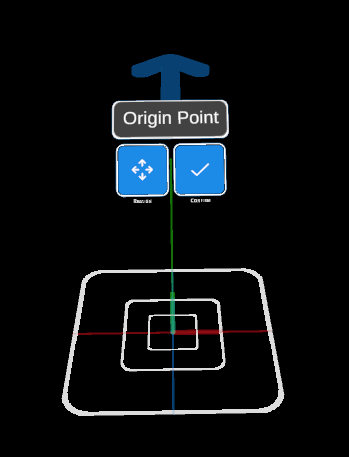
  4. Follow the instructions that appear to place the origin.

    Screenshot of the origin

    hololight stream client android alignment widget

Delete origin
  1. Open Hololight Stream Client on your device.

  2. Select Alignment.

  3. Select Delete to remove the origin.

Spatial tracking

Spatial tracking captures the real-world surfaces around the client device. The data from this scan of the environment helps the device find the floor along with other spatial data. XR devices like PICO 4 Ultra, the HTC VIVE devices, and the Meta Quest devices require spatial tracking to be enabled in order to set the Origin.

Spatial tracking differs between XR devices. This is because the capturing of real-world surfaces is handled by each device on the operating system level.
Enable spatial tracking
  1. Open Hololight Stream Client on your device.

  2. Select Alignment.

    Screenshot from the Meta Quest version of Hololight Stream Client
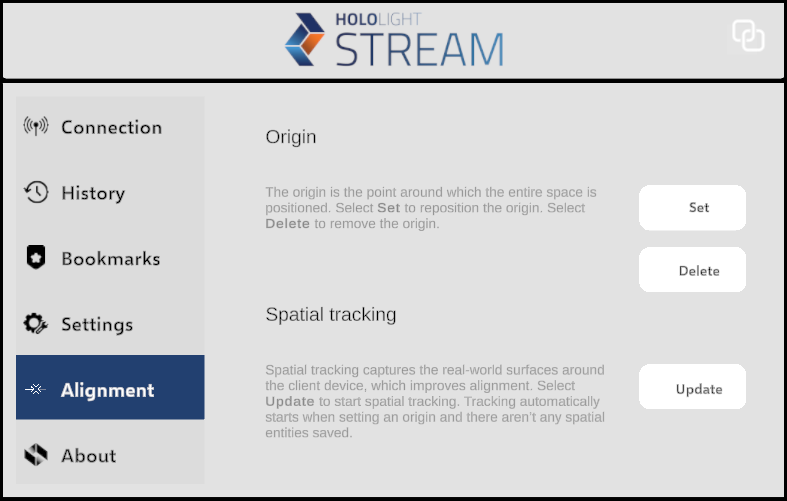
    hololight stream client meta quest and pico alignment

  3. Select Update to start spatial tracking.

Tracking automatically starts when setting an origin and there aren’t any spatial entities saved.

Some HTC client devices require updating the spatial entities on the device itself.
On supported HTC devices, open the System Dashboard, then select Settings > Boundary > Mixed reality > Set up.
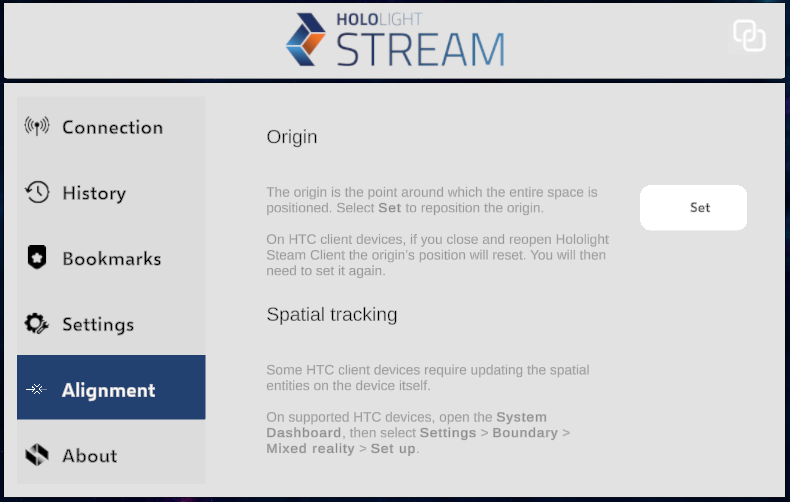
hololight stream client htc vive alignment

Alignment on Apple iPad

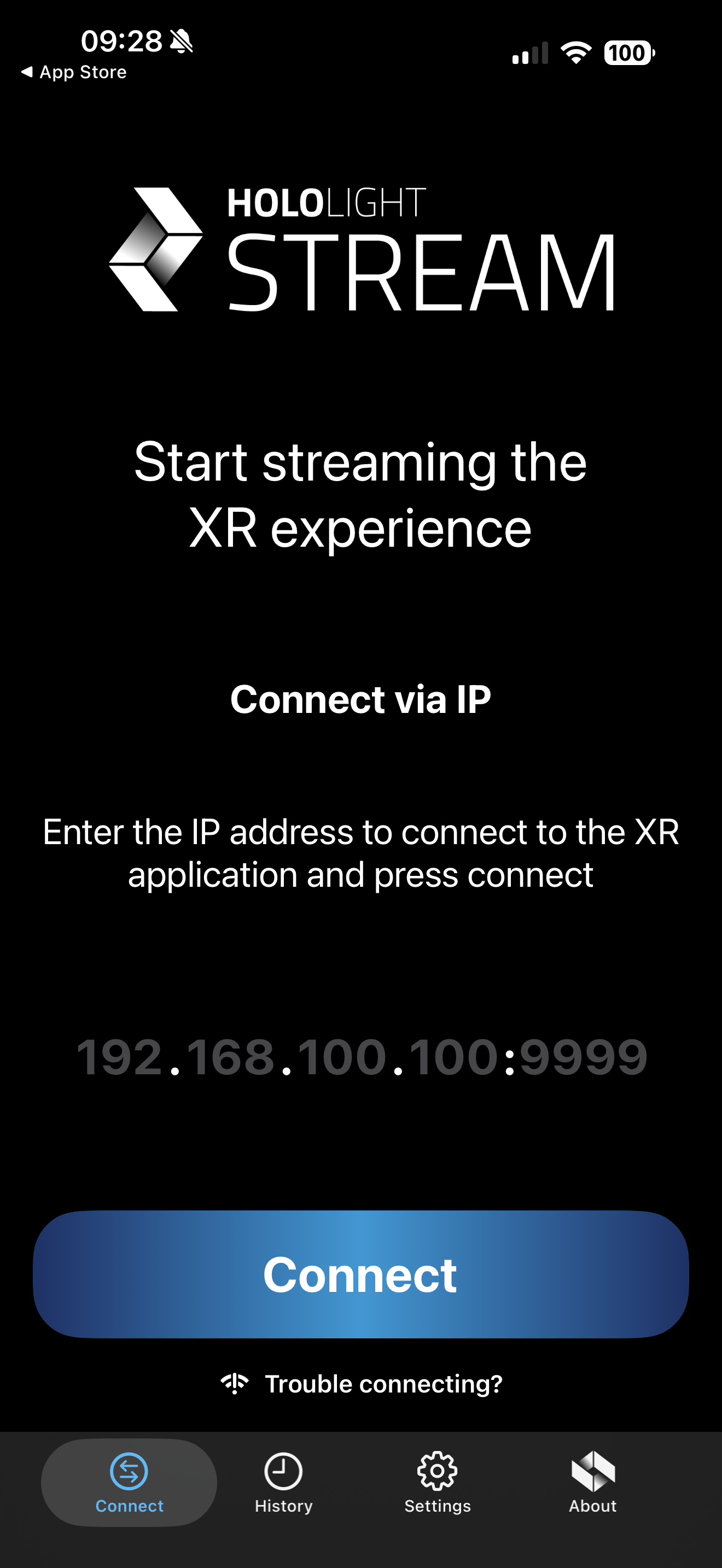
  1. Open Hololight Stream.

    hololight stream client apple ipad connect

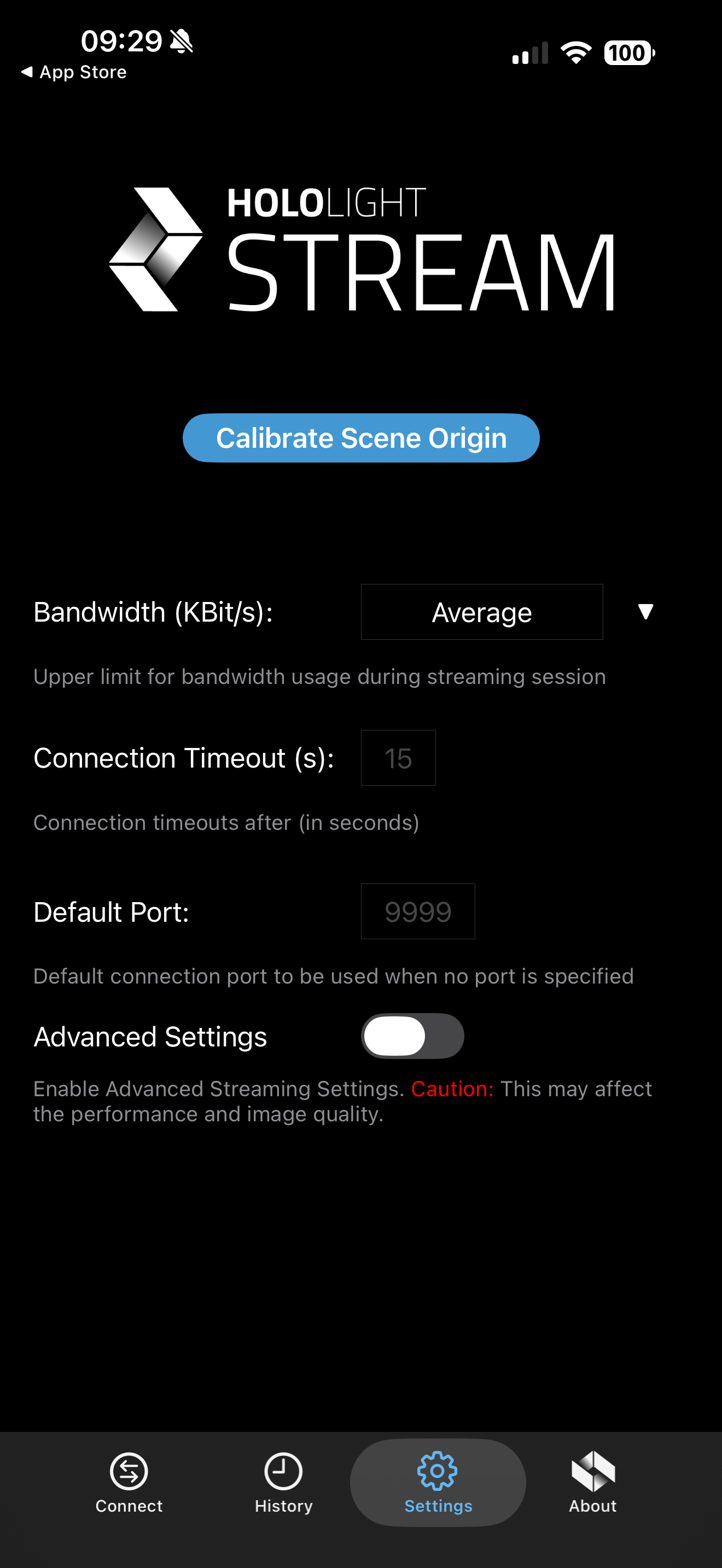
  2. Select Settings > Calibrate Scene Origin..

    hololight stream client apple ipad settings

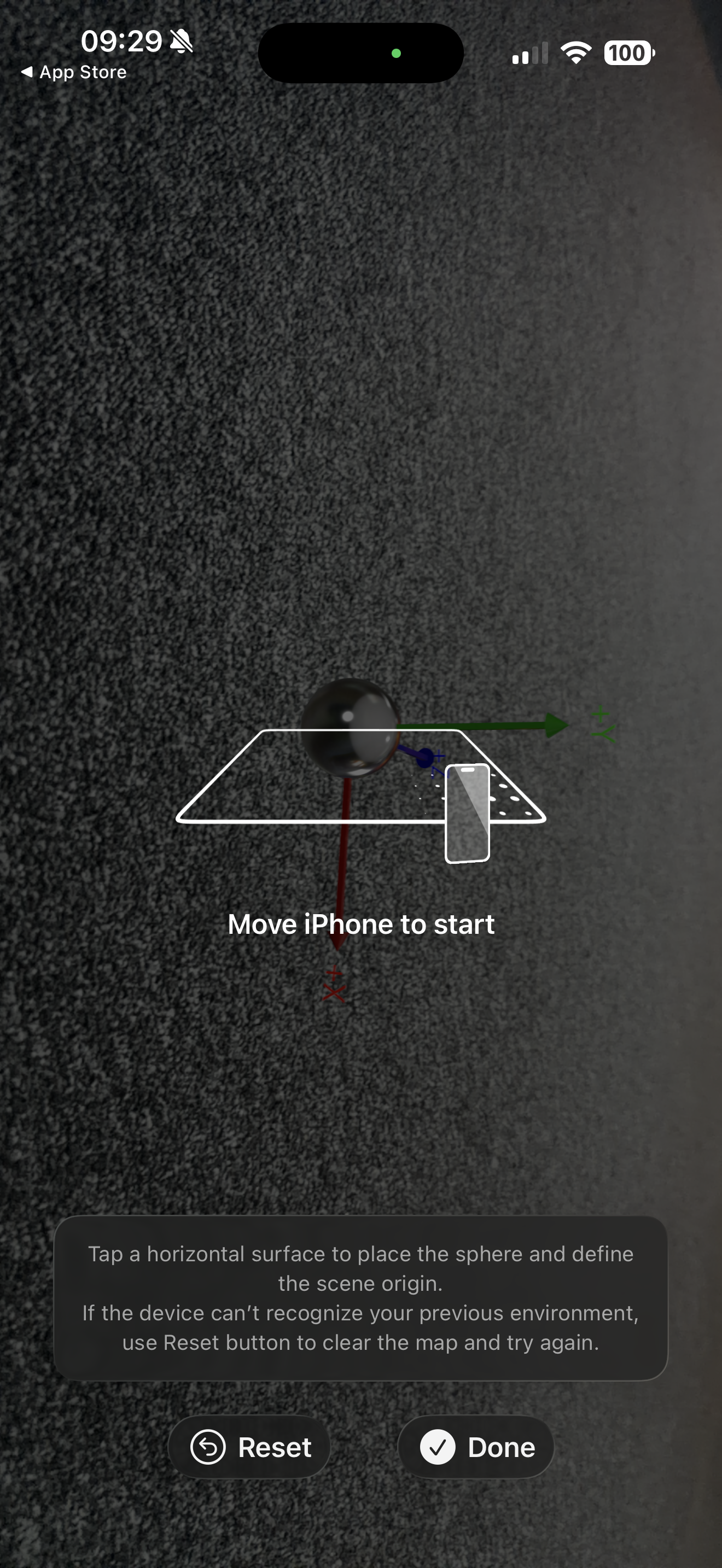
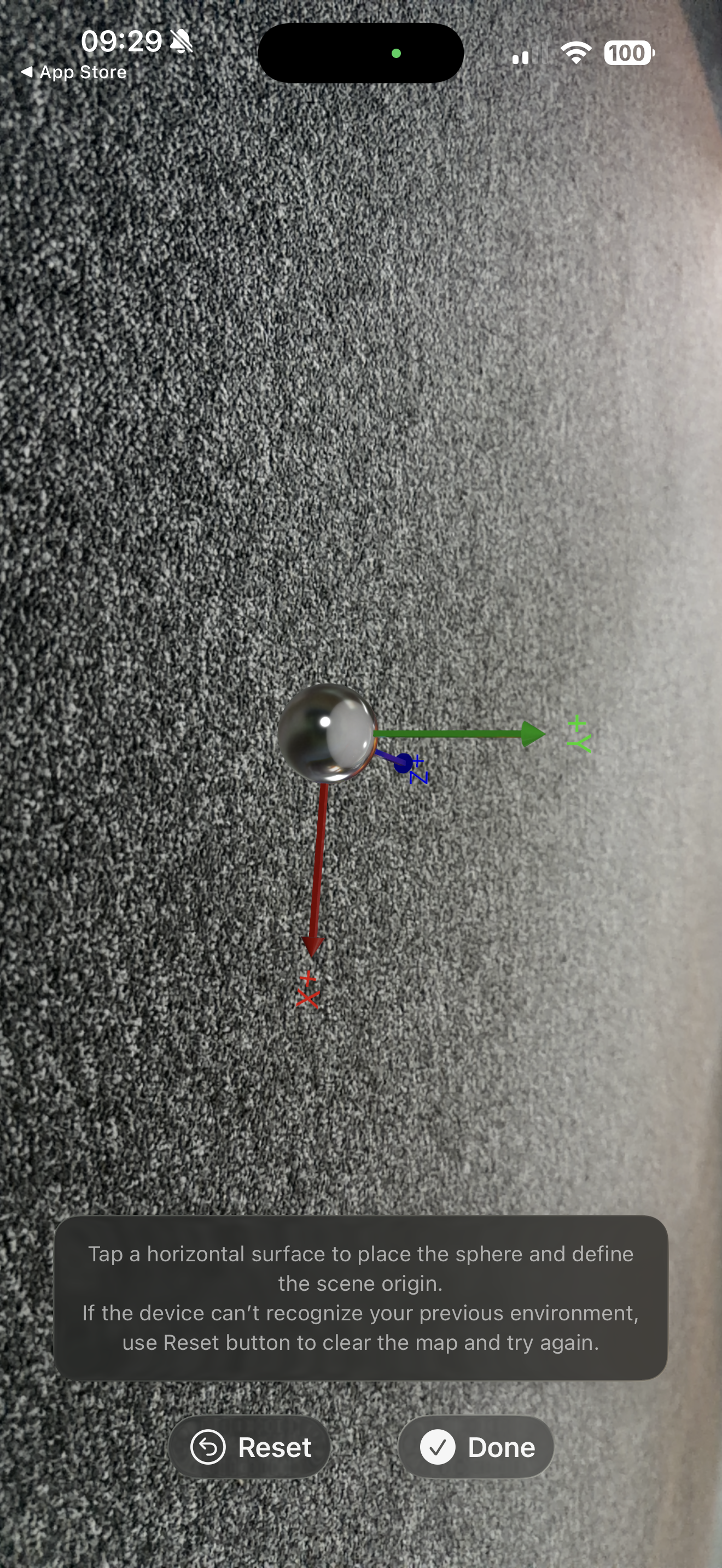
  3. Follow the instructions to place the origin. When you are satisfied with the position, select Done.

    If you are having trouble finding the origin, select Reset.

    hololight stream client apple ipad alignment place origin 01

Alignment on Apple Vision Pro

  1. Open Hololight Stream.

  2. Select the Scene Alignment.

  3. Follow the instructions to move and rotate the origin to place it in the space. If you are unable to find the origin, select Reset.

  4. When you are finished, select Done.