Set up Hololight Stream Runtime for UNIGINE
Set up Hololight Stream Runtime for UNIGINE
After the Hololight Stream Runtime installation, you can start UNIGINE and begin to stream sample scenes right away.
-
Open UNIGINE.
-
Go to SDKs > Add SDK and add the latest SDK version if it’s not already installed.
-
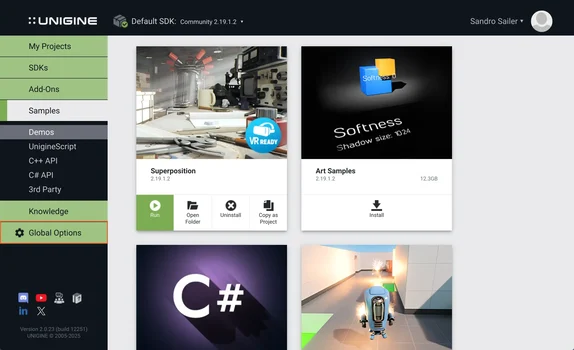
Select Global Options.
-
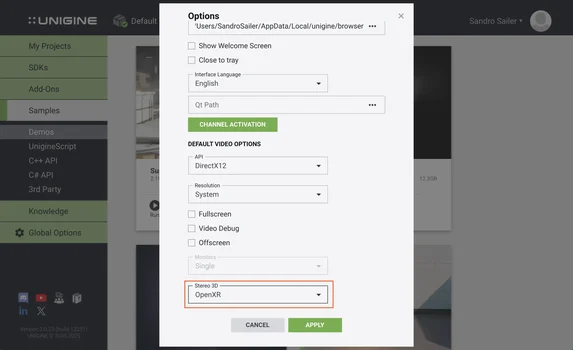
Set "Stereo 3D" to OpenXR.
Start a session and connect
-
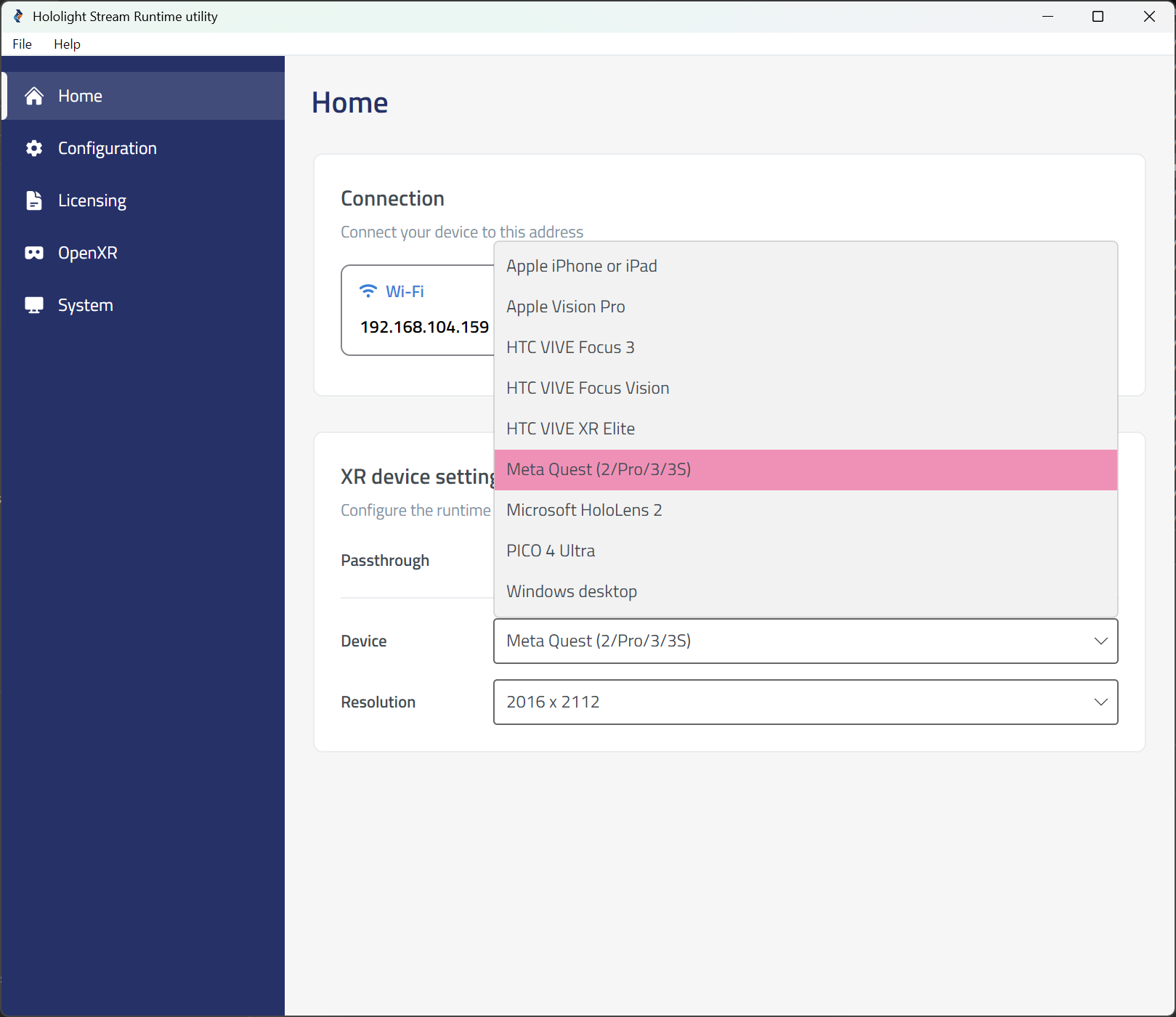
Open the Hololight Stream Runtime utility.
-
Select your XR device in the dropdown menu.
-
Choose between Passthrough or VR mode.
-
Run your project or open a demo project in the Samples tab.
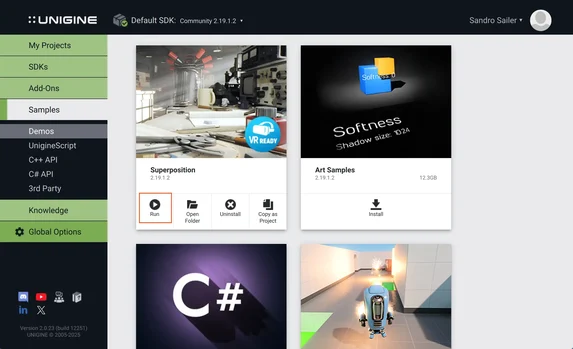
-
Open Hololight Stream Client on your supported XR device.
-
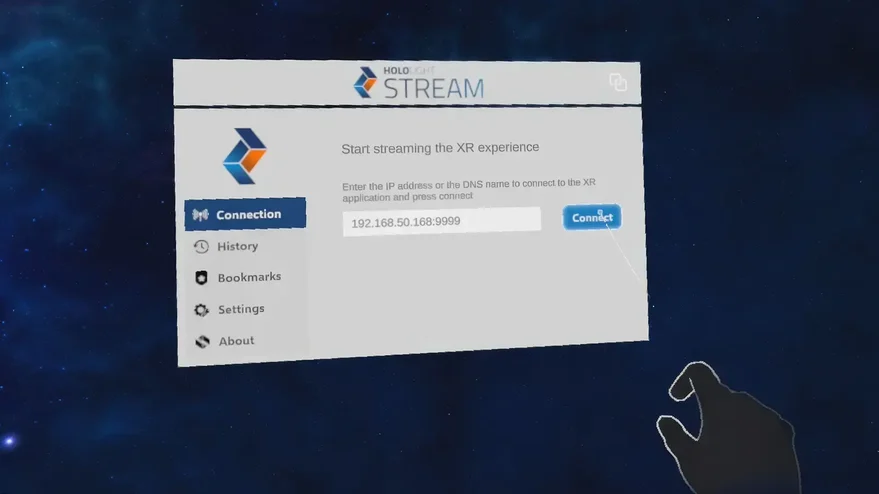
Enter the IP address shown in the Hololight Stream Runtime utility and select Connect.