Hololight Stream software requirements
Objectives
-
Understand various software requirements for Hololight Stream
-
Understand how to set up your firewall to use Hololight Stream
-
Be able to find and use information regarding codec support for Hololight Stream-supported devices
Software requirements
Hololight Stream has specific software requirements to function properly. While core features work out of the box, some advanced capabilities require additional software on your Windows PC. Ensuring the right setup helps you get the most out of your Hololight Stream experience.
DirectX
Hololight Stream supports both DirectX 11 and DirectX 12 to ensure compatibility with a wide range of 3D applications and rendering pipelines.
-
DirectX 11
Widely adopted across industrial and CAD environments; provides stable and efficient graphics rendering. -
DirectX 12
Unlocks advanced capabilities such as hardware-accelerated ray tracing and mesh shading; ideal for high-fidelity XR experiences.
DirectX 12 is included in modern Windows versions (starting with Windows 10, version 1809) and is updated automatically via Windows Update. Typically, no separate installation is needed. Ensure your system meets hardware requirements and includes a DirectX 12–compatible GPU to use these features.
Supported Video Compression Codecs
Hololight Stream supports a variety of video compression codecs. Whether a codec is available depends on:
-
Whether the device running Hololight Stream supports the codec.
-
Whether the GPU on the server machine supports the codec.
When establishing a connection, Hololight Stream automatically selects the best available codec supported by both the device and the computer running the application.
You can also manually choose a specific codec in Hololight Stream. If the selected codec isn’t supported on the server, the connection will fail.
| Device | H.264 | H.265 | H.265 10 bit | AV1 | AV1 10 bit |
|---|---|---|---|---|---|
Apple Vision Pro |
|
|
|
|
|
HTC VIVE Focus 3 |
|
|
|
|
|
HTC VIVE Focus Vision |
|
|
|
|
|
HTC VIVE XR Elite |
|
|
|
|
|
Meta Quest 2 |
|
|
|
|
|
Meta Quest 3 |
|
|
|
|
|
Meta Quest 3s |
|
|
|
|
|
Meta Quest Pro |
|
|
|
|
|
Microsoft HoloLens 2 |
|
|
|
|
|
PICO 4 Ultra |
|
|
|
|
|
Web browser - Chromium |
|
|
|
|
|
Web Browser - Safari |
|
|
|
|
|
Windows |
|
|
|
|
|


Symbol |
Description |
|
Codec not available on the device. |
|
Codec available. |
Firewall
When launching certain applications for the first time, Windows Defender Firewall may block some network features and prompt you to allow access. This is a normal security measure.
Some applications, like Unreal Engine or Unity 3D, might not trigger a prompt. You might also accidentally select Disallow. If you do, you can manually enable access through the firewall:
-
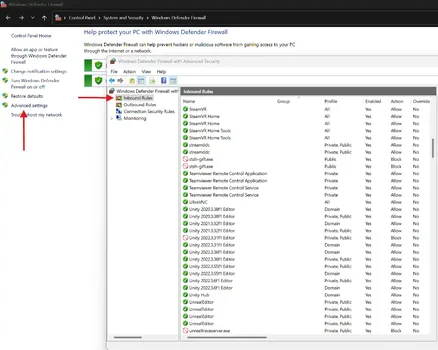
Open Windows Defender Firewall.
-
Select Advanced Settings in the left sidebar.
-
In the advanced settings window, select Inbound Rules.
-
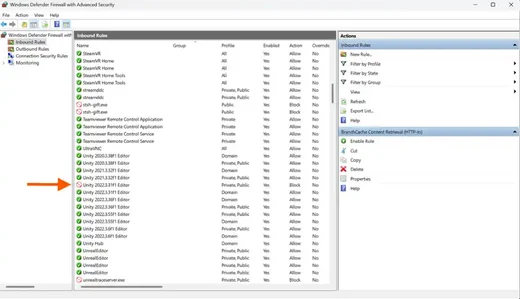
Locate your application (for example, Unity Editor) and double-click it.
-
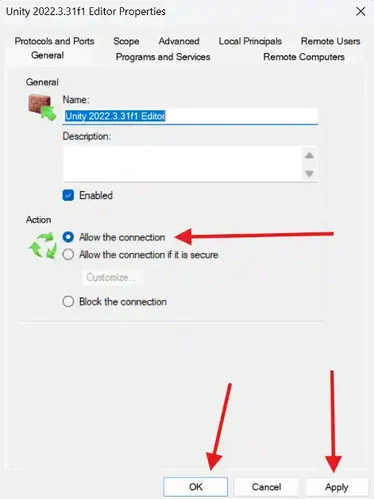
Check the box labeled Allow the connection.
-
Select Apply, then select OK.
To ensure Hololight Stream works correctly in your development environment, use this guide to enable all local ports for an application. To define rules for specific ports, select the application’s properties, then select Protocols and Ports. Choose the protocol type (TCP or UDP), and enter the port number you want to allow.