Hololight Stream network recommendations
Network recommendations
You can modify server-side settings for your project by navigating to the Hololight Stream section. This area allows you to customize various parameters related to your connection process.
Signaling port, communication ports and port range
Hololight’s pixel streaming is built on WebRTC and its security model. We extend its foundation with an interactive layer, enabling a secure XR streaming experience. Learn more about Hololight Stream and the WebRTC Framework.
Protocol |
Local port |
TCP |
9999 |
UDP |
9999 |
The signaling port number must be between 1024 and 65535. If unset, the port defaults to 9999. To ensure connectivity, verify that the selected port is open in your firewall. For more information, see the firewall guide.
Protocol (Inbound and Outbound) |
Local port |
TCP (Cloud license) 5053 |
UDP (Cloud license) |
5053 TCP dedicated license port (Cloud license) |
Unique for each license file |
UDP dedicated license port (Cloud license) |
Unique for each license file |
TCP (Offline license server) |
5054 |
UDP (Offline license server) |
5054 |
License ports are used to communicate with our licensing server. Every server gets monitored at 2-minute intervals. The dedicated port is specified in the license file. When you receive a license from Hololight, we’ll inform you which ports must be open. You can also view the required port by opening the license file in a text editor. If activation fails, check that these ports are open on the network your computer is connected to.
Protocol |
Local port |
TCP |
50100 |
UDP |
50100 |
With Hololight Stream, you can configure custom port ranges to fit your network and security requirements. The range must be between 1024 and 65535. You can set a single port by setting the minimum and maximum for the range as the same value. Communication port can overlap with the signaling port.
Network |
Wi-Fi 6 |
Network frequency |
5 GHz |
Bandwidth |
min. 40 Mbit |
Round Trip Time |
max. 50 ms |
Firewall
When launching certain applications for the first time, Windows Defender Firewall may block some network features and prompt you to allow access. This is a normal security measure.
Some applications, like Unreal Engine or Unity 3D, might not trigger a prompt. You might also accidentally select Disallow. If you do, you can manually enable access through the firewall:
-
Open Windows Defender Firewall.
-
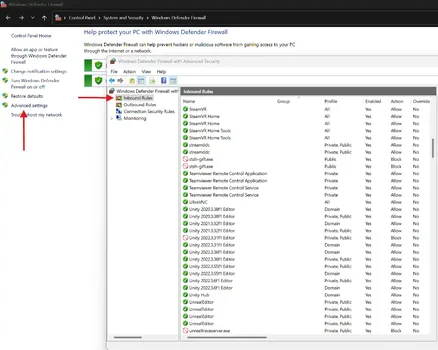
Select Advanced Settings in the left sidebar.
-
In the advanced settings window, select Inbound Rules.
-
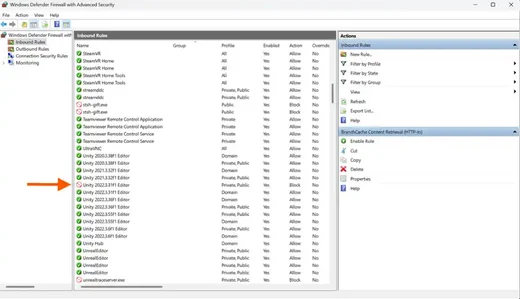
Locate your application (for example, Unity Editor) and double-click it.
-
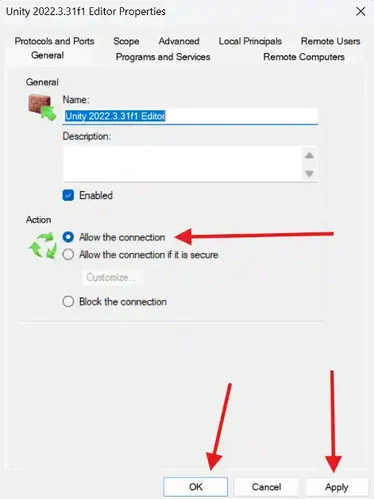
Check the box labeled Allow the connection.
-
Select Apply, then select OK.
To ensure Hololight Stream works correctly in your development environment, use this guide to enable all local ports for an application. To define rules for specific ports, select the application’s properties, then select Protocols and Ports. Choose the protocol type (TCP or UDP), and enter the port number you want to allow.
Encoder bandwidth
Specifies the maximum encoder bit rate. A higher value will result in a better image quality but at the cost of network performance. The recommended range is between 10 Mbps – 100 Mbps. If the value is set to -1, the bit rate will take its value from the settings in the connected device.
Bandwidth when using Hololight Stream with multiple users
At this time, Hololight Stream allows one device to connect to one application instance. In general, applications like Unity 3D or Unreal Engine typically allocate a maximum of one GPU per application instance. As a result, one user connects to one application instance, which runs on one GPU.
In addition to GPU usage, CPU and RAM can also affect overall application performance, depending on data complexity. It’s currently possible to allocate multiple application instances to a single GPU. This provides an initial path to scale usage across your infrastructure.
A second supported scaling option is the use of shared GPUs (vGPU). With vGPU, application instances can be aggregated within virtualized infrastructures, making it possible to increase the number of concurrent sessions.
Finally, for applications that support multiuser experiences, the same principles apply—provided that the application manages user synchronization (such as avatars, camera positions, alignments, and similar elements).
Latency
For Hololight Stream—as with any streaming application—lower latency results in a smoother experience. Currently, Hololight Stream typically delivers a smooth experience at an average latency between 50 and 100 milliseconds.
Latency is just as important as network fragmentation and signal quality. Frequent data retransmissions can negatively affect the user experience, even if latency is low.