Hololight Stream Client for Spectacles
Objectives
-
Set up a Spectacles device to use Hololight Stream Client.
-
Use Spectacles to connect to and disconnect from a Hololight Stream-based application.
Prerequisites
-
PC using a Windows operating system
-
Spectacles from Snap Inc. device
For more information on Spectacles, check out the Snap Inc. page on Spectacles. -
USB-C charging cable to connect Spectacles to a PC
Hololight Stream Client for Spectacles
Unlike other Hololight Stream-supported devices, you can’t download or sideload Hololight Stream Client to Spectacles. Instead you need to use the Hololight Stream utility for Spectacles to connect the device to Hololight Stream applications.
Set up Spectacles to use Hololight Stream
Using the Hololight Stream utility for Spectacles you can quickly get Spectacles ready to use Hololight Stream, but first you need to set up your Spectacles device.
1. Set up the Hololight Stream utility for Spectacles
Before you can set up Spectacles, you first need to set up the Hololight Stream utility for Spectacles on a PC.
-
Using a Windows-based PC, open hololight_stream_utility_spectacles_2025.0.exe.
-
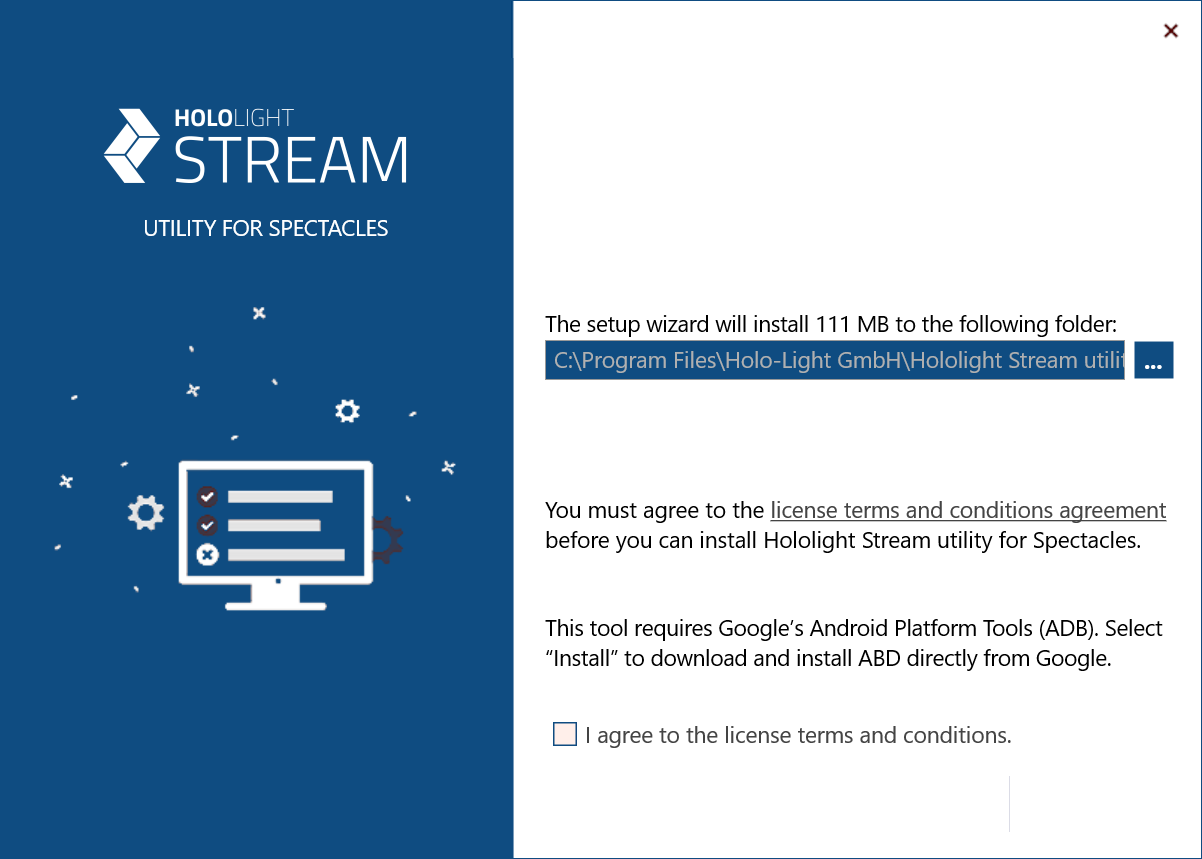
Select and mark the checkbox next to I agree to the license terms and conditions.
-
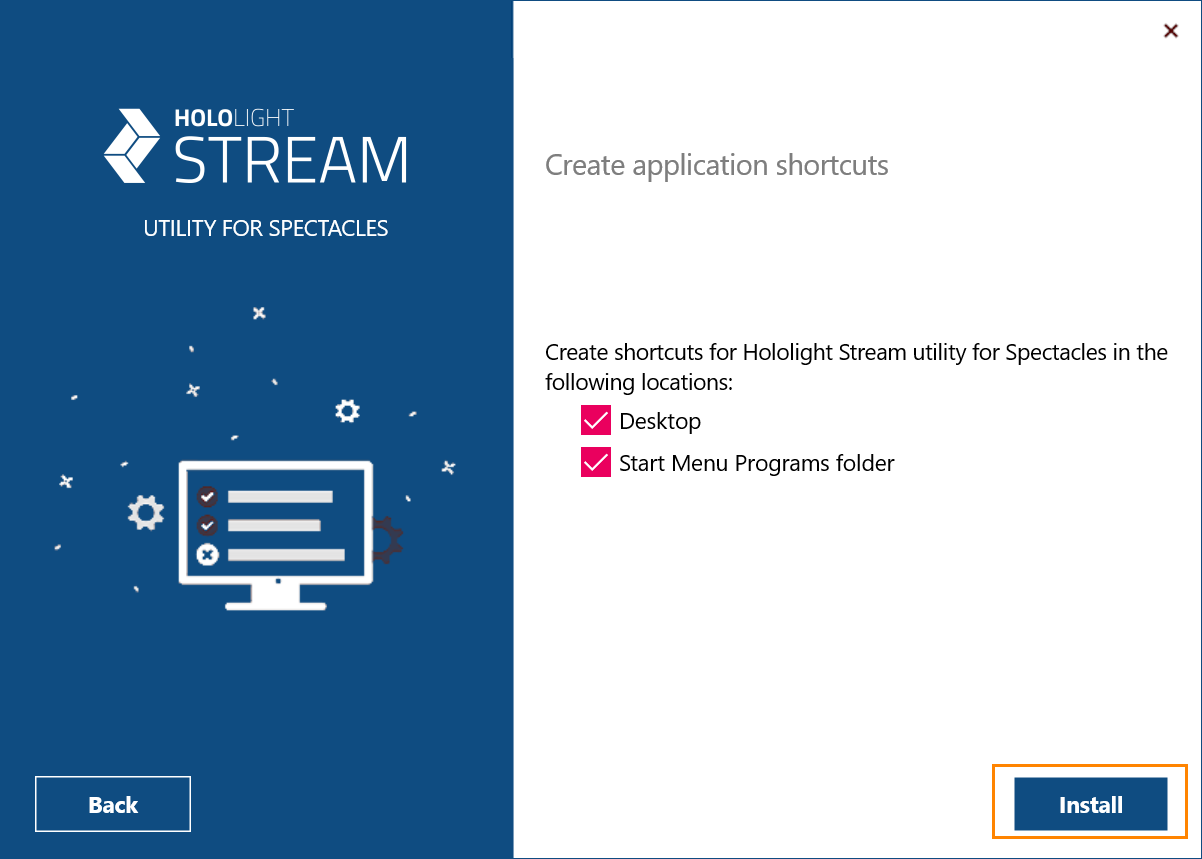
Select where you want shortcuts to the application to appear. Then select Install.
You may receive a prompt asking, "Do you want to allow public and private networks to access this app?" Allowing this gives Android Debug Bridge (adb.exe) access to the internet through your firewall. This is optional and will not impact the Hololight Stream utility for Spectacles. -
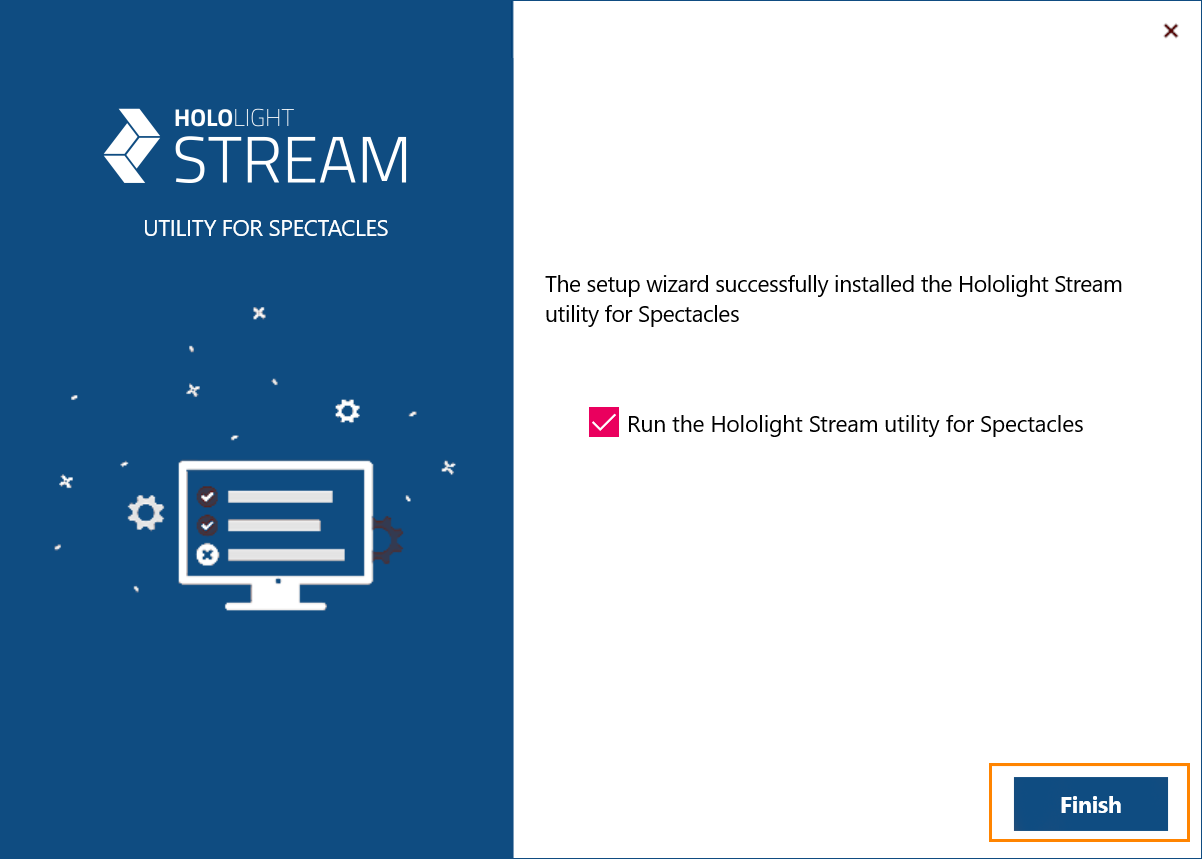
The installation process will take a moment. When the process is complete, you can check the box next to Run the Hololight Stream utility for Spectacles if you are ready to continue and then select Finish to leave the installer.
2. Check if Spectacles are set up to use Hololight Stream
Your Spectacles device might already be set up to work with Hololight Stream. You can check whether the device was previously set up to work with Hololight Stream using the Hololight Stream utility for Spectacles.
-
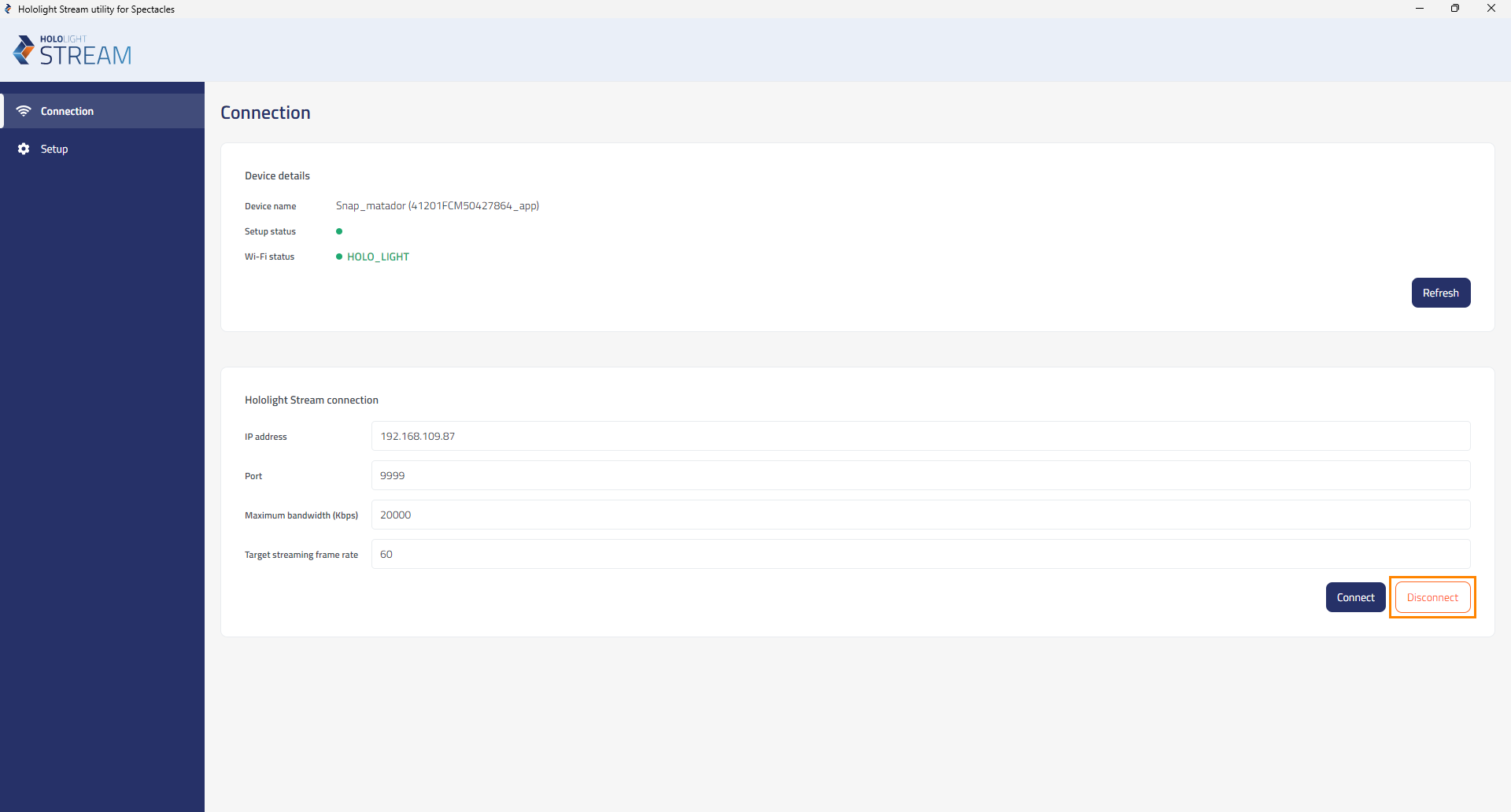
Using the Hololight Stream utility for Spectacles, select Connection from the menu on the left side if it isn’t already selected.
-
Connect your Spectacles device to the PC running the Hololight Stream utility for Spectacles. Select Refresh.
If you connected the device correctly, the name of the device should appear under Connection > Device details > Device name.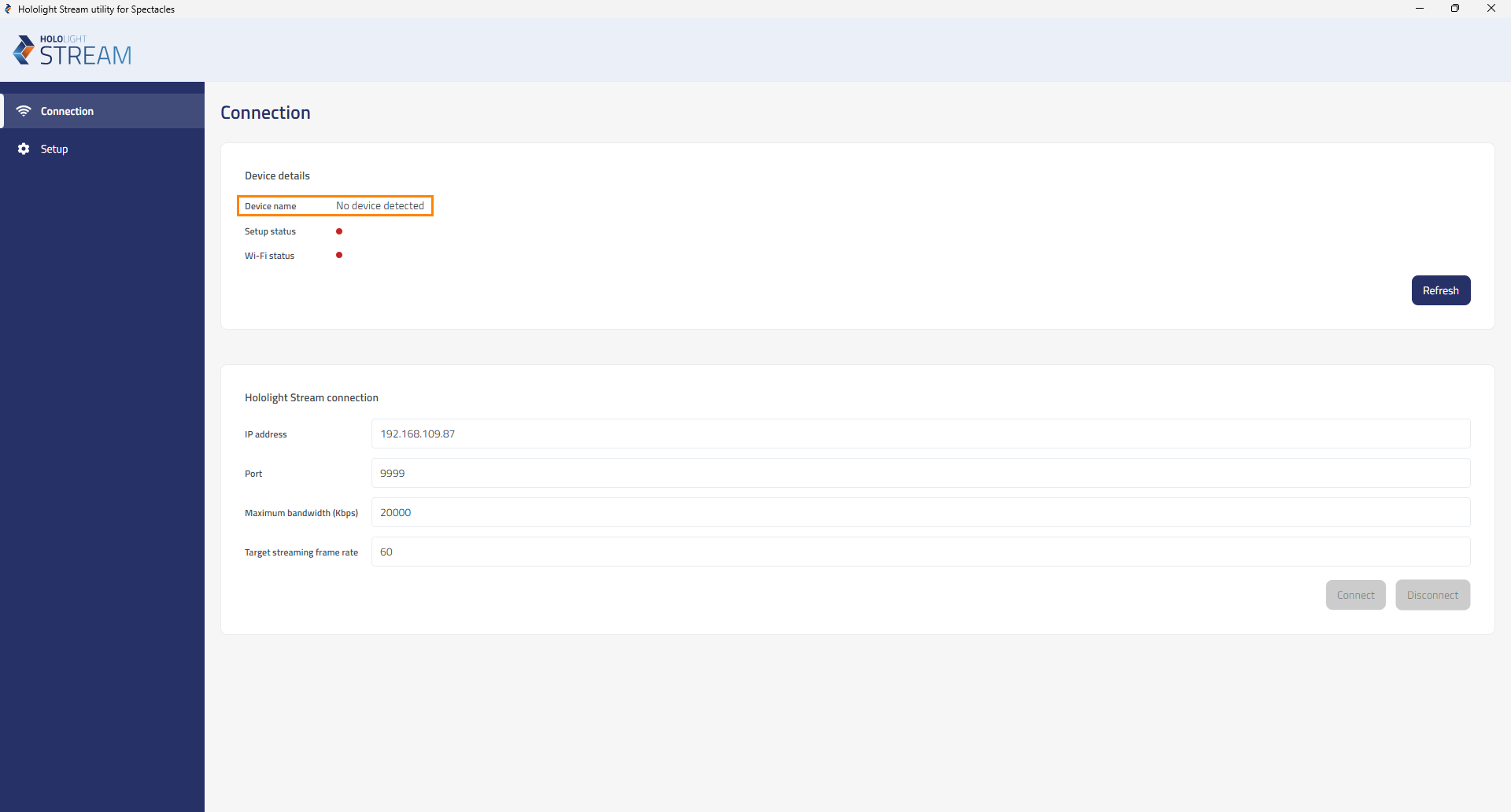
-
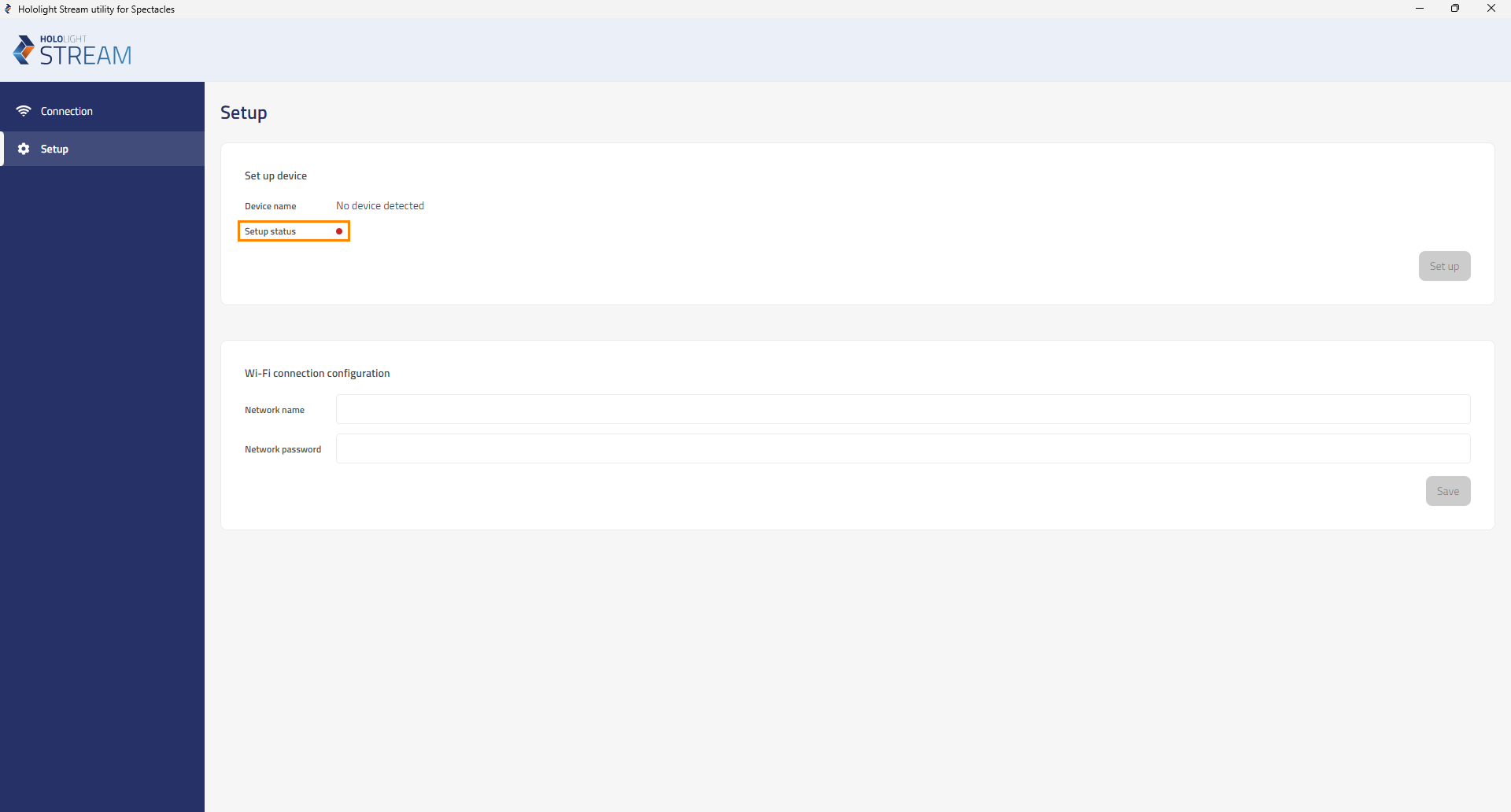
Check Connection > Device details > Setup status. If there is a green circle here, your Spectacles device already has Hololight Stream Client set up. If there is a red circle, you need to still set up your Spectacles device before you can connect them to a Hololight Stream-supported application.
3. Set up Spectacles to use Hololight Stream
If Spectacles isn’t yet set up to use Hololight Stream, this is easy to do with the Hololight Stream utility for Spectacles.
-
Using the Hololight Stream utility for Spectacles, select Connection from the menu on the left side if it isn’t already selected.
-
Connect your Spectacles to the PC running the Hololight Snap Spectacles Utility Tool. Select Refresh. If you connected the device correctly, the name of the device should appear under Connection > Device details > Device name.
-
Select Setup from the menu on the left side.
-
Select Set up.
-
When the set up process is complete, a green circle will appear under Setup > Set up device > Setup status.
4. Set up Wi-Fi connection settings on the Spectacles
Hololight Stream only works if the client device (in this case the Spectacles device) and the Hololight Stream application server are connected to the same network. With Spectacles now configured to use Hololight Stream, you need to use the Hololight Stream utility for Spectacles to connect it to the network you want to use for your Hololight Stream session.
-
Using the Hololight Stream utility for Spectacles, select Setup from the menu on the left side if it isn’t already selected.
-
Under Setup > Wi-Fi connection configuration > Network name, enter the name of the Wi-Fi network you want to connect to. Under Network password enter the password for that network.
-
Select Save.
If you did everything correctly, a "Connected" indicator will appear under "Wi-Fi connection configuration".
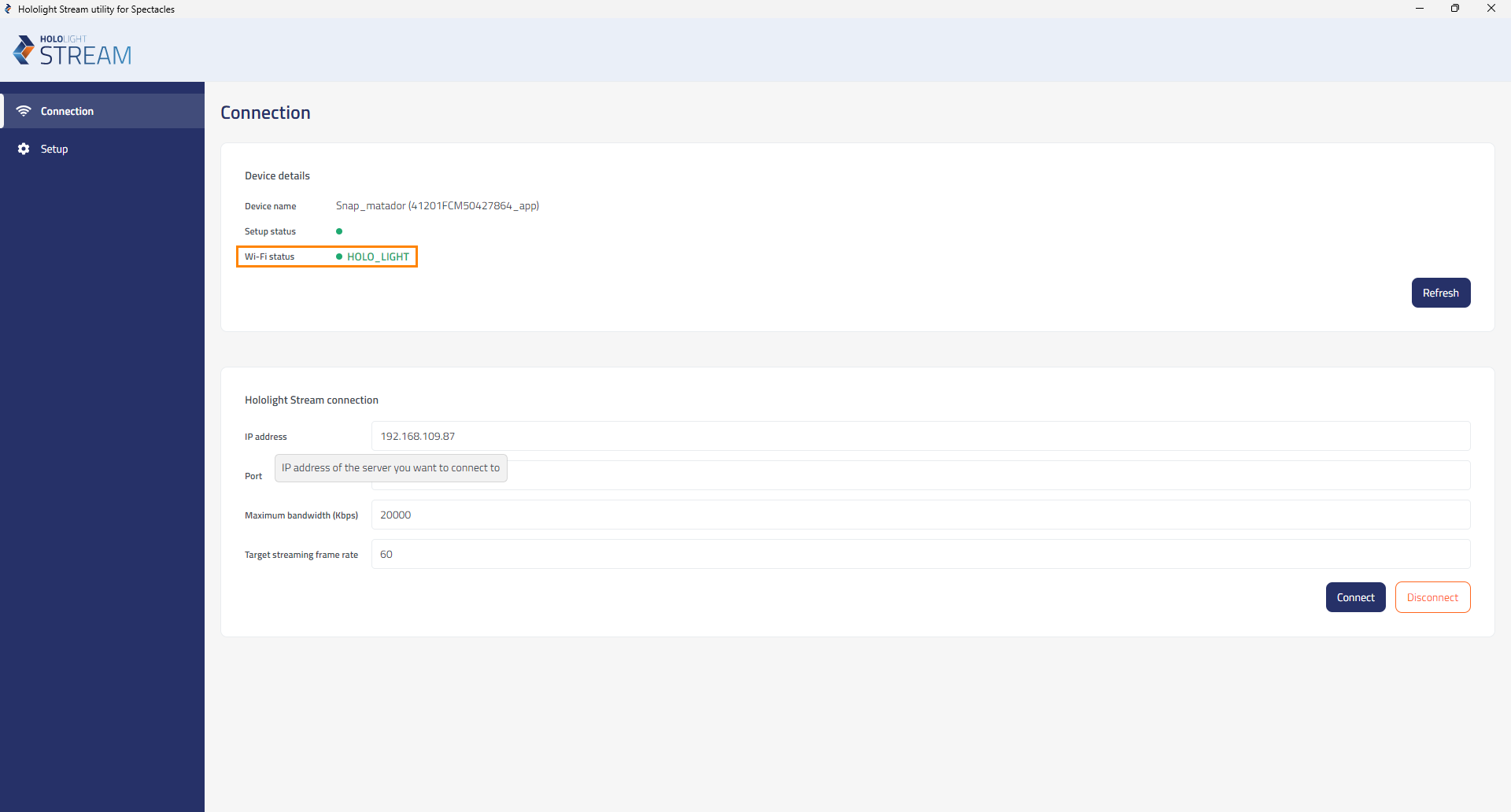
You can also select Connection from the menu on the left side and check under Device details > Wi-Fi status. You should see a green circle and the name of the network if you successfully set everything up.
Connect to a Hololight Stream application with Spectacles
To use Spectacles to connect to and use a Hololight Stream-based application, you need to start the connection between the two using the Hololight Stream utility for Spectacles.
-
On the PC you are using to run your Hololight Stream-supported application, open the application.
-
On the PC with the Hololight Stream utility for Spectacles, open the utility.
-
Using a compatible cable, connect Spectacles to the PC running the Hololight Stream utility for Spectacles.
-
Using the Hololight Stream utility for Spectacles, select Connection from the menu on the left side.
-
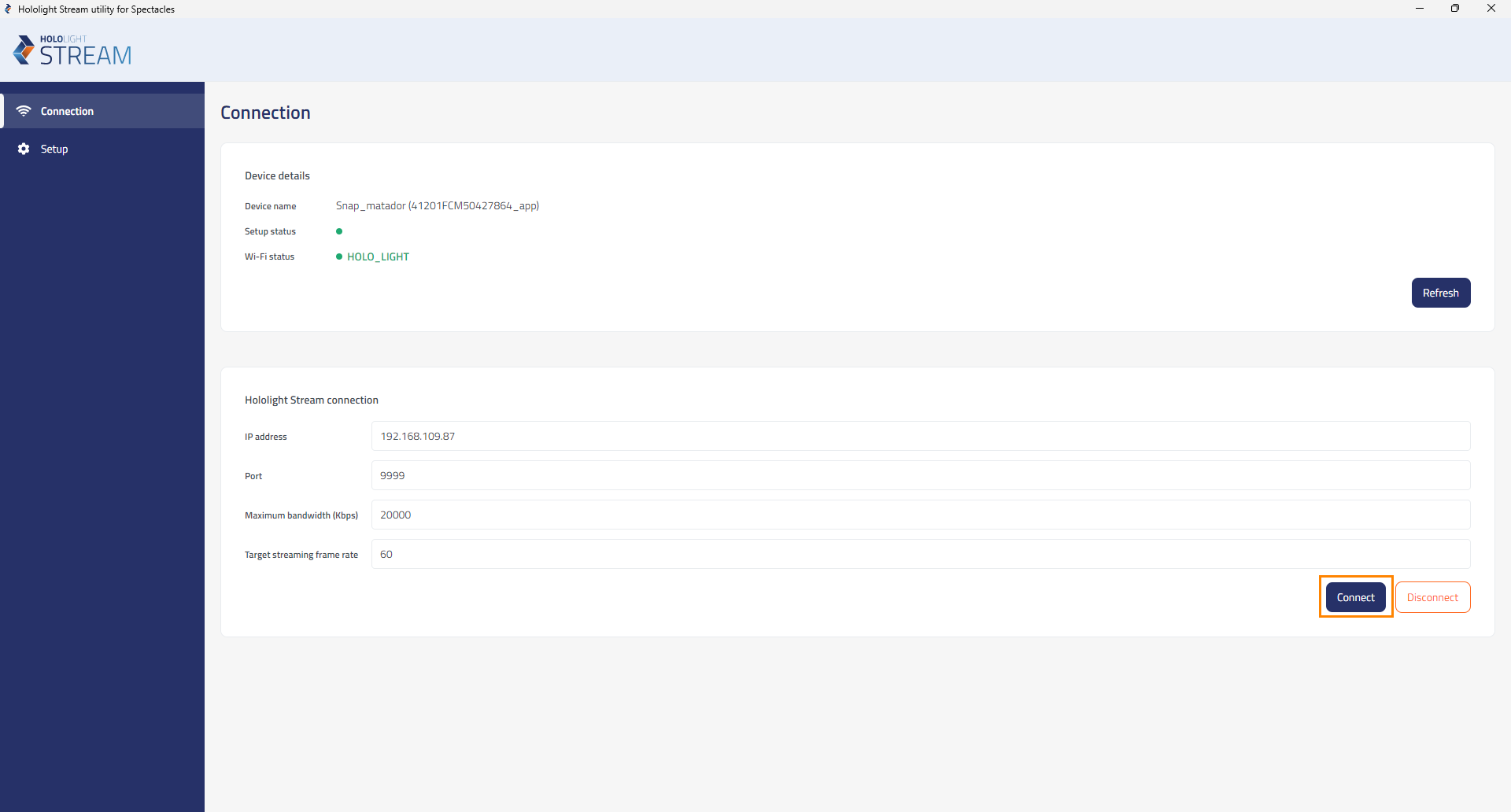
Under Hololight Stream connection > IP address, enter the IP address for the PC running the Hololight Stream-supported application.
-
Select Connect.
You can now use the application using Spectacles.