Set up Hololight Stream Runtime for ParaView
Set up Hololight Stream Runtime for ParaView
After installing Hololight Stream Runtime, you can start your XR experience in ParaView. You need to activate the XR Interface in ParaView to access streaming capabilities.
-
Open ParaView.
-
Open your project.
-
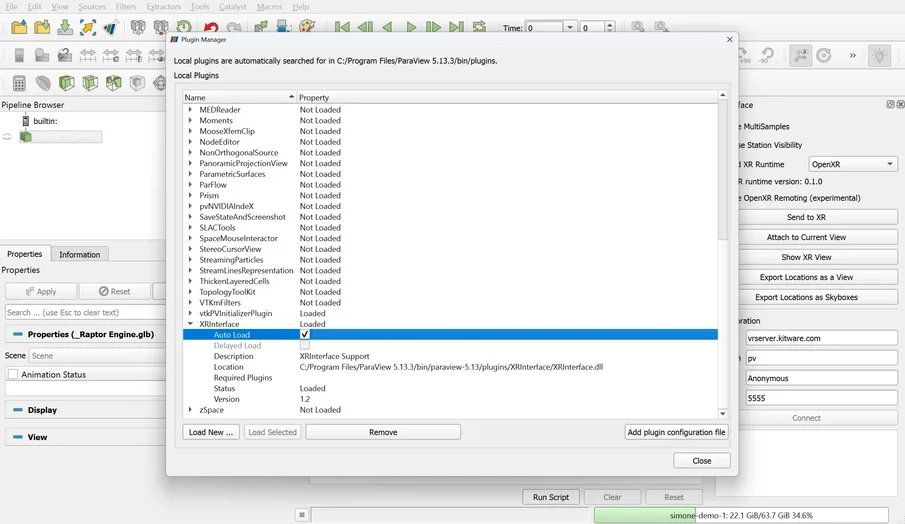
Select Tools > Manage Plugins > XR Interface > Load.
-
Select Auto Load.
-
Select Load Selected.
-
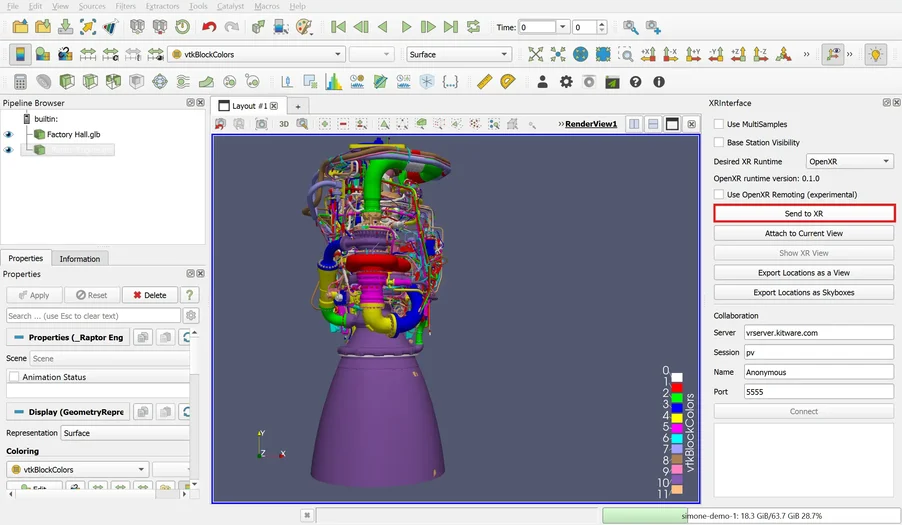
Go back to Desired XR Runtime. Select OpenXR.
-
Select Send to XR.
-
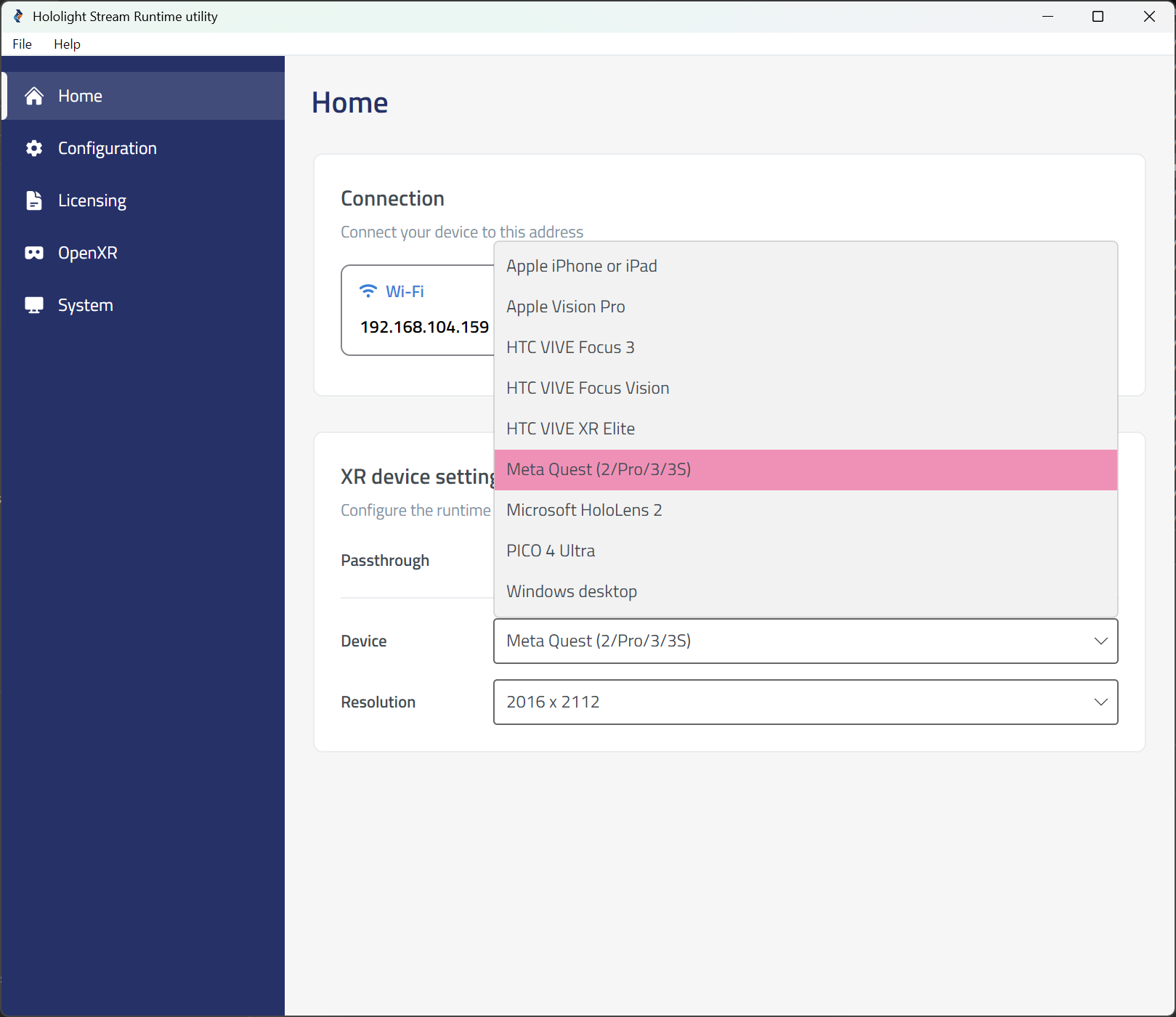
Open the Hololight Stream Runtime utility.
-
Select your XR device in the dropdown menu.
-
Choose between Passthrough or VR mode.
-
Open Hololight Stream Client on your supported XR device.
-
Enter the IP address shown in the Hololight Stream Runtime utility and select Connect.
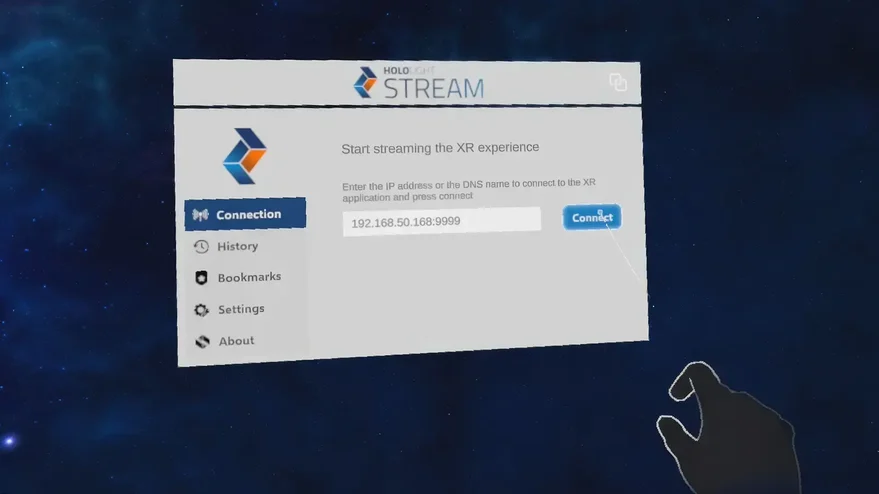
You are now ready to Connect with Hololight Stream Client.