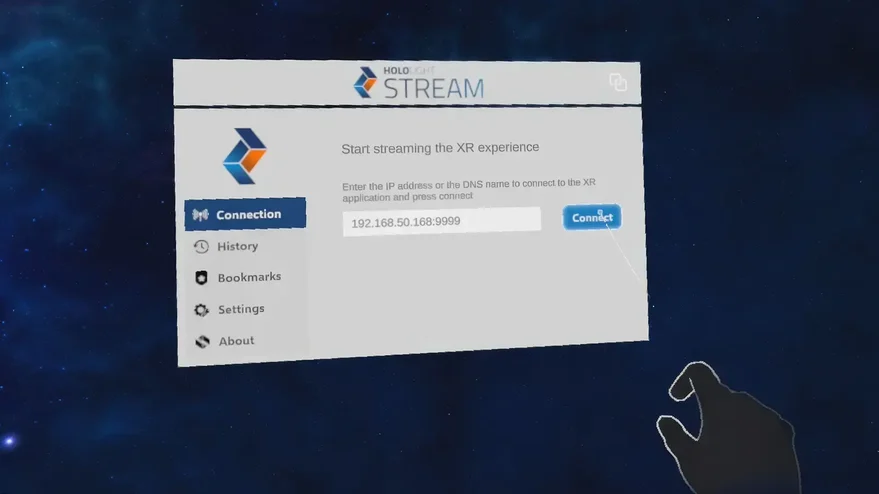
Set up Hololight Stream Runtime for Godot
-
Understand how to use Hololight Stream Runtime to connect to a project in Godot with Hololight Stream Runtime.
Set up Hololight Stream Runtime for Godot
After installing Hololight Stream Runtime, you can start your XR experience in Godot. Godot is a powerful open-source game engine, and like any engine, it requires proper integration to work seamlessly with Hololight Stream Runtime. After installing the Runtime, you can begin streaming XR content from a Godot project—however, this isn’t plug-and-play. Your application must be specifically prepared and mapped to utilize our Runtime effectively.
The following steps guide you through how to configure and stream Godot’s XR Template to a supported XR device using Hololight Stream Runtime.
-
Open the Godot XR Template
-
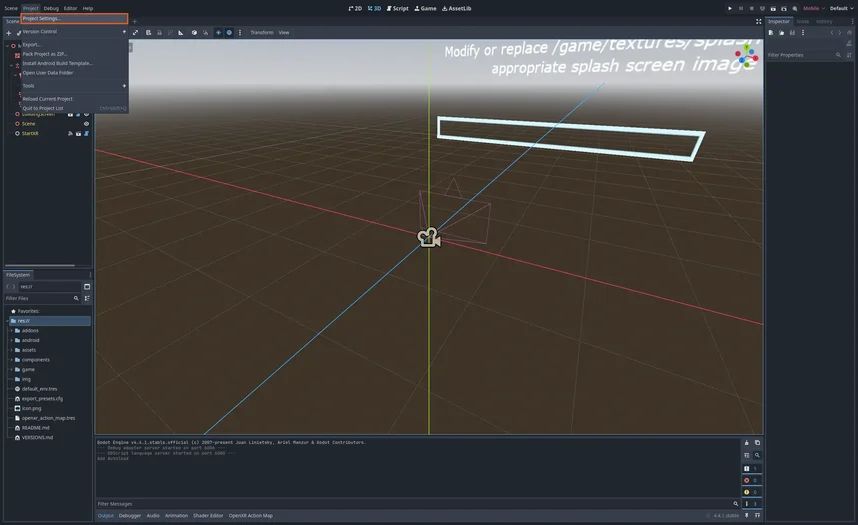
Select Project > Project Settings in the top-right corner of the application.
-
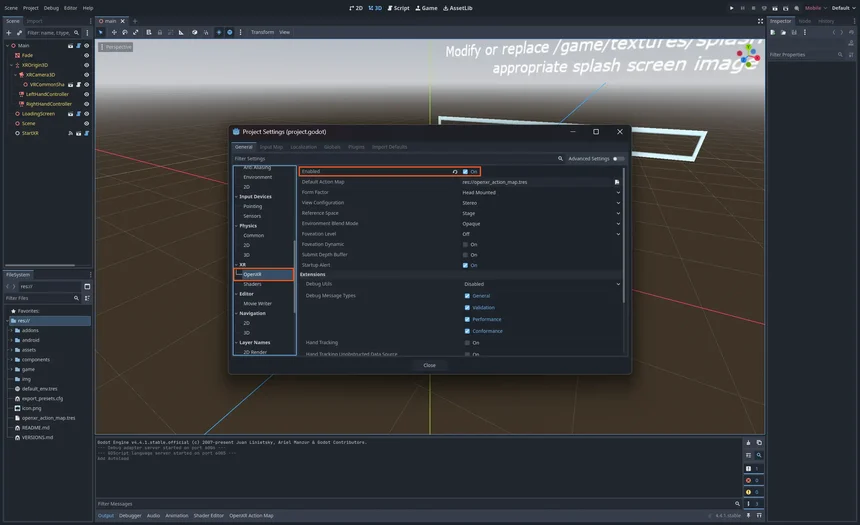
Select XR > OpenXR and make sure the Enabled checkbox is checked.
Start a session and connect
-
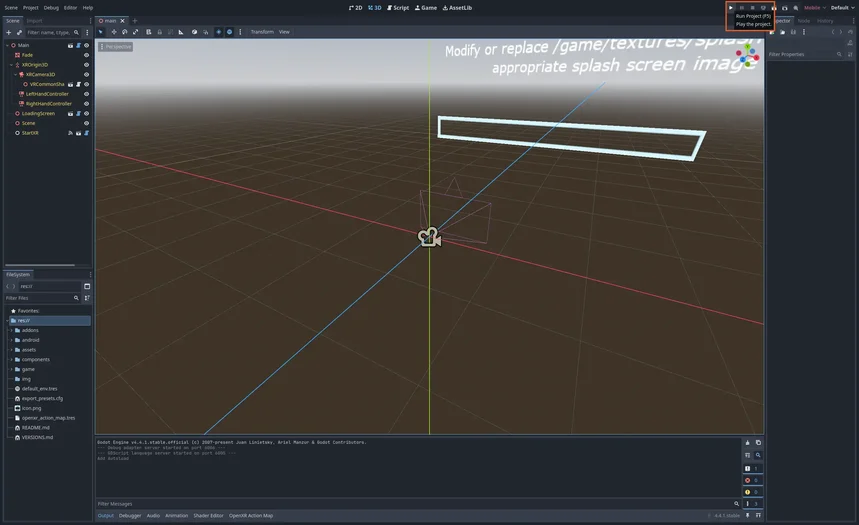
Select Play in the top-right corner of the application.
To enable streaming, install Hololight Stream Runtime on your workstation. Find more information in our Hololight Stream Runtime getting started guide.
-
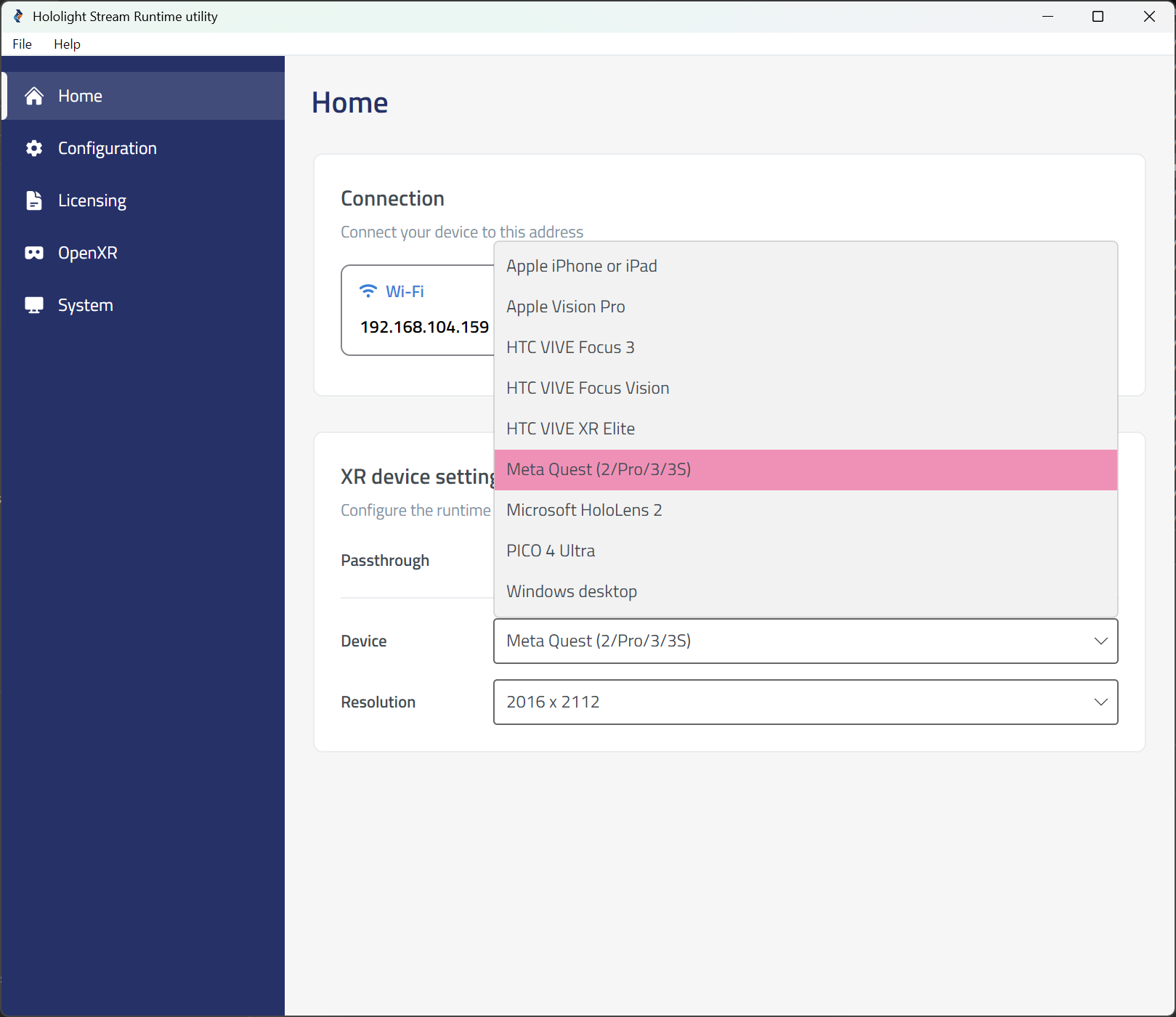
Open the Hololight Stream Runtime utility.
-
Select your XR device in the dropdown menu.
-
Choose between Passthrough or VR mode.
-
Select Play in the top-right corner.
-
Open Hololight Stream Client on your supported XR device.
-
Enter the IP address shown in the Hololight Stream Runtime utility and select Connect.