Activate Hololight Stream Runtime license
Activate license
Hololight Stream Runtime requires valid license data to work. If when opening the Hololight Stream Runtime utility valid license data is not found, you will automatically see the "License required" screen. If you don’t have what you need to activate your Hololight Stream Runtime license, you will need to close the utility, which you can do by selecting Exit application.
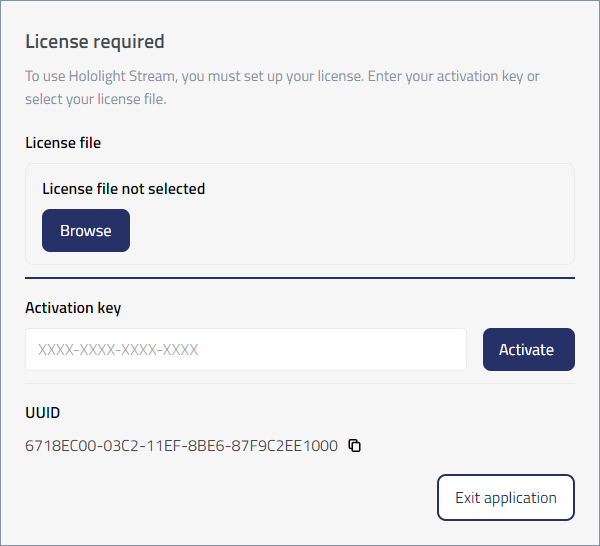
There are two ways to activate your Hololight Stream Runtime license from this screen.
Method A. Activate Hololight Stream Runtime license with a license file downloaded to your computer
If you received a license file, either from Hololight or your organization’s IT administrator, you just need Hololight Stream Runtime to know where it is.
-
Open Hololight Stream Runtime utility. If you haven’t set up your license file, the "License required" screen should open automatically.
-
Select Browse.
-
Using File Explorer, navigate to and select the license file you want to use.
Method B. Activate Hololight Stream Runtime license with an activation key
If you received an activation key, either from Hololight or your organization’s IT administrator, you just need enter it in using the Hololight Stream Runtime utility.
-
Open Hololight Stream Runtime utility. If you haven’t set up your license file, the "License required" screen should open automatically.
-
Go to the field under Activation key and enter your key.
-
Select Activate.
| The activation key, when used for the first time, is then tied to the computer that consumed it. When you select activate, a license file is downloaded to the appropriate file location, just like in the result of using method A. If that license file is lost, it can be recovered by using the activation key again, but only on the computer that used that key the first time. |