Set up Autodesk VRED collaboration session with Hololight Stream Runtime
Objectives
-
Understand requirements for an Autodesk VRED collaboration session.
-
Be able to prepare each workstation with an Autodesk VRED Cluster Setup.
-
Be able to start and join a collaboration room.
-
Be able to connect using Hololight Stream Runtime.
Prerequisites
-
All workstations must use the exact same Autodesk VRED version.
-
All workstations must have the same project loaded.
-
All workstations must be in the same network.
Set up Autodesk VRED collaboration session with Hololight Stream Runtime
This article explains how to set up an Autodesk VRED collaboration session and connect Hololight Stream Runtime so users on XR devices can join the same shared scene.
For more details, check out the official Autodesk VRED documentation.
Recommended workstation setups
Network and port considerations
-
All workstations must be on the same network segment or connected through a routed network that allows direct communication.
-
Ensure the required Autodesk VRED collaboration ports are open.
-
By default, Autodesk VRED uses the following (depending on version):
-
Collaboration: Port 8889
-
Cluster services: Port 8000–8003 (TCP/UDP)
-
-
If ports were customized in VREDClusterSetup, use the same configuration across all workstations.
Prepare a cluster set up
Prepare Workstation A (Cluster setup)
-
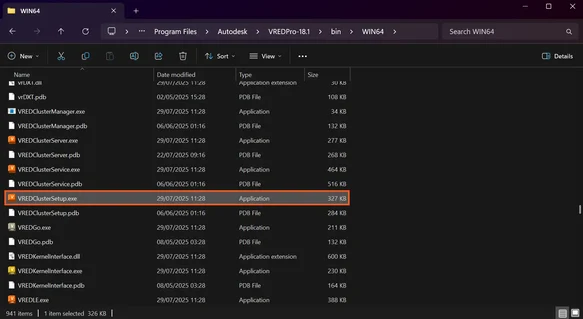
Go to "C:\Program Files\Autodesk\VREDPro-18.1\bin\WIN64"
-
Adjust VREDPro-18.1 according to the installed version.
-
Scroll down to VREDClusterSetup.
-
Double-click the file (you may be prompted by Windows Security).
-
Enter administrator credentials if required.
-
Under Connection Rule, define a name (for example: VRED_Multi) and enable the connection rule.
-
Under Allowed Services, enable Collaboration.
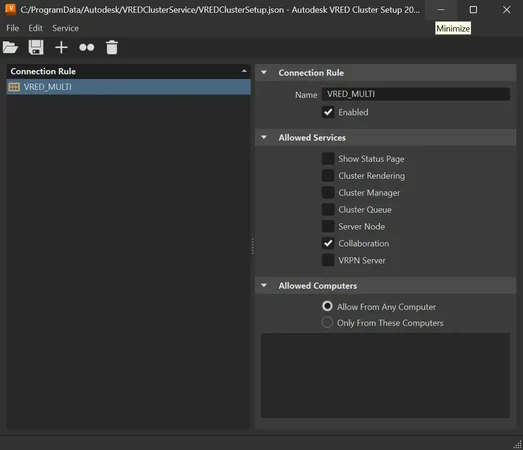
NOTE: This setup typically does not need to be repeated unless settings must be changed later. -
Close the window.
Start a collaboration session on Workstation A
-
Open Autodesk VRED.
-
Open your project.
-
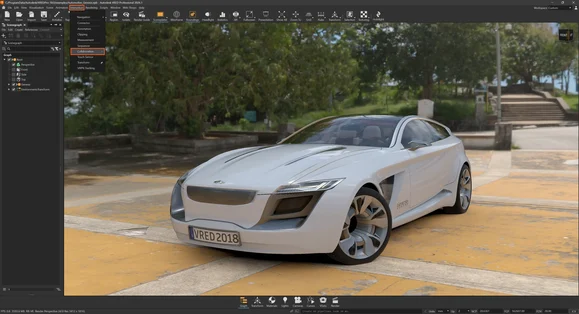
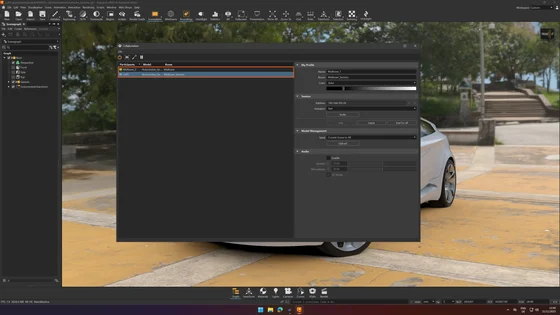
In the top toolbar, select Interaction > Collaboration.
-
Under My Profile, define a username (for example: Multiuser_1).
-
Under My Profile, define a room name (for example: Multiuser). All participants must use the exact same room name.
-
Under Session, enter the IP address of Workstation A and select Join. If no session exists yet, this creates the collaboration session.
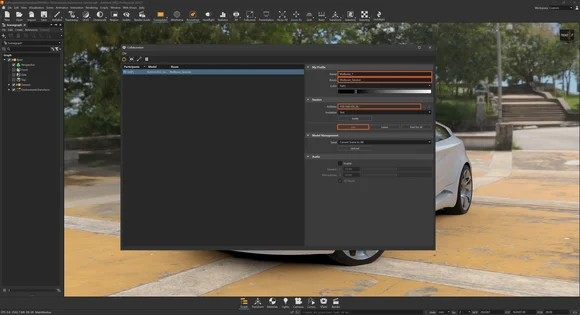
Use the Invite option and share the generated invite text or simply provide your workstation’s IP address to other participants.
Prepare Workstation B (Cluster setup)
Repeat the same Cluster Setup steps:
-
Go to "C:\Program Files\Autodesk\VREDPro-18.1\bin\WIN64"
-
Double-click VREDClusterSetup and provide the admin credentials if required.
-
Under Connection Rule, enter a name (for example: VRED_Multi) and enable the connection rule.
-
Under Allowed Services, enable Collaboration.
-
Close the window.
Join the collaboration session on Workstation B
-
Open VRED.
-
Open the same project used on Workstation A.
-
Select Interaction > Collaboration from the top toolbar.
-
Under My Profile, define a username (for example: Multiuser_2).
-
Enter the same room name used on Workstation A (for example: Multiuser).
-
Under Session, enter the IP address of Workstation A.
Both users should now be visible within the collaboration room.
Select Join.
Join the session with Hololight Stream Runtime
-
On both workstations, start the XR session by selecting the Hololight icon in the top-right corner.
-
Put on your XR devices and open Hololight Stream Client.
-
Connect the first XR device to the first workstation by entering the workstation’s IP address shown in Hololight Stream Runtime.
-
Repeat the process with the second XR device and the second workstation.
Hololight Stream Runtime will stream the rendered Autodesk VRED session from the workstation to your XR device.
Both Autodesk VRED clients and the XR participant will share the same collaboration context, including navigation, annotations, and interactions.