Hololight Stream for Unity extension - Spatial anchors
Spatial anchors
Spatial anchors are points in your virtual space that are aligned with the physical, tracked environment.
Additional package requirements
-
Mixed Reality Toolkit 2 and Hololight Stream Extension for MRTK2
or
Mixed Reality Toolkit 3 and Hololight Stream Extension for MRTK3
Setup
-
Open Package Manager.
-
Select Hololight Stream Examples.
-
Import the Anchoring sample.
-
Expand the AR Session Origin object and add the AR Anchor Manager to it.
-
Set Anchor Prefab on AR Anchor Manager. As example, a Spatial Anchor Object prefab has been provided.
Example
A pre-built scene is in the Anchoring sample for testing the anchors, To integrate the example into an existing scene, add the Anchor Example prefab in the scene.
| The following steps use screenshots from the Mixed Reality Toolkit 2 example. There are visual differences between this MRTK2 implementation and the MRTK 3 example. Despite this, they both work the same. |
Create and Delete spatial anchors
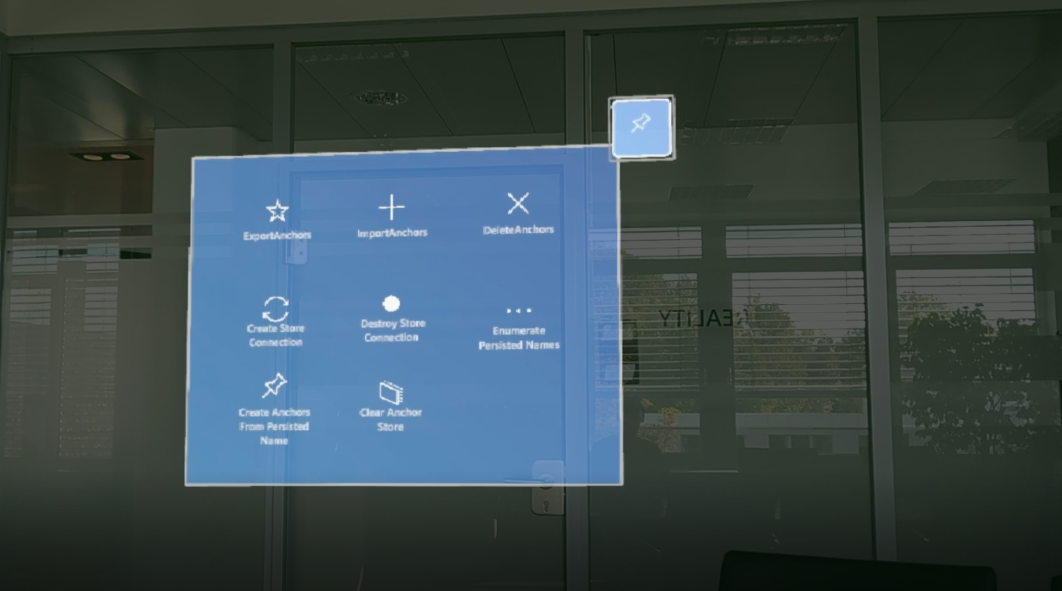
When running the example, you will see a control panel in the scene.
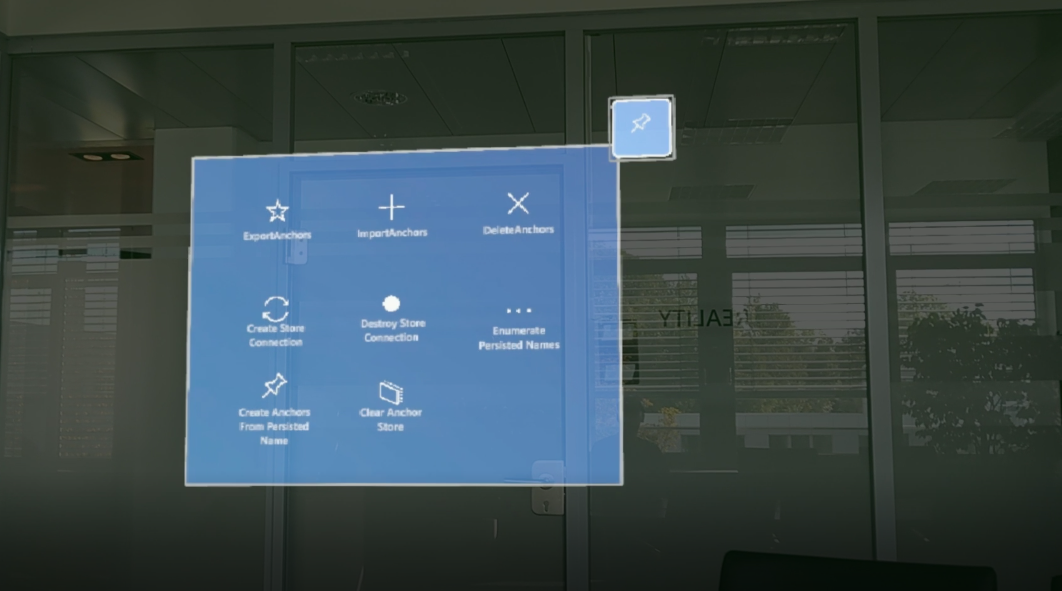
Create Anchor creates a spatial anchor at that position. The client device saves the original location and orientation of the anchors you create, updating their location and orientation every so often.
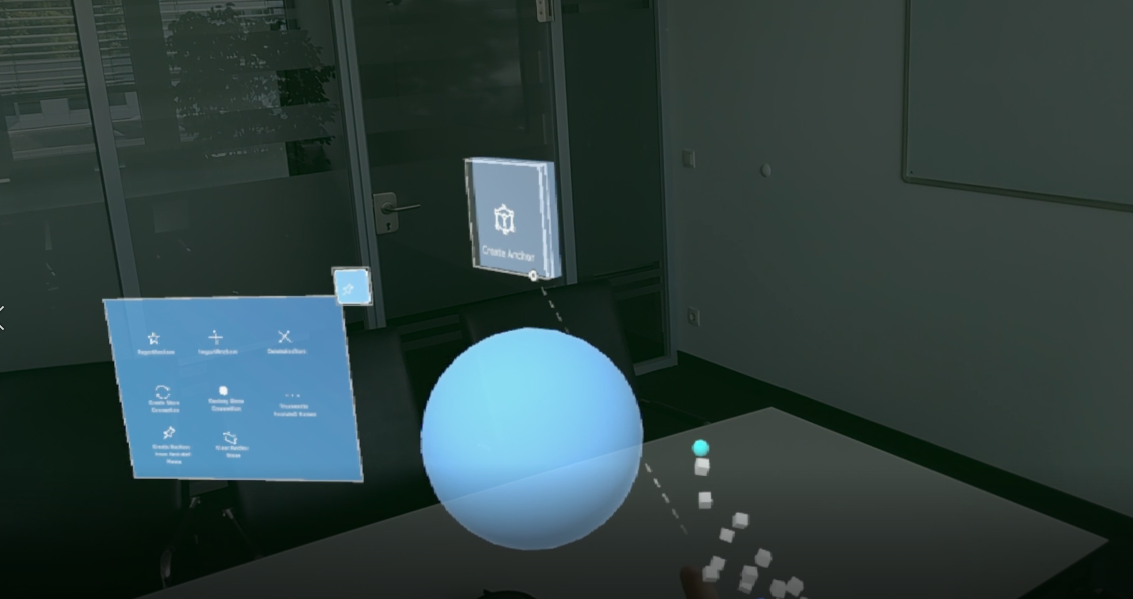
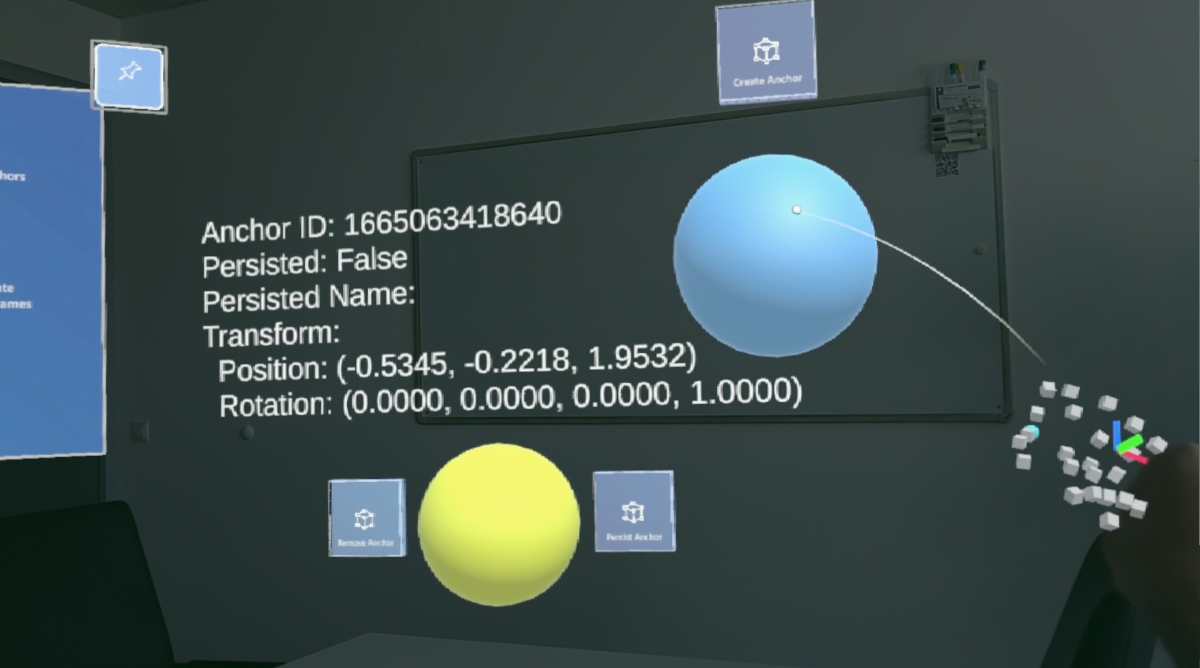
Any spatial anchor objects you create show up in the user’s surroundings as yellow transparent spheres that you can select. Once selected, the Remove Anchor button removes the anchor from the system. The Persist Anchor button persists the anchor on the client device.
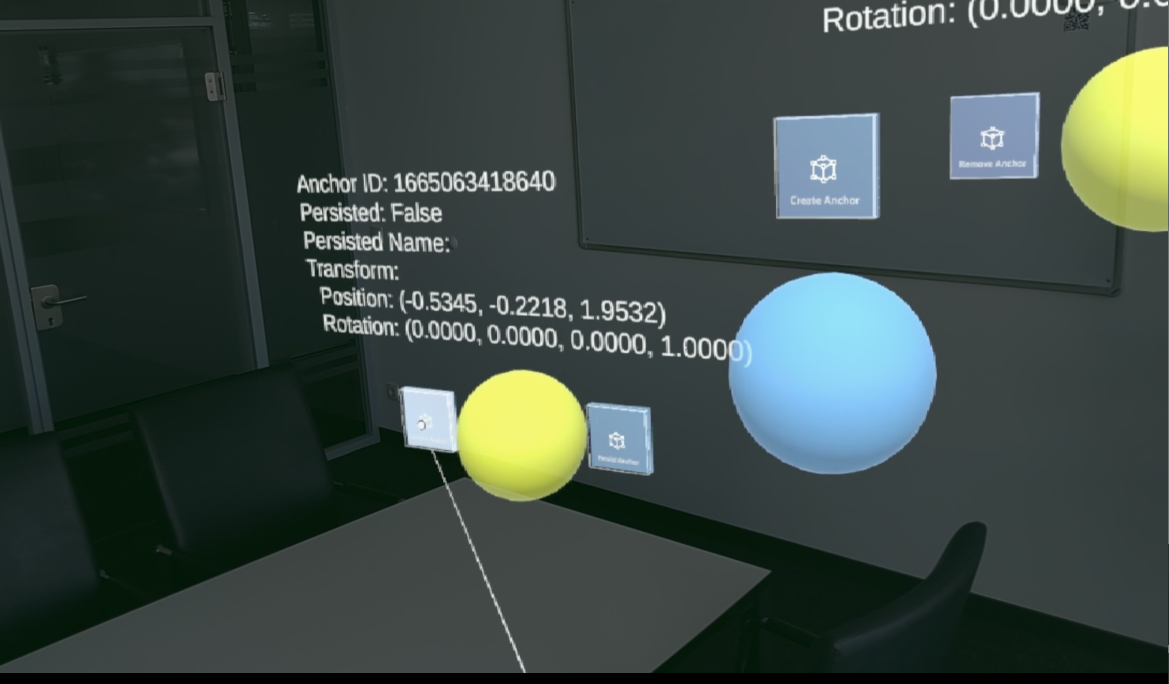
You can delete all spatial anchors by selecting Delete Anchors on the control panel.
Export and import spatial anchors
| Exporting and importing spatial anchors is not supported on Meta Quest devices. |
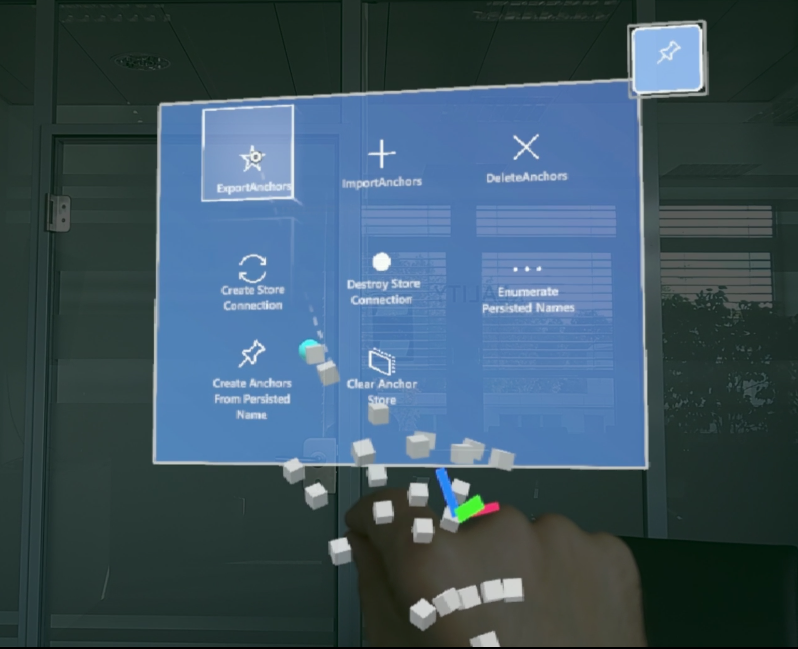
In the example, selecting the Export Anchors button in the control panel will download the file from the client and store it in Streaming Assets folder. Exporting spatial anchors can take a long time depending on the number of anchors. Because it can take so long the export function takes a timeout argument.
See AnchorExampleUtils.cs for more information about how to control the timeout logic.
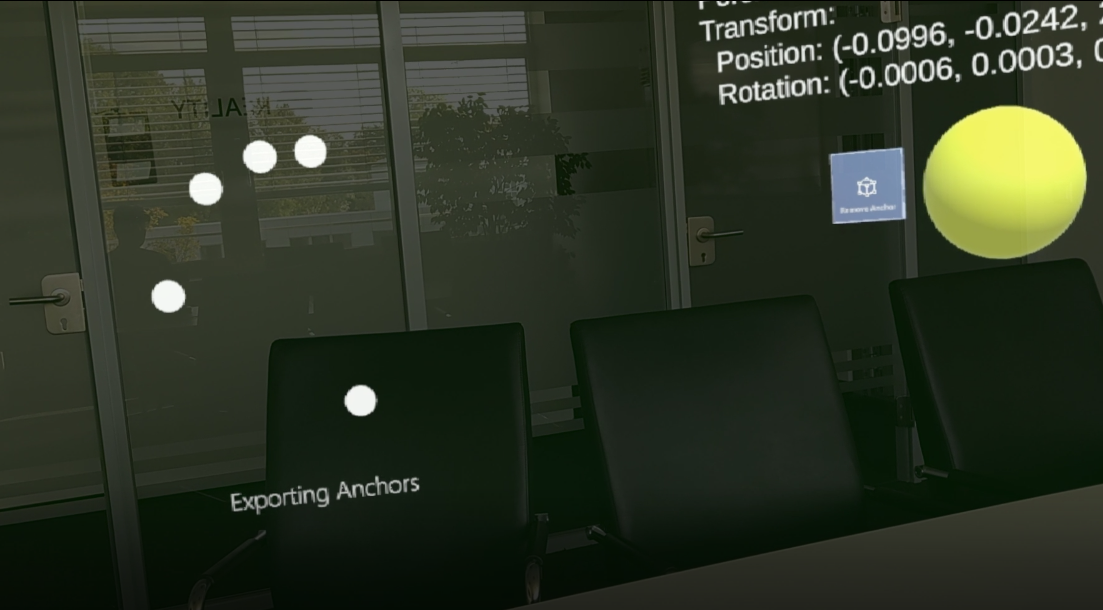
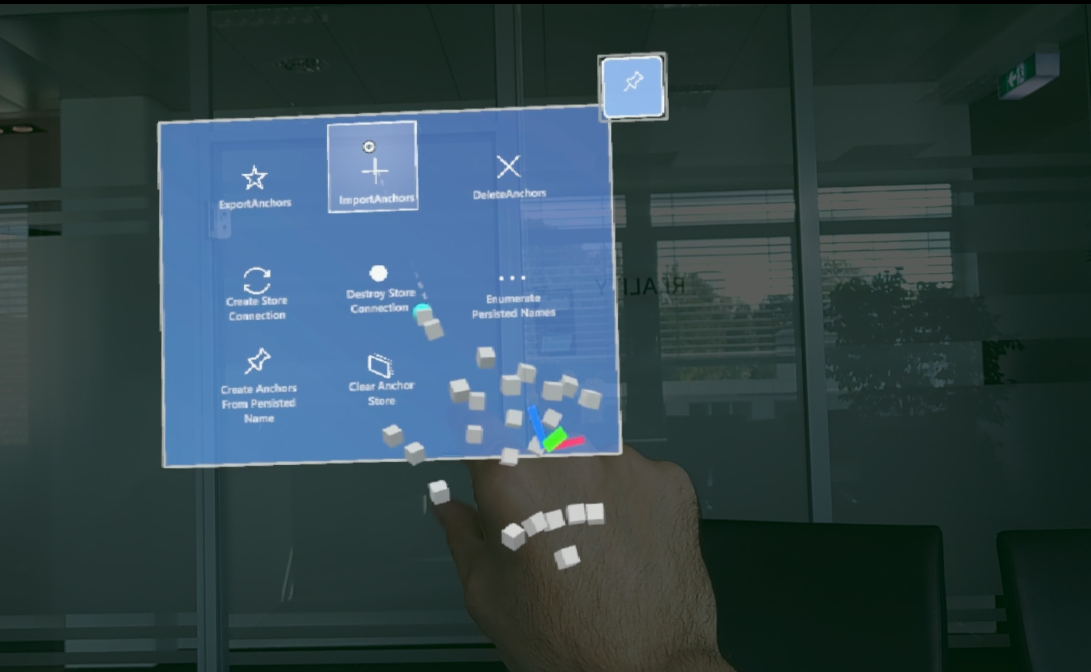
Once exported, you can import spatial anchor data onto the client device to load previously created spatial anchors back into the user’s surroundings. In the example, selecting the Import Anchors button will upload the anchors data file from the Streaming Assets folder to the client device. Importing spatial anchor data can also take a long time, once again taking longer when there are more anchors. Because of this the import function also accepts a timeout argument.
See "AnchorExampleUtils.cs" for more information about how to control the timeout logic.
| Exporting or importing spatial anchors can fail due to issues in the network. Try to catch errors and try again. |
Persisting anchors on the client device spatial anchor store
Instead of exporting and importing anchor data, you can also persist anchors directly on the client device. Persisted anchors are stored per application and exist on the device as long as the application is installed. To persist anchors you must establish a connection to the client’s spatial anchor store. To do this, select the Create Store Connection button on the control panel.
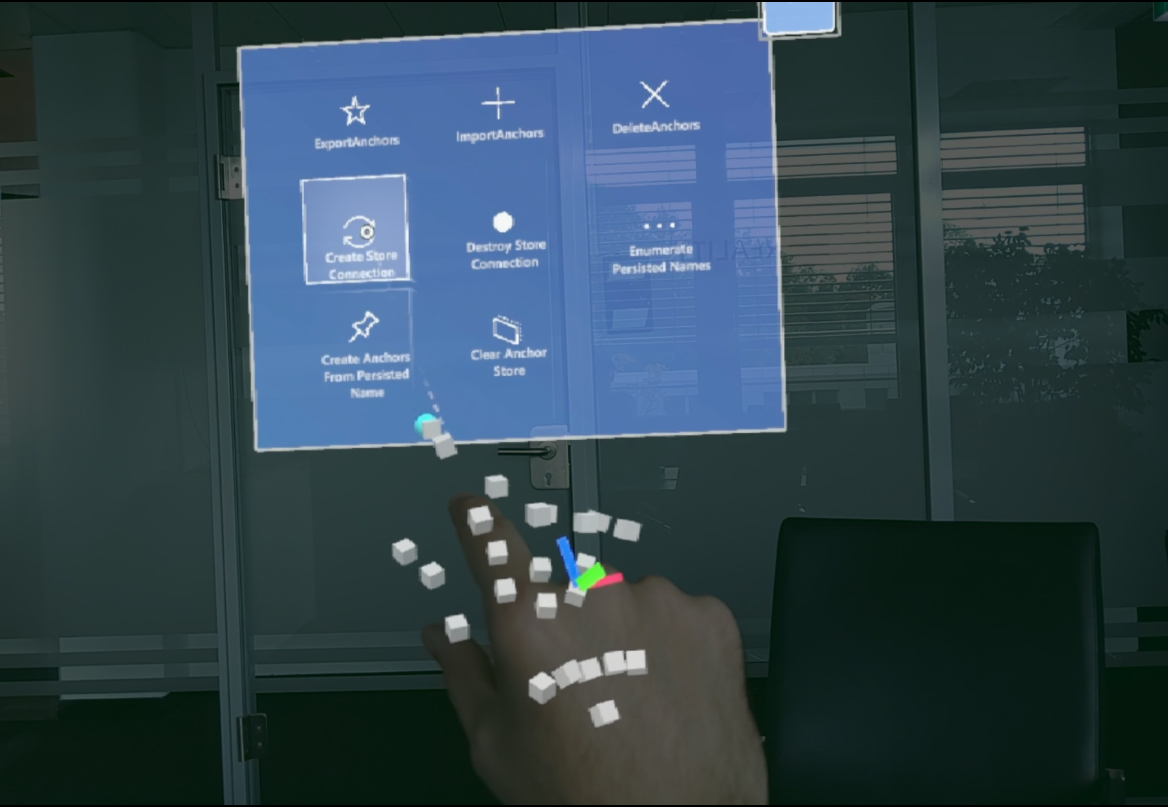
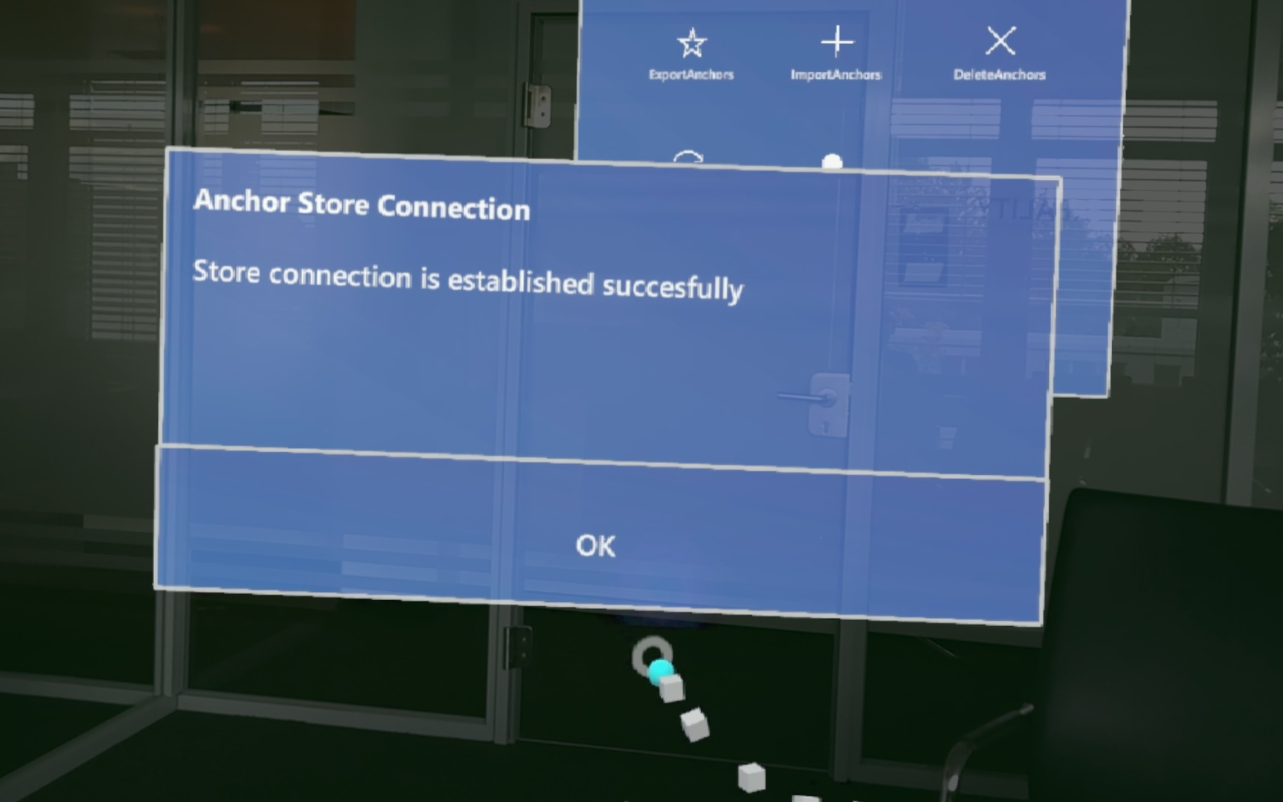
Each spatial anchor you create (represented by a transparent yellow sphere) has a Persist Anchor button. This button tells the client device to persist the anchor to its anchor store. When selecting the button the color of the anchor will change from yellow to green and display additional persistence-related information. Additionally, the Unpersist Spatial Anchor button removes a persisted anchor from the anchor store.
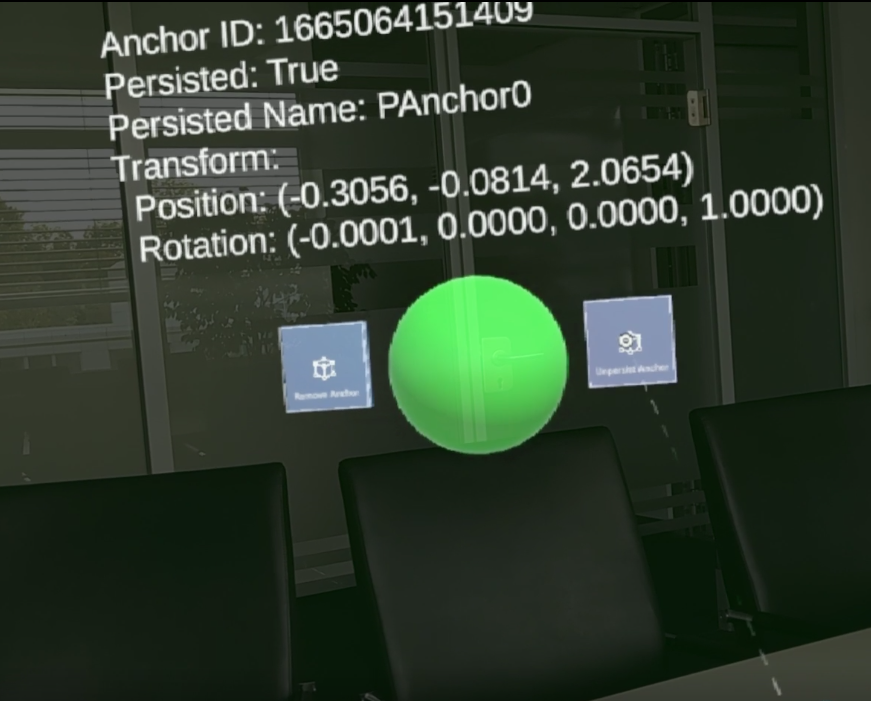
The control panel has more ways to work with with spatial anchors:
-
Enumerate persisted names
Queries the persisted anchor names from the spatial anchor store on device.
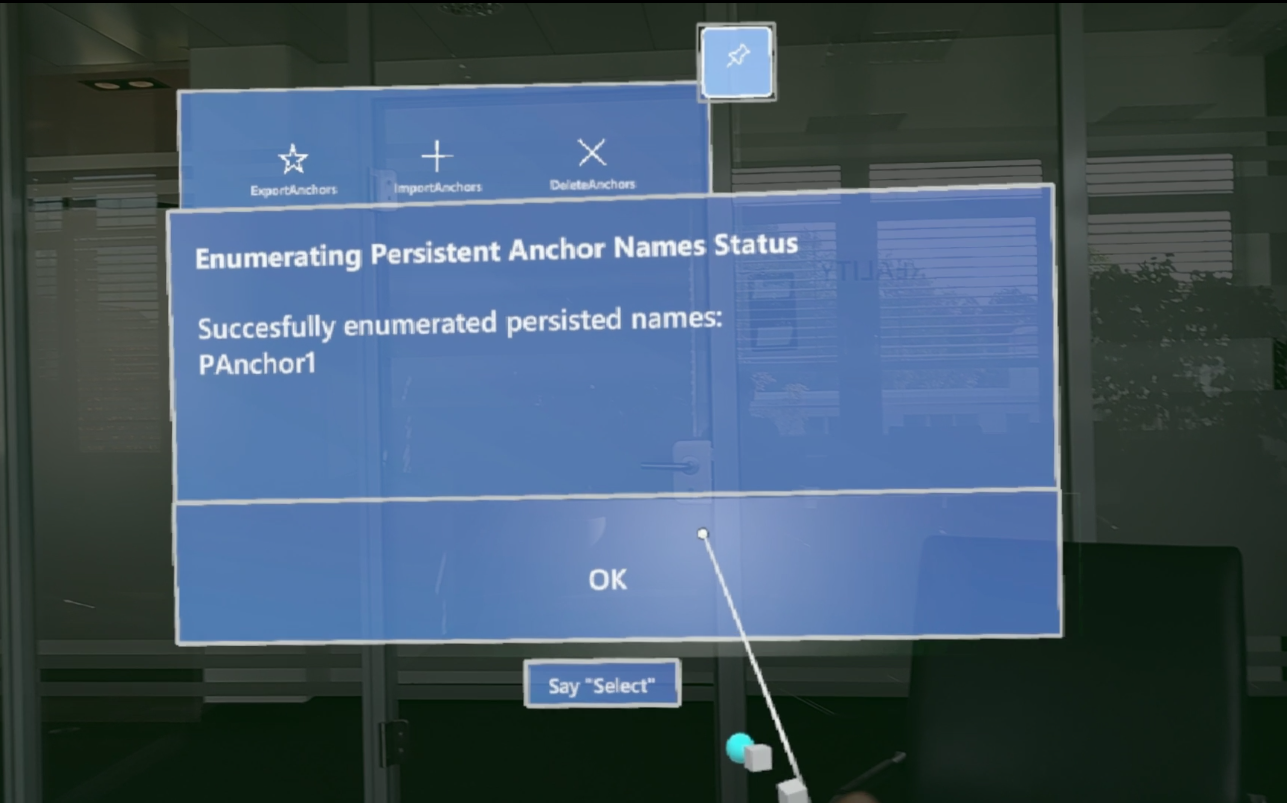
-
Create anchors from persisted names
Loads all the persisted anchors from the anchor store of client device. -
Clear anchor store
Clears all persisted anchor data from the client device.
The package also has an anchoring subsystem for adding, tracking, and removing real-world anchors.
For more information on how to use real-world anchors with AR Foundation, check out Unity’s Anchor Manager manual.