Hololight Stream Runtime with Adobe Substance 3D Modeler
Use the Hololight Stream Runtime utility with Adobe Substance 3D Modeler
Adobe Substance 3D Modeler is a part of Adobe’s 3D suite and enables users to create and sculpt 3D models in XR. With Hololight Stream Runtime, you can stream your experience to the XR device of your choice. This guide explains how to set everything up.
Download and install Hololight Stream Runtime
To enable streaming, download and install Hololight Stream Runtime on your workstation. For detailed steps, see the Hololight Stream Runtime getting started guide.
-
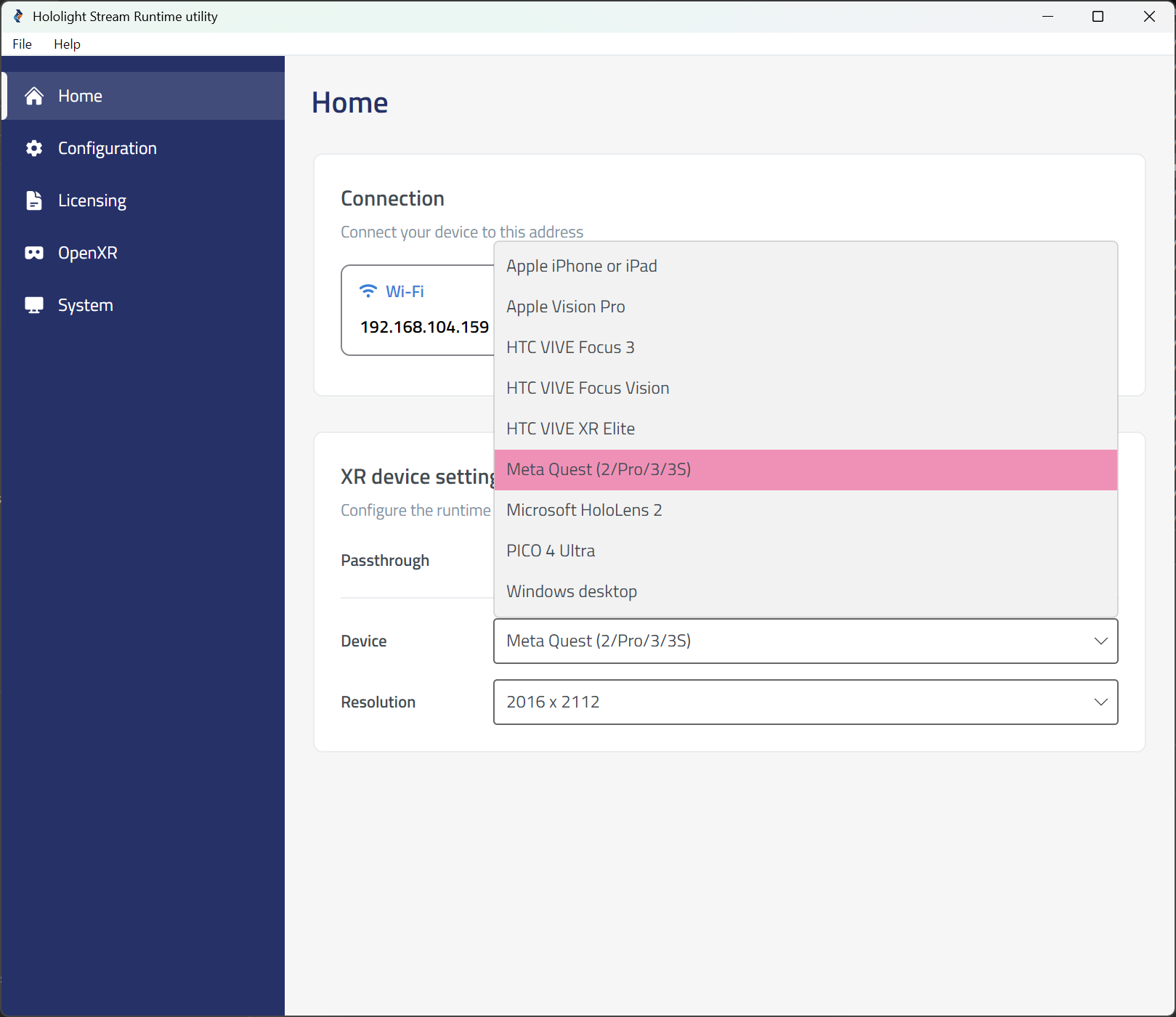
Open the Hololight Stream Runtime utility.
-
Select your XR device in the dropdown menu.
-
Choose Passthrough or VR mode.
Make sure you have a valid license and that it is activated in the Licensing tab in the left sidebar. For more information, see the Licensing guide.
Set up Adobe Substance 3D Modeler
-
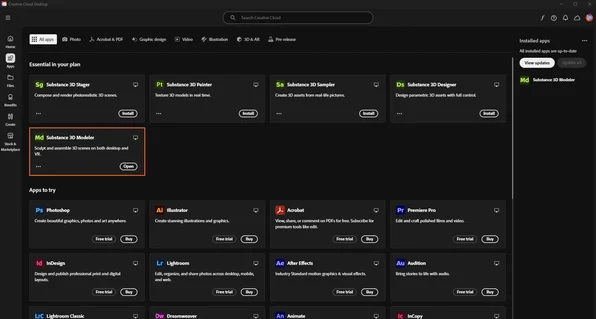
Start Creative Cloud on your workstation.
-
Open Adobe Substance 3D Modeler.
-
Adobe Substance 3D Modeler automatically starts in VR.
-
Select Pause VR compatibility in the top-right corner.
-
Go to Edit > Preferences > Spatial.
-
Enable Mixed reality passthrough.
-
To prevent automatic VR startup, you can select Disable VR.
-
Close the Preferences window.
-
Select Resume VR compatibility in the top-right corner.
Start the session and connect
-
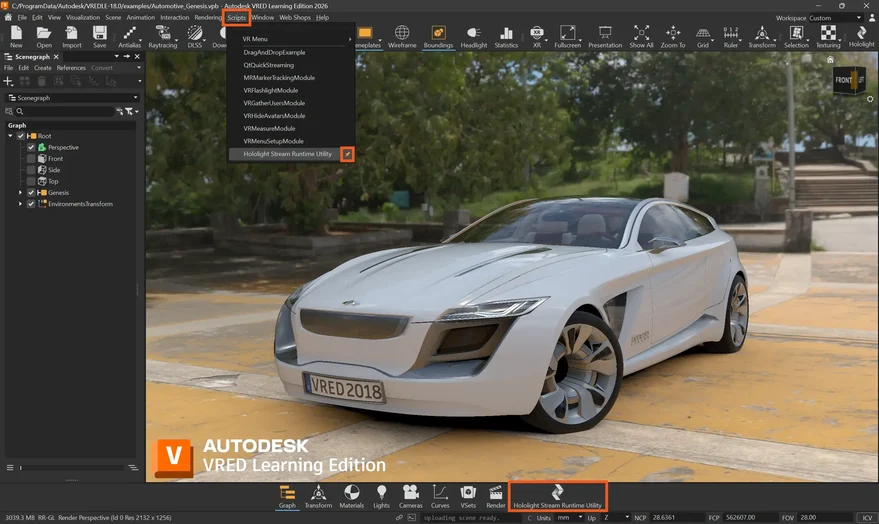
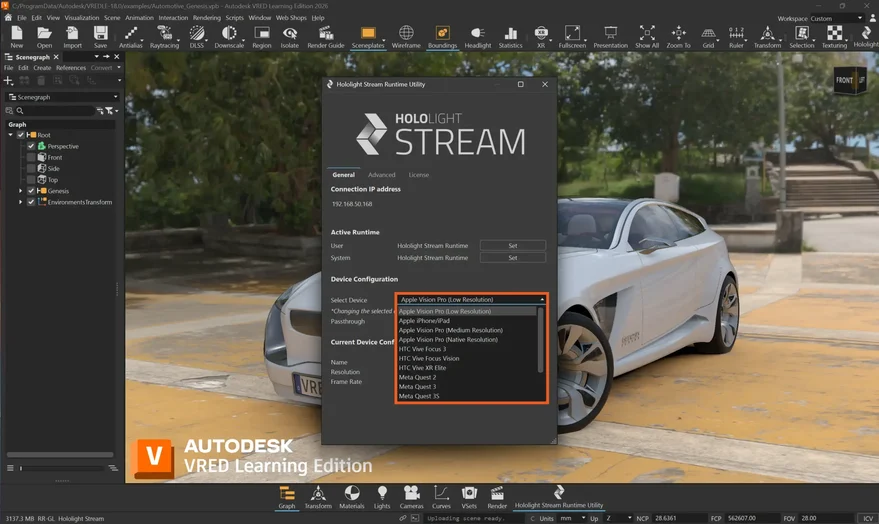
Select your XR device in the Hololight Stream Runtime utility.
-
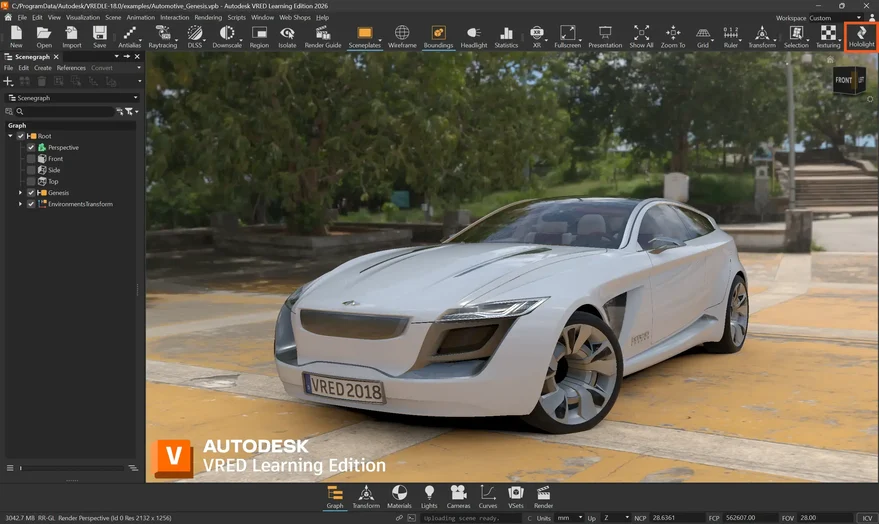
Select Hololight in the top right of the utility to start the session.
-
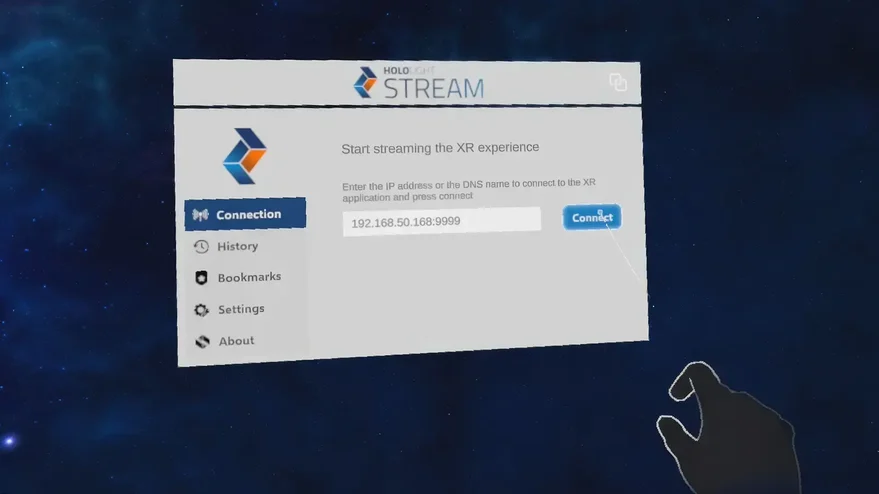
Open Hololight Stream Client on your supported XR device.
-
Enter the IP address shown in the Hololight Stream Runtime utility.
-
Select Connect.