Connect to an application session with Apple Vision Pro
Connect to an application session with Apple Vision Pro
-
Using your Apple Vision Pro, download Hololight Stream from the App Store.
-
Open a compatible web browser.
Web browsers compatible with Hololight Hub on Apple Vision Pro Safari
-
Using the web browser, go to Hololight Hub and sign in.
-
On the Apps screen, find the tile for the app you want to use. Select Start, if the application session has not already been started.
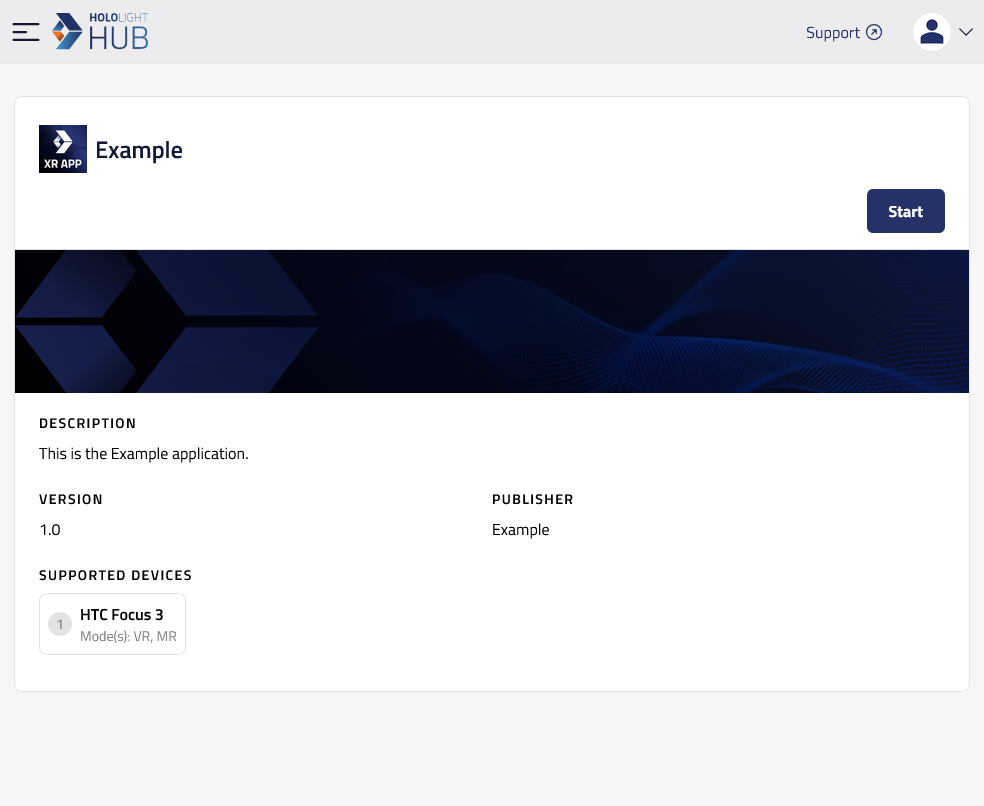
-
When the application session is available select Connect.
-
A panel will appear that says "Open in Hololight Stream?". Select Open.
After connecting, you can use the application using Apple Vision Pro.
| After you disconnect from the application session, you will see both Hololight Stream and the web browser. To connect to another application session, use the web browser to start and connect to an application just like you did before. |
| To change streaming settings, open Hololight Stream and change the settings there. Updated settings will take effect the next time you connect to a Hololight Hub application session. |