Create virtual machines with Proxmox to use with Hololight Hub
Create a virtual machine with Proxmox
Create a virtual machine in Proxmox
Using the computer running Proxmox Virtual Environment, go to Proxmox Virtual Environment.
-
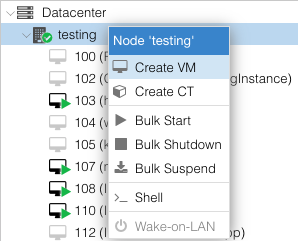
Under Server View > Datacenter, find the node you want to create a virtual machine in and right-click it. Select Create VM.
-
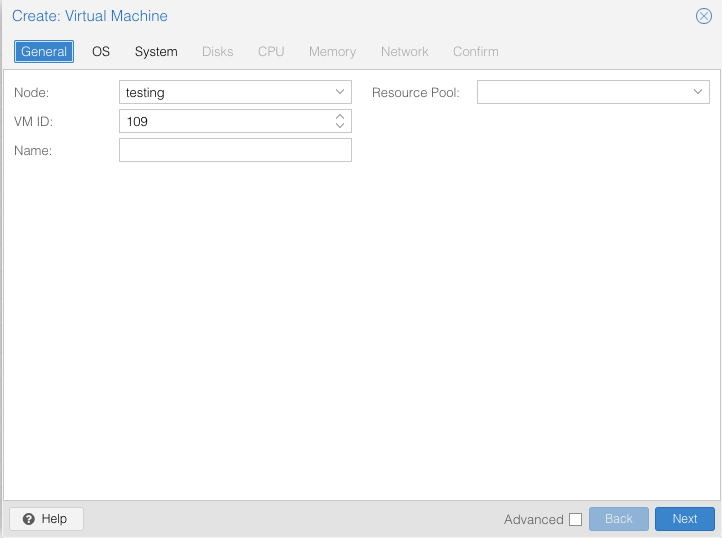
In the Create: Virtual Machine window that appears, check that the node is correct. Then select Next
-
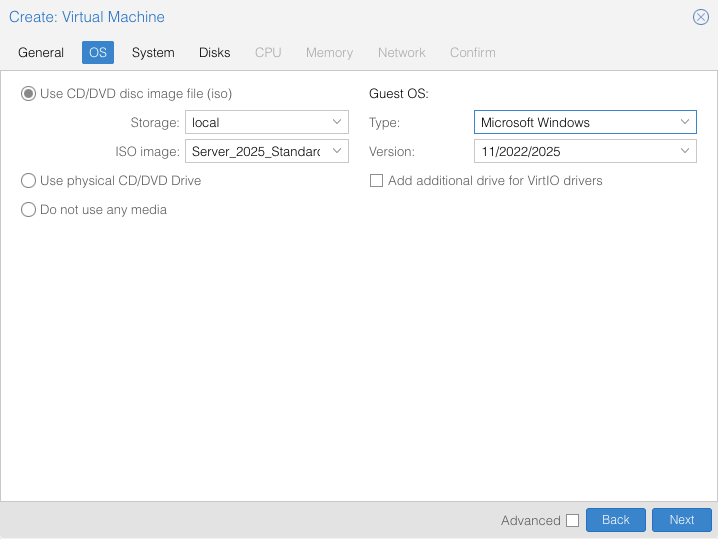
Check that your settings are correct, then select Next.
-
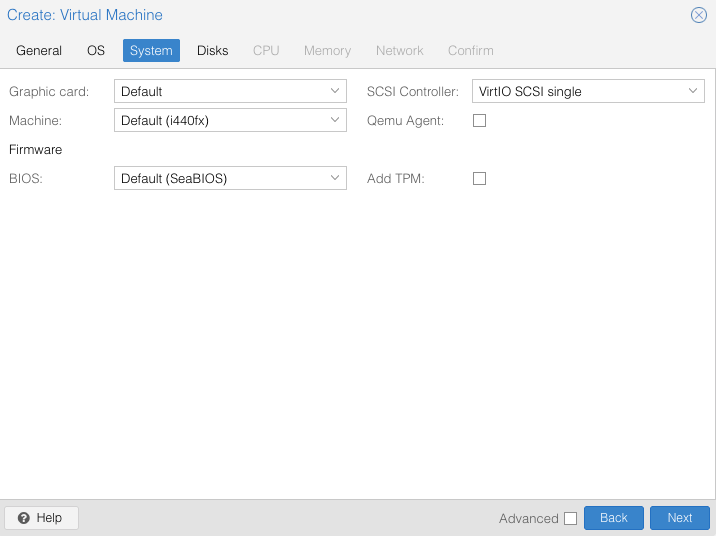
Make sure to select the correct graphics card and other properties. Then select Next.
-
Check that your settings are correct, then select Next.
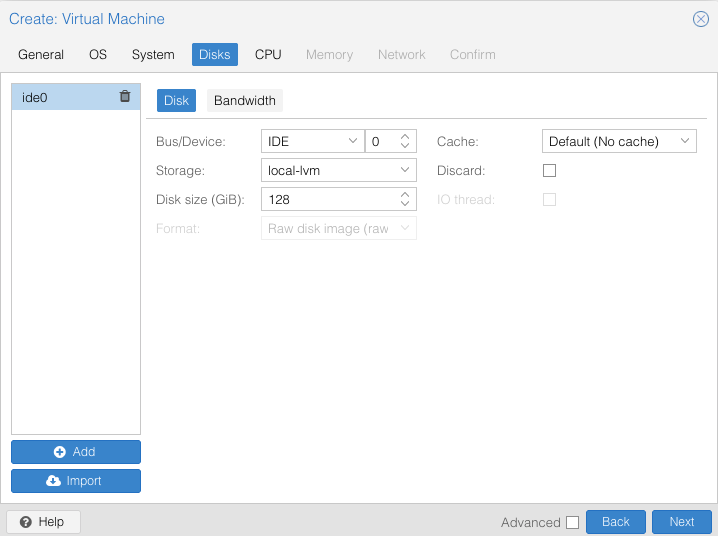
-
Check that your settings are correct, then select Next.
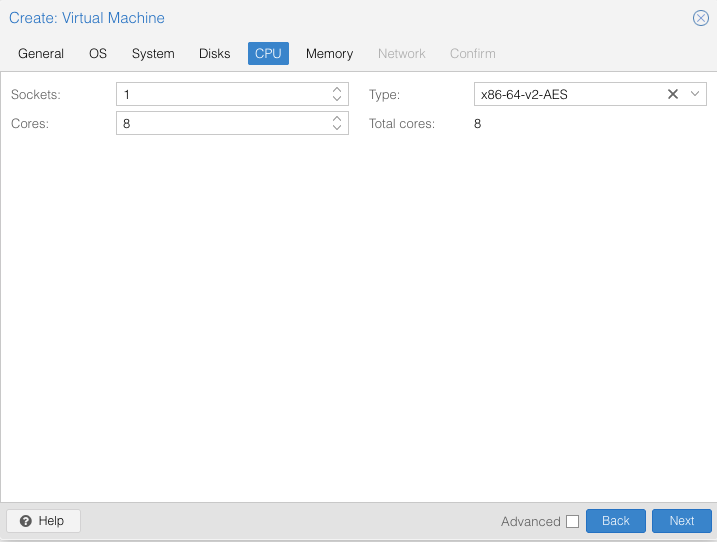
-
Check that your settings are correct, then select Next.
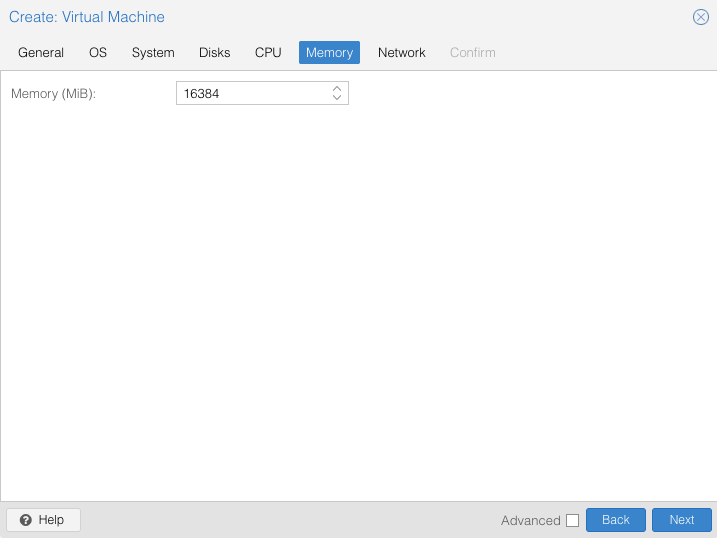
-
Check that your settings are correct, then select Next.
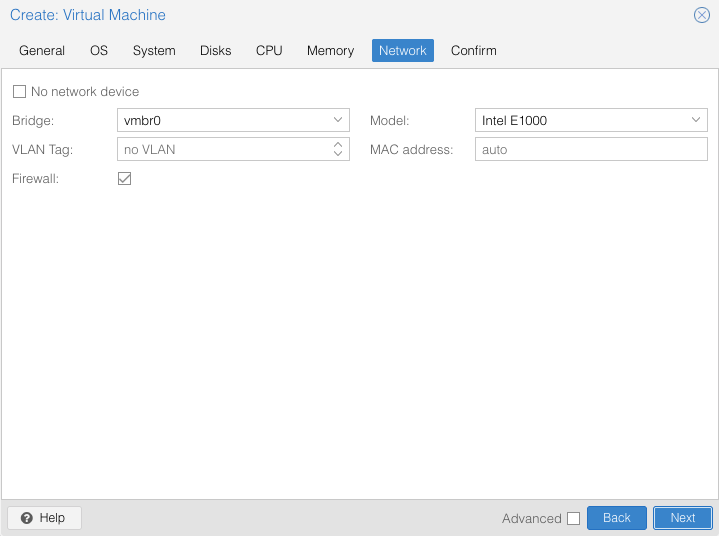
-
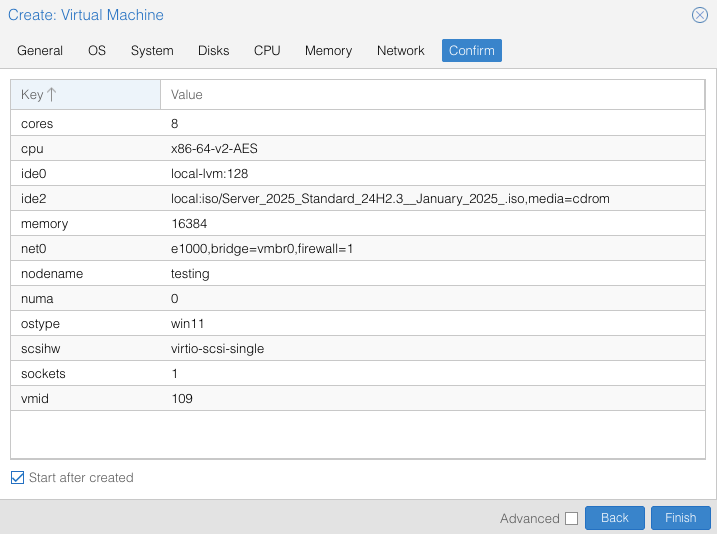
Review your settings are correct, then select Finish.
Install Windows on the virtual machine
These instructions do not cover every step in the Windows setup process, but do cover the steps necessary for the virtual machine that will be the rendering instance to work with Hololight Hub.
-
In Proxmox, under Server View > Datacenter > the node with your new virtual machine, find your new virtual machine and select it. Then select Console to access your machine and set up Windows.
-
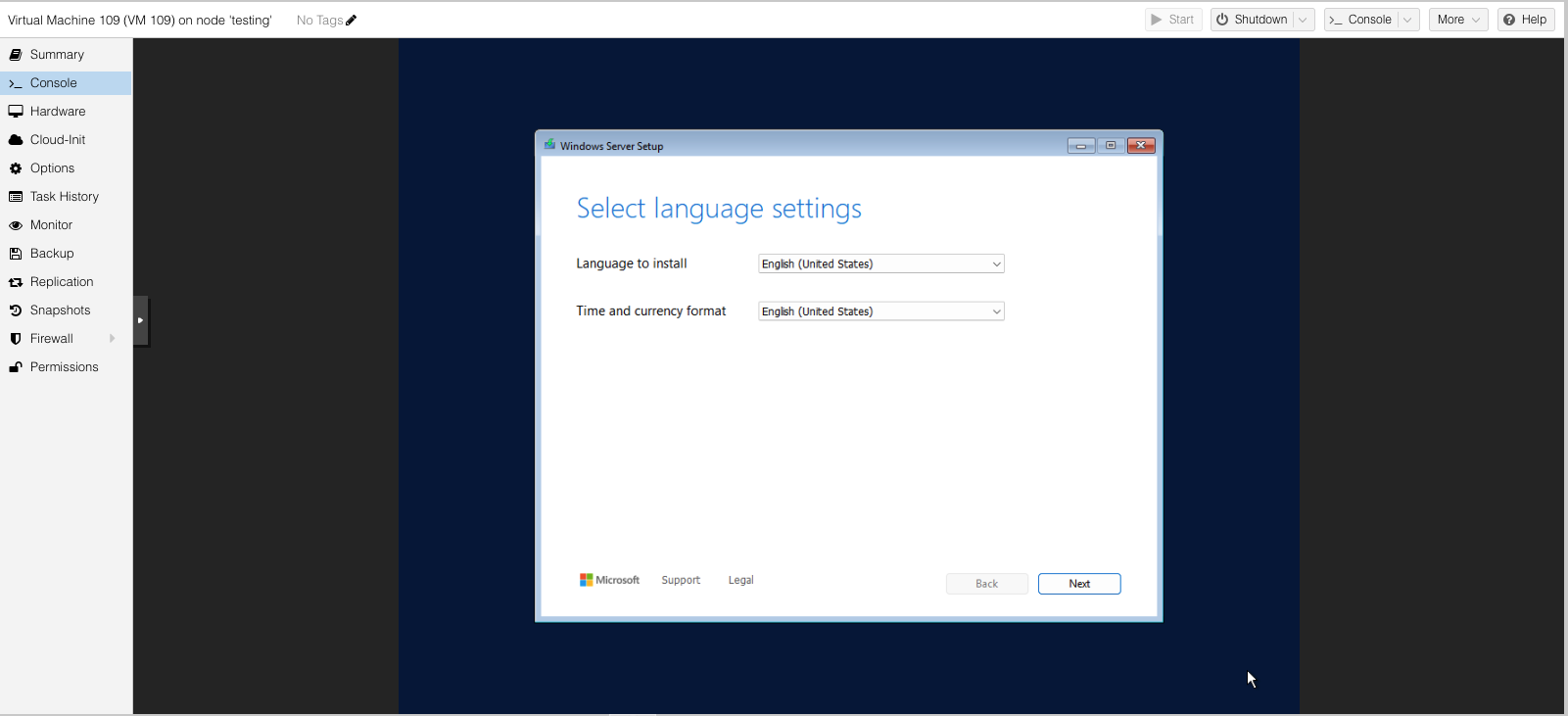
For both Language to install and Time and currency format choose English (United States) and then select Next
-
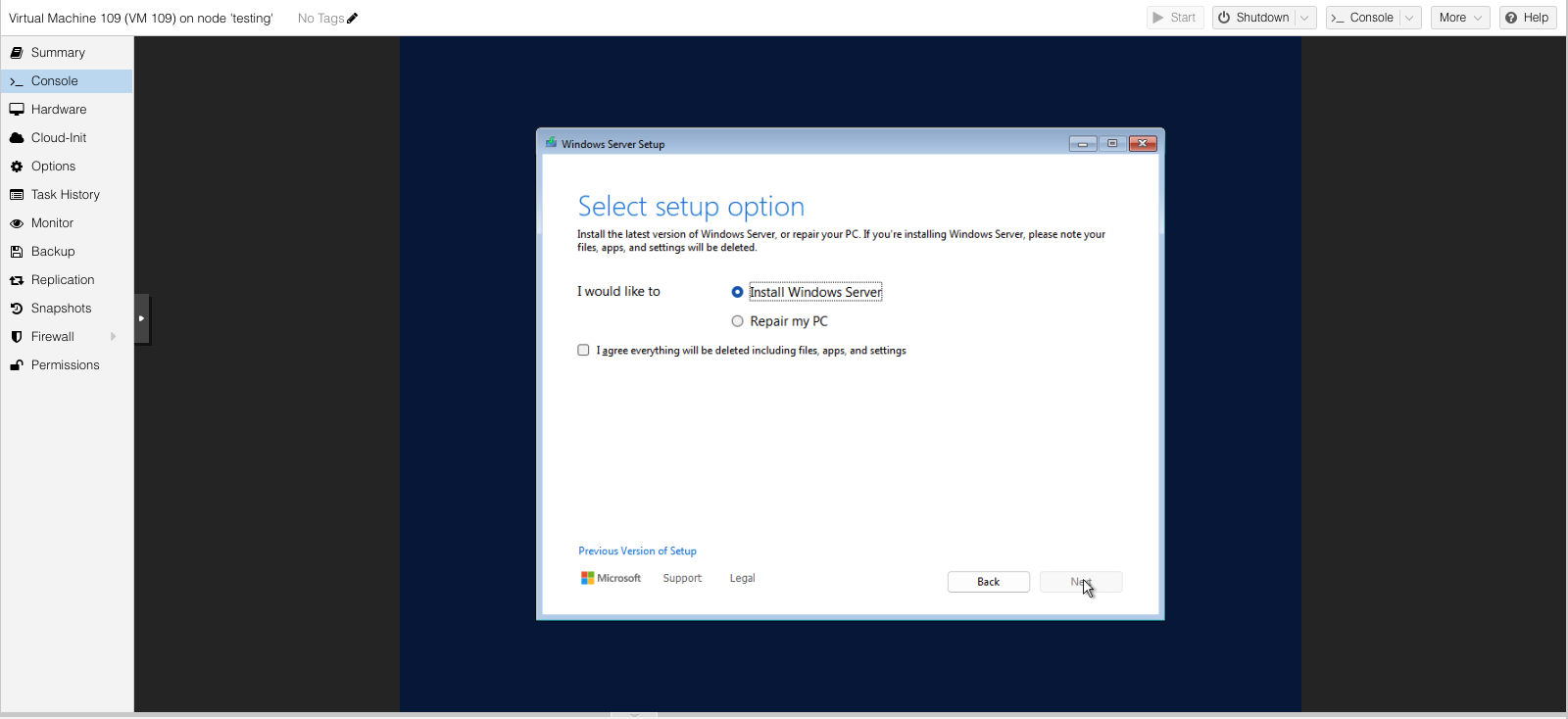
Select Install Windows Server, then check the box next to I agree everything will be deleted including files, apps, and settings, and then select Next
-
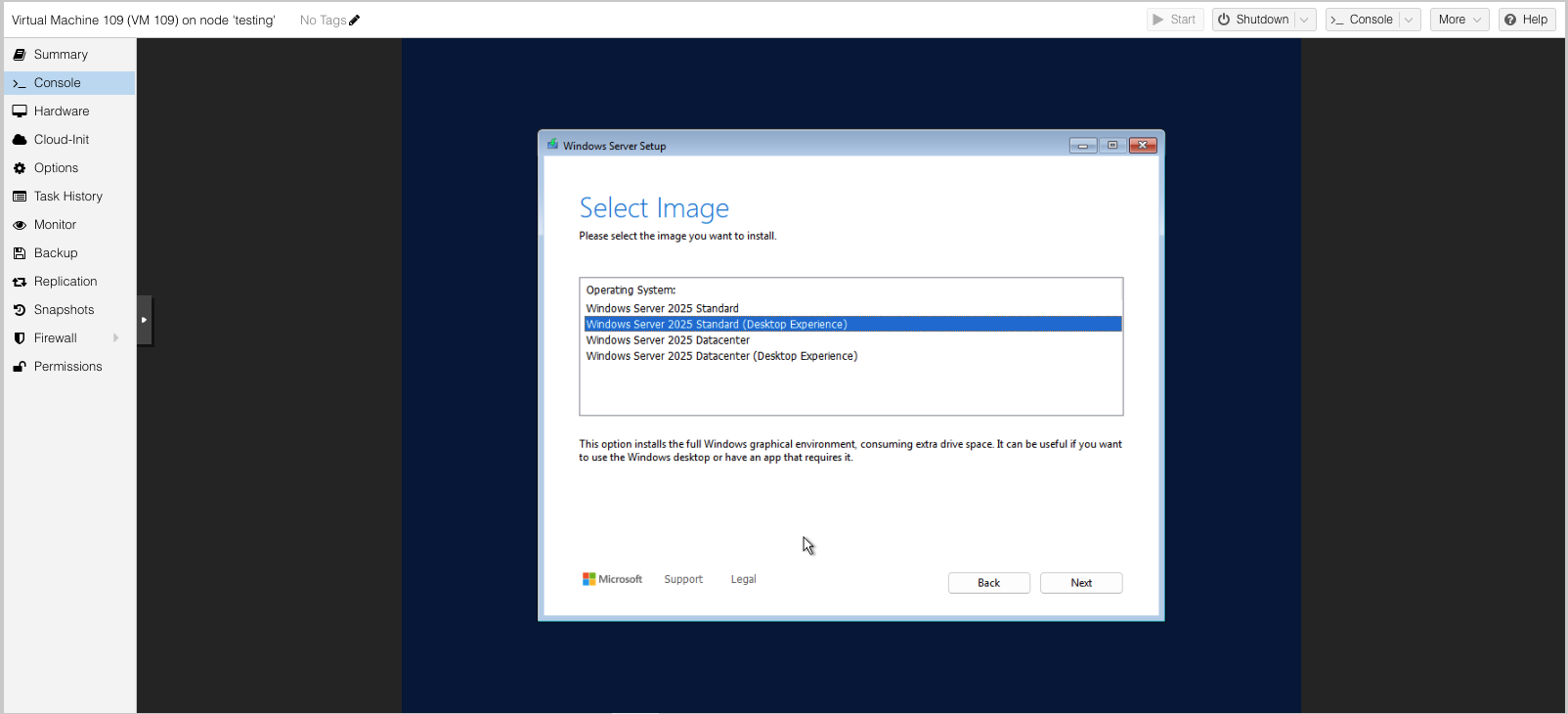
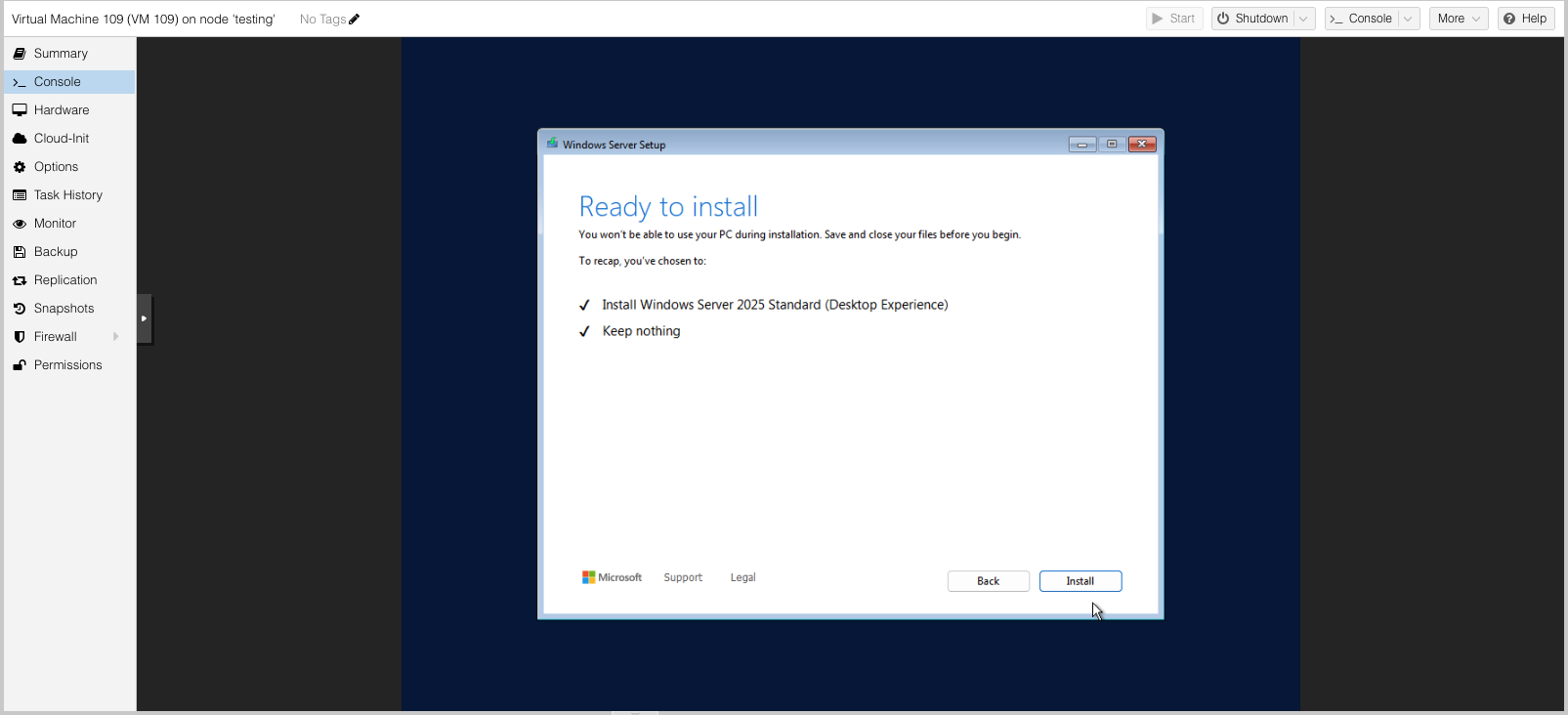
Select Windows Server 2025 Standard (Desktop Experience).
-
Select Next.
After creating a virtual machine
After you are finished creating your virtual machine, it is time to upload the application you want to host on Hololight Hub to the virtual machine.