Calibrate alignment with a Hololight Hub-supported device
Objectives
-
Understand what options are available for aligning your Hololight Hub experience on a supported device.
-
Be able to align Hololight Hub on a supported device.
Prerequisites
-
You have a Hololight Hub account.
-
You have a Hololight Hub-supported device.
-
Your Hololight Hub-supported device has the Hololight Hub application installed.
Calibrate alignment
Alignment through Hololight Hub allows users to adjust settings to better align the Hololight Hub experience with the real-world environment.
-
Open Hololight Hub on your device.
-
Sign in with your email address and password.
-
Select Alignment.
On the alignment screen you can do a few different things depending on the device you are using.
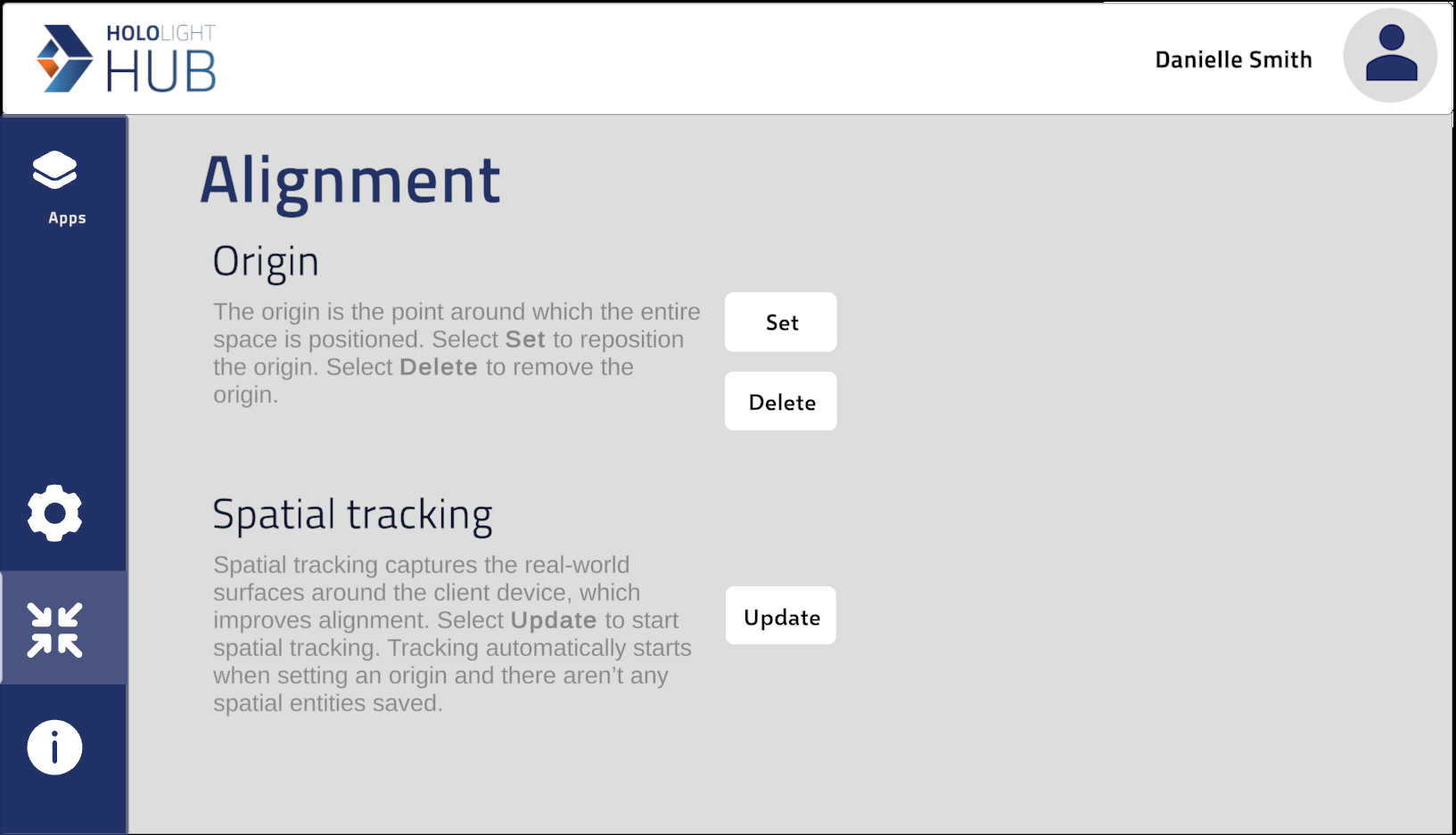
Origin
The origin is the point around which the entire space is positioned.
-
Select Alignment.
-
Select Set to reposition the origin.
-
Follow the instructions that appear to place the origin.