Add first user to your Hololight Hub deployment
Add first tenant manager user
The superuser you first sign in with should only be used when necessary. You should add a user that you have access to that is a user with a tenant manager access role that you can use to continue setting up Hololight Hub.
Add a user to your tenant
-
Select USERS > Manage users > Add new user.
-
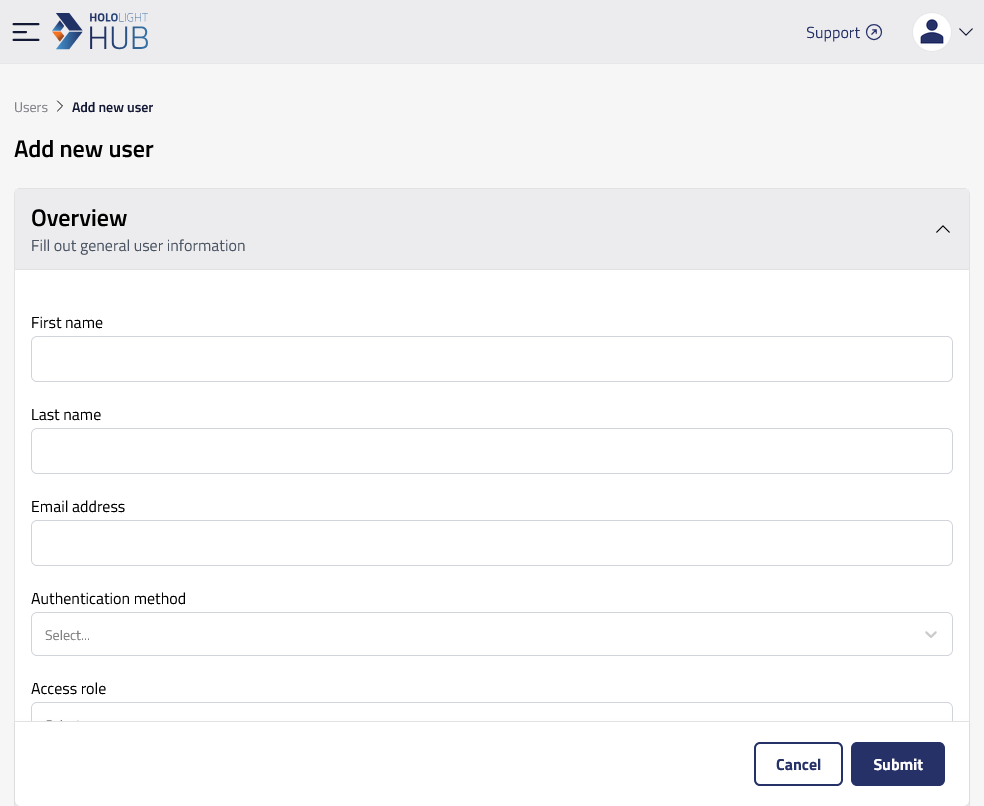
Under Overview, fill out all the fields.
User information Property
Description
First name
User’s first name.
Last name
User’s last name.
Email
User’s email address.
Authentication method
How a user is able to sign in to Hololight Hub. Options include "Default and single sign-on" and "Single sign-on only". For more information, check out User accounts and authentication in Hololight Hub.
Access role
Role indicating the level of access a user has.
-
Under App access make sure to mark the checkboxes next to the applications you want the new user to be able to use.
-
Under Groups you can choose to add the user to a previously created group.
-
Under Credits you can choose whether or not to limit your user to running application sessions for only a certain amount of time.
-
Select Submit.
After creating your first tenant manager user
Now you can move on to adding an application.