Getting started with Hololight Hub
Objectives
-
Be able to start a Hololight Hub application session.
-
Be able to connect to that session using a supported XR device running Hololight Hub.
-
Be able to stop the application session when you are finished using it.
Getting started
Download and install Hololight Hub on your device
To connect to an app hosted on Hololight Hub, download Hololight Hub onto your preferred XR device. Depending on the device, you can either download and install Hololight Hub through the device’s official store or download the client to your computer and sideload it onto your device.
Hololight Hub supports the following XR devices:
HTC Focus 3 |
HTC Focus Vision |
HTC XR Elite |
Meta Quest 2 |
Meta Quest 3 |
Meta Quest 3S |
Meta Quest Pro |
Microsoft HoloLens 2 |
PICO 4 Ultra |
Download and install Hololight Hub using official device store
You can download and install Hololight Hub using the app store on your XR device. Just open the store on your device and search for Hololight Hub or use one of the following links:
To download the application to PICO 4 Ultra, you need a business account. You can then search for "Hololight Hub" on their store using a PICO device.
Download and sideload Hololight Hub
You can download and sideload Hololight Hub onto all supported devices
To download Hololight Hub for sideloading:
-
Go to the Hololight Hub section of the Hololight download page.
-
Download Hololight Hub application package for your device.
-
Sideload the application package onto your XR device. Use the links below to find the correct instructions for your device:
Sign in to Hololight Hub
-
Open an internet browser.
-
Go to the hub.hololight.com.
If your organization has their own Hololight Hub, you will use a different URL. 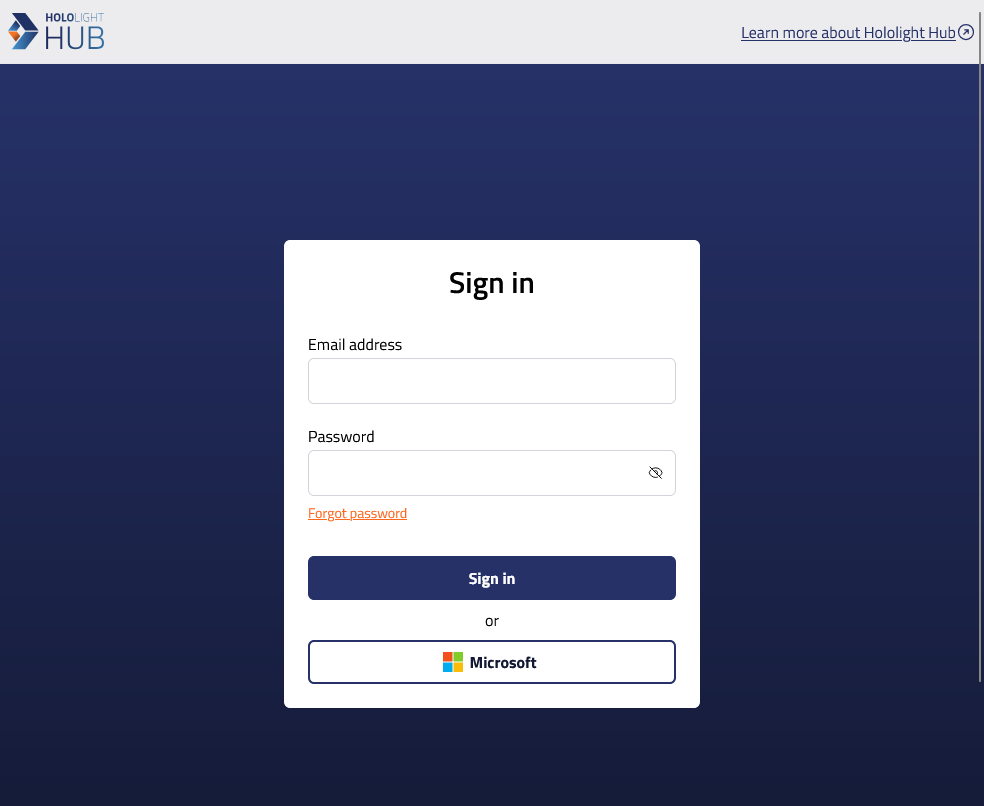
-
Enter the email address and password associated with your account.
-
Select Sign in.
Start application session
-
Select Apps on the side menu.
-
Find the tile for the app you want to start.
-
Select Start to start the app.
Hololight Hub - Select a region for your application sessionWhen using Hololight Hub, before selecting "Start", you can also select the region you want the application session to run in. This dropdown menu is available in the application’s tile. For a better experience choose a location closer to all users' physical location that will connect with Hololight Hub on a device. -
The app’s status will update as the app starts up. When the app’s status is "Available", you can then connect to the app with Hololight Hub on a supported device.
Status |
Description |
Initializing |
The app session is starting. It isn’t yet available to connect to, but will be soon. |
Available |
The app session is ready. You can connect to the session using Hololight Hub on a supported device and use the app. |
Connect to an application session with a supported device
| To connect to an application session you need to first start a session and wait until it is available. You can start an application session either by using Hololight Hub on a web browser or using Hololight Hub on a supported device. |
-
Open Hololight Hub on your device.
-
Sign in with your email address and password.
-
Select My apps, if it isn’t already selected.
-
Select the application you want to use.
-
If the application isn’t already available, select Start and wait for the application to become available.
If you are able to select a region, you can select one before you select Start. 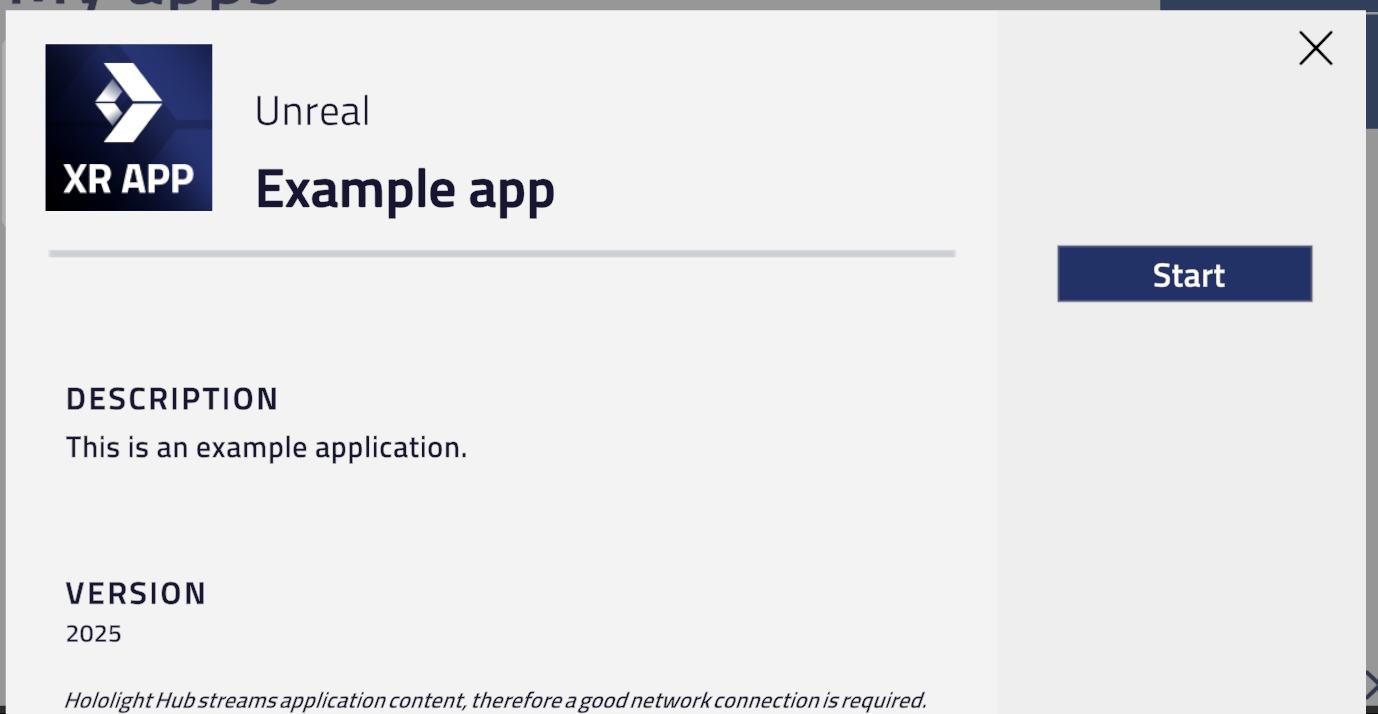
-
Select Connect.
You will now be using the application through your device.