Add an application using your own Hololight Hub deployment using a virtual machine template
Prerequisites
-
You have a Hololight Hub account.
-
You have an account with an administrator or tenant manager access role.
Add an application using your own deployment using a virtual machine template
-
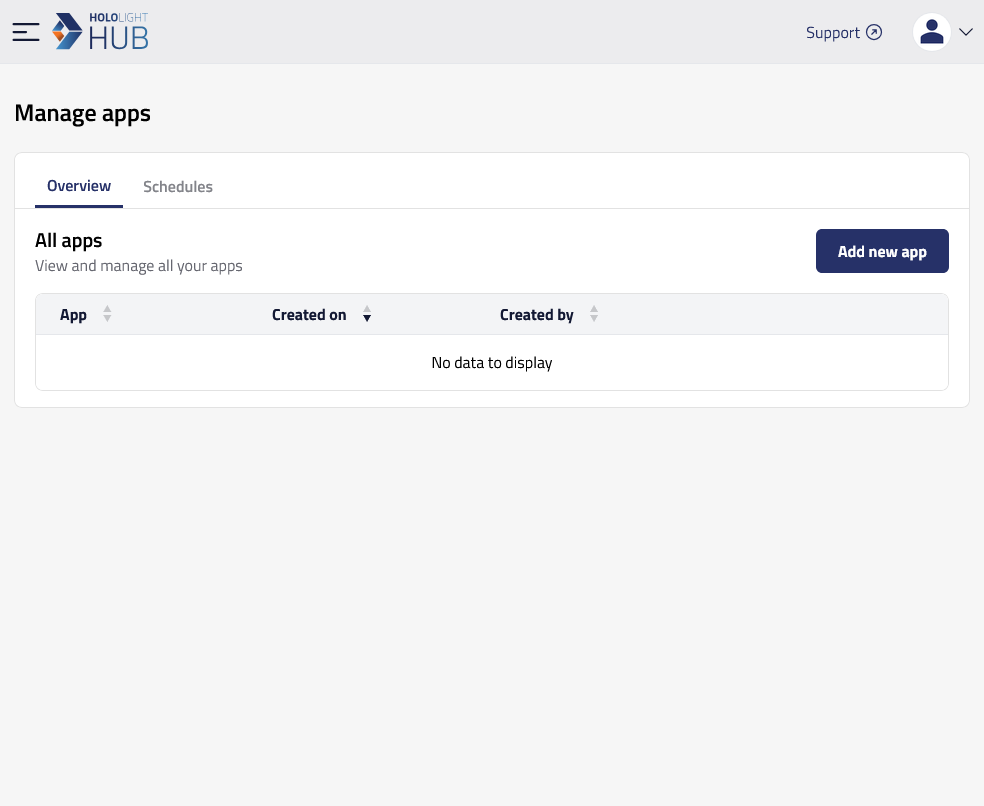
Select APPLICATION > Manage apps > Add new app.
-
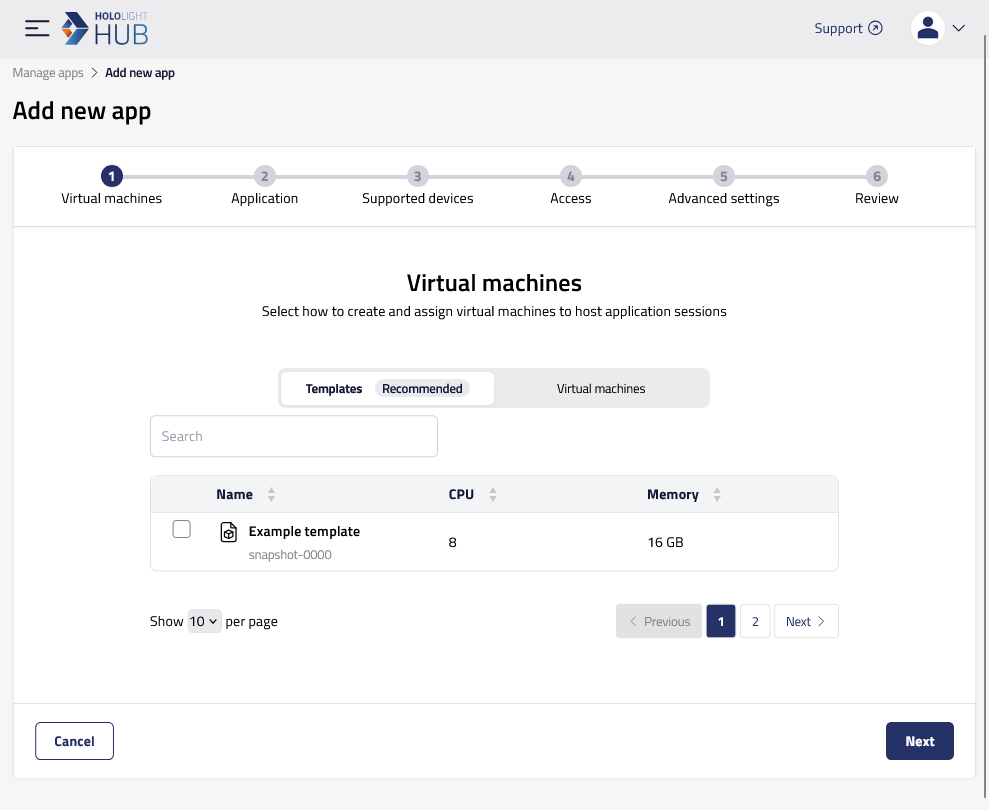
Select Templates.
-
Check the checkbox for the template that is set up with the application you want to add. You can only select one template to use.
-
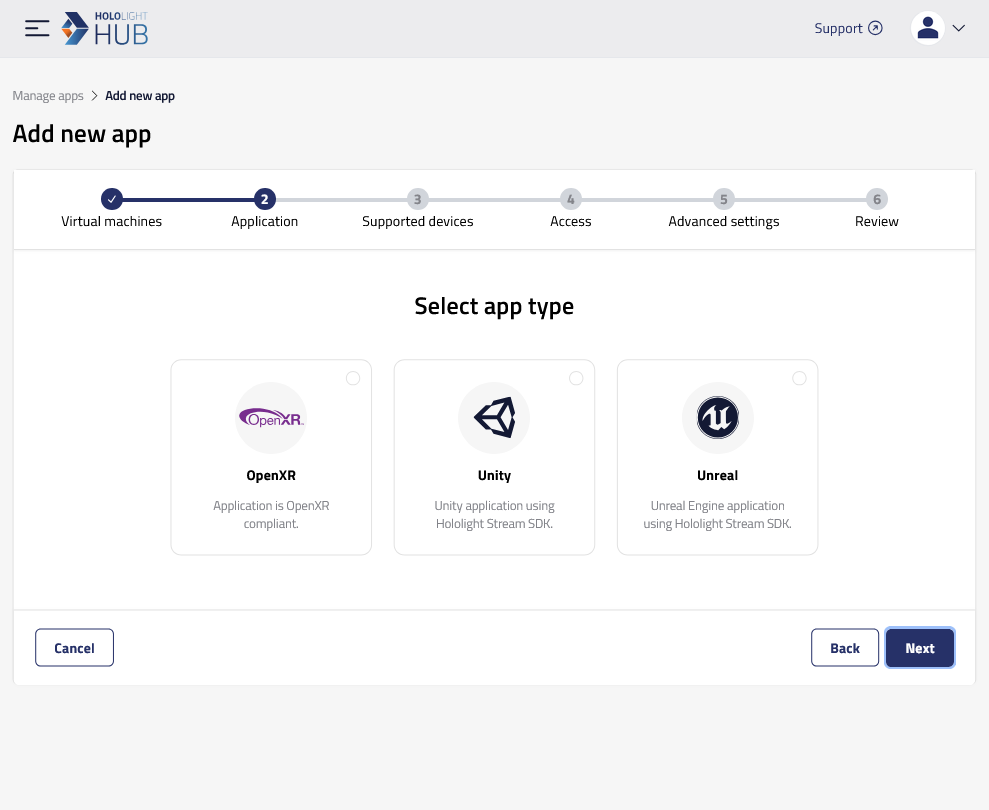
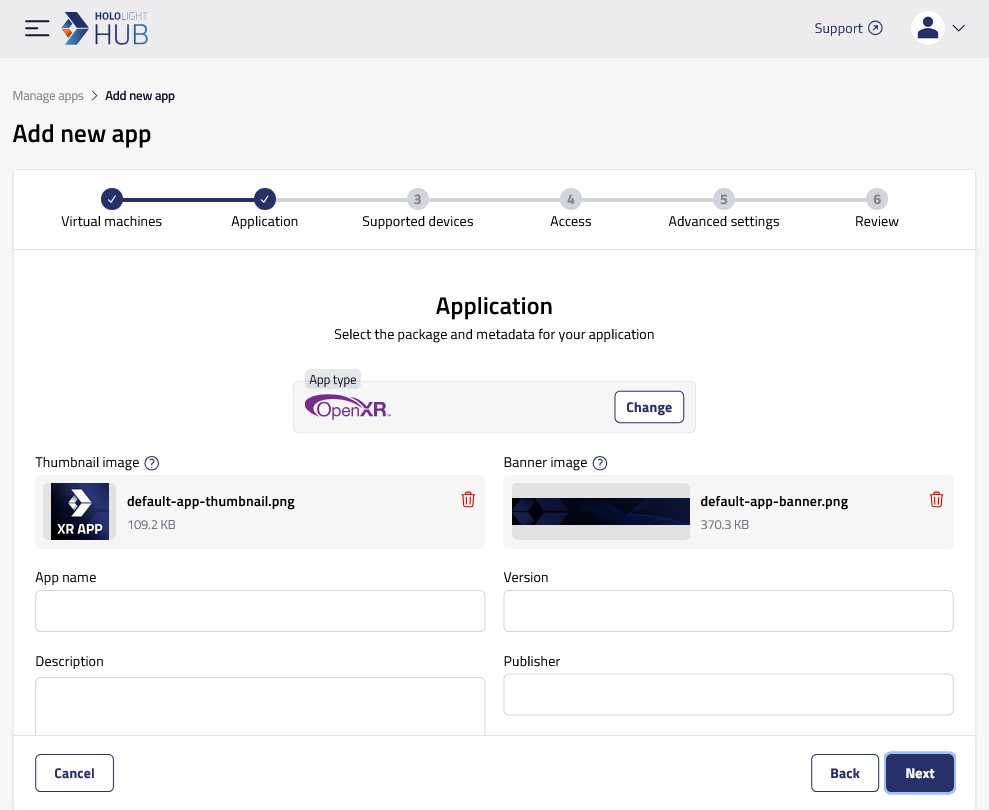
Select an application type, then select Next.
-
Choose a thumbnail image and banner image.
-
Enter an app name, version, and description.
-
Enter the name of the publisher and then select Next.
-
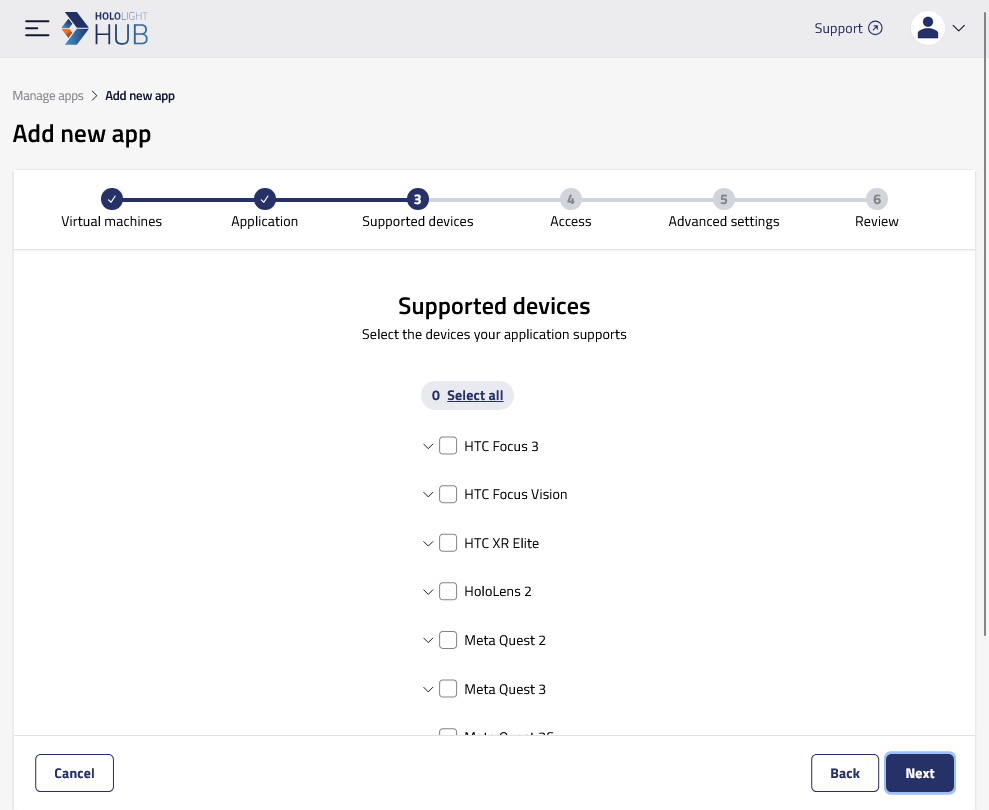
For each device the application supports, check that device’s checkbox.
-
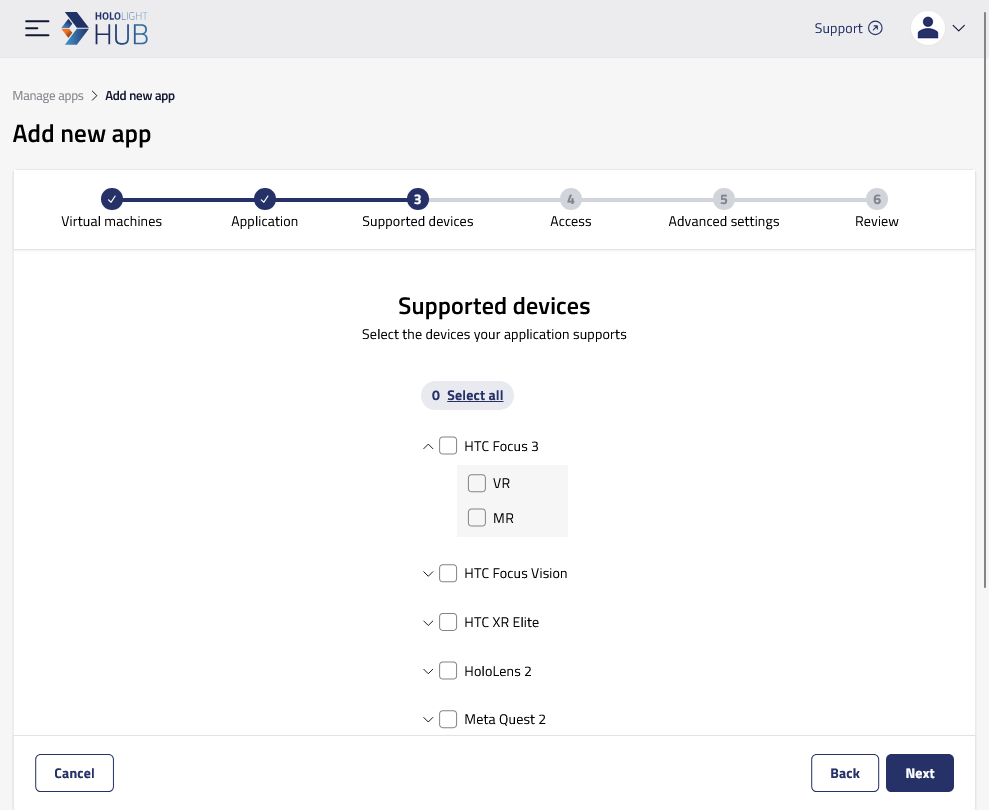
You can select the down arrow to expand the options and specify if the application specifically supports AR or VR on that device.
-
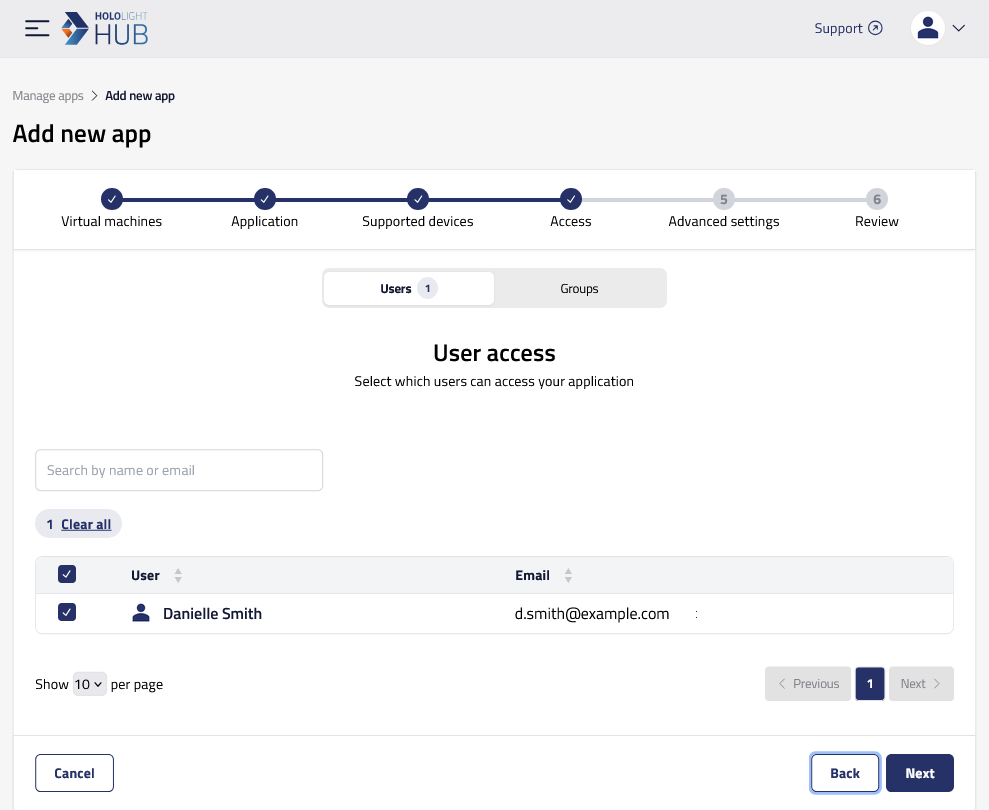
For each user you want to be able to use the application supports, check that user’s checkbox.
-
You have a few different options in the advanced settings.
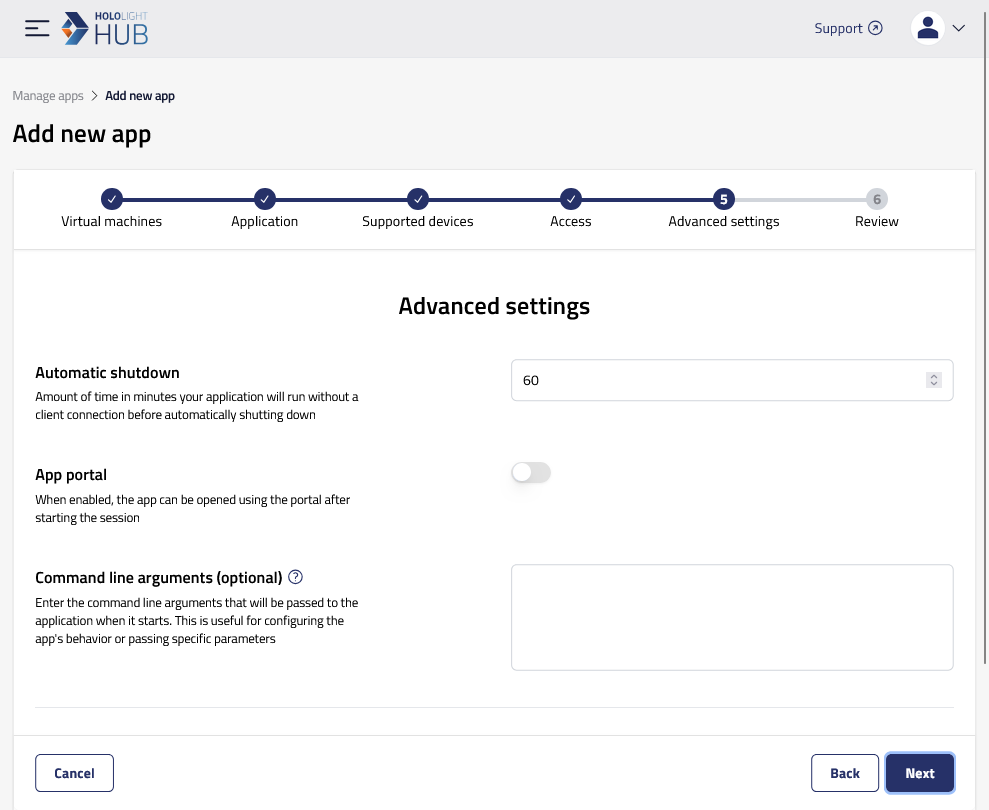
Automatic shutdown lets you set the amount of time in minutes before a session of the application automatically shuts down. This countdown starts from the time you started the session. The countdown is only in effect until you connect to the session with a device using Hololight Hub.
The app portal allows you to use an application in the session you started from an internet browser.
A command line argument is a command passed to the application when it starts. This is useful for configuring the app’s behavior or passing specific parameters.
You can select Add startup option.
Startup options let you define a set of options that users can enter values for when starting an application session. Hololight Hub will use the values to affect the application when it starts.
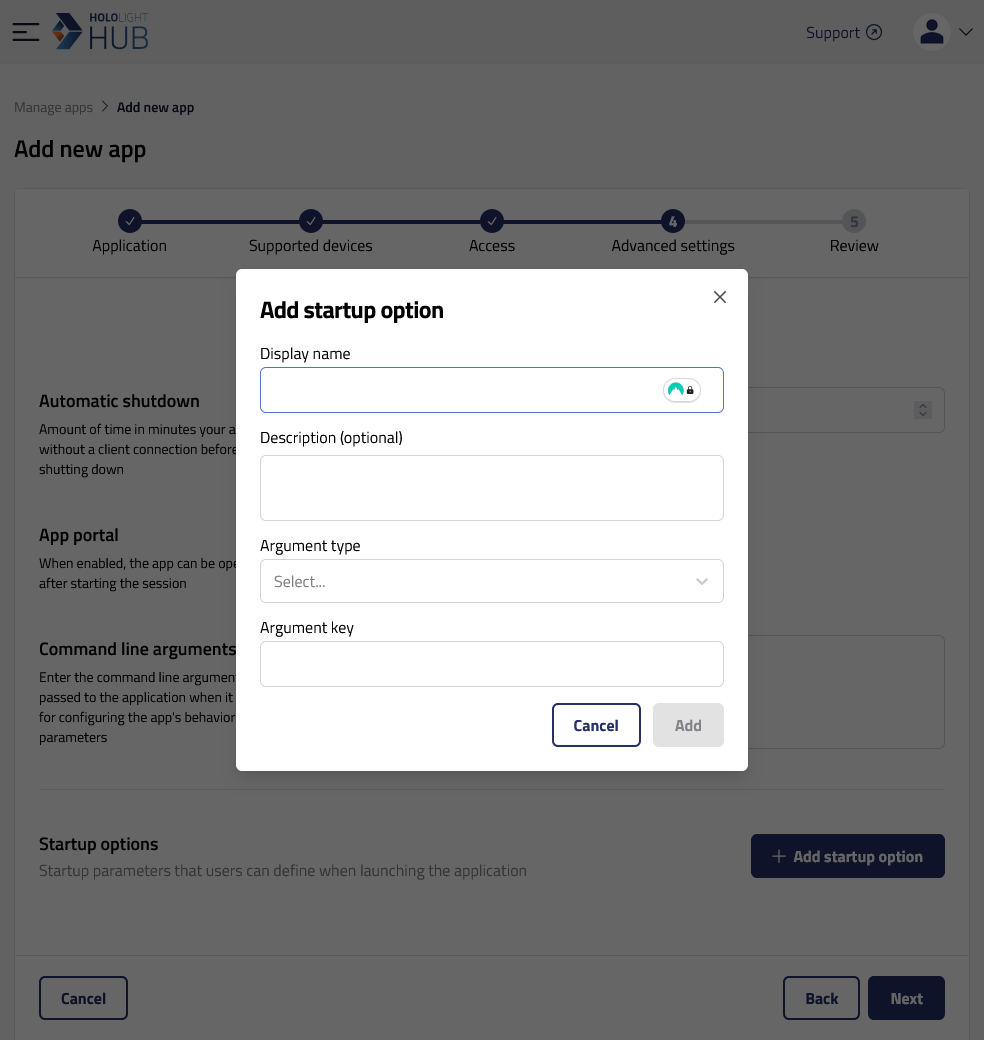
Once you are ready, select Next.
-
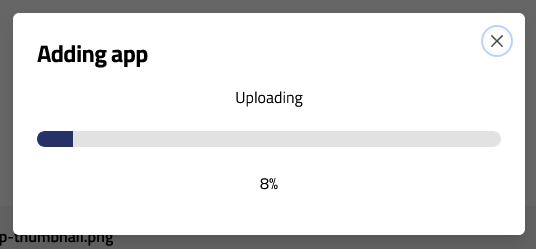
Review your selections. Select Back to make changes. Select Submit to upload the application.
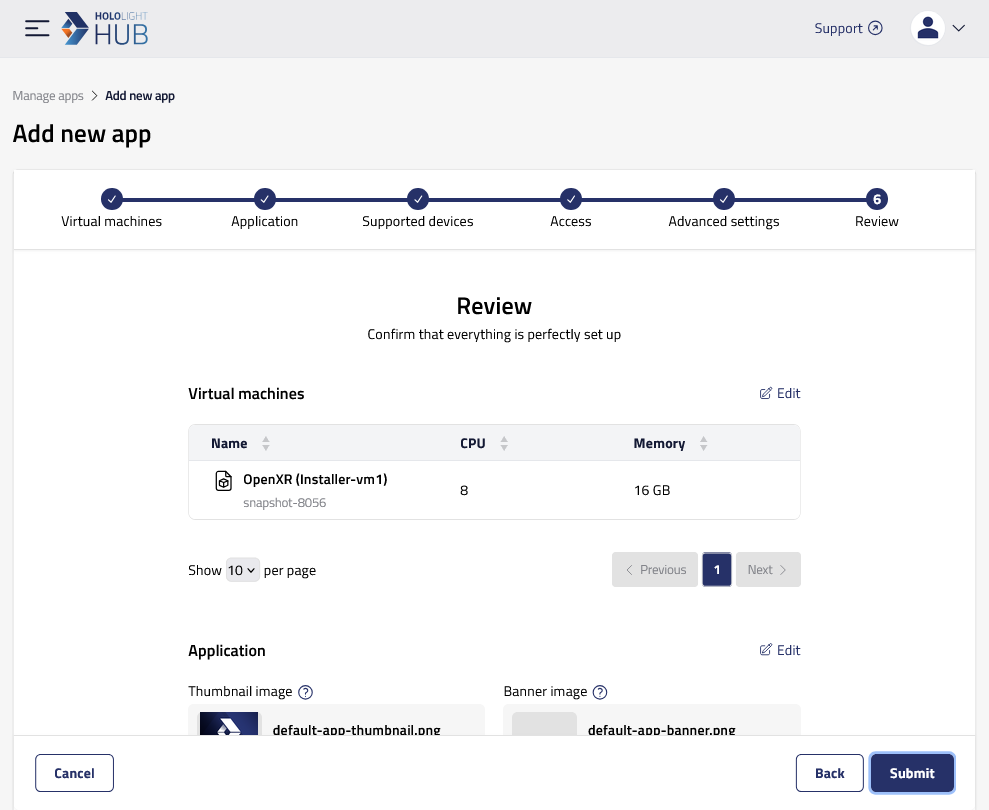
Make sure to let the application completely upload before navigating away from this screen.