Configure Unreal Engine applications to support passthrough with Hololight Stream
Objectives
-
Be able to configure your Unreal Engine application to work with passthrough on Hololight Stream.
-
Understand which settings need to be configured in which versions of Unreal Engine.
Configure Unreal Engine applications to support passthrough
If you enable passthrough and connect to an application made with Unreal Engine, passthrough may not work. To get passthrough to work, you must build the application with Unreal Engine version 5.5 or later. There are also some additional Unreal Engine-specific requirements depending on the version.
Passthrough with Unreal Engine requirements
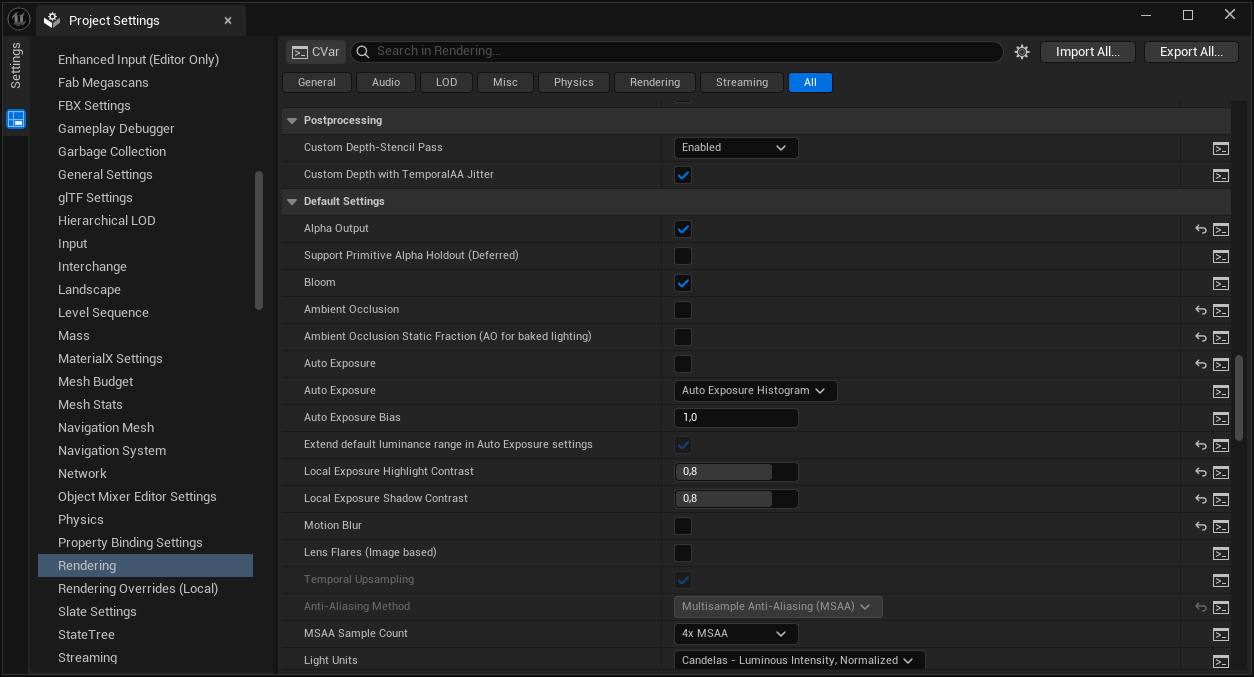
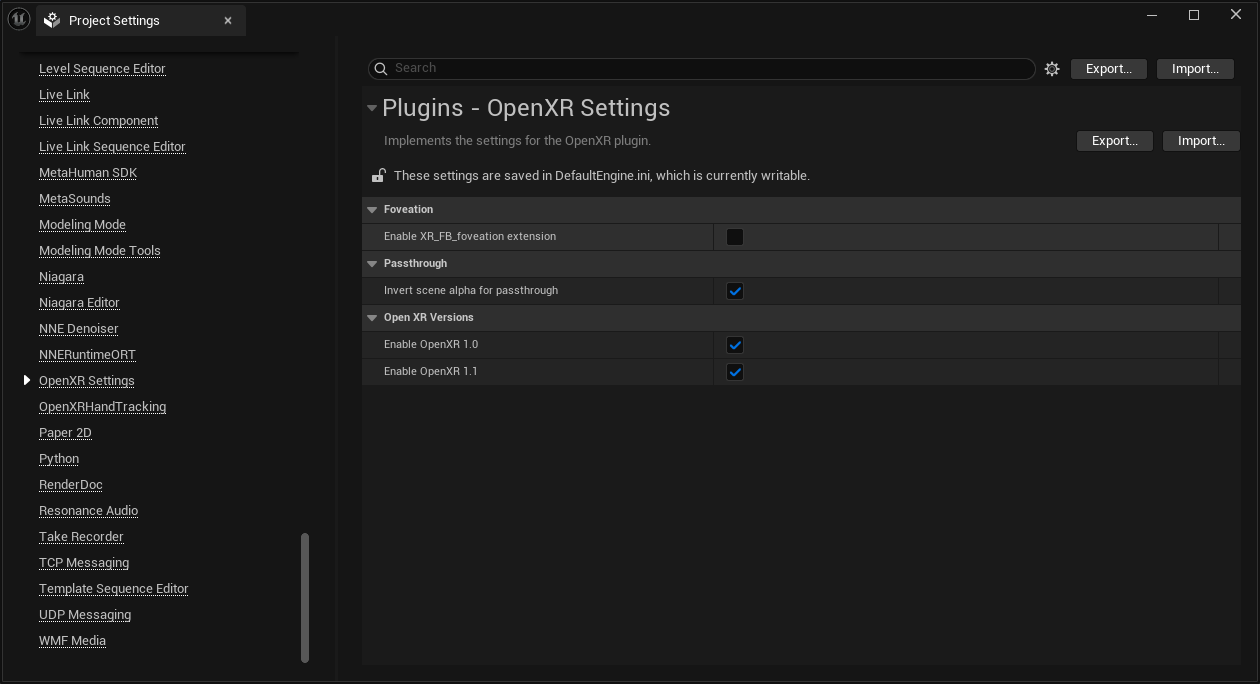
Passthrough in applications made with Unreal Engine will only work if the following is true:
| Version | Requirement |
|---|---|
All Unreal Engine versions |
Enable "Alpha Output". |
Unreal Engine 5.5 |
Enable "r.AlphaInvertPass". |
Unreal Engine 5.6 and later |
Enable "Invert scene alpha for passthrough". |