NVIDIA Omniverse with Hololight Stream
Contents
NVIDIA Omniverse
NVIDIA Omniverse is a set of tools for industrial visualizations.
For more information on NVIDIA Omniverse, check out https://www.nvidia.com/en-us/omniverse/.
Configure NVIDIA Omniverse to work with Hololight Stream
1. Install and set up Hololight Stream
-
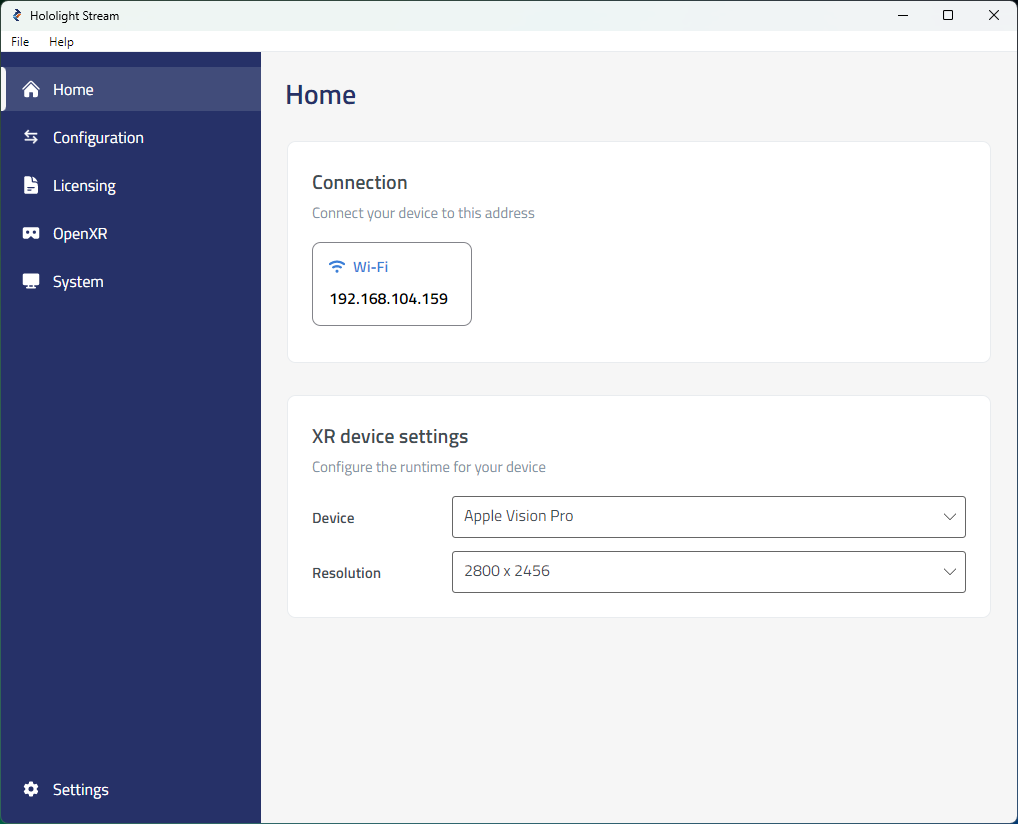
Open Hololight Stream on your computer.
-
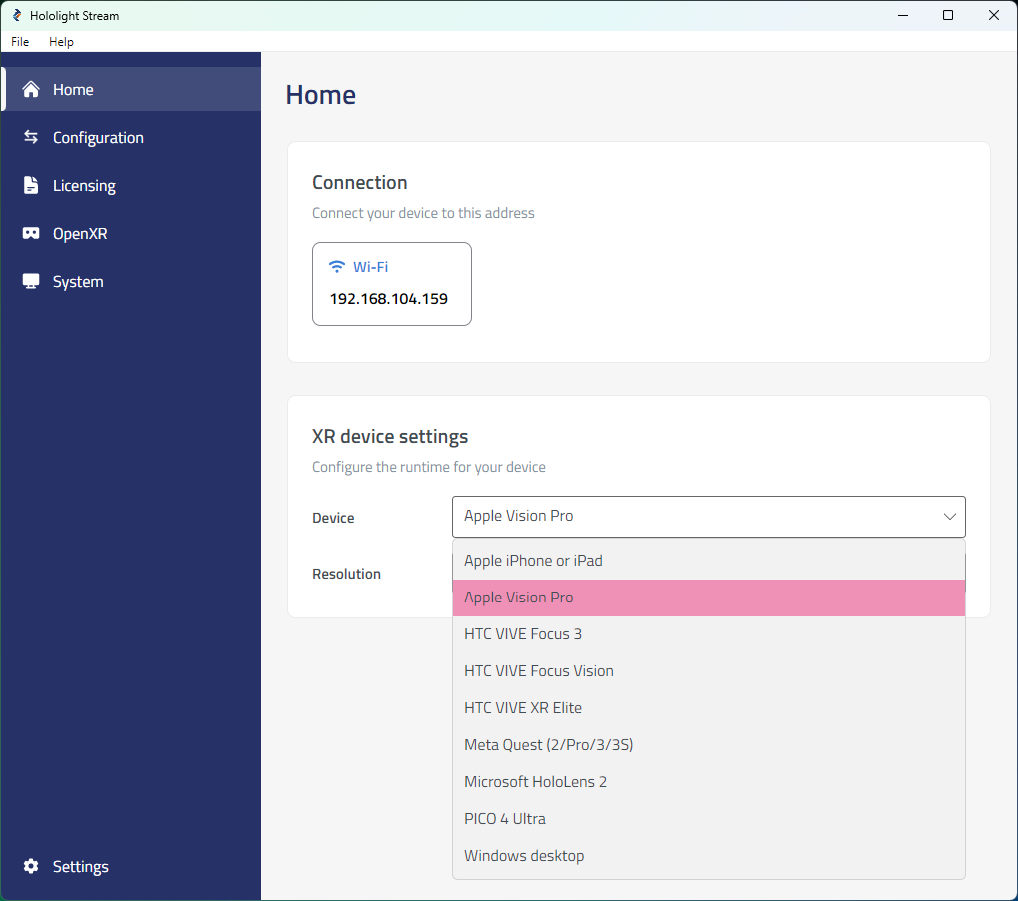
Select your XR device in the dropdown menu.
-
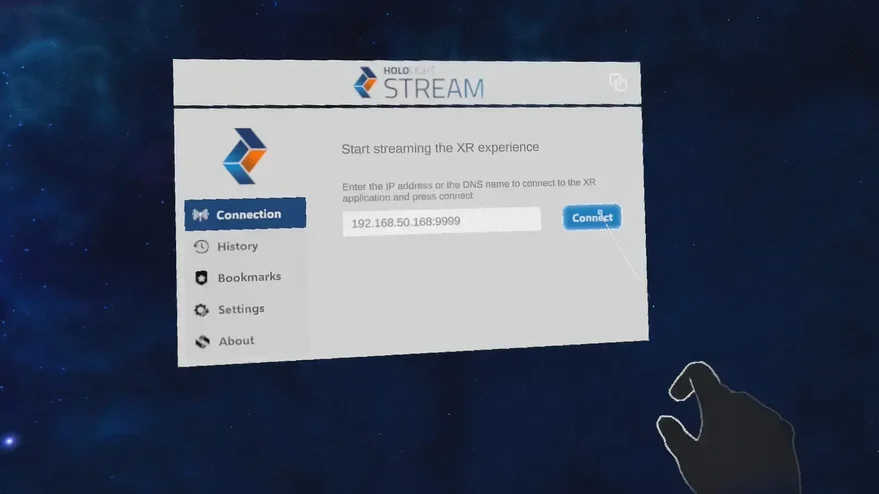
Under Home > Connection, note the IP address. You will use this IP address on your XR device to connect.
2. Set up NVIDIA Omniverse
-
Open NVIDIA Omniverse.
-
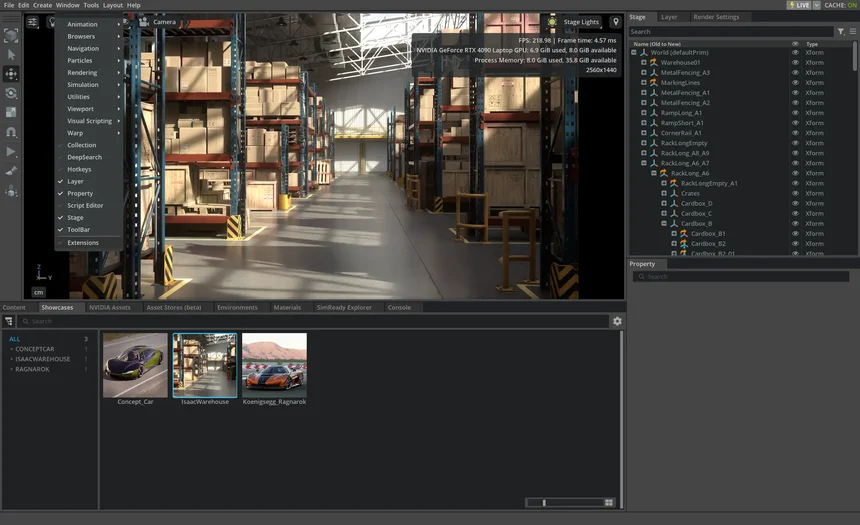
Select Window > Extensions in the top left corner of the application.
-
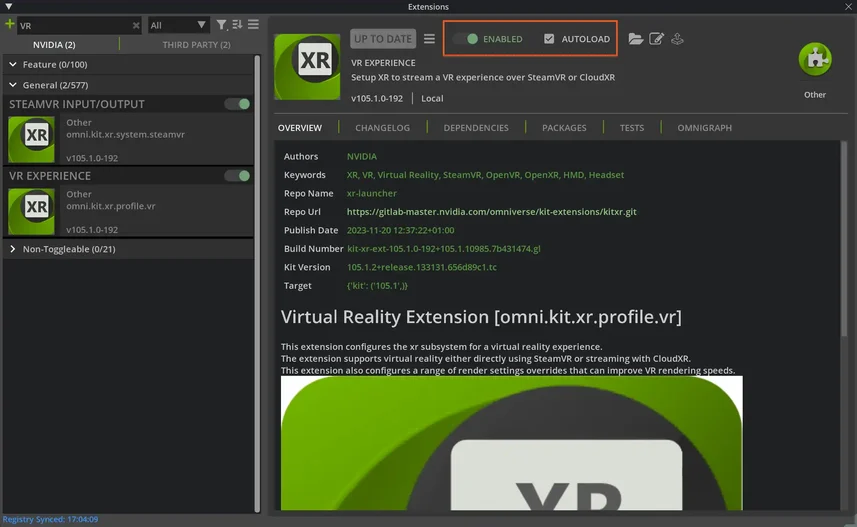
Search for "VR" and enable the VR Experience extension.
-
Select the Autoload checkbox.
If instead you want to use passthrough, search for "Activate AR Experience" and select Start AR. -
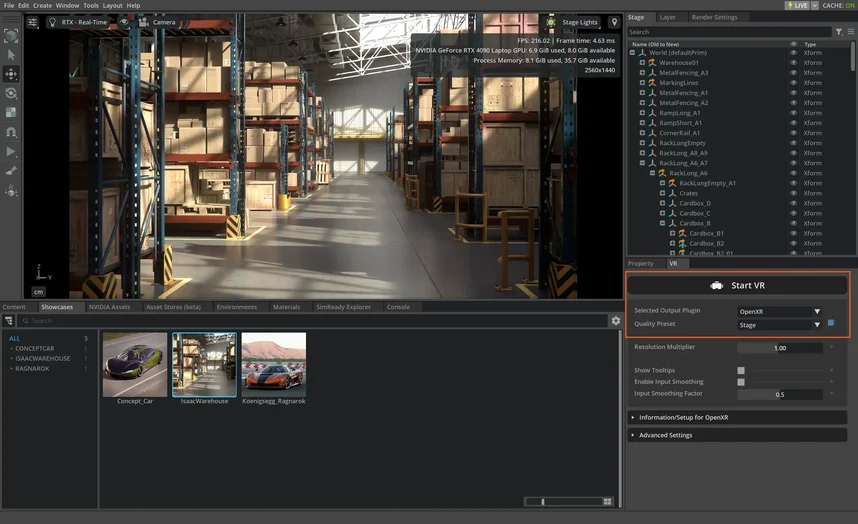
Open Settings. Make sure that the Selected Output Plugin is set to OpenXR.
-
Select Start VR to launch the experience.