Install Hololight Stream
Install Hololight Stream
| To install and use Hololight Stream on your Windows computer, you must have administrator rights. These rights are required to install Hololight Stream, set the active OpenXR runtime, and make changes to your license settings. |
-
Download the Hololight Stream installer here.
-
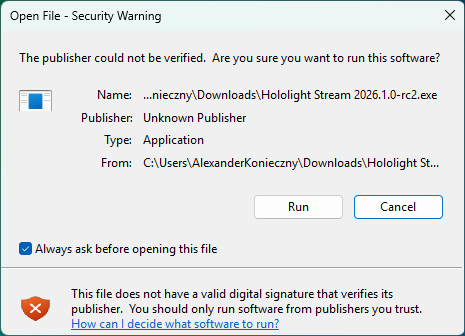
Open the Hololight Stream installer. If this window appears, select Run.
-
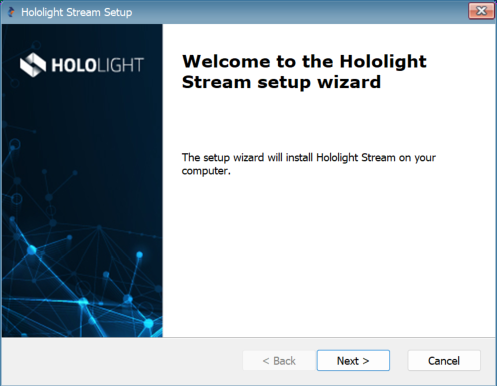
On the welcome screen select Next.
-
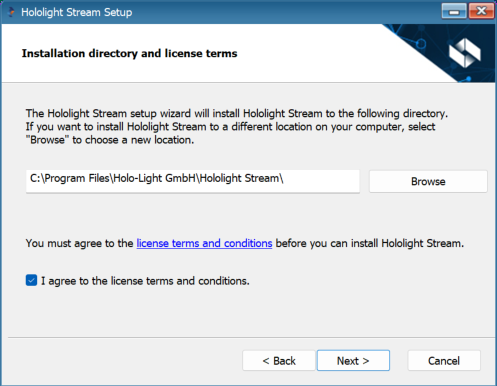
Choose a location to save Hololight Stream. Check the box "I agree to the license terms and conditions". Select Next.
-
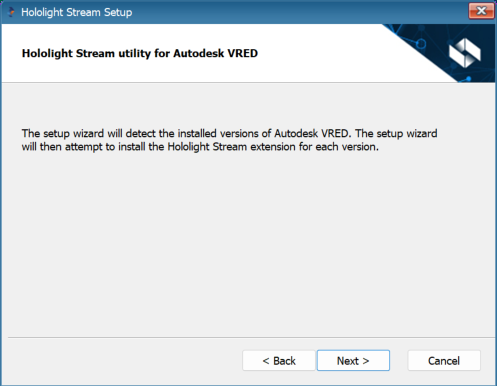
The Hololight Stream setup wizard will detect any versions of Autodesk VRED installed on your computer and install the corresponding Hololight Stream VRED plugin. Select Next.
-
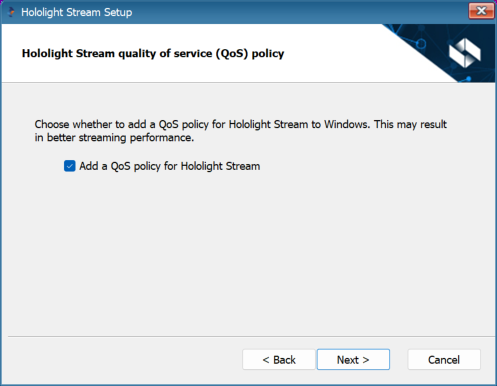
A quality of service policy may improve streaming performance. Select the checkbox if want the Hololight Stream setup wizard to automatically add a QoS policy. When you are ready to continue, select Next.
-
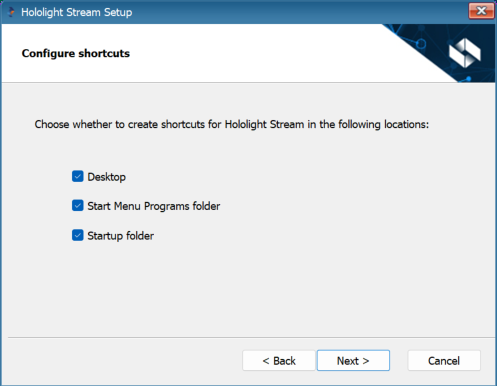
Select where you would like shortcuts for Hololight Stream to appear in Windows. Select Next.
-
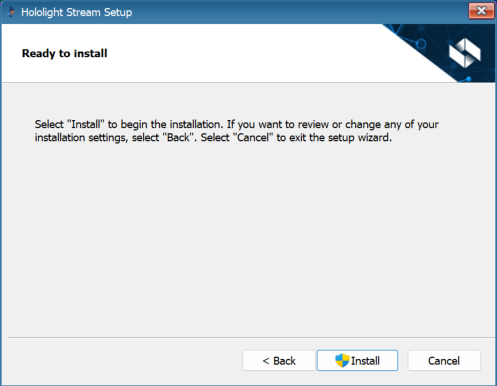
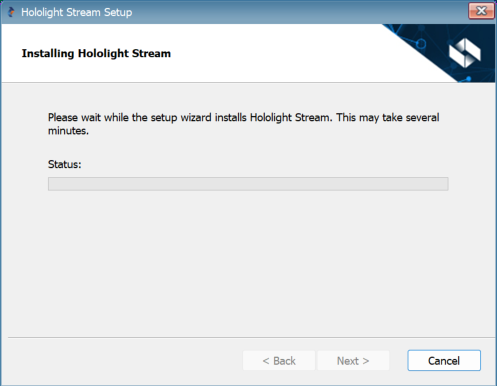
Select Install to start the installation.
-
Once Hololight Stream finishes installing, select Finish.
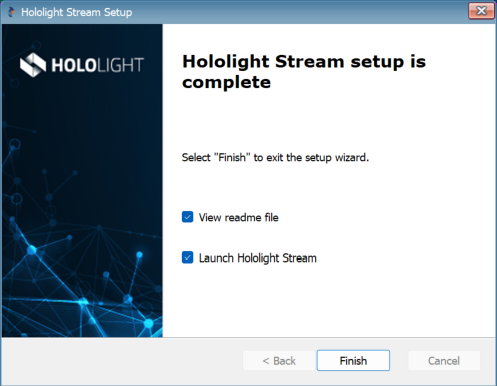
Hololight Stream is now running on the computer. You can now open the Hololight Stream desktop application. There you can manage your license and change various settings.