Set up an Autodesk VRED collaboration session with Hololight Stream
Objectives
-
Understand requirements for an Autodesk VRED collaboration session.
-
Be able to prepare each computer with an Autodesk VRED Cluster Setup.
-
Be able to start and join a collaboration room.
-
Be able to connect using Hololight Stream.
Prerequisites
All computers must:
-
Use the exact same Autodesk VRED version.
-
Have the same project loaded.
-
Be in the same network.
Set up an Autodesk VRED collaboration session
You can set up an Autodesk VRED collaboration session and connect XR devices to it with Hololight Stream.
For more details, check out the official Autodesk VRED documentation.
Recommended computer setups
Network and port considerations
-
All computers must be on the same network segment or connected through a routed network that allows direct communication.
-
Ensure the required Autodesk VRED collaboration ports are open.
-
By default, Autodesk VRED uses the following (depending on version):
-
Collaboration: Port 8889
-
Cluster services: Port 8000–8003 (TCP/UDP)
-
-
If ports were customized in VREDClusterSetup, use the same configuration across all computers.
Set up a cluster
Set up computer A
-
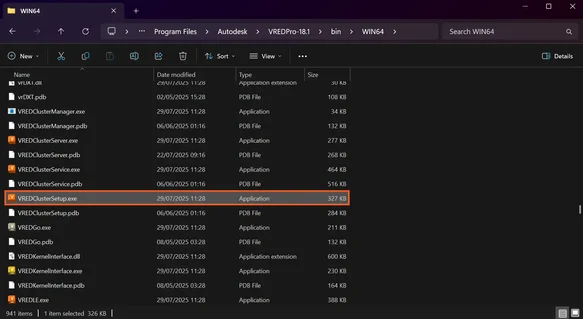
Go to
C:\Program Files\Autodesk\VREDPro-18.1\bin\WIN64
-
Adjust VREDPro-18.1 according to the installed version.
-
Scroll down to VREDClusterSetup.
-
Double-click the file.
-
Enter administrator credentials if required.
-
Under Connection Rule, define a name (for example, VRED_Multi) and enable the connection rule.
-
Under Allowed Services, enable Collaboration.
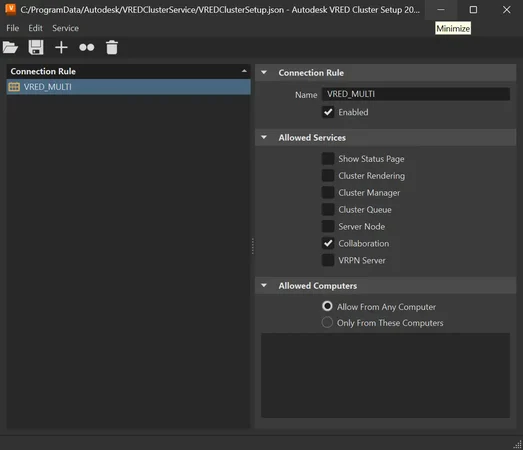
This setup typically does not need to be repeated unless settings must be changed later. -
Close the window.
Start a collaboration session on computer A
-
Open Autodesk VRED.
-
Open your project.
-
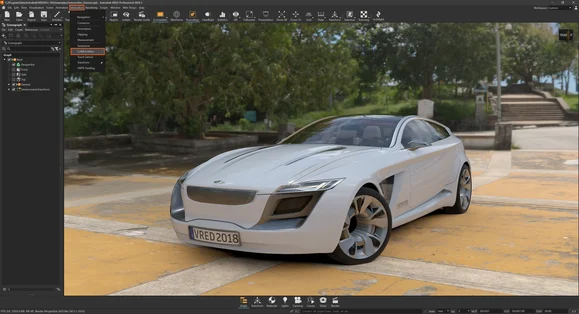
In the top toolbar, select Interaction > Collaboration.
-
Under My Profile, define a username (for example, Multiuser_1).
-
Under My Profile, define a room name (for example, Multiuser). All participants must use the exact same room name.
-
Under Session, enter the IP address of computer A and select Join. If a session doesn’t exist yet, this creates a collaboration session.
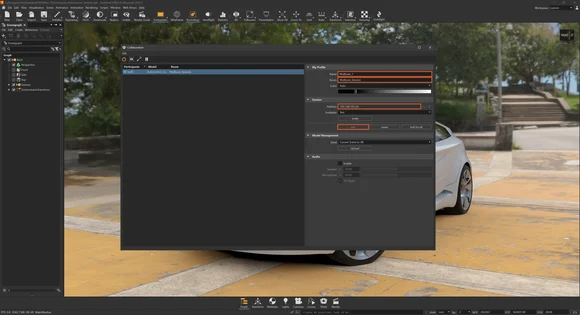
Use the Invite option and share the generated invite text or simply provide your computer’s IP address to other participants.
Set up computer B
Repeat the same Cluster Setup steps:
-
Go to
C:\Program Files\Autodesk\VREDPro-18.1\bin\WIN64 -
Double-click VREDClusterSetup and provide the administrator credentials if required.
-
Under Connection Rule, enter a name (for example, VRED_Multi) and enable the connection rule.
-
Under Allowed Services, enable Collaboration.
-
Close the window.
Join the collaboration session on computer B
-
Open Autodesk VRED.
-
Open the same project used on computer A.
-
Select Interaction > Collaboration from the top toolbar.
-
Under My Profile, define a username (for example, Multiuser_2).
-
Enter the same room name used on computer A (for example, Multiuser).
-
Under Session, enter the IP address of computer A.
-
Select Join.
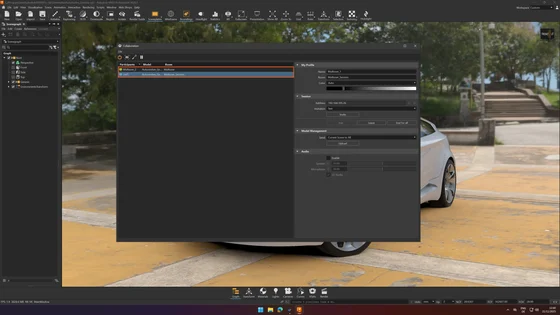
Both users should now be visible within the collaboration room.
Join the session with Hololight Stream
-
On both computers, start the XR session by selecting the Hololight icon in the top-right corner.
-
Put on your XR devices and open Hololight Stream.
-
Connect the first XR device to the first computer by entering the computer’s IP address shown in Hololight Stream.
-
Repeat the process with the second XR device and the second computer.
Hololight Stream streams the rendered Autodesk VRED session from the computer to your XR device.
Both Autodesk VRED clients and the XR participant share the same collaboration context, including navigation, annotations, and interactions.