Adobe Substance 3D Modeler with Hololight Stream
Adobe Substance 3D Modeler
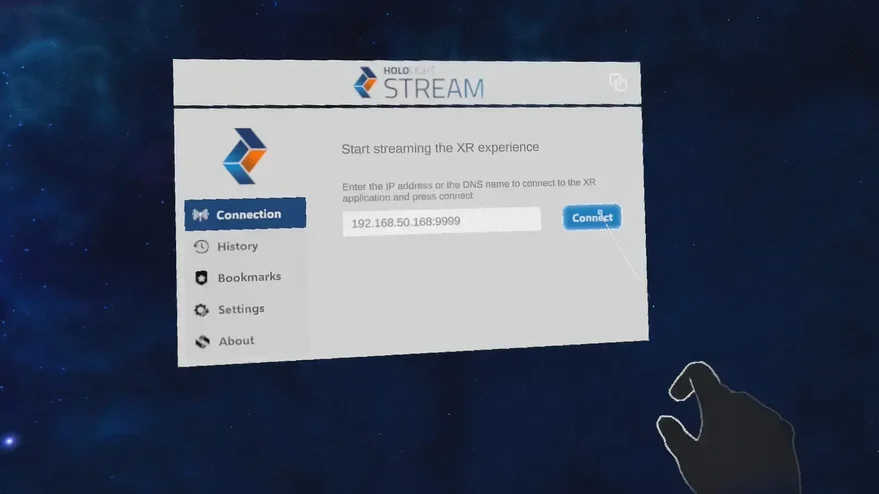
Adobe Substance 3D Modeler is a part of Adobe’s 3D suite and enables users to create and sculpt 3D models in XR. With Hololight Stream, you can stream your experience to the XR device of your choice. This guide explains how to set everything up.
For more information on Adobe Substance 3D Modeler, check out https://www.adobe.com/products/substance3d/apps/modeler.html.
Configure Adobe Substance 3D Modeler to work with Hololight Stream
1. Install and set up Hololight Stream
-
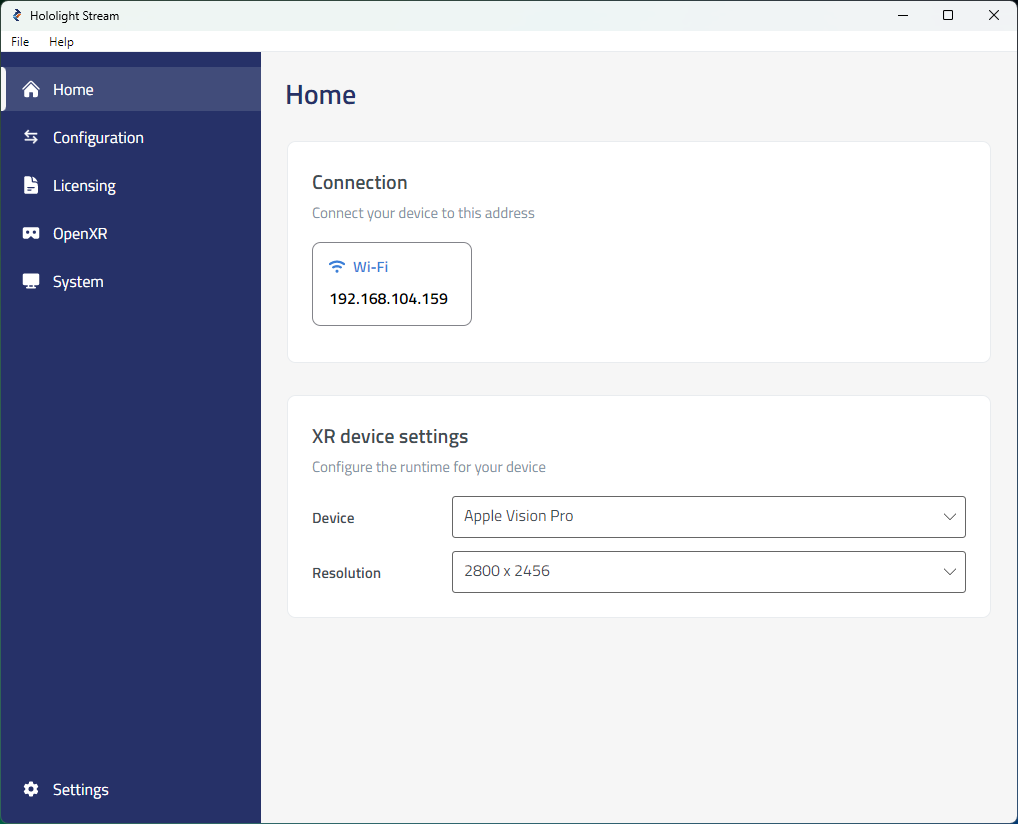
Open Hololight Stream on your computer.
-
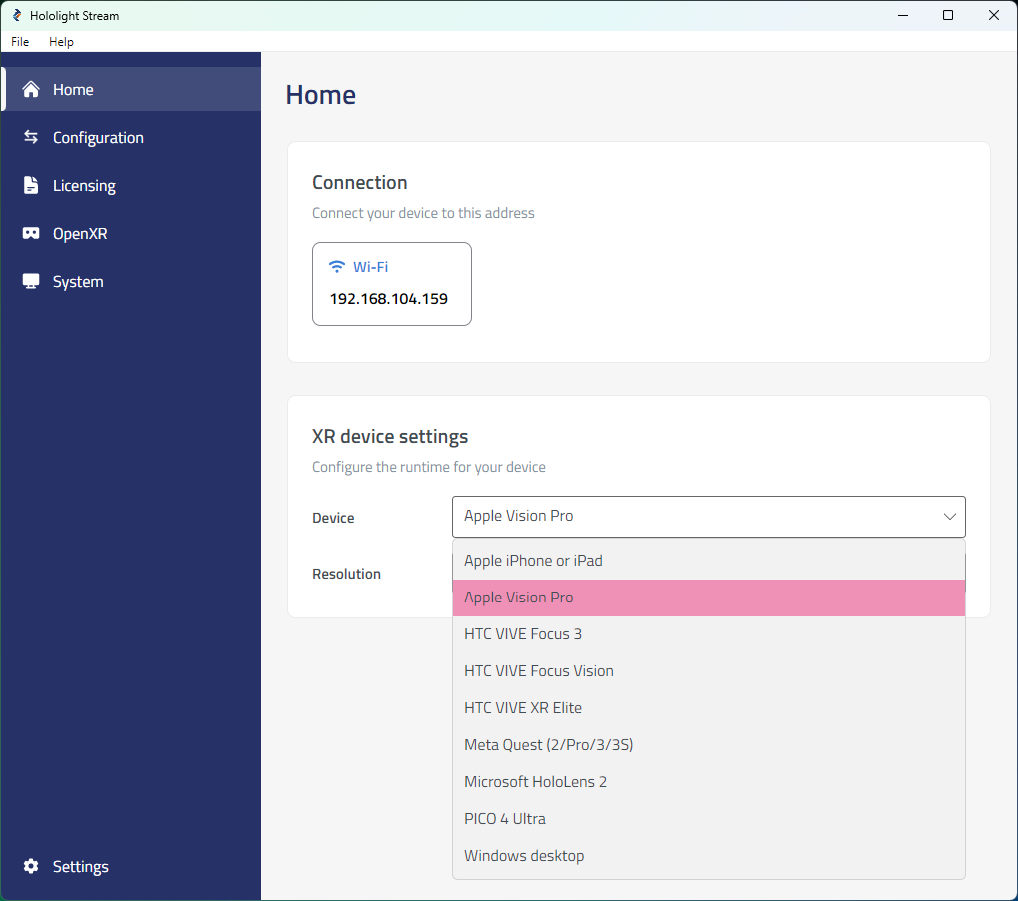
Select your XR device in the dropdown menu.
-
Under Home > Connection, note the IP address. You will use this IP address on your XR device to connect.
2. Set up Adobe Substance 3D Modeler
-
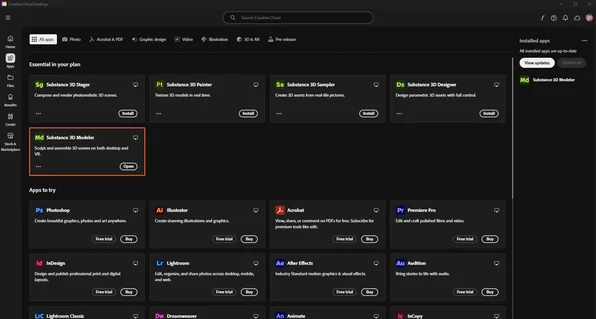
Start Creative Cloud on your computer.
-
Open Adobe Substance 3D Modeler. Adobe Substance 3D Modeler automatically starts in VR.
-
Select Pause VR compatibility in the top-right corner.
-
Go to Edit > Preferences > Spatial.
-
Enable Mixed reality passthrough.
-
To prevent automatic VR startup, you can select Disable VR.
-
Close the Preferences window.
-
Select Resume VR compatibility in the top-right corner.