ParaView with Hololight Stream

Objectives

  • Be able to use ParaView with Hololight Stream.

Prerequisites

  • Hololight Stream

  • Para

ParaView

ParaView is an open-source visualization engine.

For more information on ParaView, check out https://www.paraview.org/.

Configure ParaView to work with Hololight Stream

1. Install and set up Hololight Stream

  1. Install Hololight Stream.

  2. Open Hololight Stream on your computer.
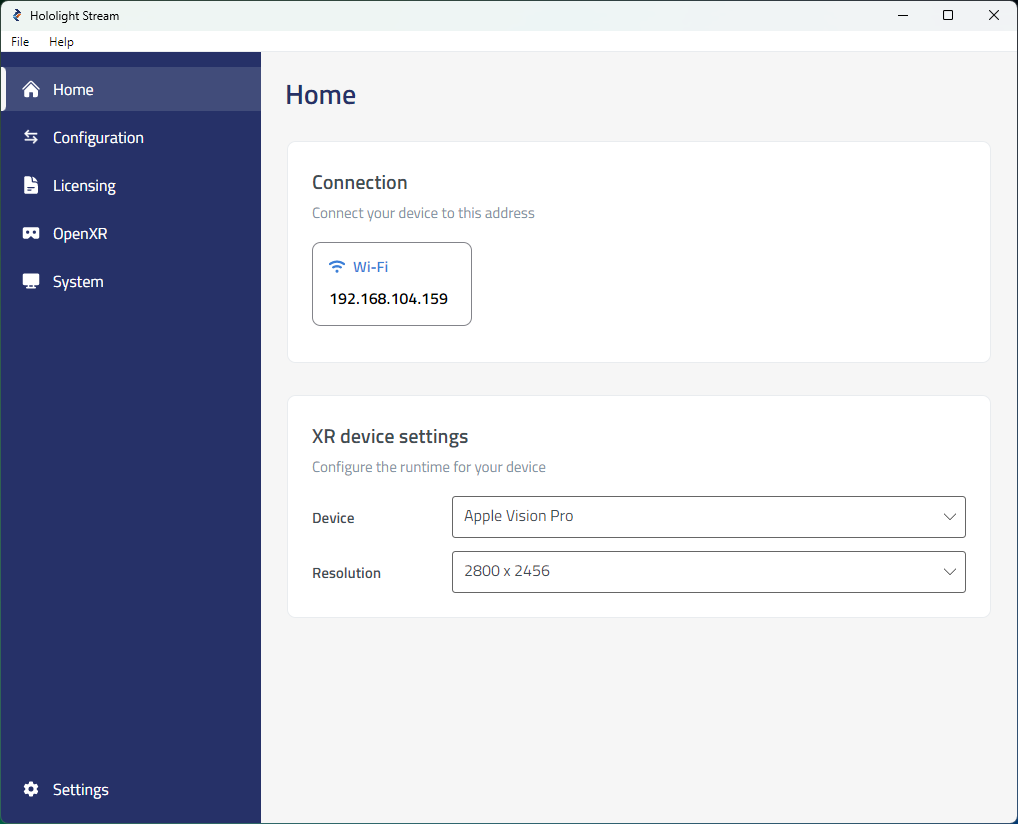
    hololight stream desktop home

  3. Select your XR device in the dropdown menu.
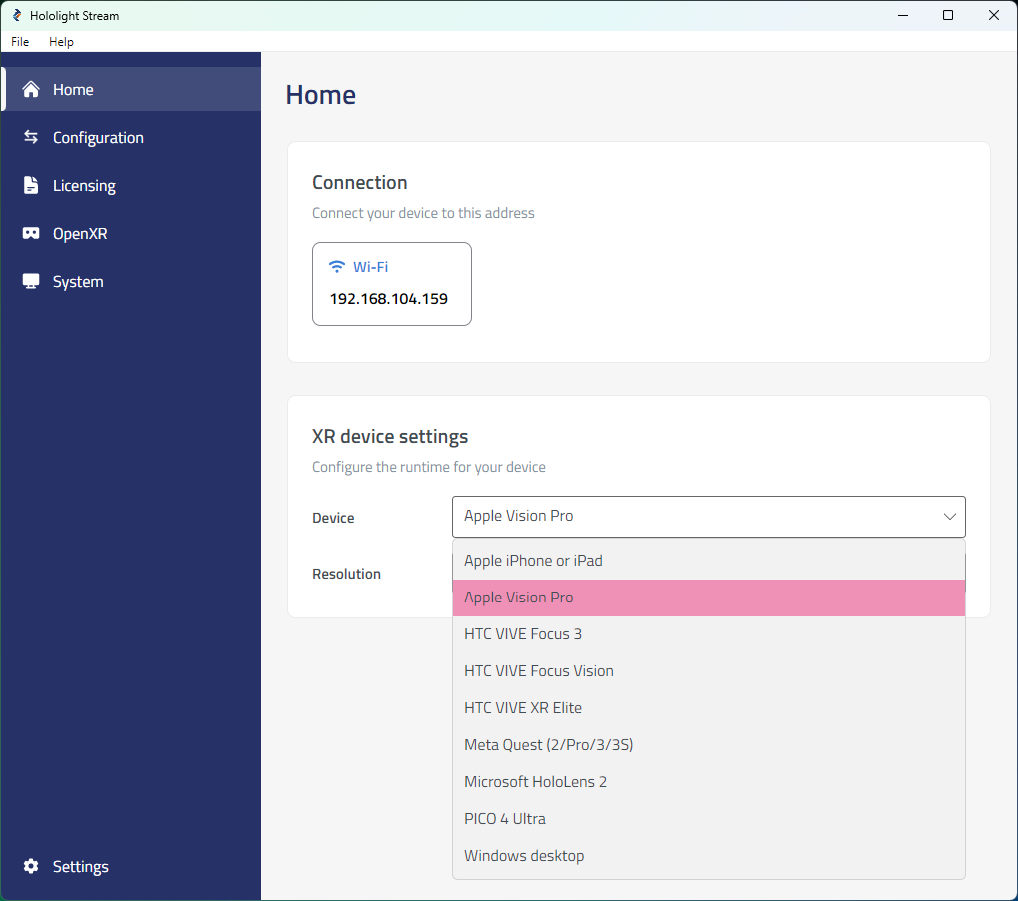
    Screenshot of selecting a device with Hololight Stream on a Windows computer

  4. Under Home > Connection, note the IP address. You will use this IP address on your XR device to connect.
2. Set up ParaView

  1. Open ParaView.

  2. Open your project.

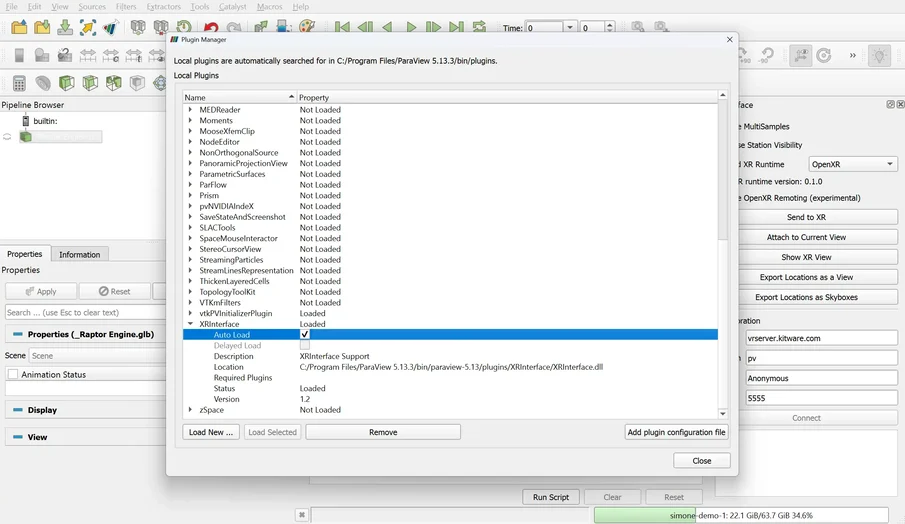
  3. Select Tools > Manage Plugins > XR Interface > Load.

  4. Select Auto Load.

  5. Select Load Selected.
    Screenshot of ParaView

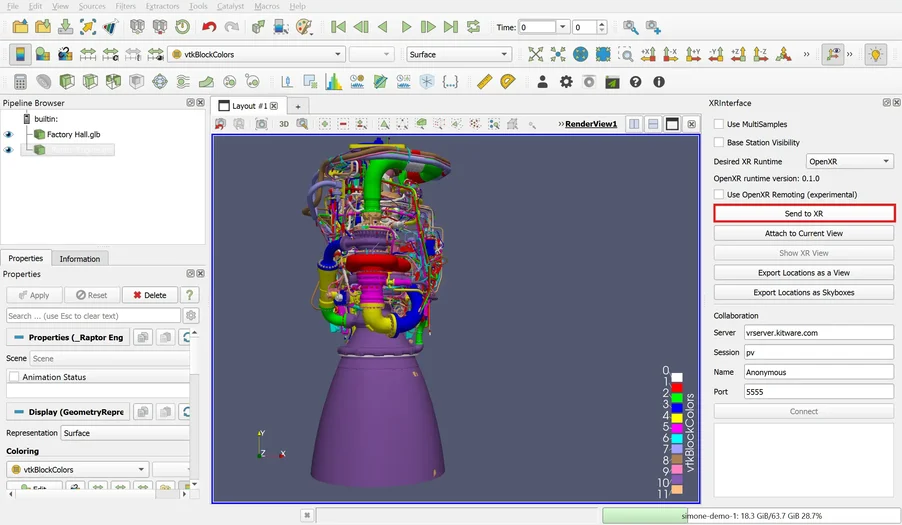
  6. Go to Desired XR Runtime. Select OpenXR.

  7. Select Send to XR.
    Screenshot of ParaView

3. Connect to the application

  1. Open Hololight Stream on your supported XR device.

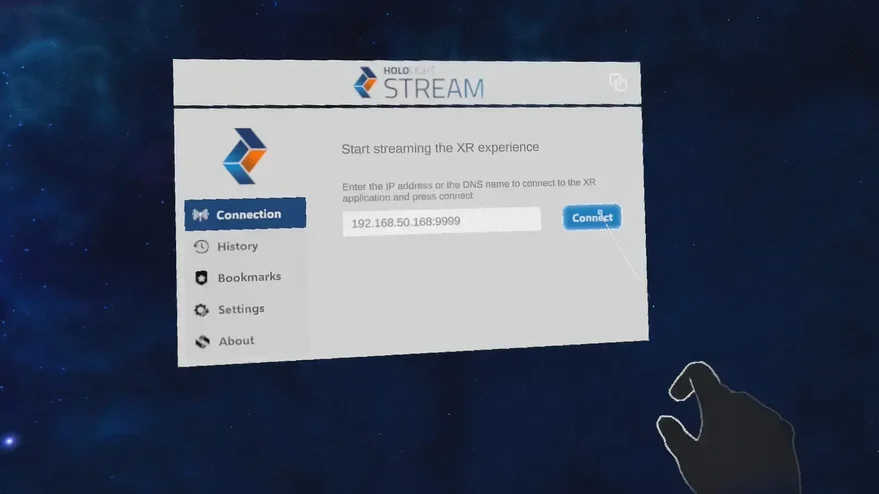
  2. Enter the IP address that Hololight Stream shows on your computer and select Connect.
    Screenshot of Hololight Stream