Blender is a 3D content creation application.
1. Install and set up Hololight Stream
-
Install Hololight Stream.
-
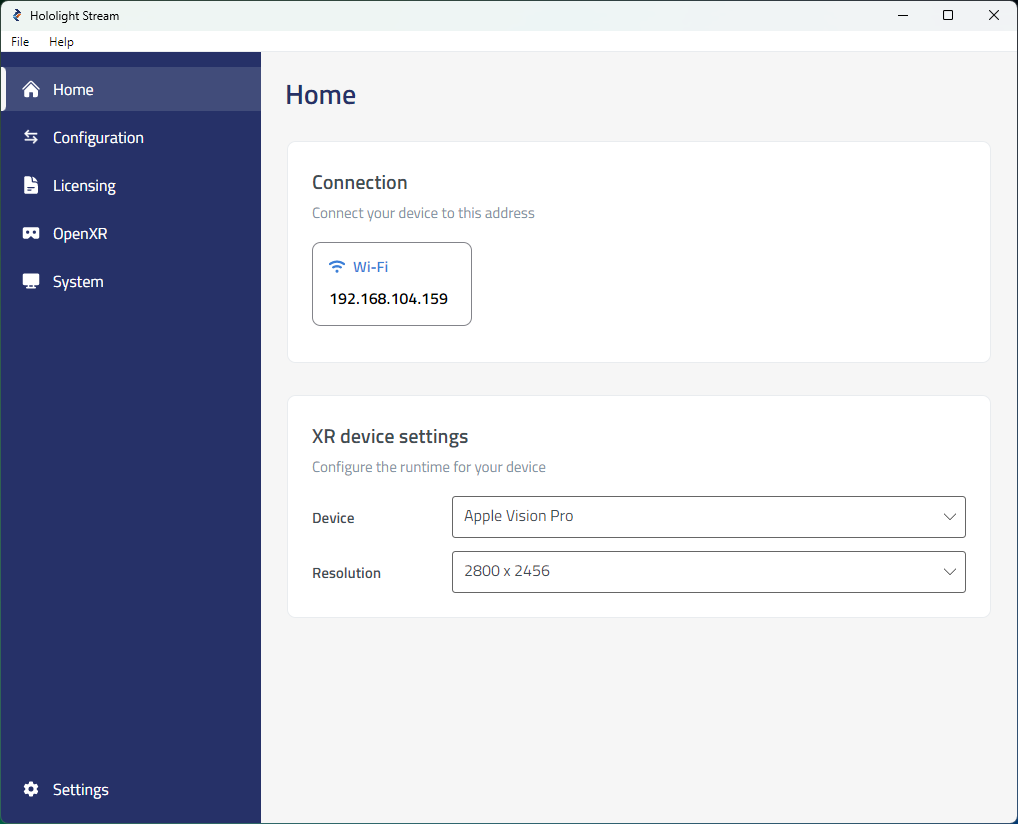
Open Hololight Stream on your computer.
-
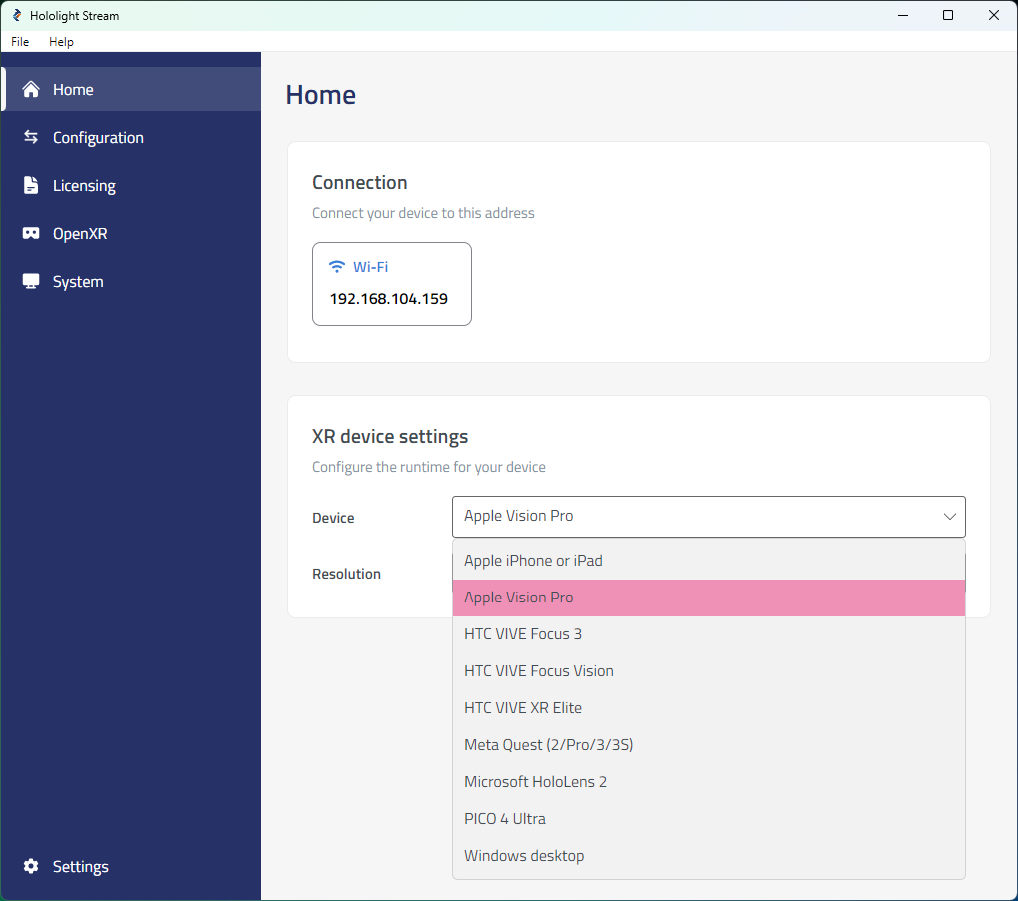
Select your XR device in the dropdown menu.
-
Under Home > Connection, note the IP address. You will use this IP address on your XR device to connect.
2. Set up Blender
-
Open Blender.
-
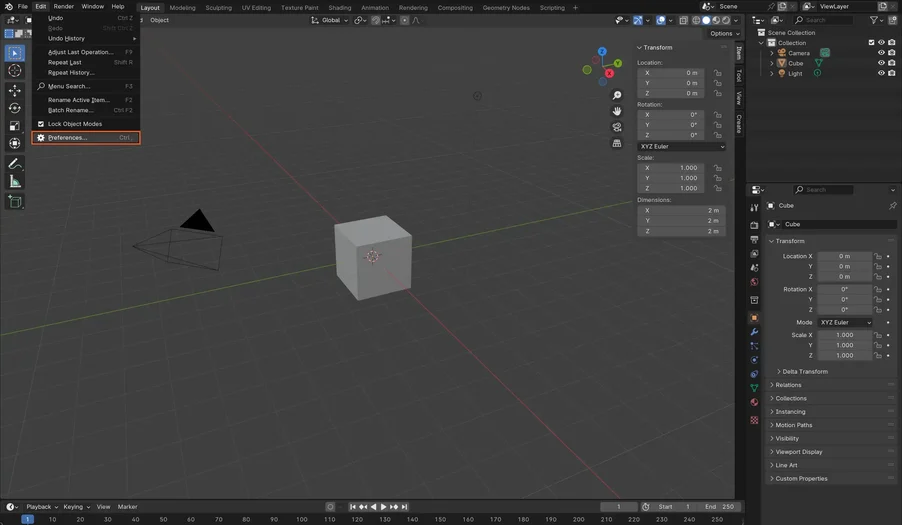
Select Edit > Preferences in the top left corner of the application.
-
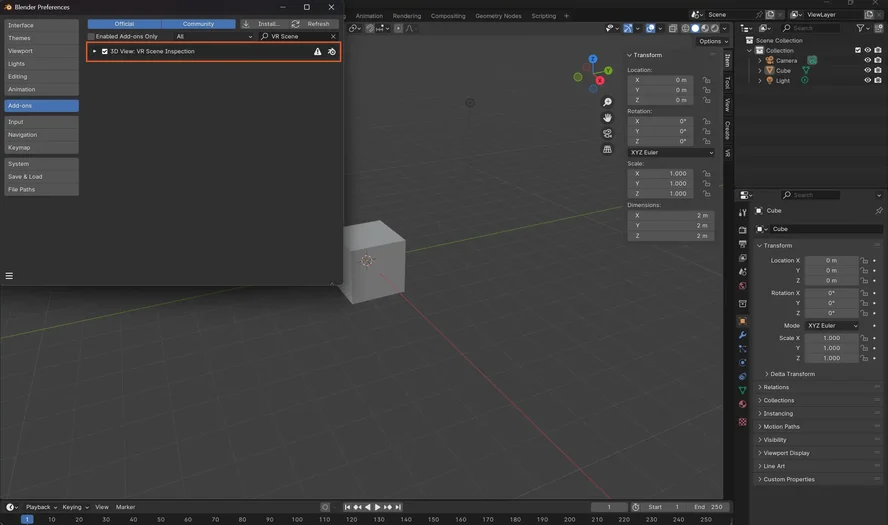
Select Add-Ons.
-
Search for "VR Scene" and enable VR Scene Inspection.
-
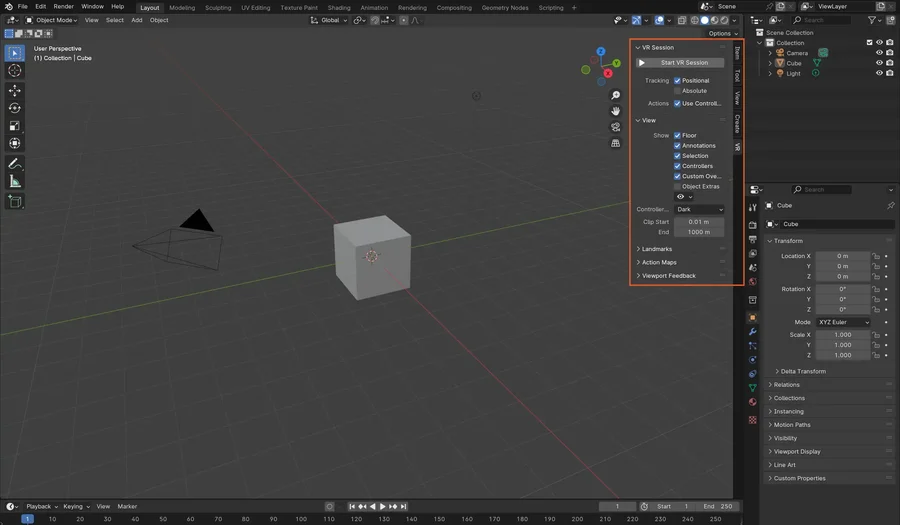
Select Start VR Session.
3. Connect to the application
-
Open Hololight Stream on your supported XR device.
-
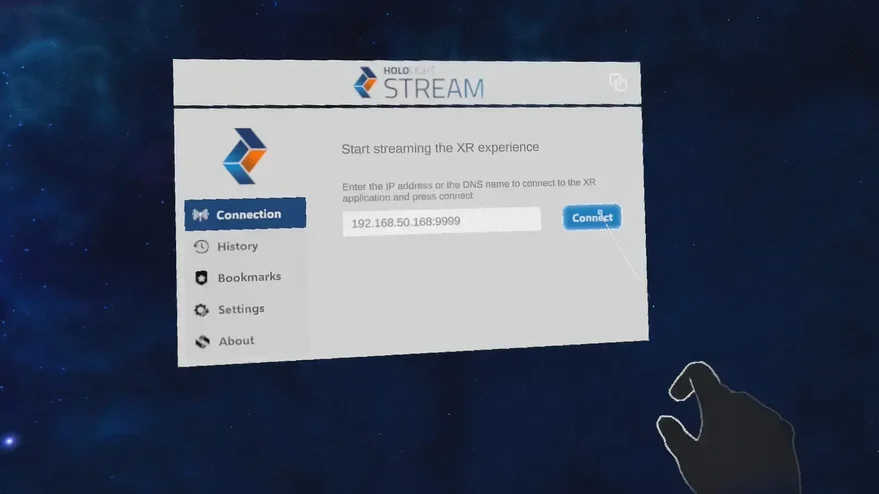
Enter the IP address that Hololight Stream shows on your computer and select Connect.
Interaction in Blender
Interactions in Blender depend on your XR device and whether you’re using controllers or hand tracking. Blender doesn’t currently support hand tracking, but this is coming in a later version of the VR Inspection add-on.