Twinmotion with Hololight Stream

Objectives

  • Be able to use Twinmotion with Hololight Stream.

Prerequisites

  • Hololight Stream

  • Twinmotion

Twinmotion

Twinmotion is a real-time 3D visualizer.

For more information about Twinmotion, check out https://www.twinmotion.com/.

Configure Twinmotion to work with Hololight Stream

1. Install and set up Hololight Stream

  1. Install Hololight Stream.

  2. Open Hololight Stream on your computer.
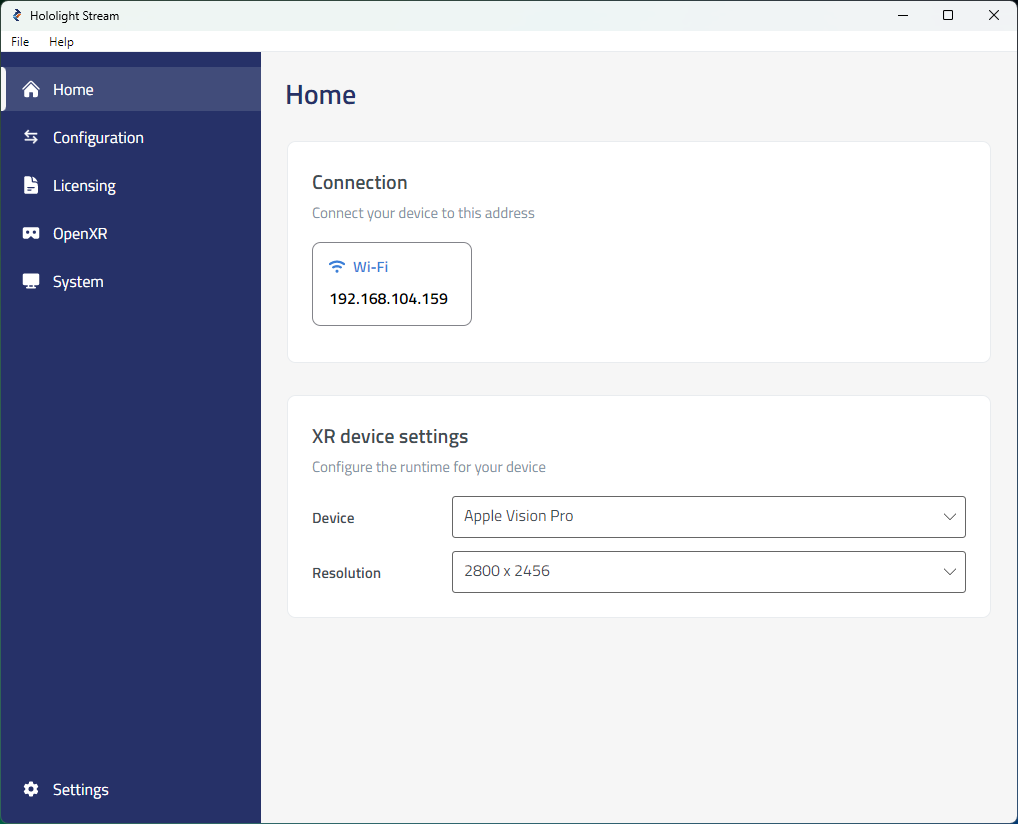
    hololight stream desktop home

  3. Select your XR device in the dropdown menu.
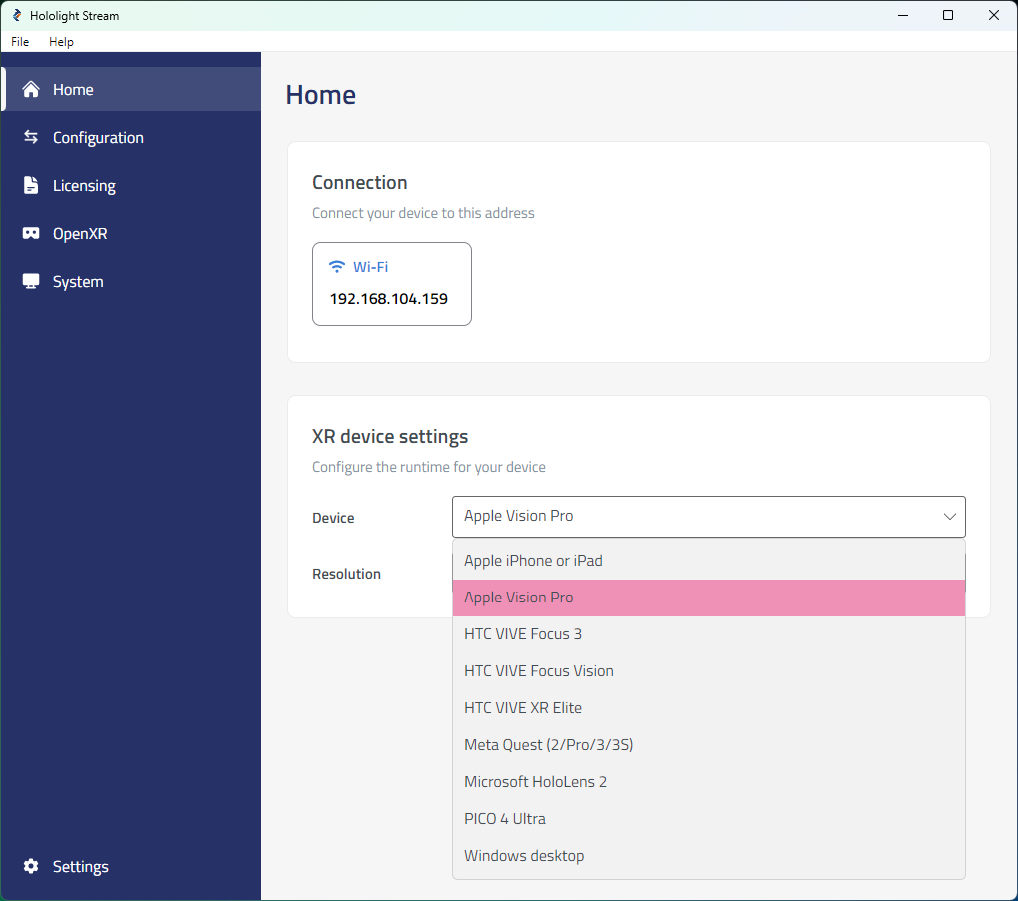
    Screenshot of selecting a device with Hololight Stream on a Windows computer

  4. Under Home > Connection, note the IP address. You will use this IP address on your XR device to connect.
2. Set up Twinmotion

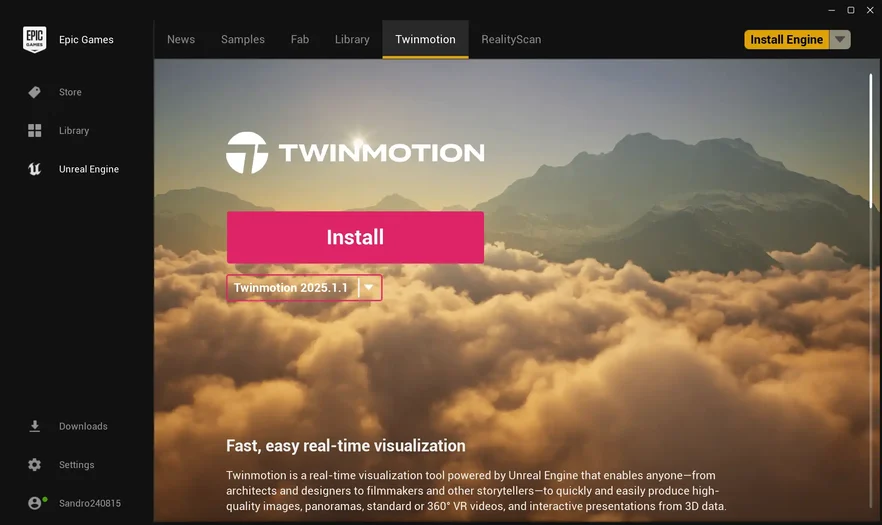
Install Twinmotion
  1. Open Epic Games Launcher.

  2. In the left sidebar, select Unreal Engine.

  3. In the top bar, select Twinmotion.

  4. Install the latest version of Twinmotion.
    Screenshot of Epic Games Launcher

  5. Follow the installation steps until the installation is complete.

Start your Twinmotion project
  1. In Epic Games Launcher, select Launch Twinmotion.

  2. Open your scene.

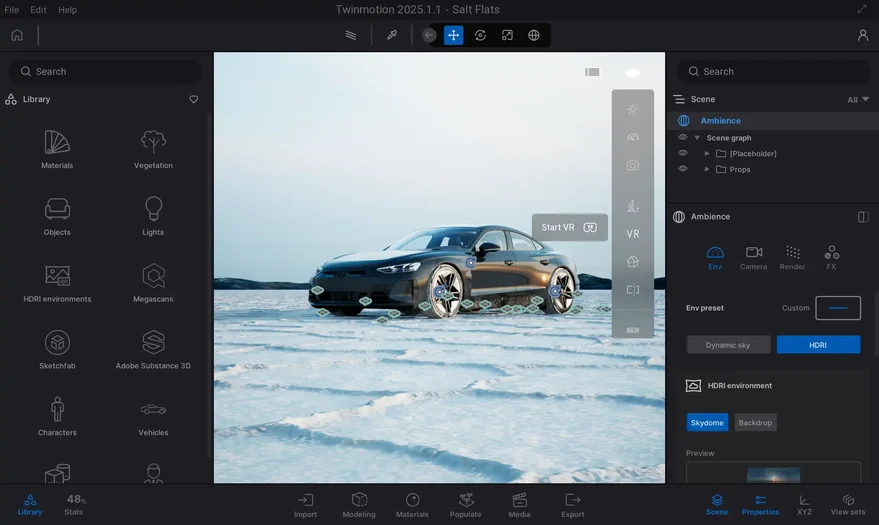
  3. In the editor, select the eye symbol in the top-right corner.

  4. In the dropdown, select VR.
    Screenshot of Twinmotion

  5. Select Start VR.

3. Connect to the application

  1. Open Hololight Stream on your supported XR device.

  2. Enter the IP address that Hololight Stream shows on your computer and select Connect.
    Screenshot of Hololight Stream