Configure Hololight Stream render settings
Objectives
-
Be able to understand Hololight Stream render settings and change them to get the best experience.
Configure render settings
There are multiple settings available that affect how applications get rendered when streamed to the device connected using Hololight Stream.
Change the preferred reprojection method
Reprojection is when a device connected to an application using Hololight Stream takes information from previously rendered frames and combines that with motion data from the headset itself. Hololight Stream does this in order to create its own image frames. These generated frames are predictions that smooth out movement when using an application with the device.
Devices have their own ways of handling reprojection. Hololight Stream also has its own method, called "depth reprojection", but this is not supported by all devices.
You can change the preferred reprojection setting using the Hololight Stream utility. This means that if the method you select is not available on the device you connect with, Hololight Stream will use the best alternative. For the best rendering possible, you should put your preferred reprojection as Depth reprojection which offers better stability.
-
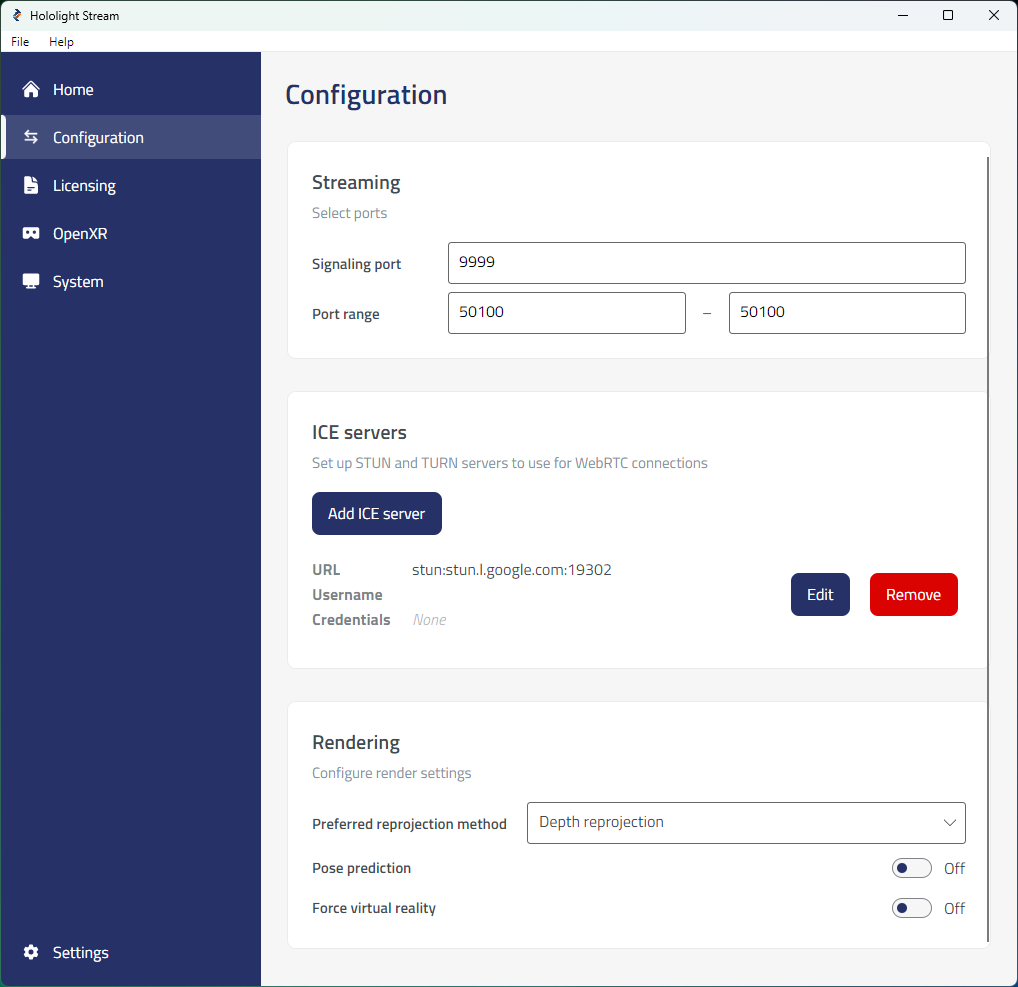
Open Hololight Stream. Select Configuration.
-
Use the dropdown under Rendering > Preferred reprojection method and select one of the following:
Preferred reprojection methods Method Description Device default
Default method of reprojection used by the device connecting using Hololight Stream.
Depth reprojection
Recommended reprojection method. Use for the best image stability.
Enable pose prediction
Pose prediction is the prediction of the future position and orientation of a user’s head in order to create a smoother and more responsive XR streaming experience.
To enable or disable pose prediction, go to Configuration > Rendering > Pose prediction and use the switch.
| This pose prediction setting does not work on Apple Vision Pro, Apple iOS, and Apple iPad devices. |