Optimize and reduce latency when using Hololight Stream
Objectives
-
Be able to create a network that provides the best streaming experience when using Hololight Stream.
Prerequisites
-
Windows computer with the following:
-
Hololight Stream installed
-
Hololight Stream-compatible application installed
-
-
Supported XR device with Hololight Stream installed
-
Router with Wi-Fi 6 or later
Optimize and reduce latency
With Wi-Fi 6, it is possible to set up a network with a low-latency connection between an XR device and Hololight Stream, creating a much more satisfying streaming experience.
There are many ways to set up an optimized network. The following configuration is one that Hololight tested.
| Resource type | Requirements |
|---|---|
Access point |
Router with Wi-Fi 6 or later |
Server computer |
Windows computer running a Hololight Stream-compatible application |
Client device |
A Hololight Stream-supported XR device |
Set up an access point
You will need to set up an access point. The access point will route the connection between the server computer running the Hololight Stream-compatible application and the XR device.
Choose a compatible router to use as the access point
New routers are released all the time, so instead of a list of routers, included here is a list of features a router in this setup should have. The router you choose as the access point should have the following features:
-
Wi-Fi 6 or later
-
Wi-Fi Multimedia (WMM) capable
-
Multi-user, multiple-input, multiple-output (MU-MIMO) capable
-
Orthogonal frequency-division multiple access (OFDMA) capable
-
BSS Coloring capable
Configure the router to support the best Hololight Stream connection possible
Once you have a router with the right feature set, there are still some settings that you should think about.
-
Set up the network with a dedicated SSID if possible.
-
Disable automatic channel selection and set 5 GHz to use an 80 MHz channel. The channel that is 80 MHz can vary depending on the device and region.
-
Enable WMM.
-
Enable MU-MIMO.
-
Enable OFDMA.
-
If you know the network will be in an environment with multiple RF signals, enable BSS Coloring to reduce interference.
-
Leave Target Wake Time (TWT) enabled.
Most of the time, TWT will not negatively impact the connection and may in fact improve it. However, if you notice the streaming performance isn’t what it should be, disable TWT.
Other considerations for router configuration
Beyond what settings need to be enabled, there are other settings you should avoid enabling.
-
Avoid using a wireless mesh network.
-
Avoid using what are often referred to as "smart" Wi-Fi features. These are features that move clients between different access points. When not precisely configured, they can all cause unnecessary latency. These features include:
-
Band steering
-
Roaming
-
Client load balancing
-
Airtime Fairness
-
Set up a server computer
You will need to set up a computer running Windows with a Hololight Stream-compatible application.
Connect the server computer to the network
What this setup looks like depends on whether you connect your computer to the network with a cable or wirelessly.
Configure a Quality of Service on the server computer
To better manage wireless network traffic, configure a Quality of Service (QoS) policy specifically for Hololigth Stream.
| With Hololight Stream 2026.1 and later, you have the option to add this QoS policy automatically when installing Hololight Stream with the setup wizard. |
-
On your Windows computer, search for "Edit group policy" in the Start Menu and select it.
-
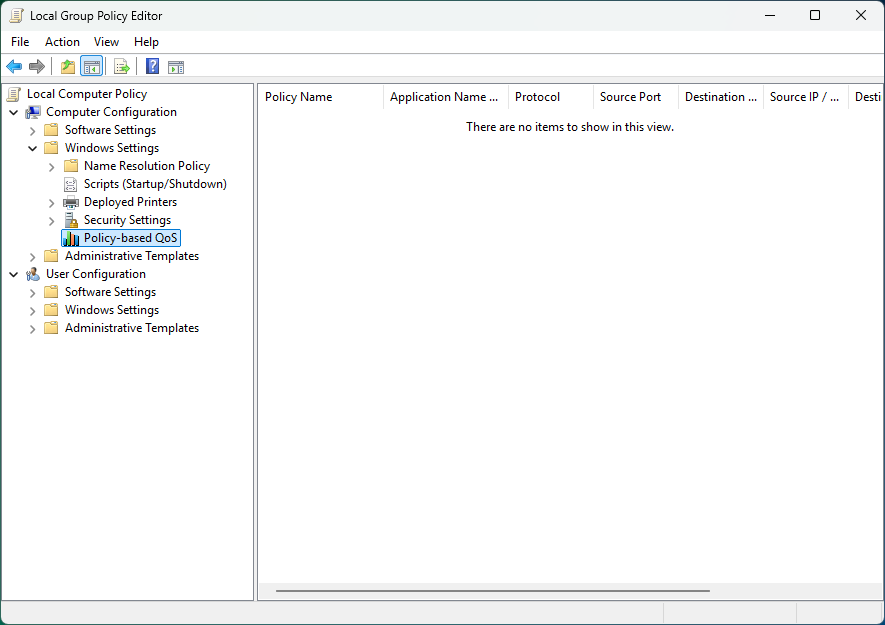
Select Local Computer Policy > Computer Configuration > Windows Settings > Policy-based QoS.
-
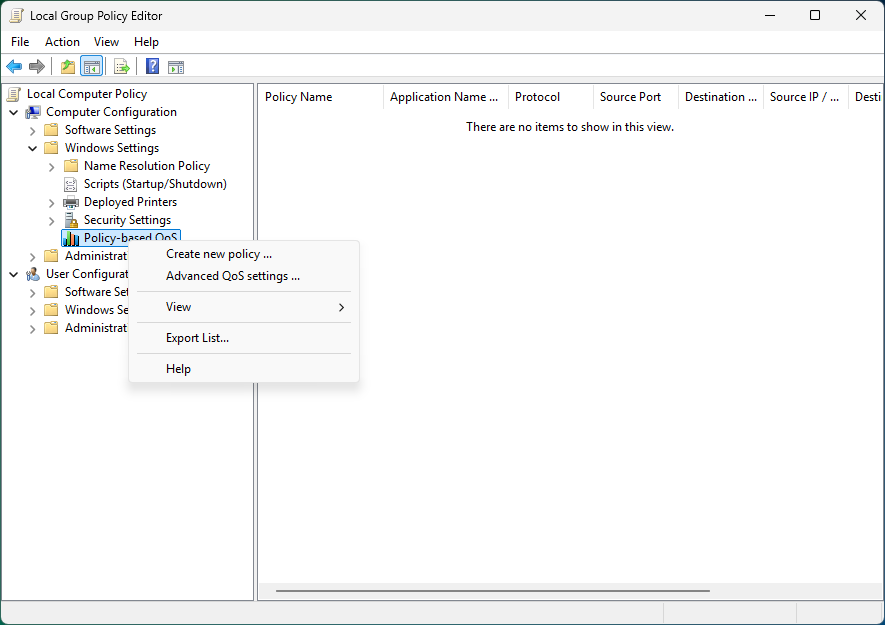
Right-click Policy-based QoS and select Create a new policy ….
-
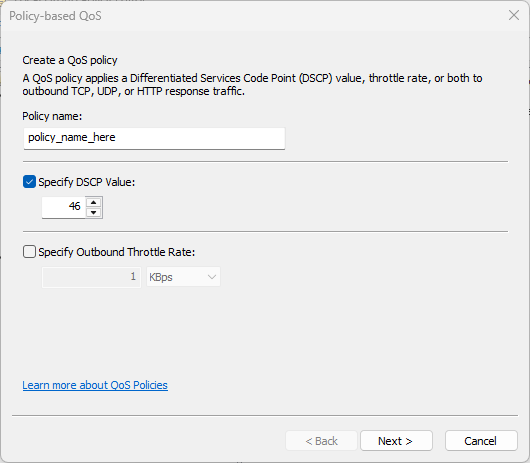
Enter a Policy name. Enable Specify DSCP Value and below it enter "46". Select Next.
-
Select Only applications with this executable name and enter "hololight_runtime_service.exe". Select Next.
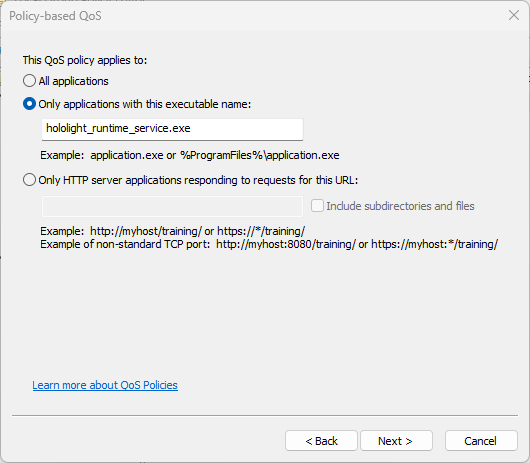
This step works for Hololight Stream 2026.1 and later. Earlier versions of Hololight Stream require you to instead enter the name of the application that uses Hololight Stream. -
Select Next.
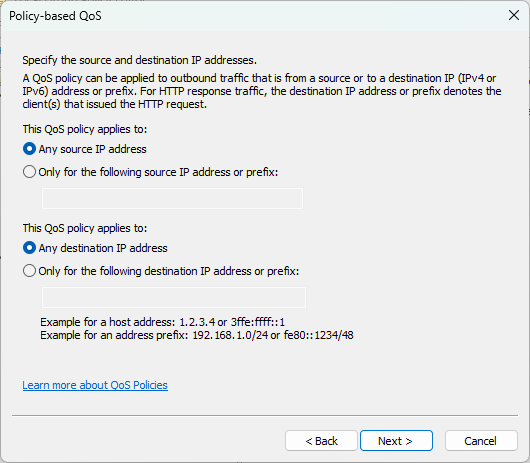
-
Under Select the protocol this QoS applies to, select UDP. Select From any source port and To any destination port. Select Finish.
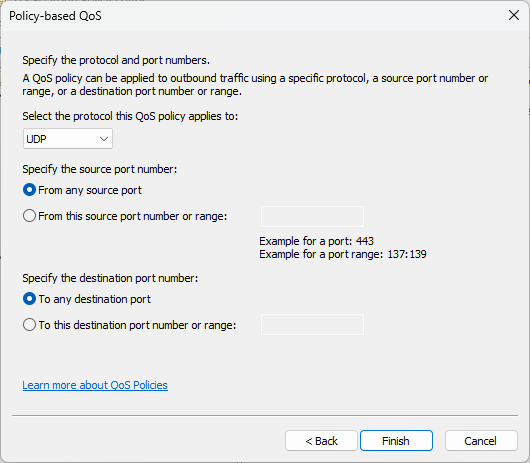
-
The new QoS policy will now be in the Policy-based QoS list.
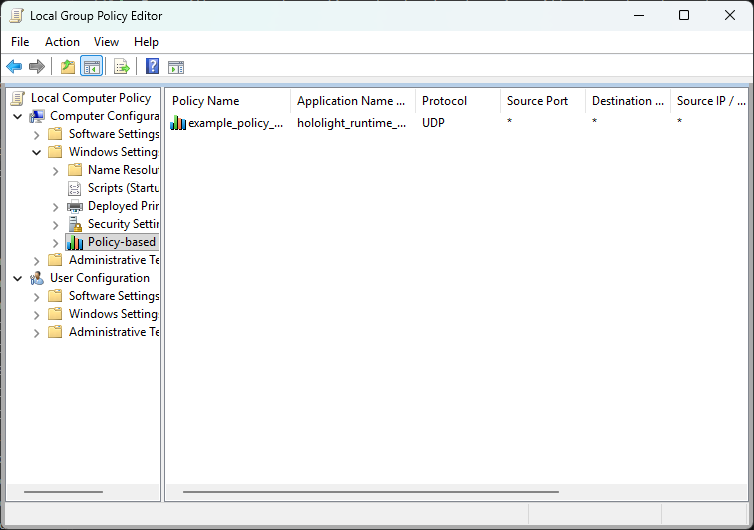
Set up an XR device
Connect your Hololight Stream-supported XR device to your newly set up network. Make sure this is the only network in the device’s network list.
Maintain an efficient network setup
Even with a properly configured network, other devices on the network will always add congestion to network traffic. This adversely impacts streaming. If you decide to use software to analyze your network due to poor streaming performance, make sure to take a look at the following:
-
The number of devices on the network
-
The number of devices and networks using the same channel or adjacent channels
-
Jitter
To improve these metrics, make sure only necessary devices are connected to the network and make sure the XR device is near the access point.