Hololight Space crashes after installing a new version
If you had an older version of Hololight Space installed on your computer, and both the old and new versions crash after installing the latest update, the issue is most likely caused by corrupted or outdated user preference settings.
Hololight Space crashes after installing a new version
To resolve this issue you need to completely uninstall all versions of Hololight Space on your computer and delete the user preference folder.
1. Uninstall all versions of Hololight Space
To uninstall all Hololight Space Versions from your computer, follow the steps below to continue.
-
Press the Windows key on your keyboard.
-
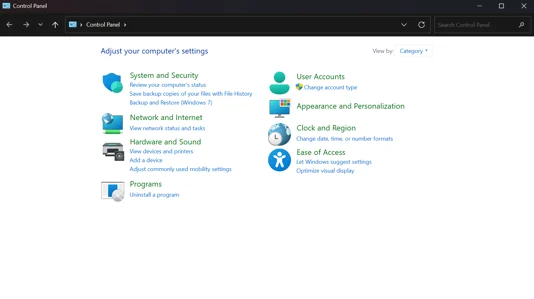
Type "Control Panel" and open it.
-
Select Uninstall a Program (bottom-left corner).
-
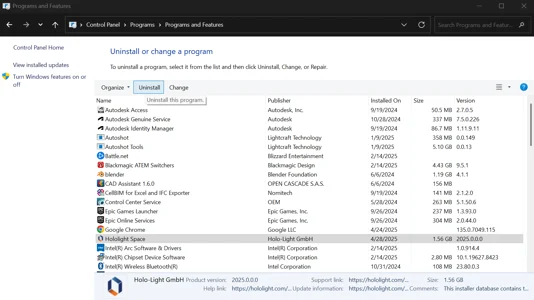
In the list, find Hololight Space, select it to uninstall.
-
Follow the on-screen instructions to remove Hololight Space completely.
-
Repeat this process for any other versions of Hololight Space you find.
-
Restart your computer.
2. Delete old user preferences
-
Open File Explorer on your Windows computer.
-
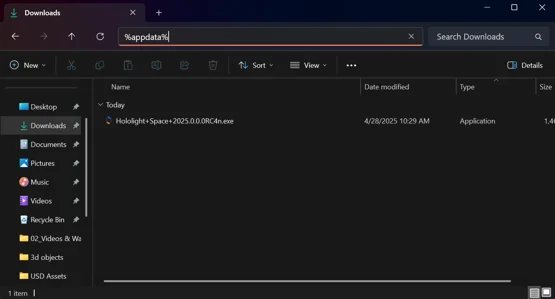
Click on the address bar, type "%appdata%", and press Enter.
-
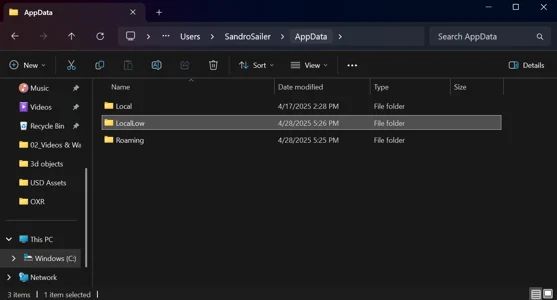
This opens the Roaming folder. Now select AppData in the top navigation bar.
-
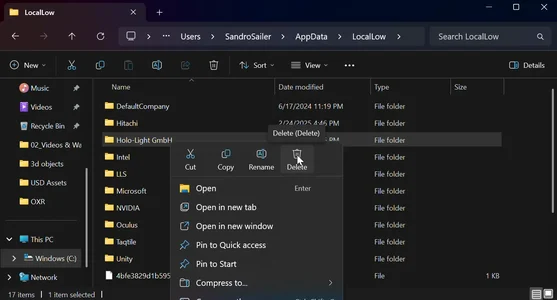
You should now see three folders: Local, LocalLow, and Roaming. Open the LocalLow folder.
-
Locate and delete the entire Holo-Light GmbH folder.
-
Restart your computer.
Your system is now clean and ready for a fresh install.
Download the latest version of Hololight Space from our downloads page and follow our installation guide to complete the setup.