Hololight Space Spectator
Prerequisites
-
Hololight Space installed on your computer.
-
Hololight Stream Client installed on your supported XR device.
-
An iPad Pro with iPadOS 11.0 or later and Hololight Space Spectator installed.
Hololight Space Spectator
Download Hololight Space Spectator
You can download Hololight Space Spectator from the Apple App Store. Search for "Hololight Space Spectator" and install the app on your iPad.
Enabling Hololight Space Spectator
-
Open Hololight Space on your workstation.
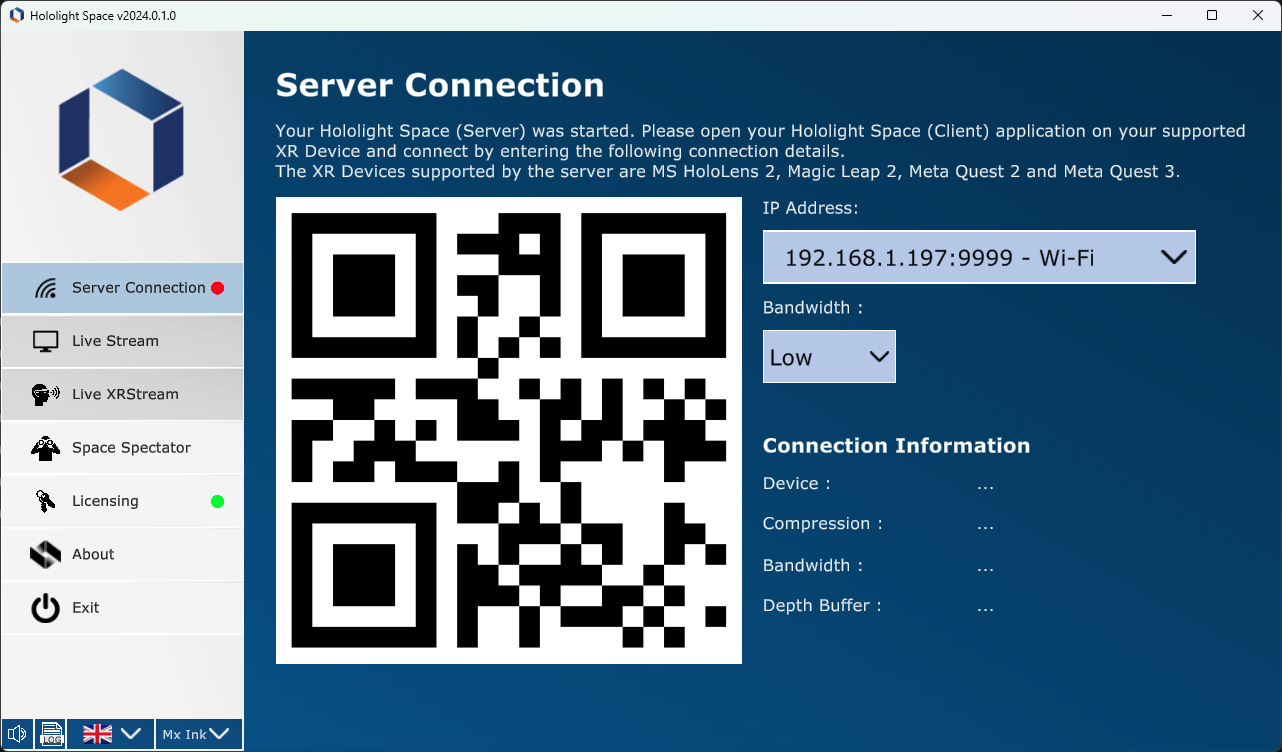
-
Select Space Spectator in the sidebar.
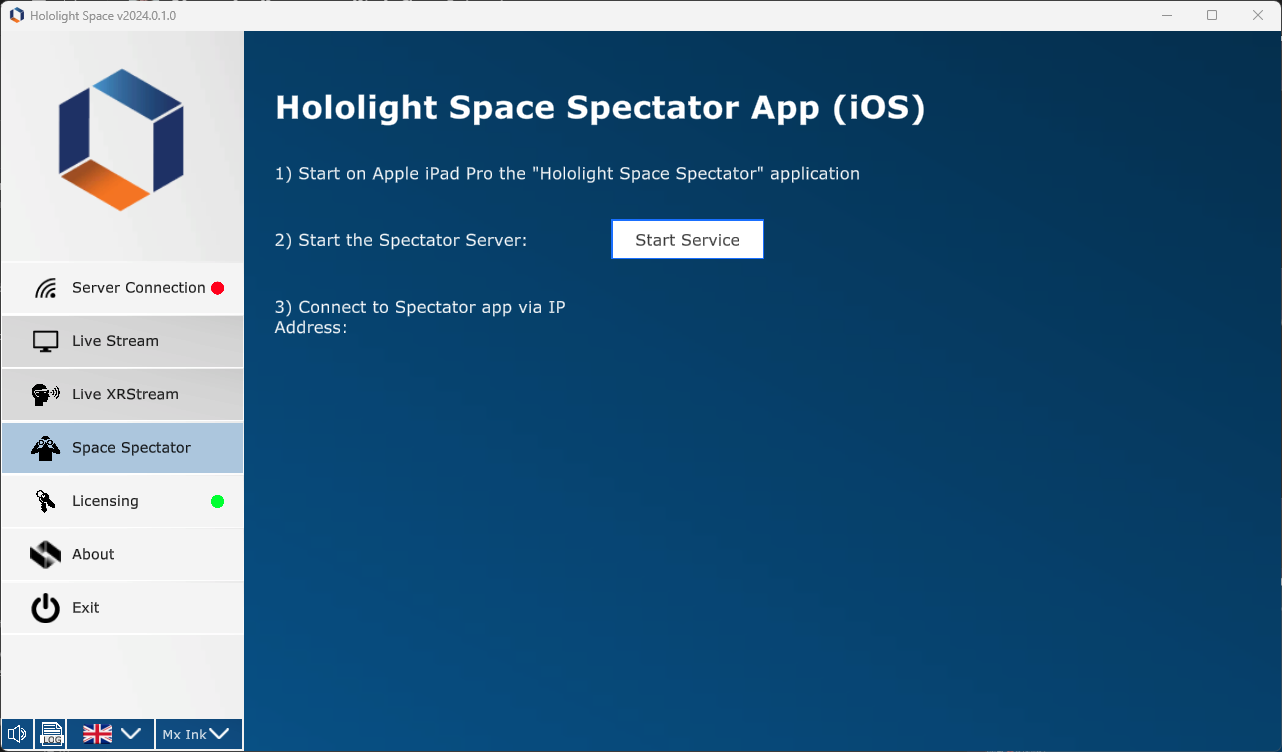
-
Select Start server. The Hololight Space Spectator server IP address and port will appear below the button.
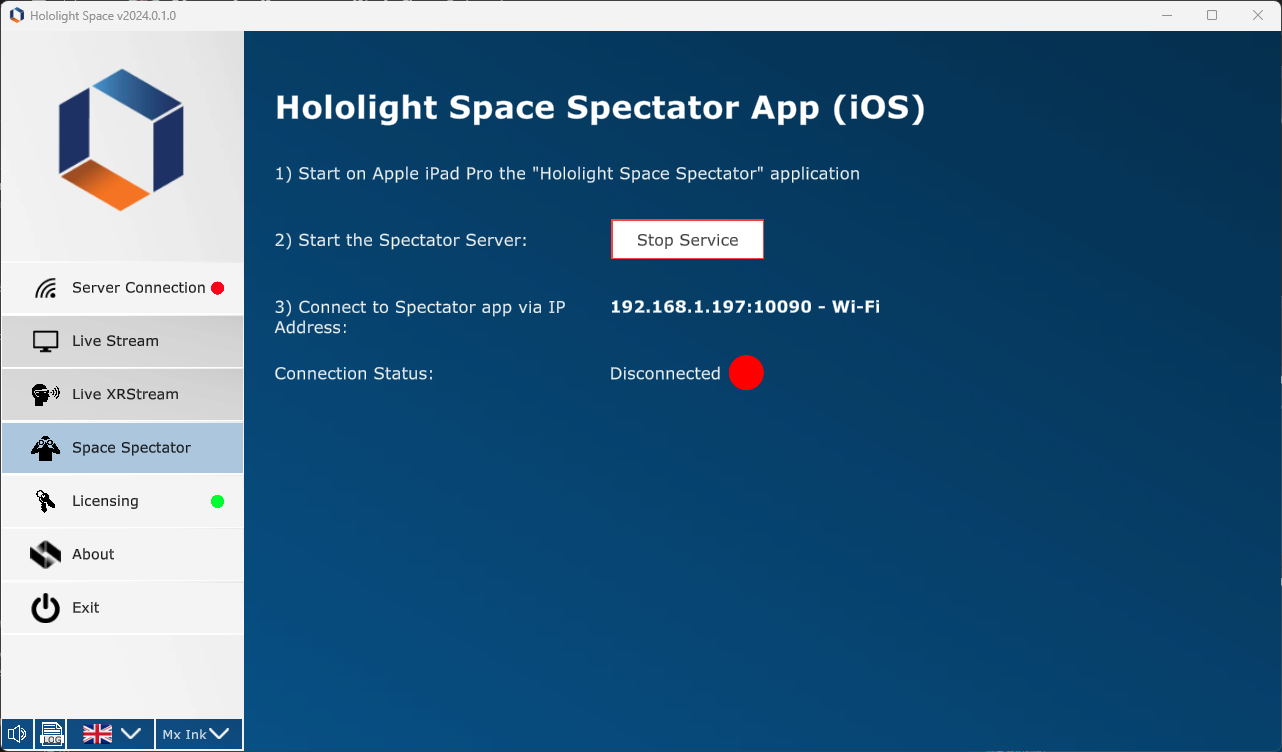
| Using Hololight Space Spectator can affect Hololight Space’s performance. Only run the Spectator server when needed. You can stop the Hololight Space Spectator server at anytime by selecting the Stop service button. |
| If you are having connection issues, make sure to make two inbound rules, one for TCP and one for UDP, allowing connections on local port 10090 in Windows Firewall Defender. |
Connecting to Hololight Space with Hololight Spectator
-
Open Hololight Space Spectator on your iPad.
-
Enter the Hololight Space Spectator server IP address and port. Then select Connect.
You can now see the Hololight Space session in your iPad.
| You can only connect with Hololight Space Spectator when you are also connected with a client device to Hololight Space. |
Aligning the space
Both the client device and the iPad are connected to Hololight Space, but how they align with the real world may be different. For example, you and another user are using the Microsoft HoloLens 2 to connect to Hololight Space along with the iPad using Hololight Spectator. This means when you load a model, the iPad and the Microsoft HoloLens 2 understand the models as being in different locations. To fix this, you need to align the origins of the two devices. Use a QR code, any will do, to help you synchronize Hololight Space between the two devices.
-
Choose a place in the real-world room to place your origin. Put the QR code you want to use on this spot. Make sure the QR code is not upside-down or turned on its side.
-
On the iPad running Hololight Space Spectator, select the QR code button. Align the frame that appears with the QR code. Make sure to hold your iPad steady until the 3D axis appears on top of the QR code.
-
Align the origin on your client device. If the client you are using is on an AR device like the HoloLens 2, you can go to the Space manager while connected to Hololight Space and select Align space with QR code. A frame will appear and you can scan the very same QR code you scanned with the iPad. As long as you didn’t move the QR code the two devices should perfectly align.
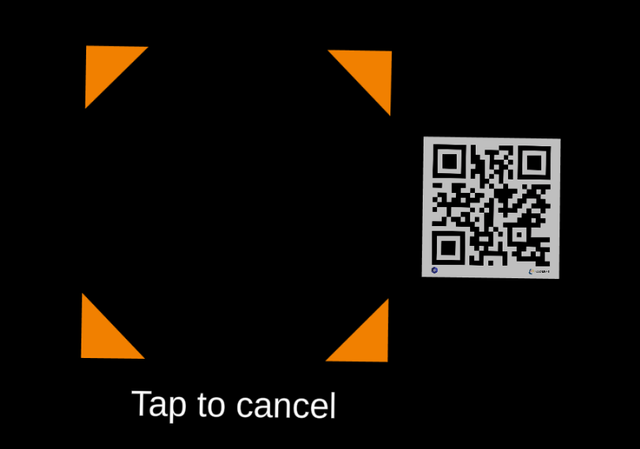
If the client you are using is on a VR device like the Meta Quest 3, you can go to the Space manager while connected to Hololight Space and select Manually align space with QR code. Using near and far interaction on the VR device, you can position the origin manually. Move the origin to same position as the QR code in the real-world environment. To make sure you properly align the origin, the red X axis should extend to the right, the yellow Y axis should point up at the ceiling, and the blue Z axis should extend out through the top of the QR code.