Connect to Hololight Space using Hololight Space Client

Objectives

  • Be able to connect to a Hololight Space server either locally or on the cloud.

Prerequisites

  • Hololight Space installed on a Windows computer.

  • Hololight Space Client is installed on your XR device.

Connect using Hololight Space Client

Connect to a local Hololight Space server

  1. On a PC, start Hololight Space. You can usually find the application using Start or as a shortcut on your desktop.

  2. Power on your XR device.

  3. Confirm that the XR device is connected to the same Wi-Fi network as your PC.

  4. Open Hololight Space Client on your XR device.

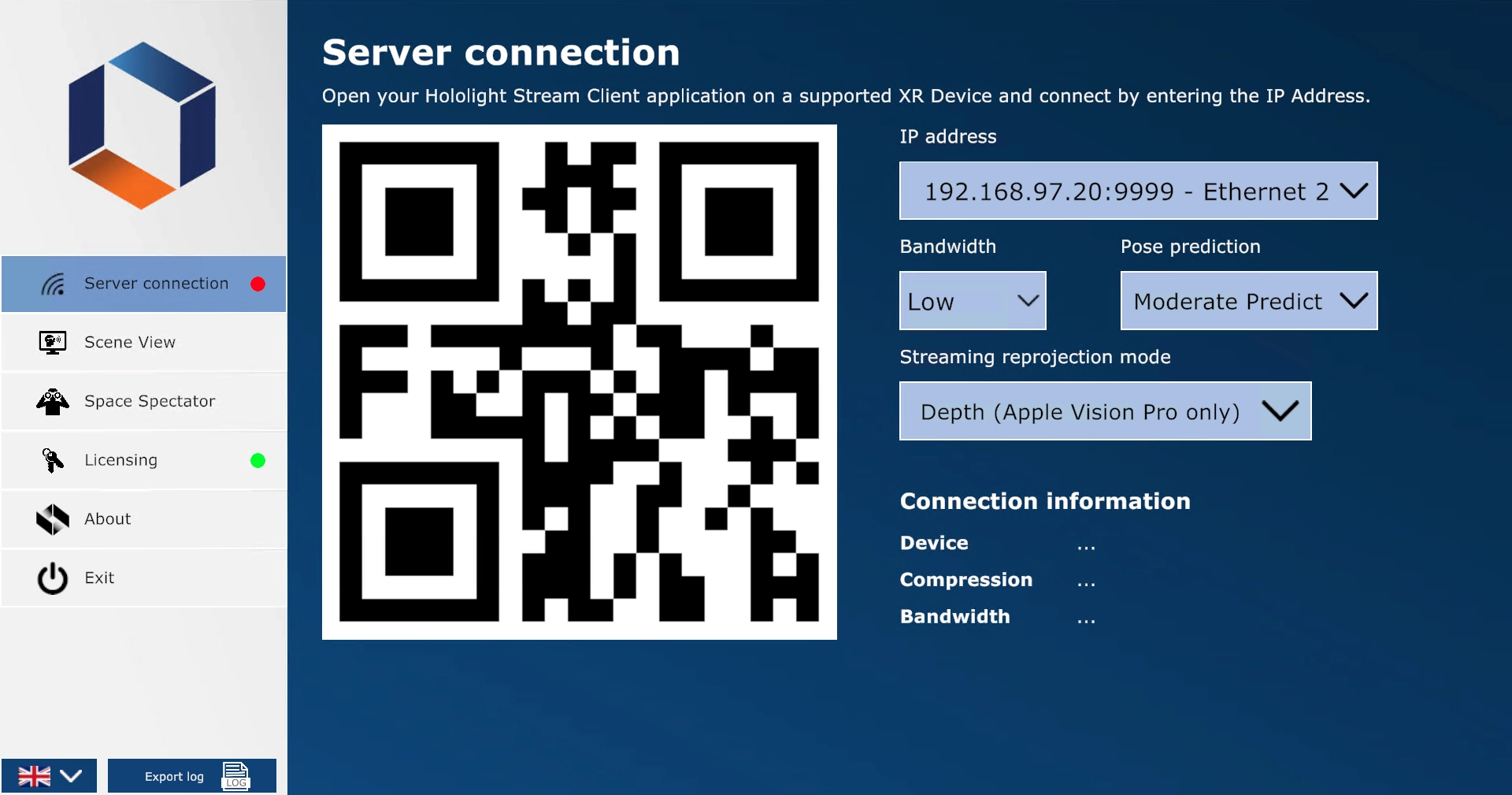
  5. When prompted, enter the IP address of your server. You can find this address displayed in the Hololight Space Server window on your PC.
    Screenshot of Hololight Hub on a Windows computer with the connection tab selected.

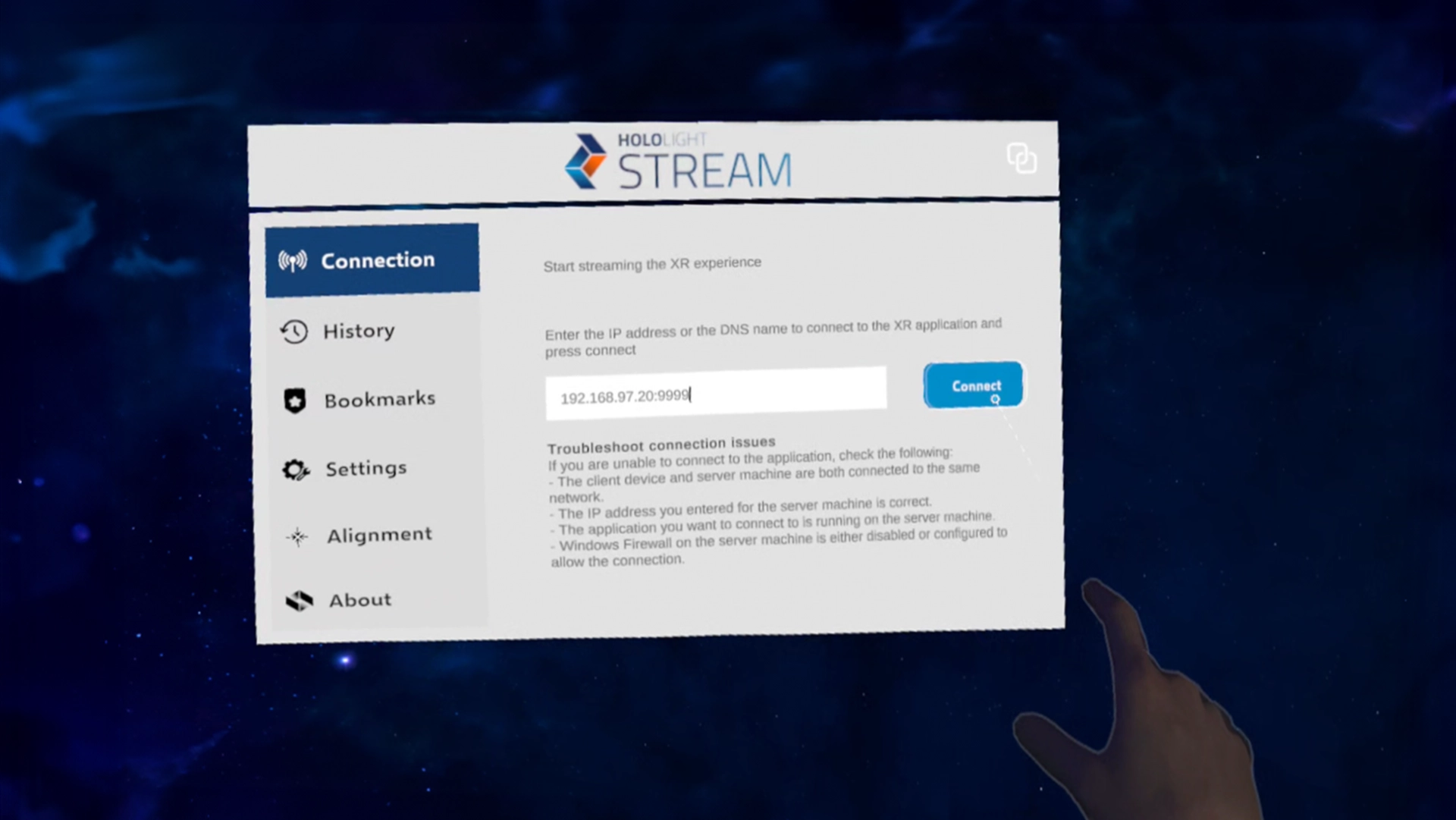
    Make sure the IP address is entered exactly as shown on the Hololight Space server application.
  6. Select Connect to start the session.
    Screenshot of Hololight Space Client running on a mixed reality device, with the user select the connect button to connect to a Hololight Space session.

If Hololight Space Client successfully connects to the Hololight Space server you can start using Hololight Space.

If you’re having trouble, double-check that both the server and the XR device are on the same network.

Connect to a Hololight Space Cloud session

If you want to use the cloud version of Hololight Space, you need an account for hololight.space. Contact Hololight for access.

If you already have access, sign in to hololight.space with your credentials. From here you can start the connection process.

  1. Sign in to hololight.space using your credentials.

  2. In the left sidebar, select Session.

  3. Select the region closest to your location.

  4. Select Play to start a new session.

  5. Wait for the initialization to finish.

  6. Open Hololight Space Client on your XR device.

  7. Using Hololight Space Client, in the sidebar select Cloud.

  8. Sign in with your credentials and select Connect.

Using Hololight Space Cloud

The left sidebar in the hololight.space interface provides access to several features:

Navigation options in Hololight Space Cloud

Option

Description

Session

Manage, start, and schedule your sessions.

Meeting

Generate QR codes for multi-user session access.

Objects

Upload your 3D files for use in the application.

VR Skyboxes

Upload custom VR backgrounds. When connected to a session using Hololight Space Client, go to Quick Menu > Main Menu > Settings > Options > VR to access the custom backgrounds.

Stencils

Upload stencils for use as annotations in sessions.

Spaces

Manage your saved or exported spaces.

Manage

View your session history.

Support

Contact the Hololight Support Team for help.