Snapshots in Hololight Space
Snapshots
Snapshots is a slideshow-like presentation toolset that saves and loads sequential states of a 3D space. You can then save different setups of a 3D space and quickly restore them back.
In many ways snapshots are similar to saved spaces, in that each snapshot saves all model positions, rotations, and scaling so you can reload them in the future. Snapshots also save annotations, measurements, and cross-section gizmos.
When you open the snapshots panel, you’ll see the initial snapshot, numbered 0. It’s the first active snapshot and saves the initial state of the 3D scene.
Every time you select +, a snapshot gets saved with all transformations from the current setup. Each time you press the + key, a new snapshot is created, with each successive snapshot incrementing its number (0, 1, 2, 3, and so on…)
Selecting a different snapshot, whether by creating one with + or clicking an existing snapshot, saves all transformations made since that snapshot was last active. In this early version of snapshots, clicking an existing snapshot to switch to it triggers saving.
Use Snapshots to jump between configurations or show a sequential change.
| The snapshot feature is currently experimental. It may change in future releases. |
Access snapshots
To access the snapshot feature, the user or operator must first enable snapshots in the settings menu.
Activate and access snapshots in XR
-
Once connected to Hololight Space with a device, open Quick Menu by looking at the palm of your hand.
-
Select Main Menu > Settings
-
Navigate to Experimental and toggle on Snapshots
It is also possible to access snapshots by opening Quick Menu and selecting Snapshots from the list. This will open the snapshot interface where you can view, create, and manage your snapshots.
Activate and access snapshots in Scene View
-
Open Hololight Space and navigate to Scene View on the left side of the interface.
-
Press 5 on your keyboard to open the settings menu.
-
Navigate to Experimental and toggle on Snapshots
Now you can access Snapshots by pressing 8 on your keyboard to open the snapshot interface where you can view, create, and manage your snapshots.
Create and manage Snapshots
This feature is experimental, so the desktop computer user should create and manage snapshots. This user acts as the operator of the space, creating and managing snapshots, while the XR user is a viewer. XR users can also create and manage snapshots, but doing so isn’t recommended, since it may cause unexpected behavior.
Create and manage Snapshots in Scene View
To use snapshots as an operator, open the Snapshot interface by pressing 8 on your keyboard. Here you can create, view and manage your snapshots.
Button icon |
Button function |
Function description |
|
Add snapshot |
Saves the current state of the space as a snapshot. |
|
Delete snapshot |
Deletes the selected snapshot. |
|
Next |
Loads the next snapshot in the list. |
|
Back |
Loads the previous snapshot in the list. |
|
Presenter mode |
Activates presenter mode, which disables the ability to add or delete snapshots. |





Example
This is quick example of how to use snapshots in Hololight Space. This example assumes that the user has already enabled Snapshots in the settings menu.
Load a demo file
-
Open Hololight Space and navigate to Scene View on the left side of the interface.
-
Select 1 on your keyboard to open Space Manager.
-
Select Load in the top-left corner of the Space Manager window.
-
Select Demo files in the bookmarks.
-
Select ducati.hl3d and import it into the space.
Use snapshots
-
Select Add snapshot in the snapshot interface to save the current state of the space as a snapshot.
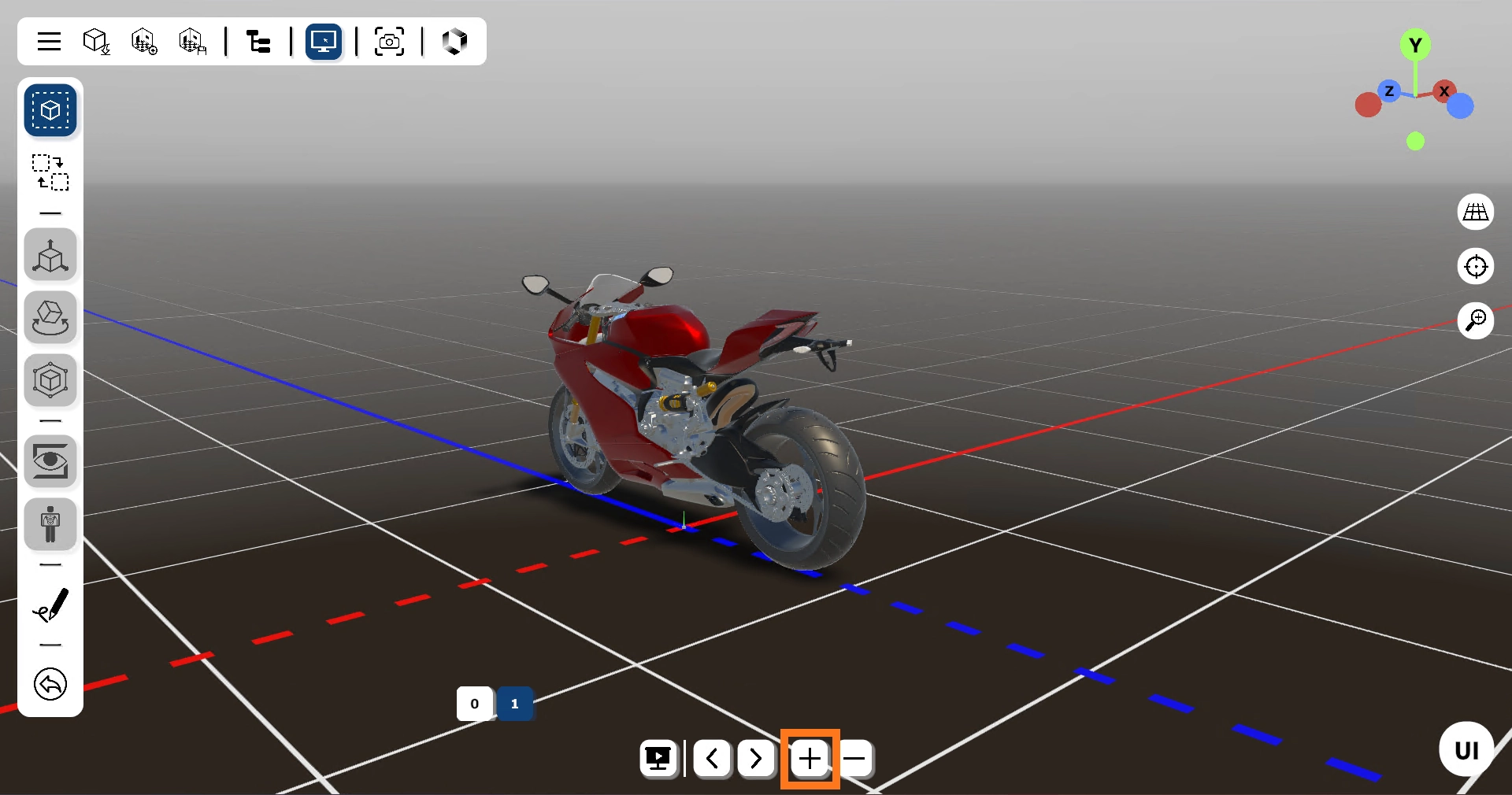
-
Select the rear wheel of the Ducati motorcycle by pressing V and select the rear wheel.
-
Press M to move the rear wheel and change its position.
-
Select Add snapshot in the snapshot interface to save the current state of the space.
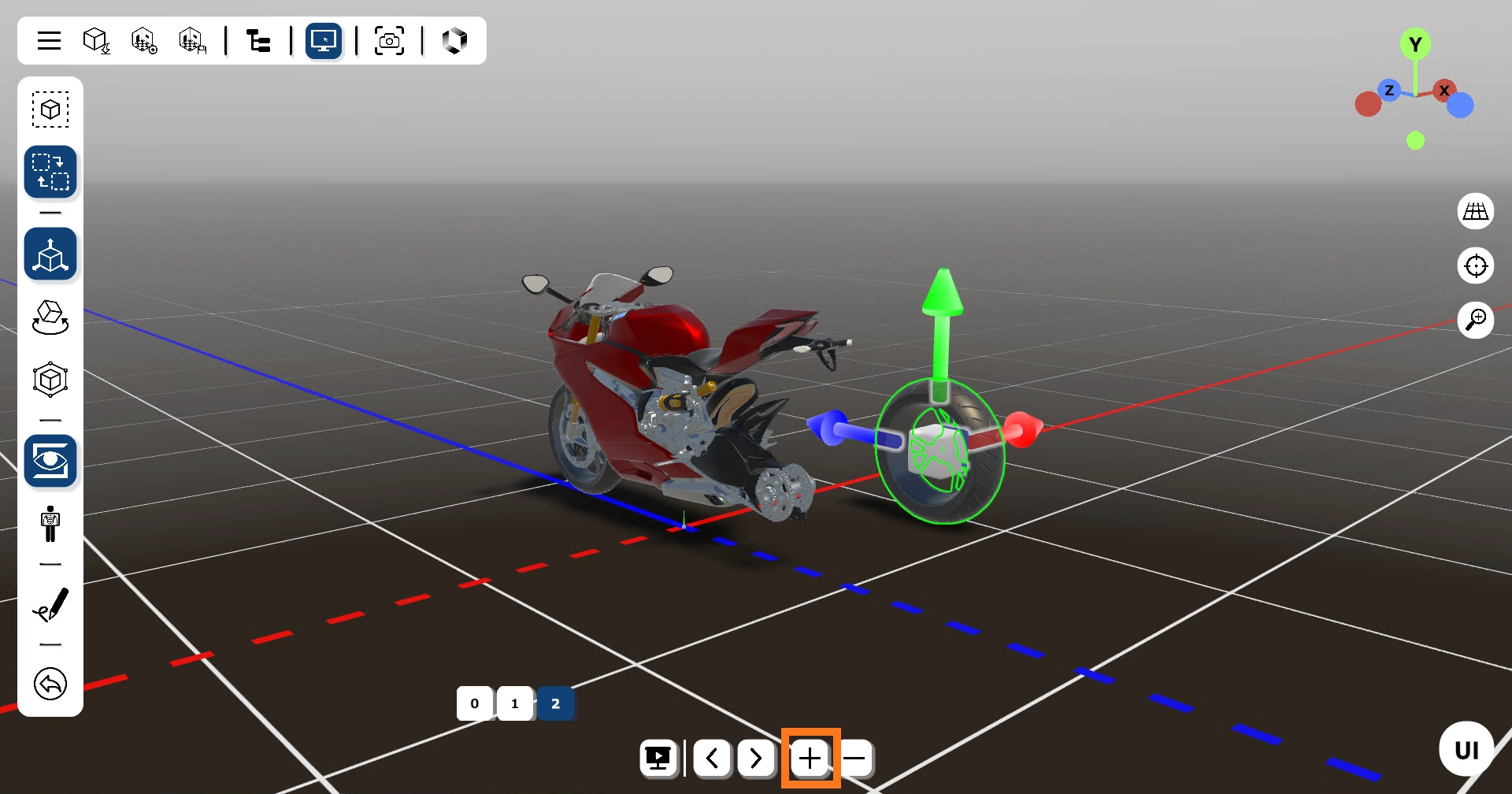
-
Switch between the two snapshots by selecting Next and Back in the snapshot interface. You will see that the rear wheel of the Ducati motorcycle changes its position based on the selected snapshot.
Save and load snapshots
-
Select Save space in the menu bar to save the current state of the space, including all snapshots.
-
Choose a location and name for the space file and save it. Default location is 3dobjects\Hololight Space\Saved Spaces.
-
Select Load space in the menu bar to load a previously saved space file, including all snapshots.
Current limitations
-
Using Snapshots with heavy models may cause performance issues, especially when switching between snapshots.
-
Snapshots are not supported in meetings.
-
Creating and deleting snapshots in the middle of the list may cause unexpected behavior, so it is recommended to create and delete snapshots in order.
-
If both the operator and the XR user are creating and managing snapshots at the same time, there might be unexpected behavior. Our recommendation is that only the operator manages snapshots.