Activate a Hololight Space license file
Prerequisites
-
Hololight Space license file.
-
Hololight Space downloaded and installed on a Windows workstation.
Activate license file
Activate license file with cloud-based licensing
To use the full version of Hololight Space you need to install, configure, and activate Hololight Space with your license. You can then deactivate Hololight Space by releasing the seat after activation. If you received a license file from Hololight, make sure your computer running Hololight Space is connected to the internet.
Install the license file
-
Open Hololight Space.
-
Select Licensing.
-
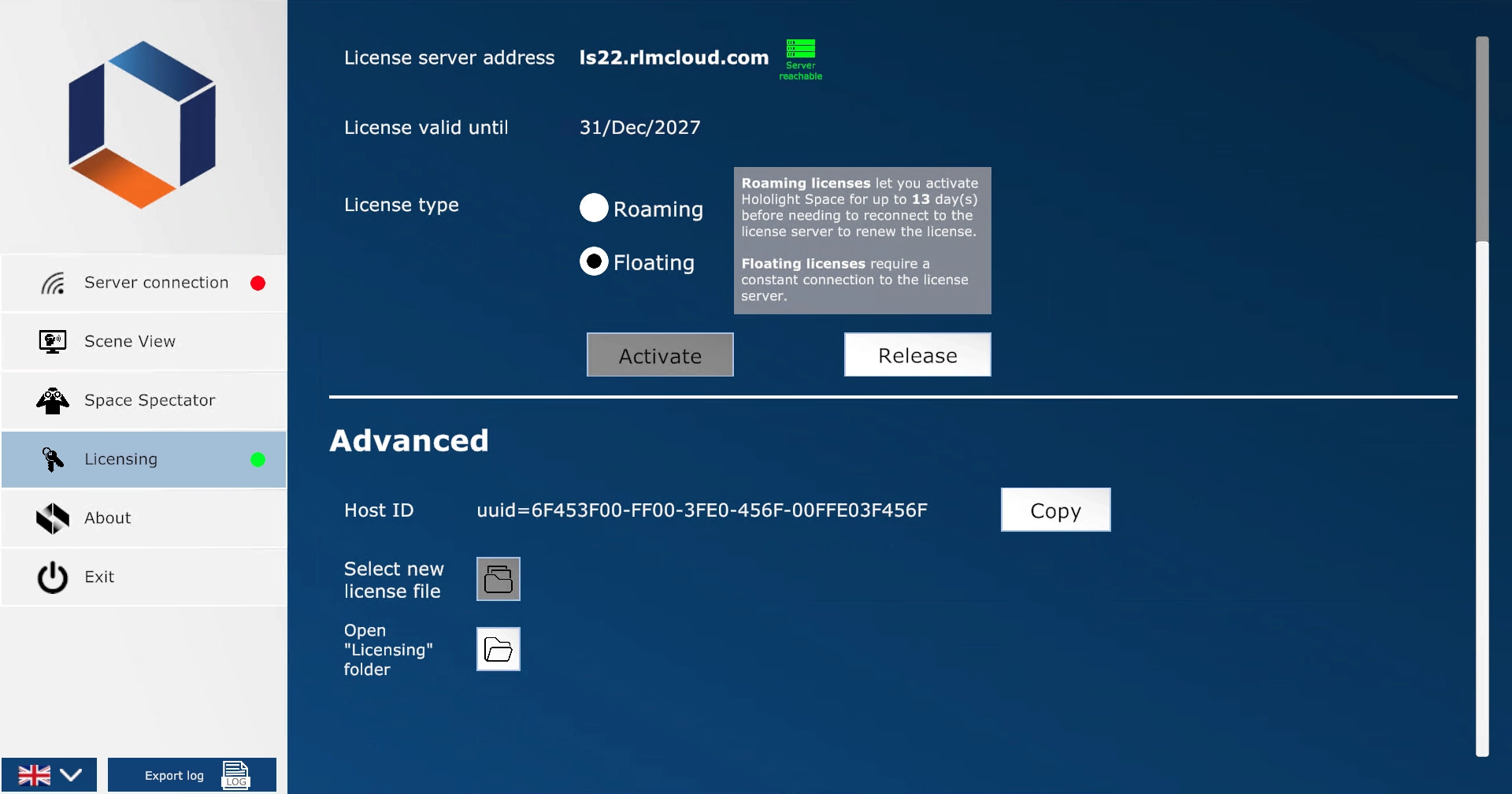
On the Hololight Space License panel, scroll down and select New License File > Browse.
-
Go to the folder where you saved your license file. Select it and open it. Hololight Space will then automatically move the file to the correct location.
Alternatively, you can manually place the .lic file in the following directory:
C:\Users\user1\3d objects\Hololight Space\Licensing
Configure the license type
Before activating the license you need to select a license type on the Hololight Space License panel under License Type. Different license types have different advantages, allowing you to flexibly and easily control access to the license as best fits your needs.
When to use a floating license (Default)
A floating license lets you use Hololight Space as long as your license is valid. However, your machine always needs to stay connected to the internet in order to use Hololight Space with this type of license.
When to use a roaming license
A roaming license lets you use Hololight Space for up to 13 days without needing to connect to the internet. After 13 days the machine running Hololight Space needs to reactivate the license while connected to the internet. You can then use Hololight Space with your license for another 13 days before having to repeat the activation.
Activate your license
Once you’ve installed your license file and chosen your license type, you can activate your license. If a valid license already exists in the correct folder, Hololight Space will activate the license automatically.
-
To activate your license select Activate.
-
If the activation is successful, a green "Server Reachable" icon will appear. You can now use Hololight Space with your license.
Release your license
Sometimes it is necessary to release a license. You might want to change the license type before reactivating or maybe allow someone else to use the license.
To release a license, select Release on the Hololight Space License panel. When the green "Server Reachable" icon disappears, the license is free.