Manipulate 3D models in Hololight Space
Manipulate 3D models
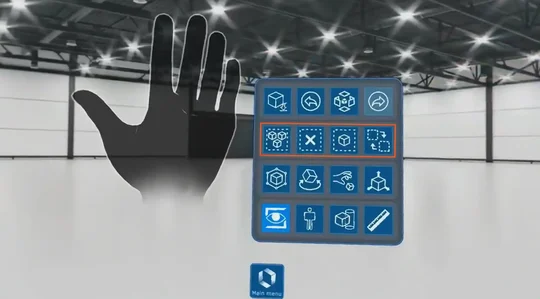
You can manipulate 3D models in Hololight Space using several tools, most of which are available in your Quick Menu. To move or transform a 3D model, you must first select either a part of the 3D model or the entire 3D model.
All features in Quick Menu can be customized and replaced with other manipulation tools. By default, Quick Menu includes bounding box, grab, rotate, and move.
Select 3D models
You can either select 3D models using the selection tools in Quick Menu or by selecting them in the Space Manager. The Interaction Menu also provides advanced selection and manipulation tools.
Manipulate 3D models
Bounding box
This tool creates a bounding box around your model with interactive control points. You can use these points to:
-
Move the 3D model along a single axis by grabbing inside the bounding box.
-
Rotate the 3D model by grabbing a vertical edge.
-
Tilt the 3D model by grabbing a horizontal edge.
-
Scale the 3D model by grabbing one of the corners.
Grab
This tool creates a bounding box around the model that you can freely grab and move in any direction.
Select and manipulate with the Interaction Menu
The interaction menu provides advanced tools for selecting and manipulating 3D models. Every feature shown in the video is also available in the Quick Menu.
The interactions menu offers the same tools as the Quick Menu, but with more detailed control. For example, you can move objects with millimeter precision, scale them accurately, or rotate them around a specific axis at an exact angle.
For more information on the interaction menu, see Menus.