How to use Hololight Space Scene View
Objectives
-
Understand how to use Scene View in Hololight Space.
-
Know the controls and features available in Scene View to work efficiently from your workstation.
Scene View
Scene View lets you interact with Hololight Space on your workstation without having to connect with an XR device. It is a powerful tool for operators to manage and prepare spaces and support XR users in real time.
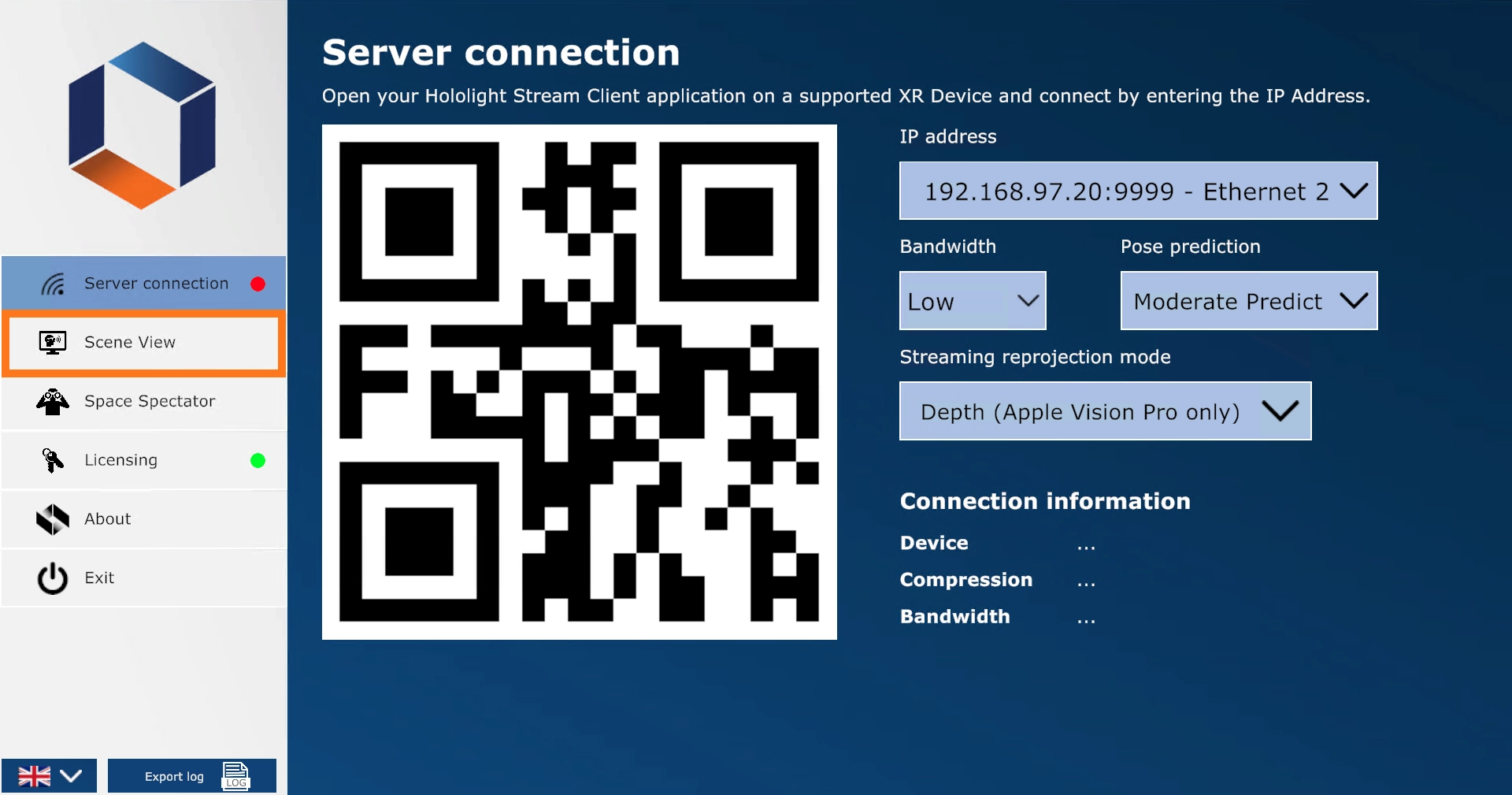
To open Scene View, select Scene View in the left sidebar. The sidebar will then close automatically, and you can start using Hololight Space Scene View.
Scene View UI elements
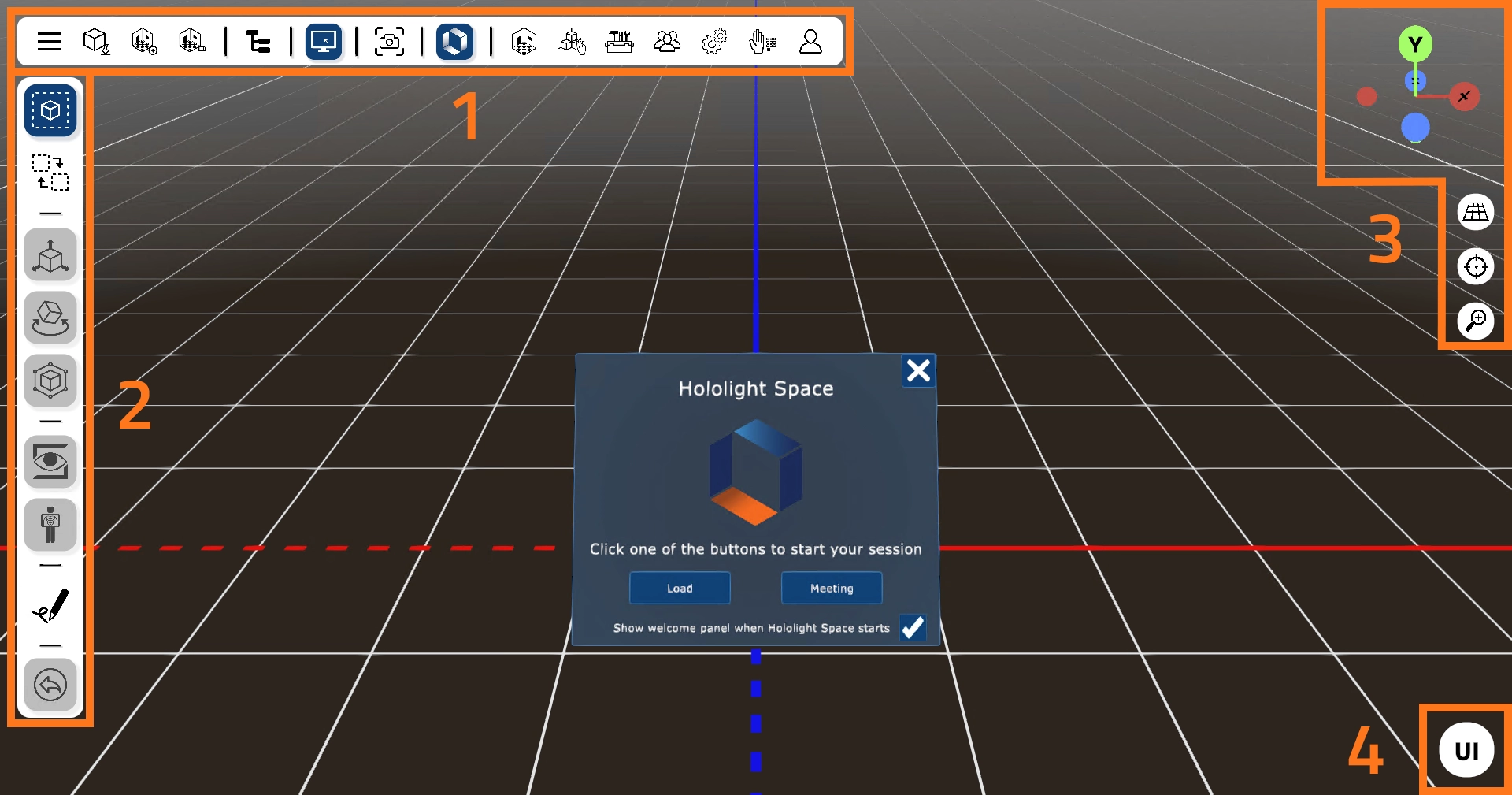
Hololight Space Scene View brings the following new UI elements to the application:
-
Menu bar
-
Tool bar
-
Viewport controls
-
UI Toggle
Menu bar
Button icon |
Button function |
Function description |
Function keyboard shortcuts |
|
Show sidebar |
Shows the sidebar. |
Esc |
|
Load |
Opens File Explorer to select 3D objects, saved spaces or snapshots to load. By default, it opens |
Ctrl*O* to open 3D objects, *Ctrl+Shift*O or Alt+Left-click to open saved spaces |
|
New space |
Creates a new empty space. |
Ctrl+N |
|
Save space |
Opens File Explorer so you can save your space to a specific location. By default, it opens |
Ctrl+S |
|
Hierarchy |
Opens the complete hierarchy tree of your space. |
F3 / F7 |
|
Operator |
Exit Scene View or switch to live stream mode, if an XR device is connected. |
|
|
Live XR stream |
Enable or disable the live XR stream. Available only when a HoloLens 2 connection is active. |
|
|
Turn on / off passthrough |
Toggle passthrough mode for the connected XR device. Available only when an XR device is connected. |
|
|
Disconnect |
Disconnect the connected XR device. Available only when an XR device is connected. |
|
|
Screenshot |
Take a screenshot of the current view. Screenshots are saved to |
F9 |
|
Main menu |
Opens the main menu to access Hololight Space menus. |
|
|
Space Manager |
Opens Space Manager |
Press 1 to open Space Manager. Press Ctrl+1 to open Space Manager in the Scene view while connected to an XR device. |
|
Interaction |
Opens Interaction |
Press 2 to open Interaction. Press Ctrl+2 to open Interaction in the Scene view while connected to an XR device. |
|
Tools |
Opens Tools |
Press 3 to open Tools. Press Ctrl+3 to open Tools in the Scene view while connected to an XR device. |
|
Meeting |
Opens Meeting |
Press 4 to open Meeting. Press Ctrl+4 to open Meeting in the Scene view while connected to an XR device. |
|
Settings |
Opens Settings |
Press 5 to open Settings. Press Ctrl+5 to open Settings in the Scene view while connected to an XR device. |
|
Layout configurator |
Opens Layout configurator |
Press 6 to open Layout Configurator. Press Ctrl+6 to open Layout Configurator in the Scene view while connected to an XR device. |
|
User |
Opens User |
Press 7 to open User. Press Ctrl+7 to open User in the Scene view while connected to an XR device. |
|
Snapshots |
Opens Snapshots |
Press 8 to open Snapshots. Press Ctrl+8 to open Snapshots in the Scene view while connected to an XR device. Snapshots need to be activated in the experimental features settings to be available in Hololight Space. |
|
XR browser |
Opens XR browser |
Press 9 to open XR browser. Press Ctrl+9 to open XR browser in the Scene view while connected to an XR device. The XR browser needs to be activated in the experimental features settings to be available in Hololight Space. |









Tool bar
On the left side of Scene View, there are various quick controls available that you can use to interact with your 3D models.
Button icon |
Button function |
Function description |
Function keyboard shortcuts |
|
Select model |
Select the root of a 3D model with a left-click while this mode is active. |
A |
|
Select part |
Select individual parts of a 3D model with a left-click while this mode is active. |
V |
|
Move |
Spawns a gimbal on the selected object to move it along an axis. |
M |
|
Rotate |
Spawns a gimbal on the selected object to rotate it along an axis. |
R |
|
Bounding Box |
Spawns a bounding box around the selected object. Use the handles to move, rotate, and scale it. |
B |
|
Show / Hide |
Toggle the visibility of the selected object or objects. |
H |
|
X-Ray |
Toggle X-ray mode for the selected object or objects. |
X |
|
Annotation |
Create annotations as an operator. |
Hold Alt to draw on 3D surfaces. |
|
Undo |
Undo the last action. |
Ctrl+Z |



Viewport controls
Button icon |
Button function |
Function description |
Function keyboard shortcuts |
|
Perspective and orthographic view |
Toggle between perspective and orthographic camera projection. |
Numpad 5 |
|
Frame selection |
Center the view on the selected object. |
F |
|
Zoom in/out |
Zoom in/out of the scene. |
Scroll the mouse wheel, press + or -. Hold Alt and right-click switch to Zoom to center mode. |


Scene View controls
Navigation controls in Scene View
Keyboard key |
Function |
Hold right mouse button+W |
Move the camera forward |
Hold right mouse button+S |
Move the camera backward. |
Hold right mouse button+A |
Move the camera left. |
Hold right mouse button+D |
Move the camera right. |
Hold right mouse button+drag |
Rotate the camera. |
Hold wheel mouse button+drag |
Pan the camera. |
Hold shift |
Sprint with faster camera movement. |
Hold space |
Slows down camera movement and zooming as long as the Space key is being held. |
Hold Ctrl+scroll |
Alternative zoom. Toggles between center and mouse position. |
Hold Alt+scroll |
Field of view zoom. Able to zoom closer to models without clipping. |
Hold Alt+right mouse button+drag |
Drag zoom. |
Viewport controls in Scene View
Keyboard key |
Function |
Numpad . |
Frame selected object (alternative) |
Numpad 0 |
Align view to camera |
Numpad 1 |
Front view |
Ctrl+Numpad 1 |
Back view |
Numpad 3 |
Right view |
Ctrl+Numpad 3 |
Left view |
Numpad 7 |
Top view |
Ctrl+Numpad 7 |
Bottom view |
Numpad 5 |
Toggle between perspective and orthographic camera projection |
Numpad 9 |
Invert view direction |
Numpad 2 |
Rotate view down |
Numpad 8 |
Rotate view up |
Numpad 4 |
Rotate view left |
Numpad 6 |
Rotate view right |