Import files into Hololight Space
Prerequisites
-
Hololight Space installed on your computer.
-
Hololight Stream Client installed on your supported XR device.
Import files
When importing files into Hololight Space, organize them into dedicated folders. If you’re working locally, use the 3D objects folder.
This video provides a detailed walkthrough of the file preparation and loading process for Hololight Space, applicable to both the on-premises and cloud versions. It also highlights the convenient drag-and-drop feature, which lets you easily transfer files directly into your Space.
Open the file browser by selecting Load Object from the welcome screen, the Quick Menu, or through Space Manager.
Prepare files for Hololight Space
Before importing 3D models and other files into Hololight Space, organize them into the appropriate folders as shown in the steps.
The file browser lets you load files from various locations, but we recommend using the 3D Objects folder for easier access to skyboxes, annotations, and other resources.
-
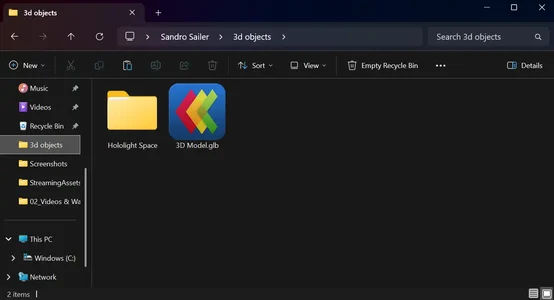
Open Windows search, type "3D Objects", and open the 3D Objects folder.
-
Drop your 3D Files into this folder. See Supported File Formats for more information.
-
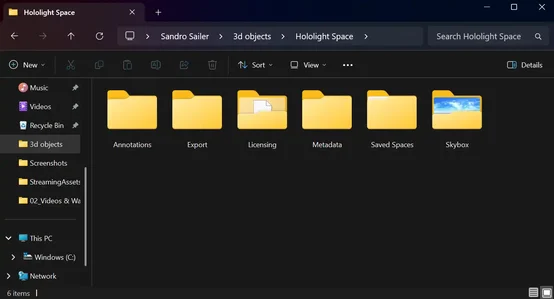
Double-click the Hololight Space folder inside the 3D Objects folder.
-
If you want to have custom annotations or skyboxes, put them in the corresponding folder.
-
You’ll also find Exported Spaces, Saved Spaces, and Licensing Folder here.
-
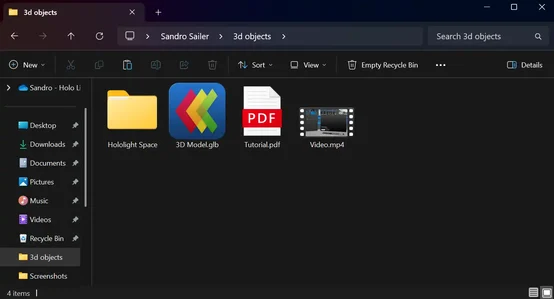
You can also put PDFs and videos into the 3D Objects folder to load them just like 3D models.
Import 3D models and files into Hololight Space
Import files in XR
There are multiple ways to import files in Hololight Space.
-
From the welcome screen, after you connect to Hololight Space, select Load Object to open the file browser.
-
From Quick Menu, select Load Object to open the file browser.
-
From Space Manager, select Load Object in the top-left corner, to open the file browser.
You can also drag files from your computer into the Hololight Space environment. This is only available using the on-premises version of Hololight Space.