Hololight Space network requirements
Network requirements
Hololight Space uses a number of network ports to communicate data between the server and client. If these ports are closed, the features dependent on them won’t work. Below are the network ports that you need to open to fully use Hololight Space.
The table lists the default ports Hololight Space uses, but you can also define many of the ports these protocols use yourself. To do this, open Hololight Space and navigate to Scene View > Settings > Meeting to change which ports Hololight Space uses.
Network |
Wi-Fi 6 |
Network frequency |
5 GHz |
Bandwidth |
Minimum 40 Mbit |
Round trip time |
Maximum 50 ms |
Protocols and ports
| If the network in which you are using Hololight Space doesn’t require use of Windows Firewall, you can disable the firewall and use Hololight Space without opening specific ports. Check out Firewall and Network Protection in the Windows Security App for more information on how to enable and disable Windows Firewall. |
Application protocol |
Protocol |
Local port |
Remote port |
Signaling |
TCP |
9999 |
- |
Signaling |
UDP |
9999 |
- |
Signaling (2nd Instance) |
TCP |
10000 |
- |
Signaling (2nd Instance) |
UDP |
10000 |
- |
| Each new instance of Hololight Space you run on the server machine requires its own local port for Hololight Stream signaling. The first one is by default “9999". Each additional instance of Hololight Space will then use the next port. For example, the second instance of Hololight Space will use port “10000". The third will use port “10001". |
Protocol (Inbound and outbound) |
Local port |
TCP (Cloud Licensing) |
5053 |
UDP (Cloud Licensing) |
5053 |
TCP Dedicated License Port (Cloud License) |
Unique for each license file |
UDP Dedicated License Port (Cloud License) |
Unique for each license file |
TCP (Offline License Server) |
5054 |
UDP (Offline License Server) |
5054 |
License ports are used to communicate with our licensing server. Every server gets monitored at 2-minute intervals. The dedicated port is specified in the license file. When you receive a license from Hololight, we’ll inform you which ports must be open. You can also view the required port by opening the license file in a text editor. If activation fails, check that these ports are open on the network your computer is connected to.
Application protocol |
Protocol |
Local port |
Remote port |
Desktop file loading |
TCP |
17321 |
- |
Application protocol |
Protocol |
Local port |
Remote port |
Meeting connection and broadcasting |
TCP |
5055 |
- |
Meeting connection and broadcasting |
TCP |
5056 |
- |
Meeting connection and broadcasting |
TCP |
5058 |
- |
Meeting connection and broadcasting |
TCP |
18200 - 18300[1] |
- |
Additional meeting features |
TCP |
20000 - 20100[1] |
- |
Meeting connection and broadcasting |
UDP |
5055 |
- |
Meeting connection and broadcasting |
UDP |
5056 |
- |
Meeting connection and broadcasting |
UDP |
5058 |
- |
Meeting connection and broadcasting |
UDP |
18200 - 18300[1] |
- |
Additional meeting features |
UDP |
20000 - 20100[1] |
- |
Application protocol |
Protocol |
Local port |
Remote port |
Hololight Spectator connection |
TCP |
10090[1] |
- |
Hololight Spectator connection |
UDP |
10090[1] |
- |
Firewall
When launching certain applications for the first time, Windows Defender Firewall may block some network features and prompt you to allow access. This is a normal security measure.
Some applications, like Unreal Engine or Unity, might not trigger a prompt. You might also accidentally select Disallow. If you do, you can manually enable access through the firewall:
-
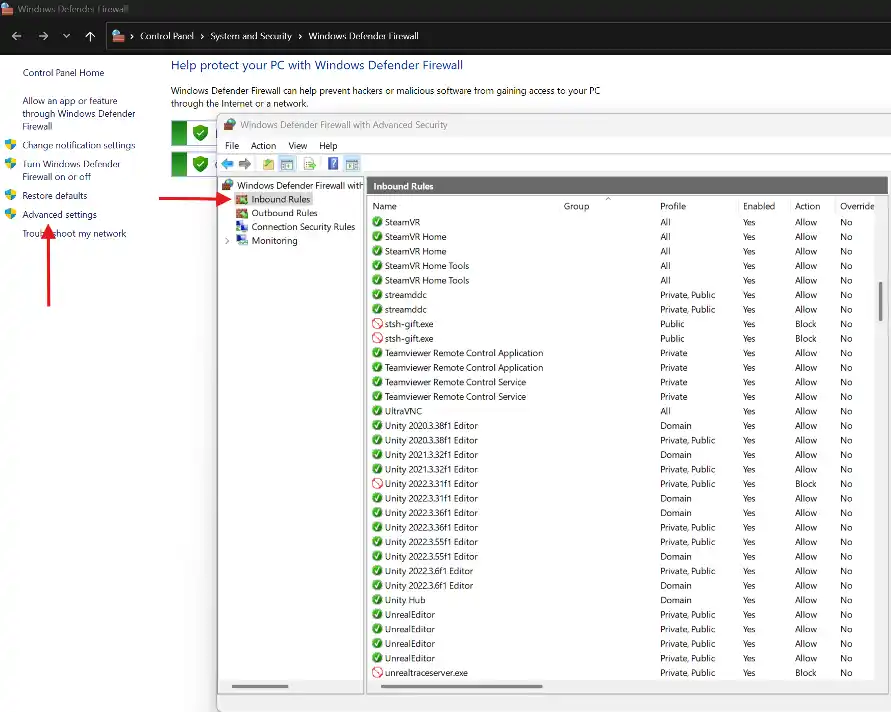
Open Windows Firewall Defender.
-
Select Advanced Settings in the left sidebar.
-
In the advanced settings window, select Inbound Rules.
-
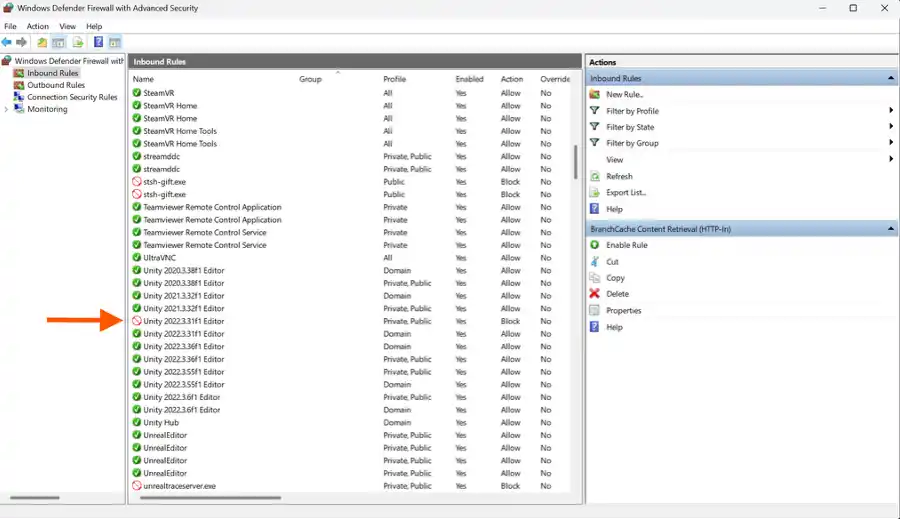
Locate your application (for example, Unity Editor) and double-click it.
-
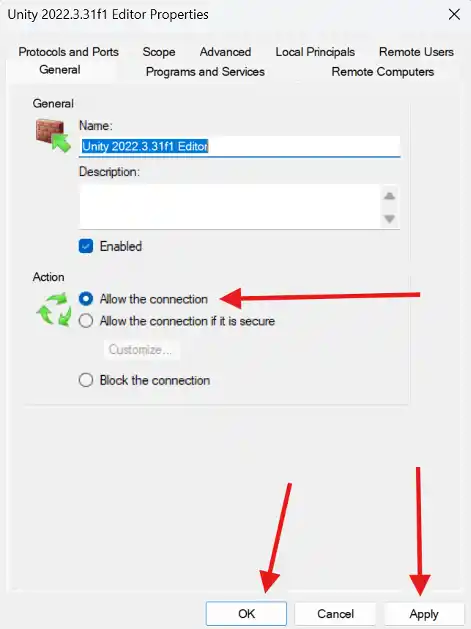
Check the box labeled Allow the connection.
-
Select Apply, then select OK.
To make sure Hololight Stream works correctly in your development environment, use this guide to enable all local ports for an application. To define rules for specific ports, select the application’s properties, then select Protocols and Ports. Choose the protocol type (TCP or UDP), and enter the port number you want to allow.