Quick Menu in Hololight Space
Prerequisites
-
Hololight Space installed on your computer.
-
Hololight Stream Client installed on your supported XR device.
Quick Menu
Quick Menu gives you fast access to essential tools and settings in Hololight Space.
Quick Menu is your central toolset for interacting with your space efficiently. It provides quick access to commonly used features, many of which are also found in the main menus. Whether you’re adjusting objects or managing the environment, Quick Menu is designed to make using the different features of Hololight Space fast and seamless.
| Activate Quick Menu by looking at the palm of your left or right hand or toggle it using the controller buttons. The specific buttons vary depending on the XR device you’re using. |
Main menu
The main menus are your go-to menus to access more advanced features. Select Main Menu in Quick Menu to view all available menus in Hololight Space.
Button icon |
Button function |
Function description |
|
Compact mode and extended mode |
Toggle between 2x4 compact mode and 4x4 extended mode for Quick Menu. |
|
Space Manager |
Opens Space Manager |
|
Interaction |
Opens interaction |
|
Tools |
Opens tools |
|
Meeting |
Opens meeting |
|
Settings |
Opens settings |
|
Snapshots |
Opens snapshots |
|
XR browser |
Opens XR browser |
|
Layout configurator |
Opens layout configurator |
|
User |
Opens user |
|
Turn on / off passthrough |
Toggle passthrough mode for the connected XR device. Available only when an XR device is connected. |
|
Disconnect |
Disconnect the connected XR device. Available only when an XR device is connected. |





Customize your Quick Menu
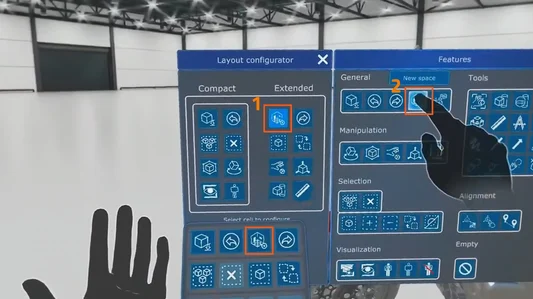
The layout configurator lets you customize which tools appear in Quick Menu, so you can customize the interface to fit your workflow.
-
Look at the palm of your left or right hand to open Quick Menu.
-
At the bottom of the menu, select Main Menu.
-
On the right side, select More.
-
Select Layout configurator.
-
In the layout configurator, select a feature you want to swap out.
-
A new window will appear with all available features. Choose one to replace the selected tool.
Default tools in Quick Menu
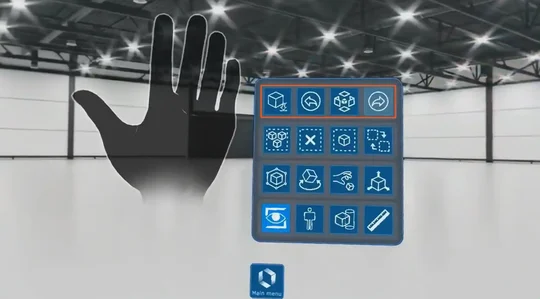
First row - Space tools
-
Load object
Opens the file browser to import models, PDFs, or videos. -
Undo / redo
Revert or reapply your last action. -
Exploded view
Separates parts of a model for better internal viewing.
Second row - Selection tools
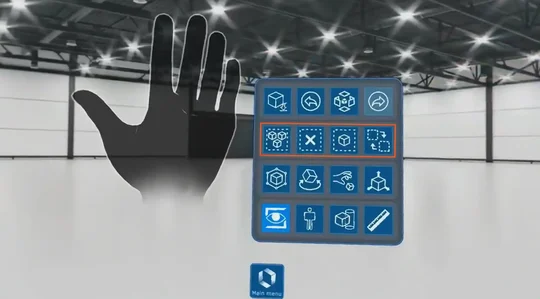
-
Select all / Deselect
Quickly select or deselect all objects in the space. -
Select root / Select part
Select root: Select the entire model with one click.
Select part: Select just a single component of a model.
Third row - Manipulation tools
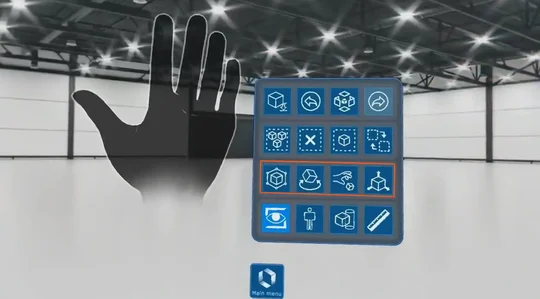
-
Bounding box
Activates a manipulatable box around an object for rotation, scaling, and moving. -
Rotate / Move / Grab
Rotate: Use a gizmo to rotate around a chosen axis.
Move: Use a gizmo to move the object along axes.
Grab: Freely move the object without axis constraints.
Fourth row - Property tools
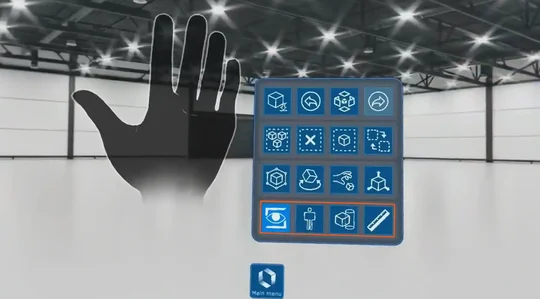
-
Toggle visibility
Hide or unhide selected objects. -
Outline mode
Highlights selected objects with a clear outline. -
Cube cross section
Creates a cube-shaped cross-section behind the Quick Menu for interior inspection. -
Measurement tool
Measure distances between two points—click to start, click again to finish.