Activate Hololight Stream Runtime
Objectives
-
Be able to activate and use Hololight Stream Runtime.
-
Understand how to use and when to use floating license mode or roaming license mode.
-
Understand how and when Hololight Stream Runtime uses the license file to active.
-
Be able to view and manage details related to your license and Hololight Stream Runtime activation status.
Activate Hololight Stream Runtime
You need to set up a valid license file for Hololight Stream Runtime to work.
| Hololight Stream Runtime needs internet access to activate. It does this through network ports 5053 and 5054. If you are having problems getting the activation process to work, make sure these ports are open on the network the computer with Hololight Stream Runtime is connected to. |
1. Choose a valid Hololight Stream Runtime license file
Once you receive a license file from Hololight, you are ready to use and activate Hololight Stream Runtime. Save the license file to a location on the Windows-based machine that will host your application and has Hololight Stream Runtime installed.
-
Open the Hololight Stream Runtime utility.
-
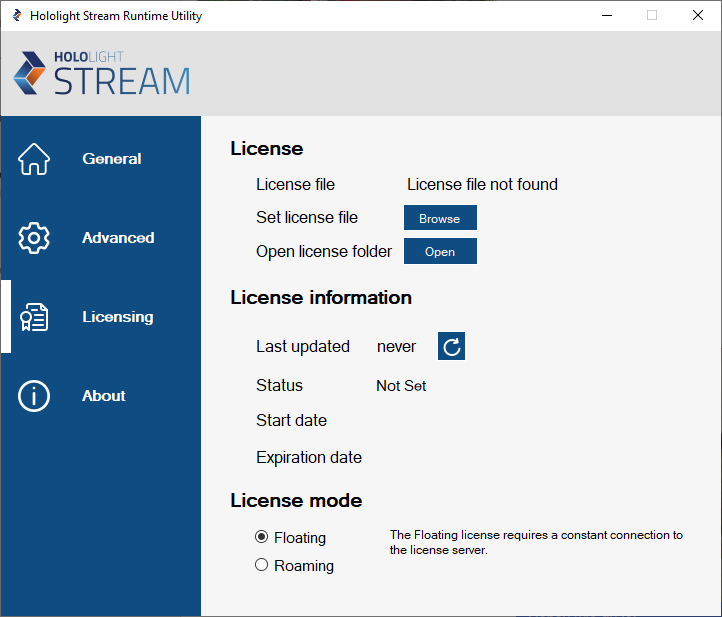
Select Licensing.
-
Under License > Set License File, select Browse.
-
Go to the folder with your license file, select it, and select Open.
Under License > License File you should now see "License file found". This shows that you selected a license file.
At this point, you will not see any information under License Information. This information only updates when you open an application that uses OpenXR, connect, and then either change tabs within the utility or select the refresh button.
2. Set your Hololight Stream Runtime license mode
When using Hololight Stream Runtime there are two different license modes, floating and roaming. You need to set one of these to activate Hololight Stream Runtime.
-
Under License Mode > Mode, select either Floating or Roaming from the dropdown list.
-
Select Set.
Once you’ve selected the best license type for your situation, you are ready to activate Hololight Stream Runtime.
When to use the floating license mode
Floating license mode lets you use Hololight Stream Runtime as long as your license is valid. However, your machine always needs to stay connected to the internet in order to use Hololight Stream Runtime with this license mode.
When to use the roaming license mode
Roaming license mode lets you use Hololight Stream Runtime for up to 13 days without needing to connect to the internet. After 13 days the machine running Hololight Stream Runtime needs to reactivate the runtime while connected to the internet. You can then use Hololight Stream Runtime with your license for another 13 days before having to repeat the activation.
| To release a seat checked out in roaming mode, just switch to Floating mode. |
3. Activate Hololight Stream Runtime
-
With a valid license file set, a license mode set, open an application with OpenXR support.
-
When the application opens, using the Hololight Stream Runtime utility and select License.
-
Under License Information near the Last Updated line, select refresh.
Hololight Stream Runtime utility license information refresh button
|
Each Hololight Stream license has a number of seats. When you open an OpenXR-supported application, that application will use one of the license’s seats. Two computers, each running one OpenXR-supported application, use two seats. If on the same computer, you run three OpenXR-supported applications, they will each use a seat from the license, a total of three seats |
License information
The license information helps you with information to understand and manage your license. The license information only updates when you run an application that supports OpenXR while Hololight Stream Runtime is installed and you select Refresh in on the Hololight Stream Runtime utility license screen.
Setting |
Description |
Last updated |
This is the last time an OpenXR compatible application was opened with Hololight Stream Runtime installed and checked the license server |
Status |
If a seat from the license is being used |
Current mode |
The license mode currently set |
Start date |
The date the license activates |
Expiration date |
The date the license expires |
Status |
Meaning |
Checked out |
Hololight Stream Runtime is active and running. |
Expired |
The license associated with the selected license file is expired. |
Invalid |
The selected license file is incorrect. |
Not set |
You have not selected a license file. |
Released |
Hololight Stream Runtime is not using a seat assigned to the license. |
Saturated |
All seats assigned to the license are already taken. Hololight Stream Runtime can’t activate. |
| If you encounter issues activating Hololight Stream Runtime, you can check a log that keeps track of licensing events. You can find this at "%APPDATA%/Holo-Light GmbH/Hololight Stream Runtime/license_error.log" on your computer. |