On-premises licensing server with Hololight Space
- Objectives
- Prerequisites
- On-premises licensing server
- Setup on-premises licensing server
- Step 1: Download and extract the License Server Tool
- Step 2: Launch the License Server Tool
- Step 3: Retrieve the server UUID
- Step 4: Install your license server file
- Step 5: Start the license server and register the RLM license service
- Step 6: Start and secure the RLM Server
- Step 7: Generate the client license file
- Step 8: Activate the license in Hololight Space
- Release your license
- Setup on-premises licensing server
Prerequisites
-
Windows computer with admin privileges.
-
Internet access.
-
Hololight license server package.
On-premises licensing server
For Hololight Space to run with its full suite of features, you need to activate the Hololight Space application running on the rendering PC. For many users, this is as simple as receiving an activation file from Hololight, installing it in the correct folder on the rendering PC, and finally activating Hololight Space while the rendering PC is connected to the internet using Hololight’s cloud-based licensing system. However, activation through the internet is not always an option when an organization needs a higher level of security protecting their files and assets.
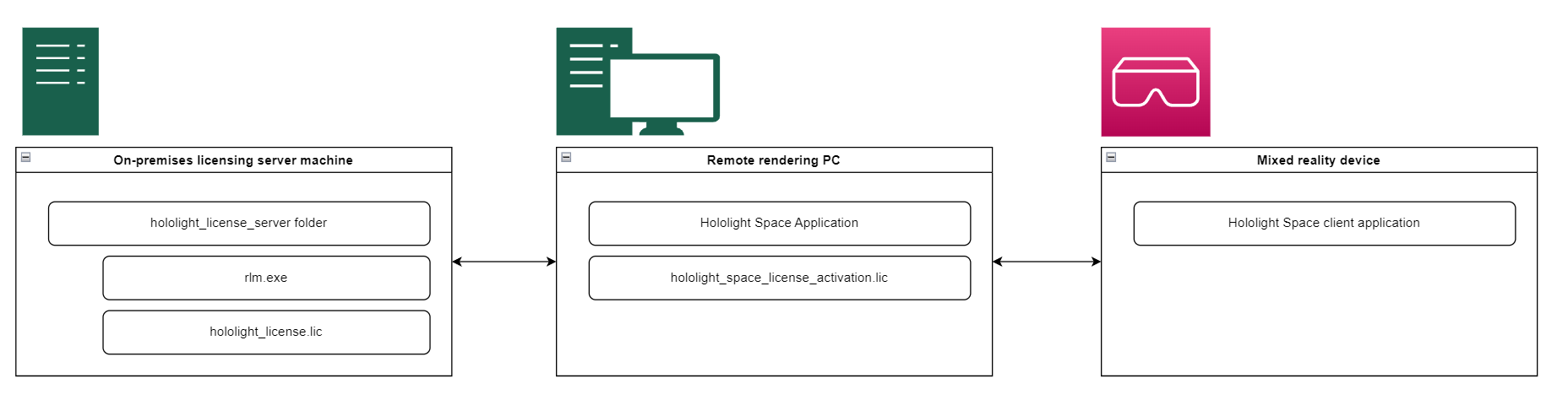
That’s where our on-premises licensing solution comes in. With it, you can activate Hololight Space without an internet connection, ensuring an extra layer of protection. To do this, first selecting a Windows machine to act as the licensing server. This licensing server will need to connect to the private network you want to use with Hololight Space. This Windows machine can be a dedicated device in your server rack that runs all the time, a simple laptop, or anything in-between. Once you’ve selected a server machine, you will work with a member of Hololight’s team to set it up as a licensing server and create a corresponding activation file. In the end, you can use the activation file to activate Hololight Space while connected to the private network shared with your new licensing server.
Setup on-premises licensing server
Step 1: Download and extract the License Server Tool
-
Download the License Server Package from the Hololight Space downloads page.
-
Extract the files from the downloaded ZIP file.
-
Transfer the extracted folder to a permanent location on the license server.
We recommend placing it on the C:/ drive.
Step 2: Launch the License Server Tool
-
Navigate to the folder containing the extracted files.
-
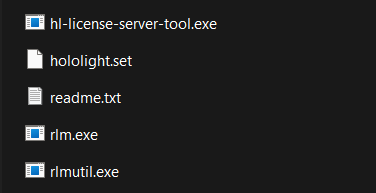
Right-click hl-license-server-tool.exe and select Run as administrator.
Step 3: Retrieve the server UUID
-
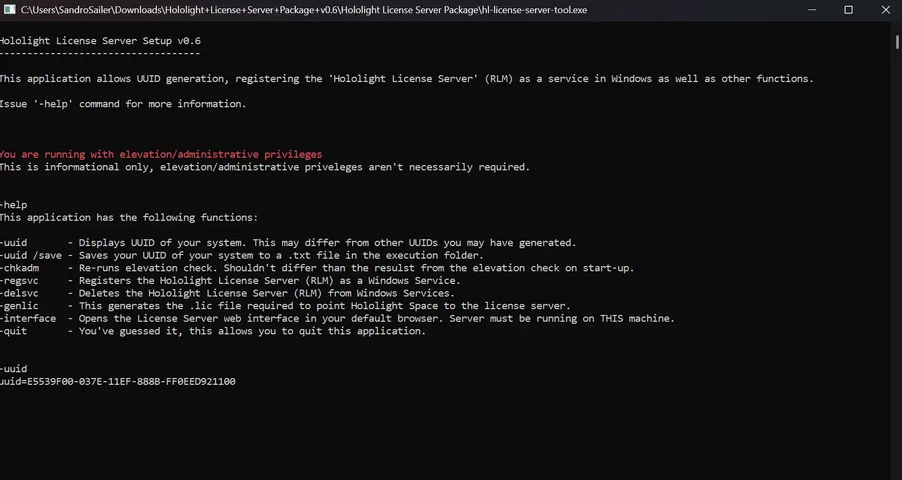
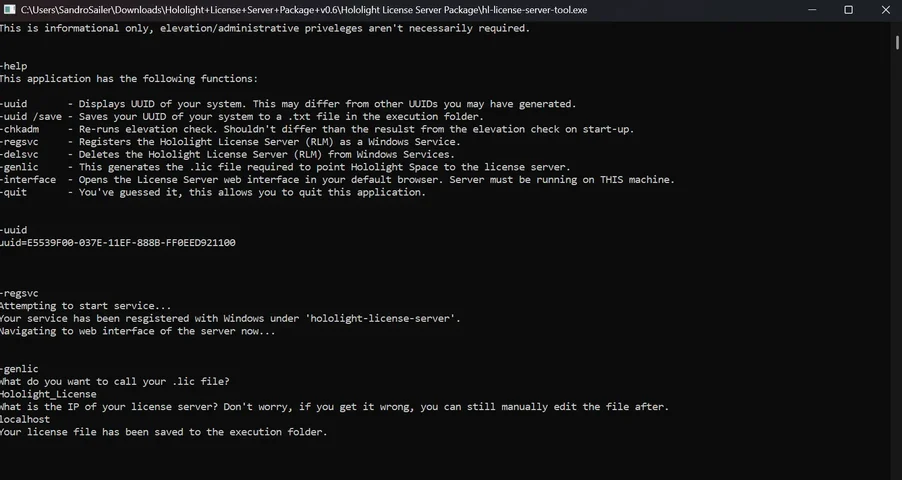
Enter the following command to display a unique machine identifier:
-uuidTo display all available commands, enter:
-help -
Copy the UUID and send it to your contact at Hololight.
Step 4: Install your license server file
-
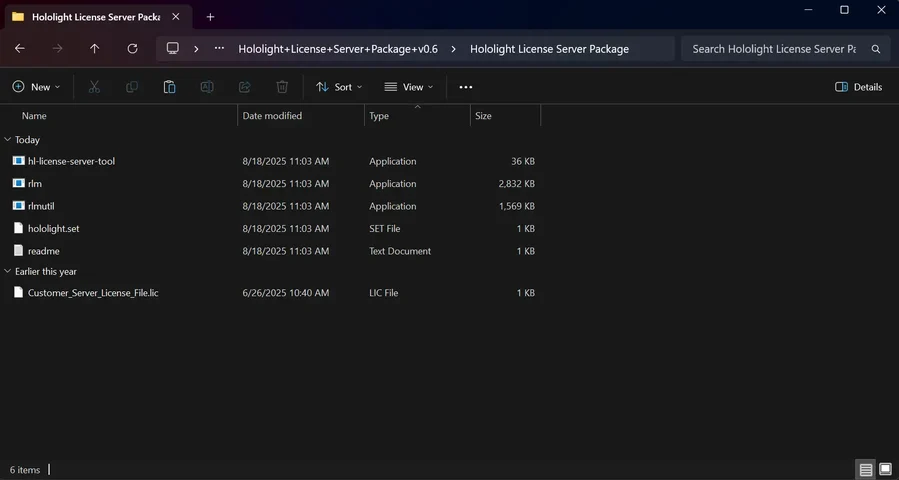
After submitting your UUID, you’ll receive a license server file from Hololight.
-
Place this file in the same folder as the license server tool.
Step 5: Start the license server and register the RLM license service
-
If not already open, open the License Server Tool again as an administrator.
-
Run the following command to register the server as a background service:
-regsvc -
The RLM server should then open. If the RLM server doesn’t open, right-click the rlm.exe file in the folder and select Run as administrator.
Step 6: Start and secure the RLM Server
After the last command, if a browser doesn’t open, open one manually and go to:
https://localhost:5054
-
Sign in with the default credentials:
Username
admin
Password
admin
-
Immediately change the password to prevent the service from terminating after 10 minutes.
-
In the left sidebar, navigate to Reread/Restart Servers and select Reread/restart to load the new license settings.
Step 7: Generate the client license file
-
If not still open, reopen the License Server Tool as an administrator.
-
Enter the following command:
-genlic -
When prompted, assign a name to the license file. (For example, you could use "client_license".)
-
Enter the IP address of the client machine that will retrieve the license.
If the license server and client are on the same machine, enter "localhost". -
The license file will then get saved in the License Server Tool folder.
Step 8: Activate the license in Hololight Space
-
Open Hololight Space.
-
Go to the Licensing section.
-
Select Select new license file.
-
Choose the license file you generated in step 7.
-
Select Activate.
Once activated, Hololight Space license state will switch to Licensed version. Find more information on activating Hololight Space in our Activate Hololight Space guide.
Release your license
Sometimes it is necessary to release a license. You might want to change the license type before reactivating or allow someone else to use the license.
-
To release a license, select the Release button on the Hololight Space License panel.
-
When the green "Server Reachable" icon disappears, the license is free.